Set up agent requests in Jira Admin Agent
Agent requests give space admins a way to ask for configuration changes without knowing the admin path. Jira Admin Agent turns the request into a work item in the space you choose, so Jira admins can review it and decide how to action it.
Space admins can request any configuration change. In the beta, Jira Admin Agent can only apply the field changes listed in the Get started article. Jira admins make other changes manually.
Before you set up agent requests, turn on Jira Admin Agent.
はじめる前に
You must be a Jira admin to set up agent requests.
Jira Admin Agent must be turned on for your site.
Agent requests only work in company-managed spaces.
You need a space and work type where requests will be created.
Turn on agent requests
To turn on agent requests:
Select Settings in the top navigation bar.
Next to Ask admin agent, select the cog icon. The Jira Admin Agent configuration window opens.
Turn on requests from space admins.
Choose which spaces can send requests.
Choose the space and work type that requests are created in.
[保存] を選択します。
To turn off agent requests, open the configuration window, turn off requests, and select Save. You can change these settings at any time.
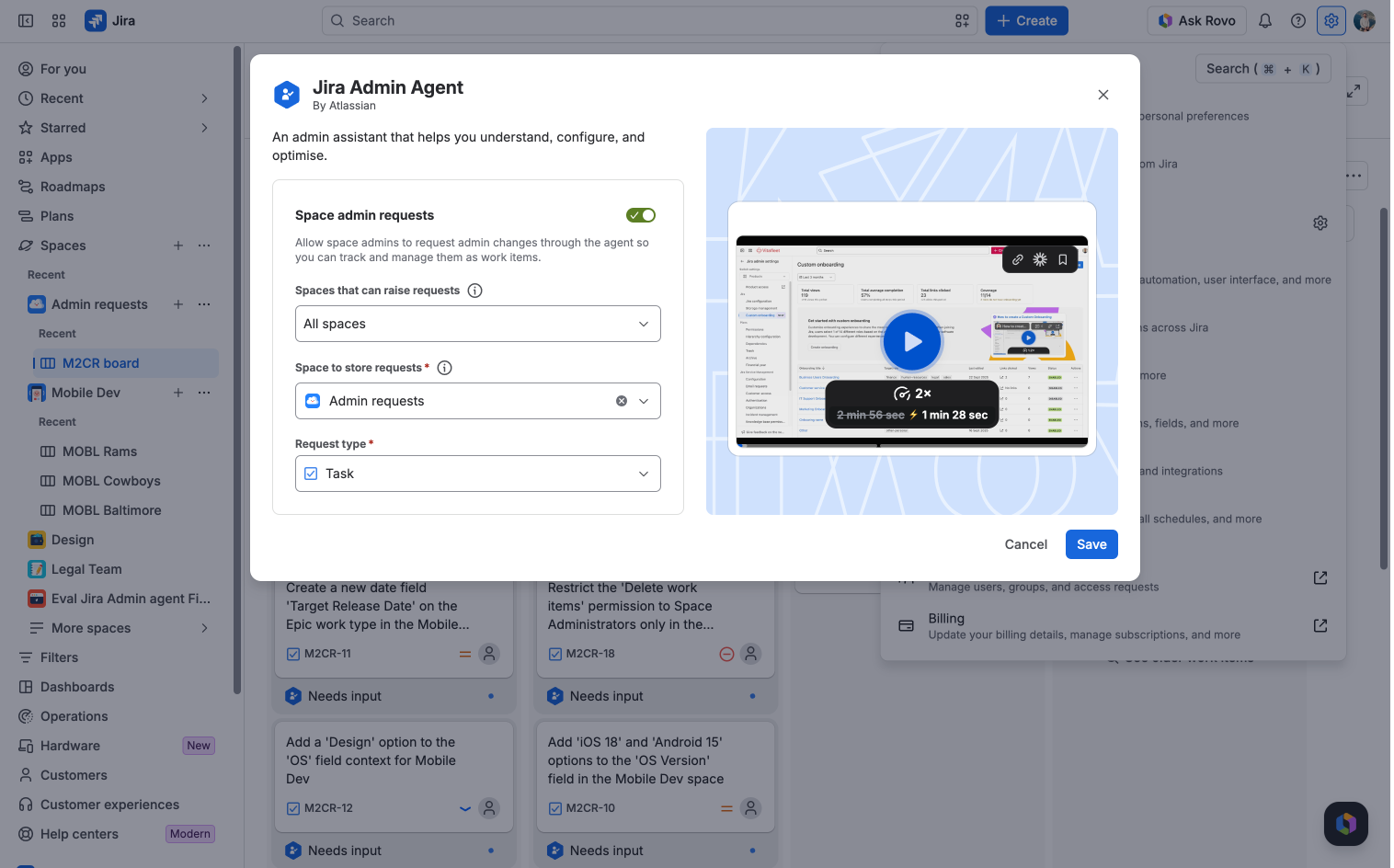
Choose which spaces can send requests
You can let space admins send requests from:
All spaces: Space admins in every company-managed space on your site can send requests. This includes spaces created later.
Selected spaces: Only space admins in the spaces you choose can send requests.
These settings only apply to spaces on the current site. To use agent requests on another site, turn on Jira Admin Agent and set up agent requests on that site too.
Choose a space for requests
Jira Admin Agent creates each request as a work item, using the space and work type you choose. When you choose a space:
Make sure everyone who handles requests can view and edit work items in the space.
Choose a work type that's easy to find and filter, such as Admin request.
Use a dedicated space if you expect a high volume of requests.
If the space is deleted, the configuration window shows "The space you chose for requests no longer exists." Space admins can't send requests until you choose another space and work type, then select Save.
Assign requests automatically
Jira Admin Agent doesn't automatically assign request work items. To route requests to the right admin, you can:
Set a default assignee: If the space is only used for requests, set the space's default assignee to the space owner, and make the admin who handles requests the space owner. Read how to change a space's default assignee
Create an automation rule: In the request space, create a rule with the Work item created trigger, a condition that checks for the request work type, and an action that assigns the work item to the right admin. Read how to create an automation rule
How space admins send a request
Space admins in spaces that can send requests can open Jira Admin Agent from the More actions menu on their space or board, or from Rovo Chat.
To send a request:
Open Jira Admin Agent and describe the change you need.
Review the agent's summary. If it misunderstood, reply with the correction.
Review the request, then select Create. Select Refine to change it first.
The agent creates the request in the request space, where Jira admins can track it.
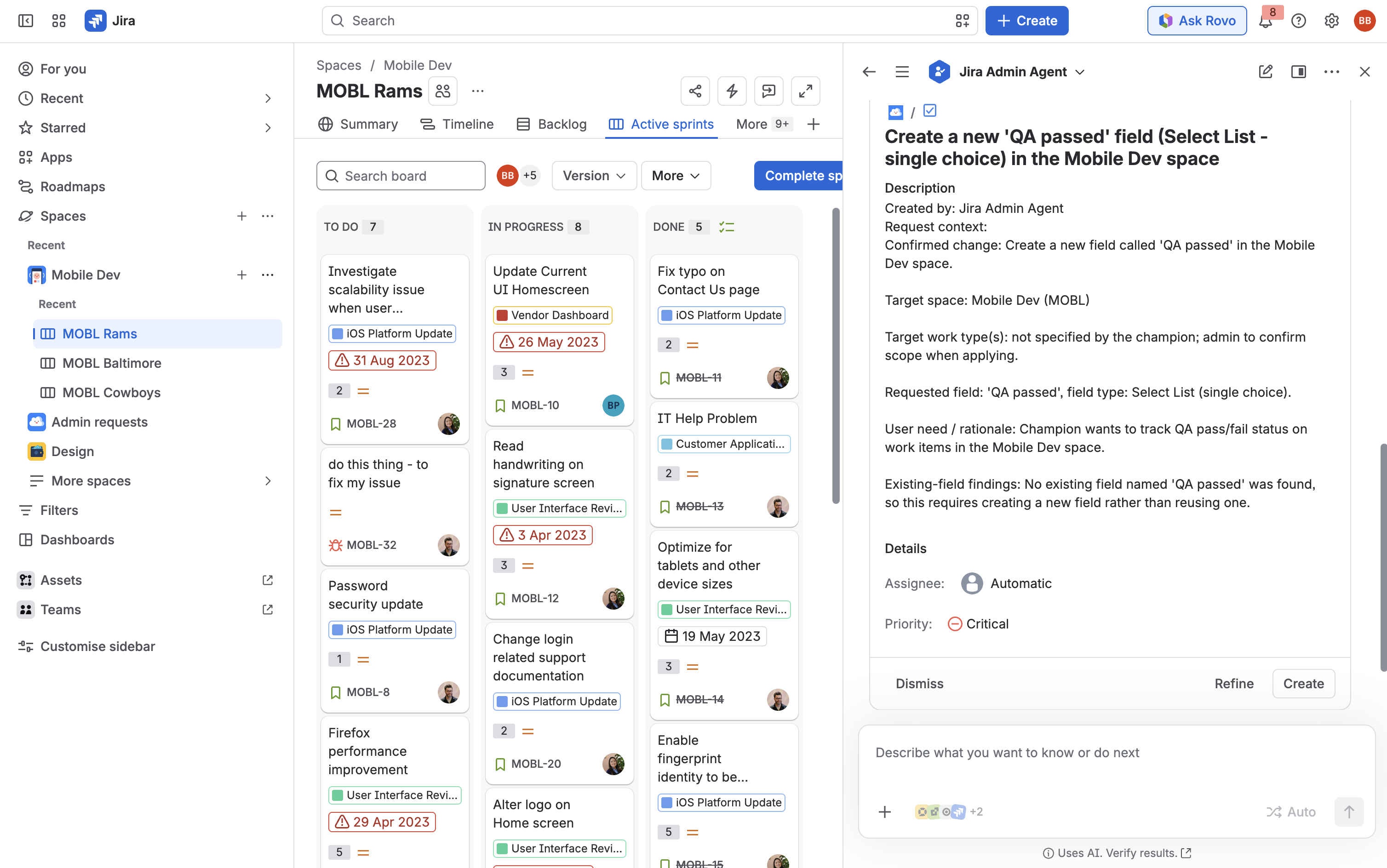
Action a request
Requests appear as work items in the request space.
For a field change, move the request to In progress, then use Jira Admin Agent to make the change. Depending on how your request workflow is set up, you can assign the request to Jira Admin Agent or action it yourself.
For any other change, make it manually in Jira settings.
この内容はお役に立ちましたか?