プログラム ボードに表示される内容は?
このページでは、Jira Cloud Premium と Enterprise の一部としてのみ利用できる高度な計画機能について説明します。
プログラム ボードを作成すると、以下が表示されます。
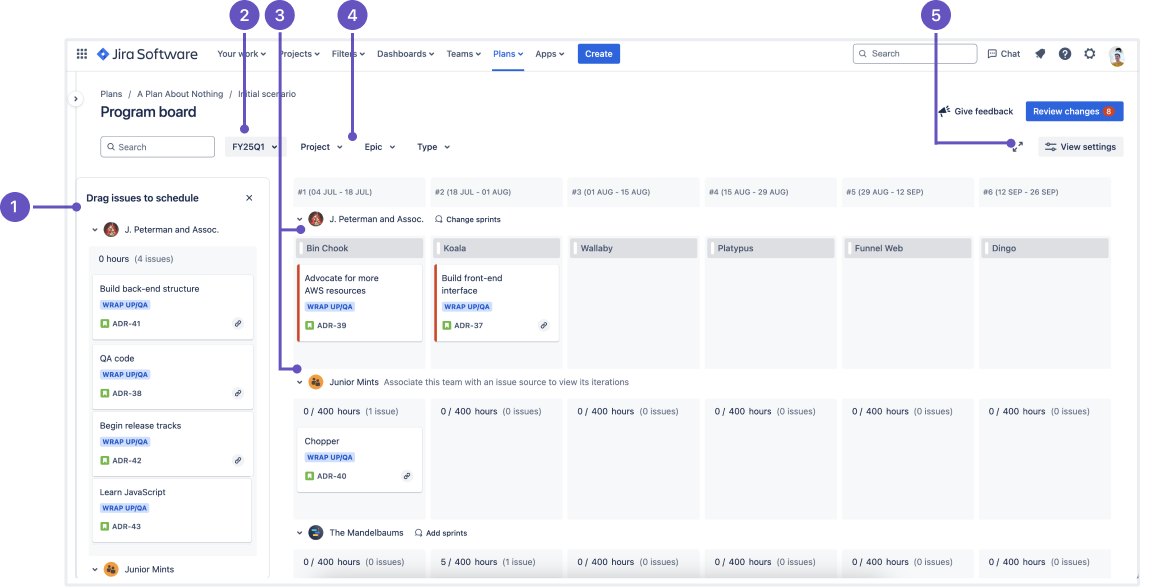
[Drag work items to schedule (作業項目をスケジュールにドラッグ)] というラベルの付いた列には、各作業項目に割り当てられたチームに基づいた、現時点で予定外の作業が表示されます。作業項目をドラッグするか、カードの [その他のアクション] メニュー (•••) を使用して、作業項目を目的のイテレーション列にスケジュールします。この列は [表示設定] メニューで非表示にできます。プログラム ボードが作業項目をスケジュールする方法の詳細をご確認ください。
このドロップダウン メニューを使用して、プログラム ボードを切り替えたり、新しいプログラム ボードを作成したりできます。新しいプログラム ボードを作成する方法をご確認ください。
プログラム ボードの各チームには独自のスイム レーンがあります。ここから、そのチームのバックログのスプリントをボードの列に関連付けることができます。この例では、J. Peterman and Associates チームは次の四半期に計画されたスプリントを使用するように設定されていますが、Junior Mints チームはそうではありません。プログラム ボードにスプリントを追加するにはどうすればいいですか。
元の親作業項目 (エピックなど)、作業タイプ、スペースなどのフィルターに基づいて、ボードに表示される作業をフィルタリングします。このフィルターはそれらをボードから削除しませんが、計画しやすいようにビューから隠します。フィルター オプションは、プランに関連する状況でのみ表示されます。
[ビューの設定] メニューを使って、プログラム ボードに表示する情報を調整します。プログラム ボードにあるビューの設定オプションをご確認ください。
この内容はお役に立ちましたか?