ユーザー、チーム、AI エージェントをメンションする
メンション (@メンションとも呼ばれます) は、ユーザーやチームに対してページ、リアルタイム文書、コメント、または彼らに割り当てたタスクへの注意を促すためのシームレスな方法です。コメントやエディター内でメンションを使用して AI エージェントを呼び出すこともできます。
Confluence Cloud では、次の 2 つの方法でメンションを追加できます。
オートコンプリートの使用。
エディタのツールバーを使用する。
@mentioned ユーザーには、 通知 に加えて ( サブスクライブしている場合は) そのことを知らせるメールが届きます。
重要な例外: Confluence Cloud プランのトライアル期間中、@mentioned ユーザーには通知は届きますが、メールは届きません。これは、ユーザーがメールを登録済みの場合でも同様です。
トライアルが終了すると、@mentioned 時にユーザーに通知する二次的な手段としてメールが追加されます。
ページ上で初めてユーザーをメンションすると通知やメールが送信されますが、以降のメンションでは送信されません。
他のユーザーの注意を促す必要がある際にその人物を以前メンションしたことがある場合は、代わりにコンテンツを共有することをお勧めします。
ユーザーのメンション
ユーザーをメンションしたり、ユーザーにタスクを割り当てたりすると、そのユーザーは通知ドロワーに通知とメール (登録済みの場合) を受け取ります。割り当てられたタスクも [タスク] に表示されます。
オートコンプリートを使用する
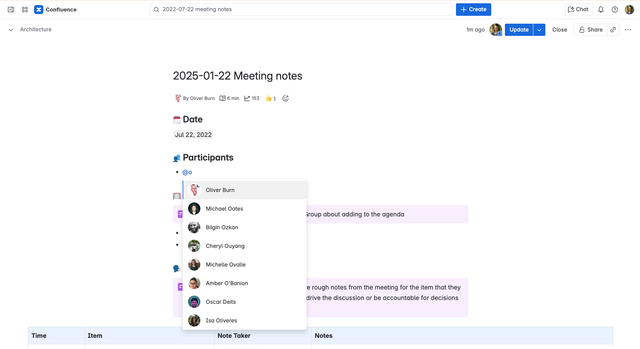
オートコンプリートを使用してユーザーをメンションするには、エディタで「@」を入力し、続けて相手の名前の入力を開始します。候補一覧からメンションする相手を選択します。
Jira Cloud でもオートコンプリート メンションを使用できます。Jira 課題でメンションやその他の機能によってコラボレーションする方法は、こちらのページをご参照ください。
エディターまたはツールバーを使用する
ツールバーまたはエディターを使用する場合は、「@」を入力するか @ アイコンを選択し、メンションする相手の名前を入力します。候補一覧からメンションする相手を選択します。
アクションを個人に割り当てる
アクションについて説明して誰かをメンションすると、その人がアクションの担当者に指定されます。
アクション アイテムを作成して割り当てるには、次の手順に従います。
[]と入力するか、ツールバーから [アクション アイテム] を選択します。アクションについて説明します。
@と入力して、誰かを名前でメンションします。その人に完了すべきアクションがあることが通知されます。
担当者は、アクションが完了した時点で、アクション アイテムに戻って完了としてマークできます。
チームをメンションする
また、メンバーが 50 人以下のチームに限り、ユーザーをメンションするのと同じ方法でチームをメンションできます。
チームをメンションしたり、タスクを割り当てたりすると、そのチームの個人は通知ドロワーに通知とメール (登録している場合) を受け取ります。割り当てられたタスクも [タスク] に表示されます。
オートコンプリートを使用する
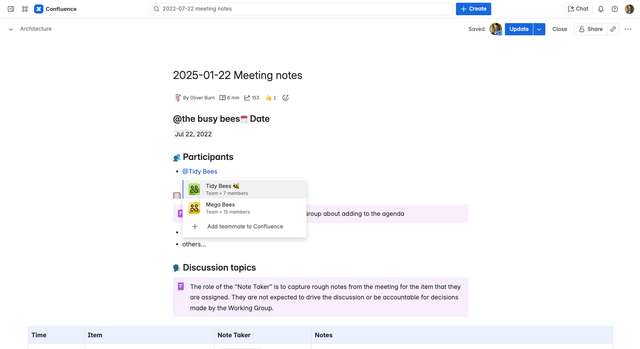
オートコンプリートでチームをメンションするには、エディターで「@」を入力したあと、続けてチーム名の入力を開始します。候補の一覧からメンションするチームを選択します。候補には、プロファイルの説明内にある単語や語句を持つチームも含まれます。
エージェントをメンションする
Confluence エディターやコメントでメンションしたエージェントを呼び出すには、次の作業を完了する必要があります。
開始方法
Rovo、AI 機能、または MCP エージェントを有効化するには、サイト管理者である必要があります。さまざまな管理者ロールの詳細をご確認ください
サイトで Rovo または Confluence AI を有効にします。Rovo アクセスを管理する方法をご確認ください
コラボレーションのために Rovo エージェントを設定します。これには、すぐに使えるサードパーティ MCP エージェントを含めることができます。Confluence コンテンツ上で AI エージェントとコラボレーションする
エディター内でエージェントをメンションする
エディター内で複数のエージェントをメンションできますが、一度にやり取りできるエージェントは 1 つのみです。
Confluence エディターでは、アクション アイテム、段落、リスト、または表内でエージェントをメンションできます。
アクション アイテムでエージェントをメンションする
アクション アイテムでエージェントをメンションすると、Confluence は特定のタスクが必要であると見なし、Rovo チャット インターフェイスを自動で開きます。
「
[]」と入力するか、ツールバーから [アクション アイテム] を選択します。エージェントに実行させるタスクを記述します。
「
@」と入力して、エージェントの名前を選択します。次のいずれかの操作を実行して、エージェントをトリガーします。
3 秒間入力を停止します。
アクション アイテム以外の項目を選択します。
Enter キーを押します。
Rovo チャットが自動で開き、タスクのテキストが送信済みのプロンプトとしてすでに入力された状態になっています。
段落またはリストでエージェントをメンションする
リストの場合は、リスト全体ではなく、メンションを含む特定の行項目のテキストのみがチャットに送信されます。
段落またはリストでのメンションは、多くの場合、情報提供を目的としています。Confluence が「ナッジ」を提供することで、ユーザーはタスクを開始するかどうかを選択できます。段落またはリストでエージェントをメンションするには、次の手順に従います。
段落または箇条書き/番号付きリストでコンテンツを入力します。
「
@」と入力して、エージェントの名前を選択します。3 秒間停止するか、別の項目をクリックするか、または Enter キーを押して、ナッジをトリガーします。
[エージェントとのチャットを開始] ナッジが表示されたら、それを選択してチャットを開きます。
チャット ウィンドウで下書きしたプロンプトを確認し、必要に応じて編集して、[送信] を選択します。
表内でエージェントをメンションする
表のセルが空の場合、エージェントはメンションされますが、プロンプトは作成されません。
表のセル内でエージェントをメンションすると、エージェントのコンテキストがそのセルのコンテンツに絞り込まれます。表内でエージェントをメンションするには、次の手順に従います。
表のセルを選択して、テキストを入力します。
「
@」と入力して、エージェントの名前を選択します。3 秒間停止するか、別の項目をクリックするか、または Enter キーを押して、ナッジをトリガーします。
[エージェントとのチャットを開始] ナッジを選択します。
その特定のセルの内容がプロンプトの下書きとして入力された状態で、チャットが開きます。
コメント内でエージェントをメンションする
Confluence のコメント内でエージェントをメンションすると、Rovo でそのエージェントとのチャットが開始されます。エージェントは、コメントやページのコンテキストを使用して、最初の下書き、簡単な要約、その他の特定のタスクをサポートし、作業が行われている場所でコラボレーションを継続できるようにします。
同じコメント内で複数のエージェントをメンションする機能は、まだサポートされていません。
コメント内でエージェントを呼び出してやり取りするには、作業する Confluence コンテンツを開いて、次の手順に従います。
一般コメントまたはインライン コメントを開始します。コメントの追加に関する詳細をご確認ください
コメントに「
@」と入力してから、呼び出すエージェントの名前の入力を開始します。メニューからエージェントを選択します。最近利用した相手によっては、ユーザーとエージェントが混在して表示される場合があります。
リクエストをコメントとして入力し終えたら、[追加] を選択します。
下書き中は、エージェントが Rovo チャットで応答することが Confluence によって通知されます。コメントを公開すると、サイド パネルで Rovo チャットが開き、メンションされたエージェントが選択された状態で会話が開始されます。
エージェントは、コンテキストを構築するために、アクセス権限を持つコメント、ページ、その他のコンテンツを使用する場合があります。ユーザーが表示して操作できるのは、エージェントのチャットと読み込み状態のみです。
エディタのツールバーを使用する
エディターのツールバーを使用する場合は、@ アイコンを選択してメンションするチームの名前を入力します。候補のリストからメンションするチームを選択します。候補には、入力した単語や語句がプロファイルの説明内にあるチームも含まれます。
この内容はお役に立ちましたか?