Import to whiteboards from Miro, Mural, and Figjam
Whiteboards aren’t available in Atlassian Government environments.
Bring your content from other tools to Confluence whiteboards and collaborate seamlessly with your team. Whiteboards support import of boards from Miro, Mural, and Figjam.
Export from Miro
Need to export and import multiple boards? Organizations on a Miro Enterprise plan can use a bulk exporter.
Import your whiteboards from Miro into Confluence to unlock features like smart connectors, smart sections, real-time editing, and experience brainstorming and collaboration like never before. Plus, keep everything organized with your whiteboards conveniently stored alongside your other Confluence content.
Export your Miro board
In Miro, open the board you wish to export.
At the top of your board, select More actions ().
Select Board, then Export. Select Export as image.
Select the area of the board that you’d like to export.
Select the Vector PDF option.
Select the Export button. (Make sure your pop-up blocker is disabled.)
Continue to Import to whiteboards.
For more information on exporting Miro boards, see the Miro support documentation.
You must use Save as image to import editable elements to your Confluence whiteboard.
How Miro elements import to Confluence whiteboards
Miro | Confluence whiteboards |
|---|---|
Sticky notes | Sticky notes |
Frames | Rectangles |
Borders | Borders |
Draw | Images |
Website embeds | Images |
Jira cards | Jira Smart Links |
Tables | Recreated with lines and rectangles |
GIFs | Images |
Text | Text |
Stamps | Images |
Tags | Text in rectangles |
Mind maps | Rectangles, lines, and connectors |
Export from Mural
Need to import multiple Mural boards? Use our bulk importer.
Import whiteboards from Mural into Confluence to unlock features such as smart connectors, smart sections, real-time editing, and experience brainstorming. Plus, you can keep everything organized with your whiteboards conveniently stored alongside your other Confluence content.
Export your Mural board
In Mural, open the board you wish to export.
Open the dropdown menu (⌄) in the top-left corner of the board, then select Download mural.
Or, right-click on your board’s background, then select Download.
Select the PDF file format and the content you'd like to export (All content, Selection, or Outline).
Select Download. Pick a location to save your file. Make sure your pop-up blocker is disabled.
For more information on exporting Mural boards, see the Mural support documentation.
You must use Save as PDF. This will let you import editable elements to your Confluence whiteboard.
How Mural elements import to Confluence whiteboards
Mural | Confluence whiteboards |
|---|---|
Sticky notes | Sticky notes |
Borders | Borders |
Draw | Lines |
Website embeds | Images |
Tables | Recreated with lines and rectangles |
GIFs | Images |
Text | Text |
Stamps | Images |
Tags | Text in rectangles |
Mind maps | Rectangles, lines, and connectors |
Export from Figjam
Import your whiteboards from Figjam into Confluence to unlock features like smart connectors, smart sections, real-time editing, and experience brainstorming and collaboration like never before. Plus, keep everything organized with your whiteboards conveniently stored alongside your other Confluence content.
Export your Figjam board
In Figjam, open the board you wish to export.
Select the Main menu icon in the top-left corner, then select File > Export As.
In the Export dialog, select from PNG, JPG, or PDF.
If exporting as PNG or JPG, select a Background option (Transparent, Solid, or Grid).
For the Export area, you can select the entire board, or Selection only.
Select the Export button.
Select a location to save the file.
Continue to Import to whiteboards below.
For more information on exporting Figjam boards, see the Figma support documentation.
Import to whiteboards
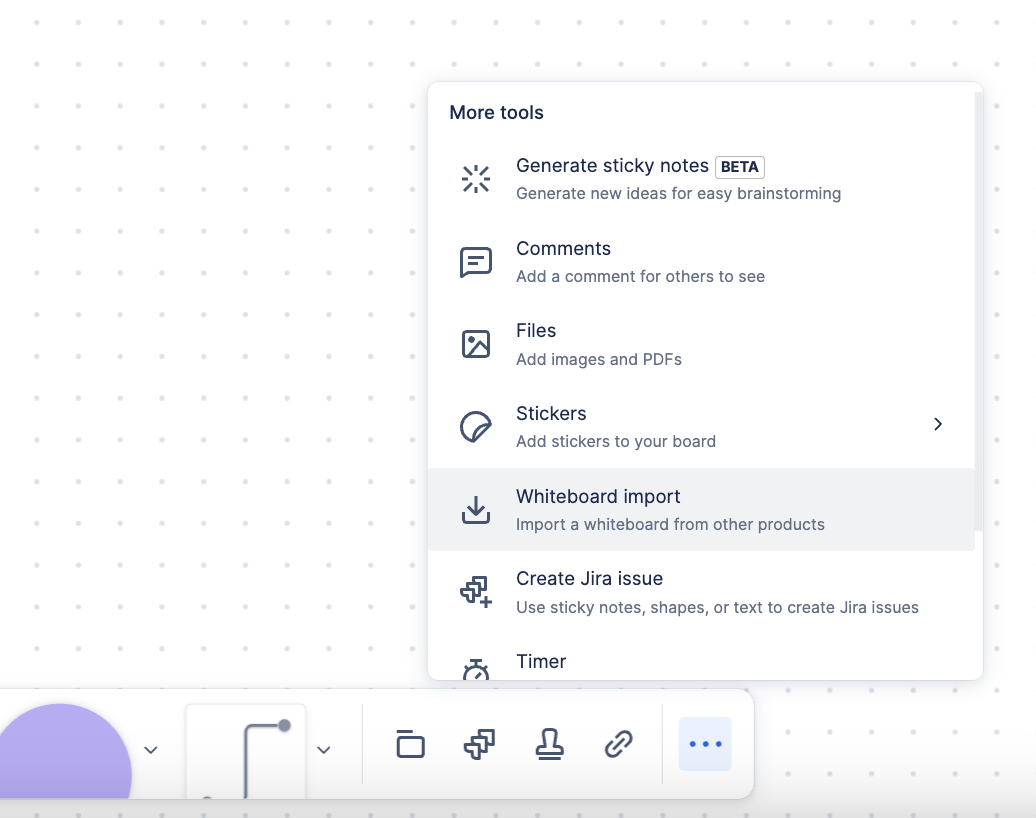
Navigate to the whiteboard where you wish to import the image or PDF. You can use an existing whiteboard or start a new one.
You can import your content in two ways:
Drag your image or file into your whiteboard.
On the toolbar, select the More menu ( … ), select Whiteboard import, navigate to your file, and select it.
Select your content type.
The import process will complete.
When should I recreate my content in Confluence whiteboards vs. uploading a static image?
For projects that are still in progress and continue to be iterated on, we recommend importing as an image and recreating the areas that require additional editing and changes.
For projects that are completed, but may need to be referenced in the future, we recommend importing as an image. The content will then live in Confluence whiteboards as the new source of record.
Limitations
Some limitations and differences between your external tools and Confluence whiteboard will occur.
Importing comments from other tools is not supported, but you can comment on Confluence whiteboards.
Colors will be mapped to the closest Confluence whiteboards colors.
Connectors will not import, but they can be recreated in Confluence whiteboards.
Rotated elements will import unrotated.
Shapes supported in whiteboards will import as shapes. Shapes that are not supported will import as images.
Locked elements will not remain locked when imported, but you can manually lock them in Confluence whiteboards.
Talk tracks are not supported in whiteboards.
Whiteboards have a 10,000-element limit.
Importing may take longer than a minute for boards with many elements, large images, or a lot of content.
Was this helpful?