Troubleshoot access problems at the space level
This article describes Confluence's new role-based access model. Role-based access is now generally available (GA).
To manage roles, go to Confluence settings, then select Permissions, then Space roles, or open Space settings and select Users.
If you don't see these options, your instance hasn’t been enabled for roles yet.
Sometimes users end up with too little or too much access. Or sometimes you just need to audit user access to reassure yourself that it's correct. Confluence offers helpful ways to troubleshoot access problems in your space.
How additive permissions work
Confluence operates on a model of additive permissions, which means that if someone has access to a space in two or more ways, their effective access is the sum of all permissions across every all of their sources of access in a space.
Example: Why individual roles don't override group roles
Say the product-marketing group has the Collaborator role in your space. Omar is a member of that group. You want to limit Omar to view-only access, so you add him individually with the Viewer role.
Result: Omar can still edit content in the space.
Why: Permissions in Confluence are additive – they stack, they don't override. Omar gets access from both his individual role (Viewer) and his group role (Collaborator). Because Collaborator includes edit permissions, Omar retains the ability to edit.
Key takeaway: You can't reduce someone's access by assigning a lower individual role. To restrict Omar's access, you'd need to remove him from the product-marketing group or change the group's role.
Example: How permissions stack from multiple sources
Say your space has the following access configured:
Source | Type | Permissions granted |
|---|---|---|
Group: | Custom access |
|
User class: | Role |
|
Grace is a member of both the acme-it-team-east group and a Confluence admin on the site.
Result: Grace's effective permissions are the union of both sources:
View content (from both sources)
Comment on content (from
acme-it-team-east)Manage access to space (from
All Confluence admins)Manage guest access to space (from
All Confluence admins)
Key takeaway: A person's effective access is equal to the sum of every source that grants them access to a space. To troubleshoot why someone has more access than expected, check all the ways they might be getting it – not just their individual space access assignment.
View all sources of access for a user
In the Users table, you can audit all sources of access a user has. For instance, a user may have explicit access to a space as an individual user but may also have implicit access to the space as a member of a group or a user class.
Someone has more access than expected
If someone is doing something in the space that they shouldn’t be able to (for example, editing, commenting, viewing), it’s likely because of additive permissions — they’re receiving the permission from another source.
To troubleshoot this, you can get a full picture of a user’s access by auditing all sources of their access to the space:
Go to Users in space settings.
Enter the user’s name in the search bar.
This will filter the list to show the individual user (if they’ve been explicitly added to the space with a role) and any other groups or user classes they’re a member of that have access to the space.
This represents a complete picture of the users' access, including all sources of access that apply to them.
From there, you can change the level of access for any of the sources, remove a source, or remove the user from the source (though, you’ll likely need an organization admin to do the last one).
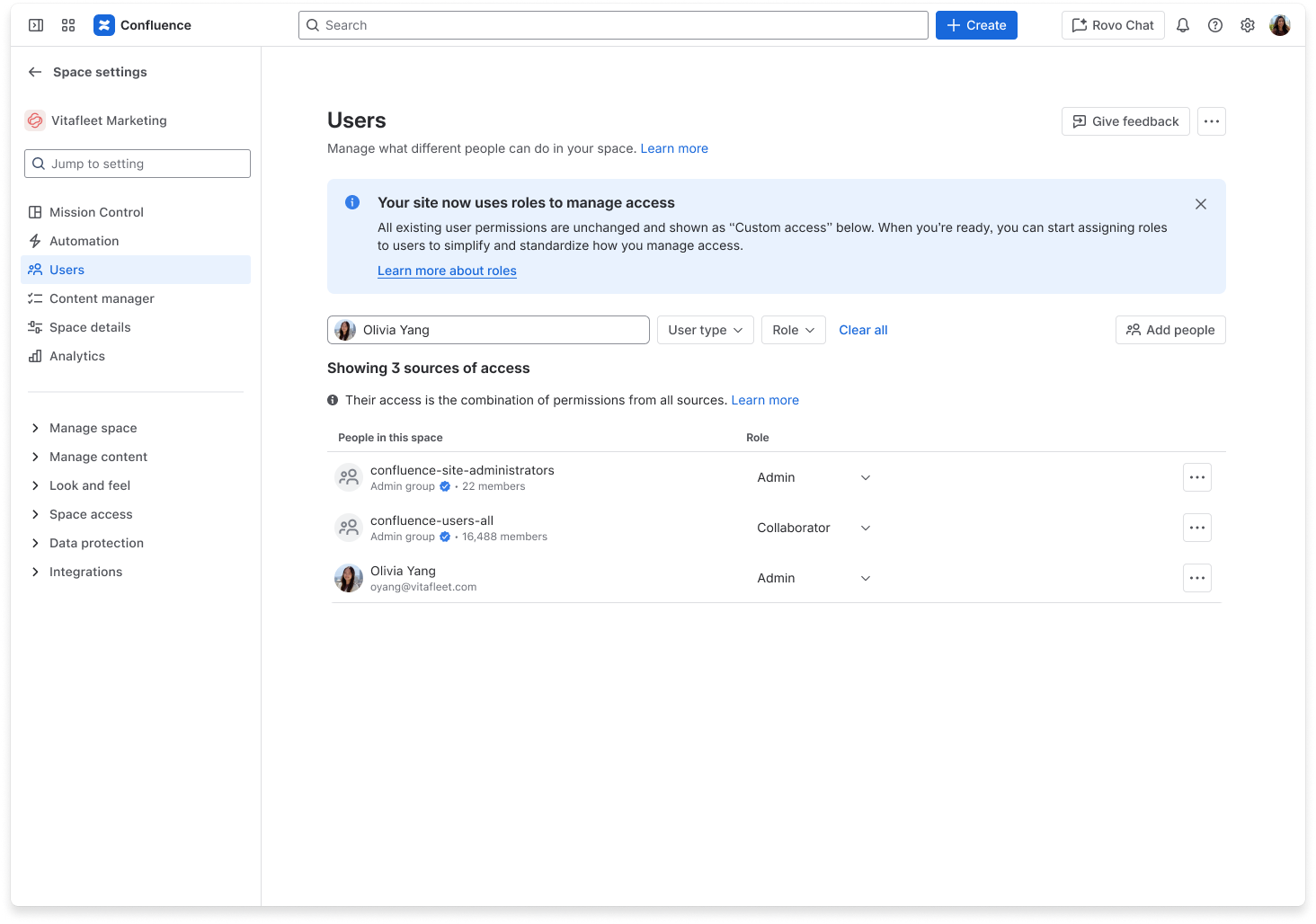
Someone has less access than expected
If someone can’t do something in your space that they should be able to do, they likely lack the permission to do it. To fix this, grant them the permission by adjusting their role.
To audit the access they currently have:
Go to Users in space settings.
Enter the user’s name in the search bar. This will collect all sources of access that apply to the user.
Select the More actions () menu next to the role selector for each source and select Manage access.
This will open a window that shows which permissions are associated with the role.

The individual permissions included in the Manager role.
If none of the user's access sources include the required permission, change one of their assigned roles to one that does.
Recommendation: If the user already has individual access (not through a group or class), the simplest approach is to change their assigned role to one that includes the permission they need. If they don't have individual access yet, you can add them directly.
If no existing role matches the permissions they need, create a custom role with the specific permissions required.
Was this helpful?