Create AI-generated slides with Rovo
Slides are an AI-generated presentation you can create and edit directly in Confluence. Each slide deck is a content item in a space with the same permissions and sharing options as any other Confluence-native content item.
Use Rovo to generate slides — using your pages, live docs, whiteboards, databases, Jira spaces, Goals, and more — and add them to Confluence. In just minutes, you create a visually rich slide deck, complete with charts, graphics, images, and styling. Instead of an empty template, get started with a complete set of slides based on any information and images you provide.
Get started with slides
Slides are an AI-native content type. You start by interacting with Rovo, providing either a descriptive prompt or links to relevant content.
How Rovo uses your content: Rovo reads the text from your source material and uses it to generate your presentation. It may also infer the relevance of images in your source material and use them in your slides. This is based on image placement and surrounding text.
Rovo does not ingest or scan your image content into the AI model.
The four ways to start slides:
From the Create menu: Select Slides from the Create button in the top navigation or from the + button in the sidebar.
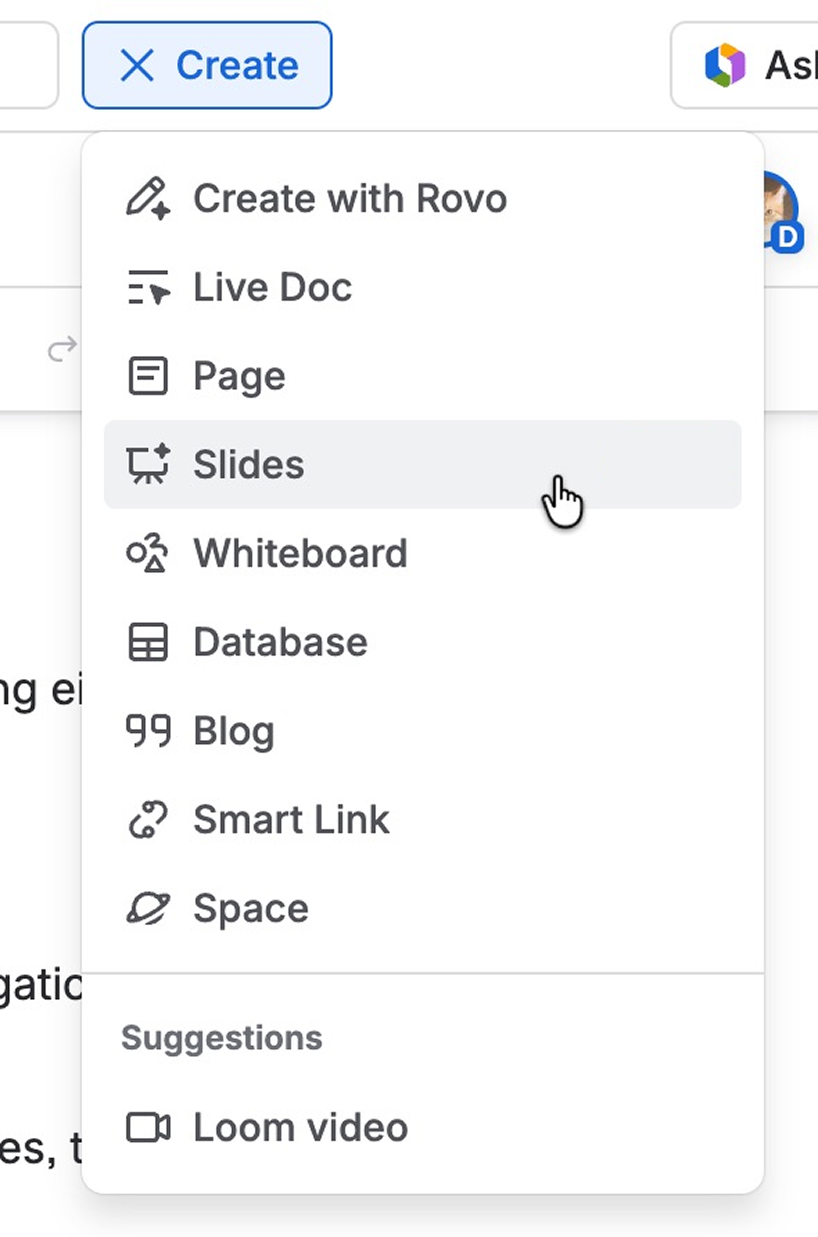
Create with Rovo: Select the Create button, then Create with Rovo. Write a prompt, add links and files, then select the Slides button to output.

Remix from any page or live doc: From any page or live doc, select Remix in the floating actions bar at the bottom right. Rovo will use that content to create slides.
Use Rovo Chat: Select Ask Rovo in the top navigation or the editor toolbar and write a prompt. You can ask for slides in the course of your conversation with Rovo and refer to the content you currently have open.
What’s a prompt?
A prompt is a collection of words, phrases, or sentences in conversational language. It tells an AI tool (like Rovo) exactly what you want it to do and helps it generate the best result. We recommend being as clear, simple, and specific as possible when writing a prompt.
You can always attach links to other content, mention relevant people, and add more context to your initial prompt or throughout your conversation with Rovo.
Examples:
“Create slides based on this page and our project plan.”
“Draft a project kickoff plan for our new marketing campaign.”
“Summarize the Q3 engineering retrospective.”
The preview area
When you submit your prompt, Rovo generates an initial draft of your slides in the preview area, which takes up all of your screen. The preview window includes a complete set of AI-generated slides that you can edit and refine.
Unlike when you create content items directly, the contents of the preview panel have not yet been added to a space. Only you can see and edit it until you select Add to Confluence. If you close the preview without adding your slides to Confluence, your changes aren’t saved.
The preview area opens on the first slide.
Hover your cursor over the preview panel on the upper left to see a preview of your slides.
Select a slide to jump right to it.
Use the
arrow keyson your keyboard to scroll through your preview.
Add to Confluence
When you’re done editing your slide preview, you will need to add it to a space to save your changes. This will also let you collaborate with up to 60 other people.
Select Add to Confluence.
Choose any space and parent item.
Select Add. You can always continue to make edits to your slide deck once it’s added to a space.
Your new presentation is added under the parent item and inherits user view and edit permissions from the parent.
Edit slides
You can edit a presentation in the preview window and also after you’ve added it to Confluence.
Make global edits
Slides are AI-first for editing, too. You can ask for changes on the entire slide deck using the Rovo chat window. Use conversational language to describe what you want to change.
Examples:
“Make the tone more casual and shorten each slide to three bullets.”
“Apply a consistent title style to all slides.”
“Combine overlapping slides and remove duplicates.”
Reorder, copy, paste, and delete
You can ask Rovo to change the order of slides or do it yourself. Select the preview panel, then drag and drop a slide preview to change its placement.
Or, right-click on a slide preview and select Move up or Move down. You can also Copy, Paste, and Delete the selected slide.
Edit a single slide
You can have Rovo redesign a full slide or select individual elements on a slide to make your own edits.
Select an element: You can select each layout, text box or image on the slide.
Right-click to open the context menu to Cut, Copy, Paste, and Delete. Use Bring to front and Send to back to change the placement of the element.
Change an element: Select any element on the page. A floating toolbar opens. Select Edit with Rovo to describe the changes you want.
Select text to use your keyboard or formatting options to edit the text manually.
Add a new slide
In the preview panel, select Add slide to add a new slide after the current slide. Rovo will ask you to describe the new slide.
Version history
You can view and restore a previous version of a presentation.
Select the More action (…) menu and select Version history.
Select a version to view.
Select Restore as new slide deck.
Restoring an old version of a whiteboard does not delete the current version or versions that come after it. Confluence creates a copy of the old version as a new whiteboard.
Present your slides
Select Present to enter a fullscreen presentation mode. Use the arrow controls at the bottom of the screen or the arrow keys on your keyboard to move through the slides.
While presenting, move your cursor to the top of the screen to reveal the presenter options. Select the Settings icon to switch from Full-screen view and turn the Cursor spotlight off.
Select the preview icon to see a list of slides. Select a slide to jump to it.
Select Exit or press Esc to exit presentation mode.
Generating great presentations
Get better results by giving clear, specific prompts. Here’s what works:
Provide your sources upfront
Link to the exact pages, live docs, whiteboards, databases, or Jira projects you want used. Note which are must-use vs. optional.
"Create slides based on [this project poster] and [this Q3 retro]. Use the data from the retro as the primary source."
Set your brand colors
Hex codes work best, but Rovo can also interpret color descriptions, vibes, or links to a company website.
"Use our brand colors: #0052CC and #FF5630."
"Match the palette from atlassian.com — blues and neutrals."
Specify a template
You can point to an existing deck or a blank template.
"Use this deck as the template — match its slide layout, typography, and spacing: link."
"Start from this blank template for the generated deck: template link."
Define the narrative and structure
Tell Rovo what to include, exclude, or reorder. If you have a story arc, spell it out.
"Start with a bold problem; end with a clear call to action."
"Include these slides in order: intro, problem, solution, timeline, budget, next steps."
Specify audience and tone
Say who it’s for and how it should sound.
"C‑suite budget review — concise, confident, data‑driven. Max three bullets per slide."
Control visuals and imagery
Note preferences for imagery, icons, charts, or layout style.
"Use product screenshots only — no stock photos."
"Include a timeline graphic for the roadmap slide."
Iterate with follow-ups
Treat the first draft as a starting point. Use follow-ups to refine globally or slide-by-slide.
"Shorten all titles to five words or fewer."
"Swap the chart on slide four for a simple table."
Confluence slides are a premium AI feature that consume Rovo credits. Find out how Rovo credits work for premium AI features.
Was this helpful?