Quickly reformat content with the block menu
Use “Change format” in the block menu to turn a Confluence element into another element. Change a paragraph into an expand, a title into a heading, or a numbered list into bullets.
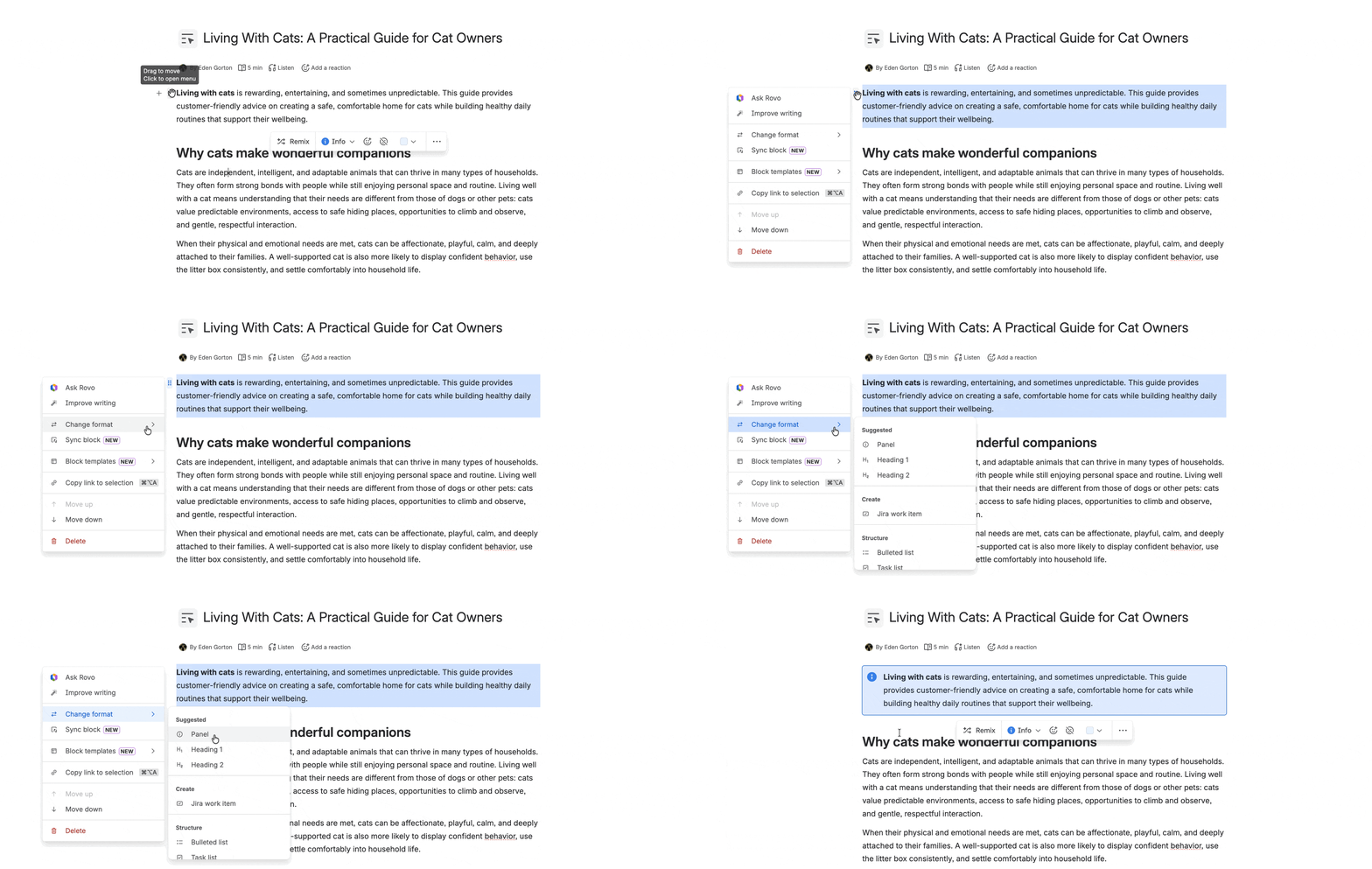
The block menu is also a quick way to format content.
Open the block menu
Access the block menu when you’re editing a blog post, live doc, or page. To open the block menu, select the drag handle just to the left of a Confluence editor element. This will be at the first line of a paragraph or the top left corner of any other element.

Reformat your content
Select Change format to see options that change your content from one Confluence element to another.
Pro tip: You can use the shift key to select more than one element or multiple paragraphs and apply the Change format options to the entire selection. This is useful, for example, for turning multiple paragraphs into a list, a code block, or even a layout.
Select one element then hold shift, and select somewhere else. Everything in between those two points will be selected.
Contextual suggestions
At the top of the menu are Suggested format changes that are most often used with the element you’ve selected. For example, suggestions for text include a panel or headings, while suggestions for a bulleted list include changing it to a task list or numbered list.
Structural transformations
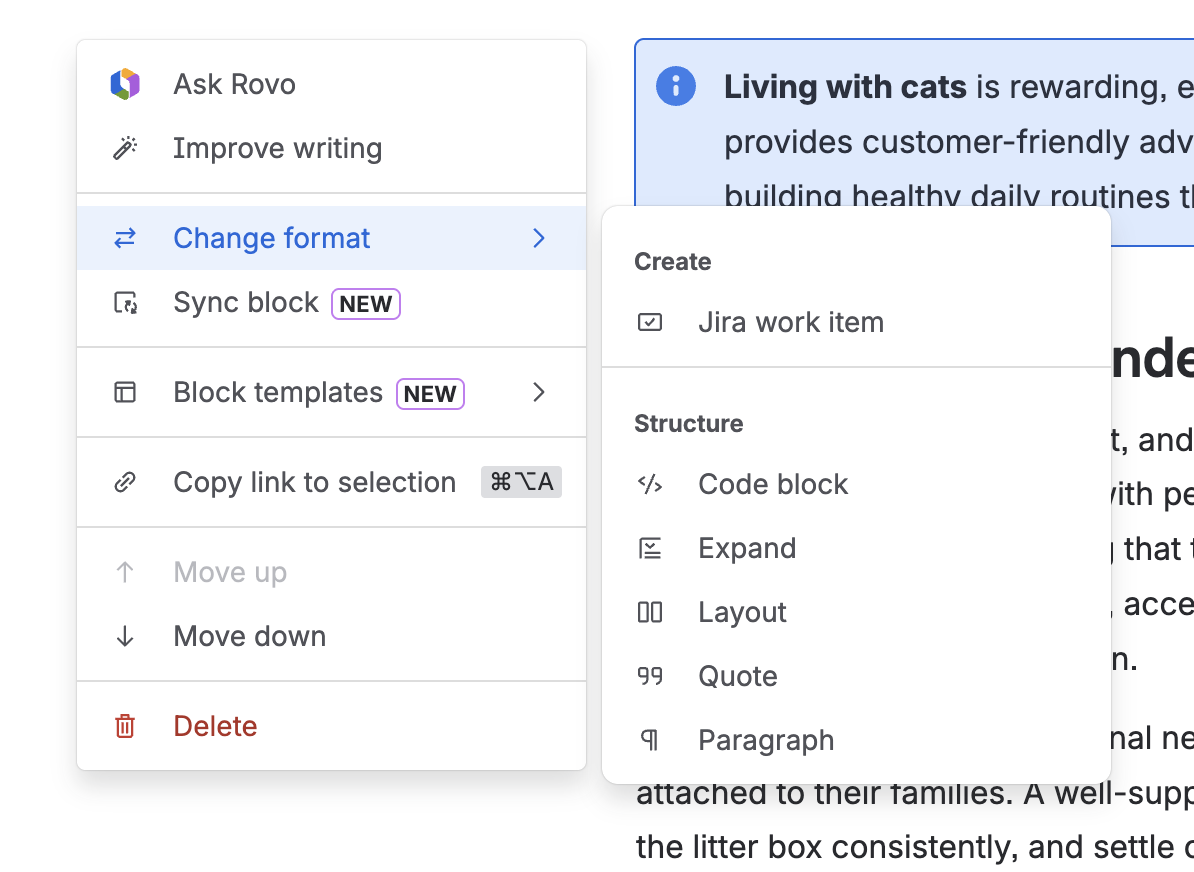
Depending on the element or elements you selected, the Change format menu will show different options.
Options can include:
Bulleted list
Task list
Numbered list
This defaults to a two-column layout with your selection in the left column. You can select other options with the floating toolbar.
Paragraph
Headings
For plain text paragraph elements, you will see an additional submenu with Heading 1 through Heading 6.
Working with synced blocks
The block menu is an easy way to create a synced block. Select one or more elements, then select the drag handle to open the menu, and select Sync block. Your selected content will be wrapped in a block element that can be added as view-only content in other Confluence content items or in a Jira work item.
Create a block template
All Confluence users can create block templates for personal use. Templates are private by default, which means only the person who created the template can see it in their template library and use it. However, you can selectively share block templates with others on your Confluence site. Read more about block templates
To create a block template:
While editing a page, highlight the content you want to reuse or hover over the block you want to save.
Select the block menu next to the content, then choose Save as block template
Select Save.
Browse all templates
Select Browse all templates to open the template gallery, then select any template to edit, share, copy, or delete it. You can only edit and delete templates you’ve created.
In the template gallery, you can browse templates by category:
All: Displays all block templates, including templates created by you, shared by others, or created by Atlassian. This is the only place where you can view all templates, not just your own.
My templates: Shows block templates you’ve created. These templates automatically appear in the insert menu for quick access.
Favorites: Keeps a shortlist of your favorite templates for easy access. Favoriting a template automatically makes it appear in the insert menu.
Copy a link
Easily reference a specific block of content by selecting Copy link to selection. Then you can paste a direct link to that section of content.
Move up, Move down, and Delete
Use the Move up and Move down options to move entire paragraphs or elements. Select Delete to delete your selection.
These also works with multi-select.
Was this helpful?