Quickly reformat content with the block menu
Use “Turn into” in the block menu to turn a Confluence element into another element. Change a paragraph into an expand, a title into a heading, or a numbered list into bullets. You can also create a Jira work item.
The block menu is also a quick way to create a synced block or move elements up and down.
Open the block menu
Access the block menu when you’re editing a blog post, live doc, or page. To open the block menu, select the drag handle just to the left of a Confluence editor element. This will be at the first line of a paragraph or the top left corner of any other element.
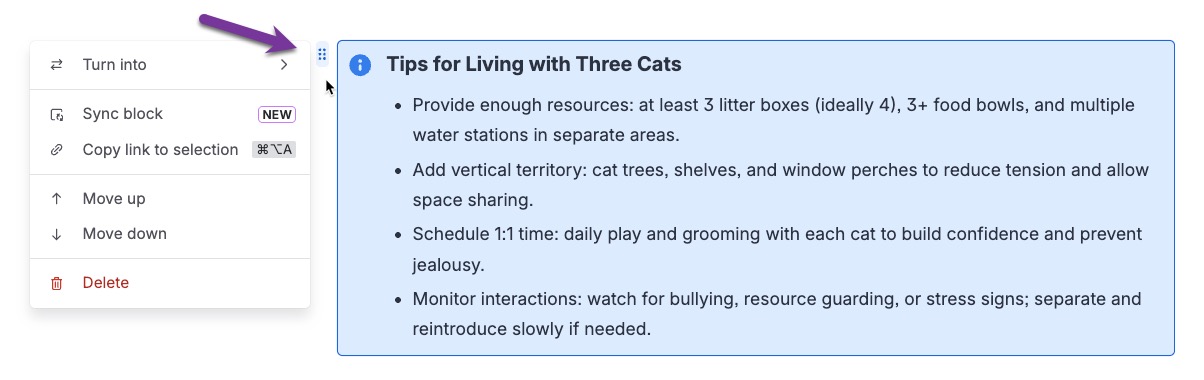
Use “Turn into” to reformat your content
Select Turn into to see options that change your content from one Confluence element to another.

Pro tip: You can use the shift key to select more than one element or multiple paragraphs and apply the Turn into options to the entire selection. This is useful, for example, for turning multiple paragraphs into a list, a code block, or even a layout.
Select one element then hold shift, and select somewhere else. Everything in between those two points will be selected.
Contextual suggestions
At the top of the menu are Suggested format changes that are most often used with the element you’ve selected. For example, suggestions for text include a panel or headings, while suggestions for a bulleted list include changing it to a task list or numbered list.
Create a Jira work item
Next is the create Jira work item option. When you select it, a panel will open on the right side of your screen. You’ll need to choose a Site, Jira Space, and Work type. The summary will be automatically filled with the text you selected. Rovo will also write a description based on the content in your document.
Select Create to add your work to Jira or Cancel to close the panel.
Structural transformations
Depending on the element or elements you selected, the Turn into menu will show different options.
Options can include:
Bulleted list
Task list
Numbered list
This defaults to a two-column layout with your selection in the left column. You can select other options with the floating toolbar.
Paragraph
Headings
For plain text paragraph elements, you will see an additional submenu with Heading 1 through Heading 6.
Working with synced blocks
The block menu is an easy way to create a synced block. Select one or more elements, then select the drag handle to open the menu, and select Sync block. Your selected content will be wrapped in a block element that can be added as view-only content in other Confluence content items or in a Jira work item.
Copy a link
Easily reference a specific block of content by selecting Copy link to selection. Then you can paste a direct link to that section of content.
Move up, Move down, and Delete
Use the Move up and Move down options to move entire paragraphs or elements. Select Delete to delete your selection.
These also works with multi-select.
Was this helpful?