Mention a person, team, or AI agent
Mentions (also known as @mentions) are a seamless way to draw a person’s or team's attention to pages, live docs, comments, or a task you’ve assigned to them. You can also invoke AI agents with mentions in comments and in the editor.
There are two ways to add mentions in Confluence Cloud:
using autocomplete.
via the editor toolbar.
People who are @mentioned will receive a notification and (if they’re subscribed) an email letting them know.
An important exception: During the trial period of any Confluence Cloud plan, people who are @mentioned will receive the notification, but not the email. This is true even if the person is subscribed to email.
Once the trial has concluded, email will be added as a secondary means of informing people when they’re @mentioned.
Notifications and/or emails are sent the first time you mention people on a page, but not for subsequent mentions.
If you need to catch someone's attention, and you've already mentioned them, try sharing content with them instead.
Mention a person
When you mention a person or assign a task to them, they'll receive a notification in their notification drawer as well as an email (if they’re subscribed). Any task assigned to them will also appear under Tasks.
Use autocomplete
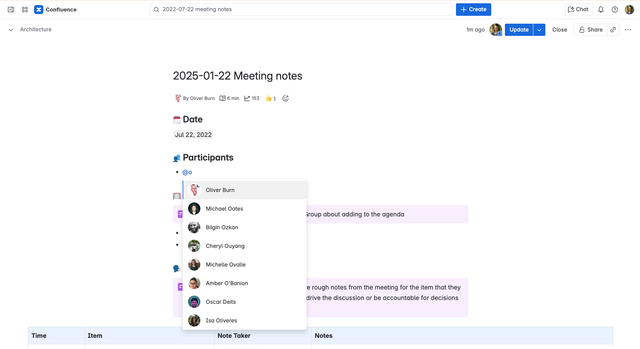
To mention a person using autocomplete, type ‘@' in the editor, then start typing their name. Choose the person you want to mention from the list of suggestions.
You can use autocomplete mentions in Jira Cloud as well. To learn about using mentions and other features to collaborate on Jira issues, go to this page.
Use the editor or toolbar
If you'd rather use the toolbar or editor, type @ or choose the @ icon, then start typing the name of the person you want to mention. Choose the person you want to mention from the list of suggestions.
Assign an action to a person
You can describe an action and mention someone and they will be assigned to complete this action.
To create an action item and assign it:
Type
[]or select Action item from the toolbar.Describe the action.
Type
@and mention someone by name. They will be notified that they have an action to complete.
When they complete the action, they can return to the action item and select it to mark it complete.
Mention a team
You can also mention a team in the same way you mention a person, but only for teams with 50 members or fewer.
When you mention a team or assign them a task, individuals in that team will receive notifications in their notification drawer, as well as an email (if they’re subscribed). Any task assigned to them will also appear under Tasks.
Use autocomplete
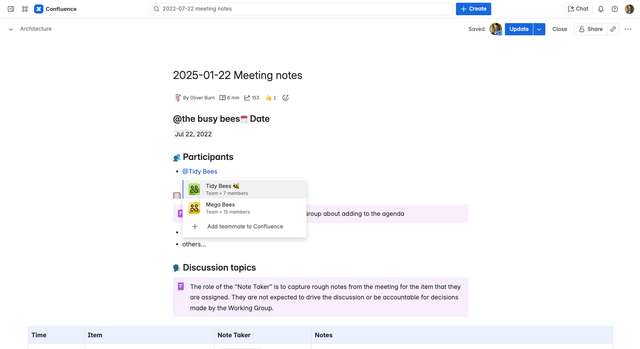
To mention a team using autocomplete, type ‘@' in the editor, then start typing the team name. Choose the team you want to mention from the list of suggestions. The suggestions will also include teams whose profile description contains the word or phrase entered.
Mention an agent
To invoke agents that you mention in Confluence editor or comments, you’ll need to complete the following.
To get started
You’ll need to be a site admin to enable Rovo, AI features, or MCP agents. Read more about different admin roles
Enable Rovo or Confluence AI on your site. Read how to manage Rovo access
Set up a Rovo agent, which can include out-of-the-box third-party MCP agents, for collaboration. Collaborate on Confluence content with AI agents
Mention an agent in the editor
You can mention multiple agents in the editor, but can only interact with one at a time.
In the Confluence editor, you can mention agents in an action item, a paragraph, a list, or in a table.
Mention an agent in an action item
When you mention an agent in an action item, Confluence assumes a specific task is required and automatically opens the Rovo Chat interface.
Type
[]or select Action item from the toolbar.Describe the task you want the agent to perform.
Type
@and select the agent's name.Trigger the agent by doing one of the following:
Stop typing for three seconds.
Select away from the action item.
Select Enter.
The Rovo chat will open automatically with your task text already populated as a submitted prompt.
Mention an agent in a paragraph or list
For lists, only the text from the specific line item containing the mention is sent to the chat, not the entire list.
For mentions in paragraphs or lists, the intent is often informational. Confluence provides a "nudge" so you can choose whether or not to start a task. To mention an agent in a paragraph or list:
Type your content in a paragraph or a bulleted/numbered list.
Type
@and select the agent's name.Trigger the nudge by stopping for three seconds, clicking away, or selecting Enter.
When the Start chatting with agent nudge appears, select it to open the chat.
Review the drafted prompt in the chat window, edit if necessary, and select Send.
Mention an agent in a table
If the table cell is empty, the agent will be mentioned but no prompt will be drafted.
Mentioning an agent within a table cell focuses the agent's context specifically on the content of that cell. To mention an agent in a table:
Select a table cell and enter your text.
Type
@and select the agent's name.Trigger the nudge by stopping for three seconds, clicking away, or selecting Enter.
Select the Start chatting with agent nudge.
The chat will open with the content of that specific cell as a drafted prompt.
Mention an agent in a comment
When you mention an agent in a Confluence comment, you start a chat with that agent in Rovo. The agent uses the comment and page context to help with first drafts, quick summaries, or other specific tasks, ensuring you can keep collaborating right where the work is happening.
Mentioning more than one agent in the same comment isn’t supported yet.
To invoke and interact with an agent in a comment, open the Confluence content you want to work on, and:
Start a general comment or an inline comment. Read about adding comments
In the comment, enter
@, then start typing the name of the agent you want to invoke.Choose the agent from the menu. You may see a mix of people and agents, depending on who or what you’ve recently worked with.
Finish typing your request as a comment, then select Add.
While you’re drafting, Confluence lets you know that the agent will respond in Rovo Chat. After you publish the comment, Rovo Chat opens in the side panel with the mentioned agent selected and the conversation started.
The agent may use the comment, page, and other content it has permission to access to build context. Only you can see and interact with the agent’s chat and loading states.
Use the editor toolbar
If you'd rather use the editor toolbar, choose the @ icon, then start typing the name of the team you want to mention. Choose the team you want to mention from the list of suggestions. The suggestions will also include teams whose profile description contains the word or phrase entered.
Was this helpful?