ブロック メニューでコンテンツを素早く再フォーマットする
ブロック メニューの「変換」を使用して、Confluence の要素を別の要素に変換します。段落を展開に、タイトルを見出しに、番号付きリストを箇条書きに変更しましょう。さらには、Jira 作業項目も作成できます。
ブロック メニューを使用すると、同期済みブロックを作成したり、要素を上下に移動したりすることもできます。
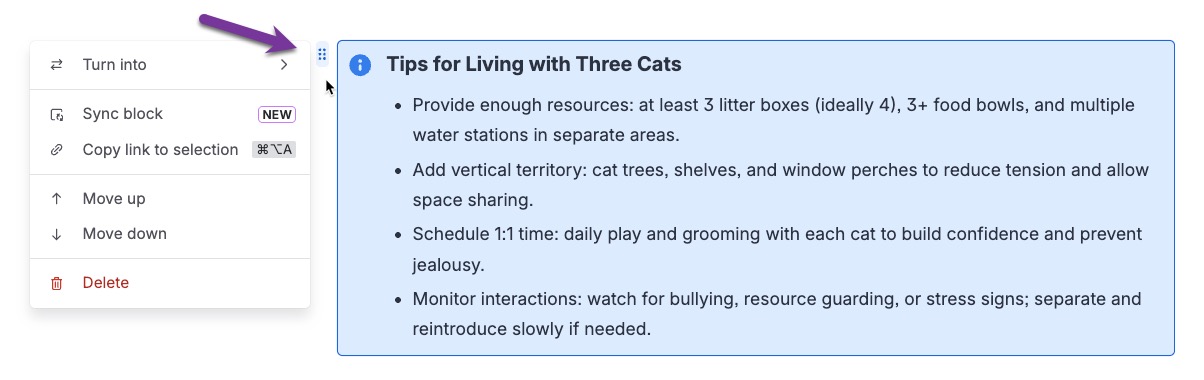
ブロック メニューを開く
ブログ投稿、リアルタイム文書、またはページを編集している際に、ブロック メニューにアクセスできます。ブロック メニューを開くには、Confluence エディター要素のすぐ左にあるドラッグ ハンドルを選択します。これは段落の最初の行、または他の要素の左上隅に配置されます。
「変換」でコンテンツを再フォーマットする
[Turn into (変換)] を選択すると、コンテンツをある Confluence の要素から別の要素に変更するオプションが表示されます。
![ブロック メニューが開いており、[Turn into (変換)] オプションが選択され、サブメニューが開いている状態の表示。](http://images.ctfassets.net/zsv3d0ugroxu/keEh3IO03kIybVkCKaIR7/069af790610adddf84462721dc088939/screenshot_blockMenuOpen-new.jpg)
プロからのヒント: shift キーを使用して複数の要素や段落を選択し、選択範囲全体に [Turn into (変換)] オプションを適用できます。これは、たとえば複数の段落をリストやコード ブロック、さらにはレイアウトに変換する場合に便利です。
1 つの要素を選択してから shift を押したまま、別の場所を選択します。その 2 点の間にあるすべてが選択されます。
コンテキストに基づいた提案
メニューの上部には、選択した要素において最もよく使用されるおすすめのフォーマット変換が表示されます。たとえば、テキストに対しては、パネルや見出しへの変換が提案されます。また、箇条書きリストに対しては、タスク リストや番号付きリストへの変換が提案されます。
Jira 作業項目を作成する
次は Jira 作業項目 を作成するオプションです。選択すると、画面の右側にパネルが開きます。サイト、Jira スペース、作業タイプを選択する必要があります。要約は、選択したテキストで自動的に入力されます。Rovo が、ドキュメントのコンテンツに基づいて説明も作成します。
[作成] を選択して作業を Jira に追加するか、[キャンセル] を選択してパネルを閉じます。
構造の変換
選択した要素に応じて、[Turn into (変換)] メニューには異なるオプションが表示されます。
オプションには、以下が含まれる場合があります。
箇条書き
タスク リスト
番号付きの箇条書き
これは既定で、左の列に選択項目が表示される 2 列レイアウトになります。フローティング ツールバーで他のオプションを選択できます。
段落
見出し
プレーン テキストの段落要素では、見出し 1 から 見出し 6 までの追加のサブメニューが表示されます。
同期済みブロックの操作
ブロック メニューは同期済みブロックを作成する簡単な方法です。1 つ以上の要素を選択し、ドラッグ ハンドルを選択してメニューを開き、[Sync block (ブロックを同期)] を選択します。選択したコンテンツはブロック要素でラップされ、他の Confluence コンテンツ項目や Jira 作業項目に表示専用コンテンツとして追加できるようになります。
リンクをコピーする
特定のコンテンツ ブロックを簡単に参照するには、[Copy link to selection (選択範囲へのリンクをコピー)] を選択します。その後、そのコンテンツ セクションへの直接リンクを貼り付けることができます。
上に移動、下に移動、削除
段落や要素全体を移動するには、[上に移動] および [下に移動] オプションを使用します。選択項目を削除するには、[削除] を選択します。
これらは複数選択でも機能します。
この内容はお役に立ちましたか?