OneDrive を Teamwork Graph に接続する
注意: OneDrive コネクタは SharePoint および OneDrive コネクタになりました。この統合コネクタを使用して、両方のソースからアセットを取り込みます。SharePoint を Teamwork Graph に接続する
既存の OneDrive コネクタのお客様は、SharePoint コネクタに移行されます。お客様側で必要な操作はありません。移行はアトラシアンが行います。この変更は取り込まれるコンテンツに影響せず、お客様のファイル権限は引き続き適用されます。設定を変更する必要がある場合は、SharePoint コネクタで変更できます。
ドキュメントから回答を取得して、企業のすべてのナレッジとともにファイルを管理しましょう。
何がインデックス化されますか?
OneDrive コネクタは、次のオブジェクトをインデックス化します。
Word 文書 (.doc、.docx)
Excel スプレッドシート (.xls、.xlsx)
PowerPoint プレゼンテーション (.ppt、.pptx)
PDF (最大 10 MB)
各オブジェクトについて、次の属性がインデックス化されます。
名前
URL
createdDate
最終更新日
作成者
協力者
ドキュメント本文
はじめる前に
OneDrive を Teamwork Graph に接続するには、Microsoft Entra グローバル管理者権限が必要です。
Teamwork Graph では常に権限が遵守されます。ユーザーには、すでにアクセス権があるファイルのみが表示されます。
OneDrive に接続する
アトラシアンの管理で OneDrive のセットアップ画面を開くには、次の手順に従います。
admin.atlassian.com に移動します。複数の組織がある場合は、対象の組織を選択します。
Select Connectors, then All connectors
Select Add connector, then, if you have more than one site, choose the site you want to connect to.
[Microsoft OneDrive] を選択して [次へ] を押します。
Azure ポータル
Azure ポータルにログインして、Microsoft Entra ID に移動します。
2. サイド ナビゲーションの [管理] で、[アプリの登録] > [新規登録] の順に選択します。
Teamwork Graph コネクタ (SharePoint や Teams など) に他の Entra アプリの登録をセットアップ済みである場合は、レート制限の問題を避けるために、コネクタごとに新しい登録をセットアップすることを強くお勧めします。
3. Azure ポータルの [アプリの登録] ページで、Teamwork Graph への接続に名前 (例:「OneDrive Atlassian Teamwork Graph」) を付けて、[この組織ディレクトリのみに含まれるアカウント] > [登録] の順に選択します。
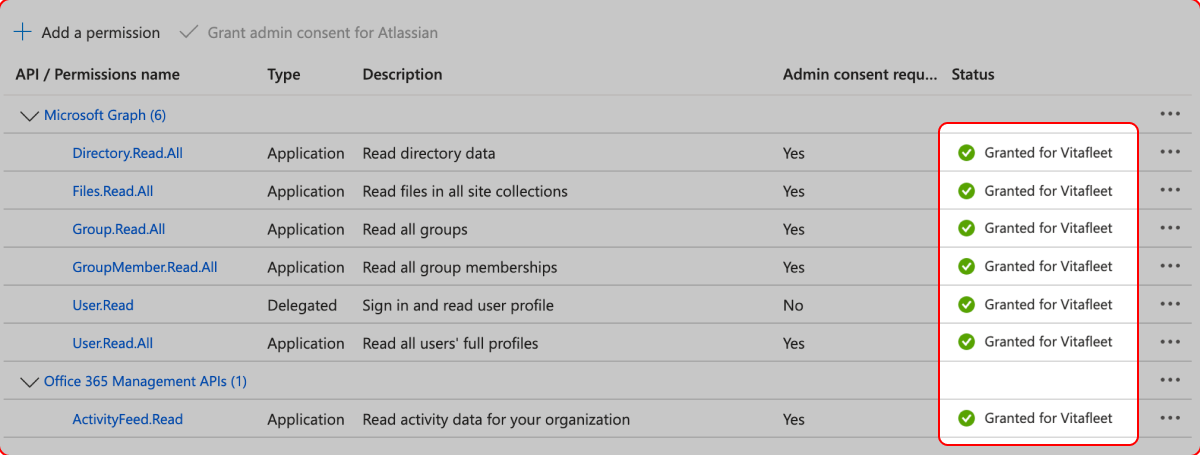
4. サイド・ナビゲーションの [管理] で [API 権限] を選択し、[API のアクセス許可] ページで [アクセス許可の追加] を選択し、次に [Microsoft Graph] を選択します。
5. [アプリケーションの許可] を選択し、[すべて表示] を選択します。
6. これらの権限を 1 つずつコピーして、検索行に貼り付けます。チェックボックスを選択します。すべての権限について繰り返します。
Directory.Read.All
Files.Read.All
Group.Read.All
GroupMember.Read.All
User.Read.All
7. [権限を追加] を選択します。
8. 追加する権限がもう 1 つありますが、それは別の API にあります。もう一度 [権限を追加] を選択して、今度は [Office 365 管理 API] を選択します。
9. [アプリの権限] を選択して ActivityFeed.Read を探します。チェックボックスを選び、[権限を追加] を選択します。
10. [<workspaceName> に対する管理者の同意を付与] を選択します。
11. これが完了したら、[管理] > [API のアクセス許可] 画面に戻ります。テーブルの [状態] 列に緑色のチェックマークと [<ワークスペース> に付与されました] が表示されるはずです (管理者の同意を必要としない User.Read 権限を除く)。
12. [管理] > [証明書とシークレット] の順に移動して、[Create app secret (アプリ シークレットを作成)] を選んでフォームに入力します。
13. シークレットを作成したら、[値] フィールドをコピーします (シークレット ID ではありません。以下のスクリーンショットを参照)。これはすぐに必要になります。
14. [概要] に移動して、次の詳細を admin.atlassian.com コネクタのセットアップ画面にコピーします。
アプリ ID
ディレクトリ ID
15. 先ほどコピーしたクライアント シークレットの値を、クライアント シークレットとして入力します。
16. 最後に免責事項を確認して、[保存] を選択します。
次のステップ
OneDrive との接続が完了すると、次のようになります。
ドキュメントは、数時間かけて徐々に検索に表示されるようになります。
チーム メンバーには、検索のフィルター オプションとして OneDrive が表示されます。Atlassian アカウントから OneDrive に接続していないチーム メンバーに対しては、結果が表示される前に接続を求められる場合があります。これは、Teamwork Graph においてチーム メイトに表示する結果をそれぞれのアクセス権に基づいて制限するために必要となります。
OneDrive 内にあるドキュメントの数によっては、OneDrive のすべてのコンテンツがインデックス化されて検索に表示されるまでに時間がかかる場合があります。
この内容はお役に立ちましたか?