
Make changes to a custom dashboard template
Analytics is now Insights
All of the Analytics capabilities of the app remain unchanged. You can continue using your existing dashboards, charts, and smart links alongside the new Rovo-powered features. These features combine work and data context to provide reliable answers, create a shared understanding of data, and build dashboards that your team can depend on.
Only Analytics admins can manage custom dashboard templates.
Edit a template’s title, description, or thumbnail
Select Dashboards from the global navigation.
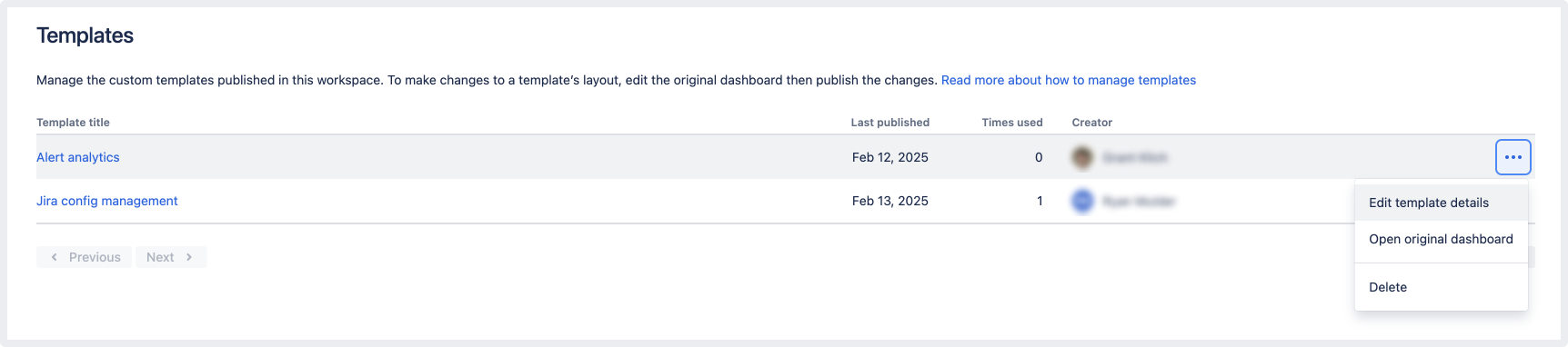
Select Manage templates.
Find the template you want to change in the list of templates.
Select More actions () > Edit template details.
Change the title, description, or thumbnail as needed.
Select Publish.
You’ll see these changes when you try to create a new dashboard using this template.
Edit a template’s layout
If you want to add, edit, or delete dashboard elements from one of your custom dashboard templates, you’ll need to make these changes to the original dashboard. The original dashboard is the dashboard that was used to publish the dashboard template.
If the original dashboard is archived or in the trash, you’ll need to restore it before you can publish new changes to the template. Read more about how to restore dashboards.
To edit a template’s layout:
Select Dashboards from the global navigation.
Select Manage templates.
Find the template you want to change in the list of templates.
Select More actions () > Open original dashboard. This will take you to the dashboard.
Make changes to the original dashboard as needed.
Select Publish template changes in the dashboard sidebar.
Optional: Edit the template title, description, or thumbnail as needed.
Select Publish changes.
Only new dashboards created with this template will have the published changes. Dashboards that were created with previous versions of the template will be unaffected.
Was this helpful?