Redact sensitive data from Confluence
We’re gradually transitioning Guard Detect into Atlassian Administration. We’ll support Guard Detect until the Atlassian Administration experience includes all the same features (and new ones!).
The Findings page in Atlassian Administration is the first step in the transition.
Guard Detect sends an alert when potentially sensitive data is detected. The alert includes an excerpt of the sensitive data to help you investigate. If you determine that the data is sensitive and should not be stored in Confluence you can choose to redact the data directly from the alert, regardless of any space permissions or page restrictions.
When you redact, the sensitive data is deleted and replaced by a solid bar.What happens when data is redacted or deleted from Guard Detect?
The only way to restore redacted content is to use the Guard Detect API, and this must be actioned within 30 days of the redaction. API request examples
Who can do this? |
Redact content or delete an attachment from an alert
Redact content from an alert
The data that will be redacted is highlighted red in the page excerpt. Anything that is highlighted will be redacted.
To redact sensitive data from an alert:
In Guard Detect, select Alerts from the header.
Navigate to a content scanning alert.
Review the highlighted sensitive data and investigation steps to determine if the data should be redacted.
Select Redact.
Confirm whether you want to also delete historical versions that contain the sensitive data.
The sensitive data will be deleted and replaced by a solid bar in the current version of the page, and any historical versions that contained the sensitive data deleted from the page history (if you chose that option).
In case of sensitive data detected in attachments, you will have an option Delete Attachment to delete the attachments.
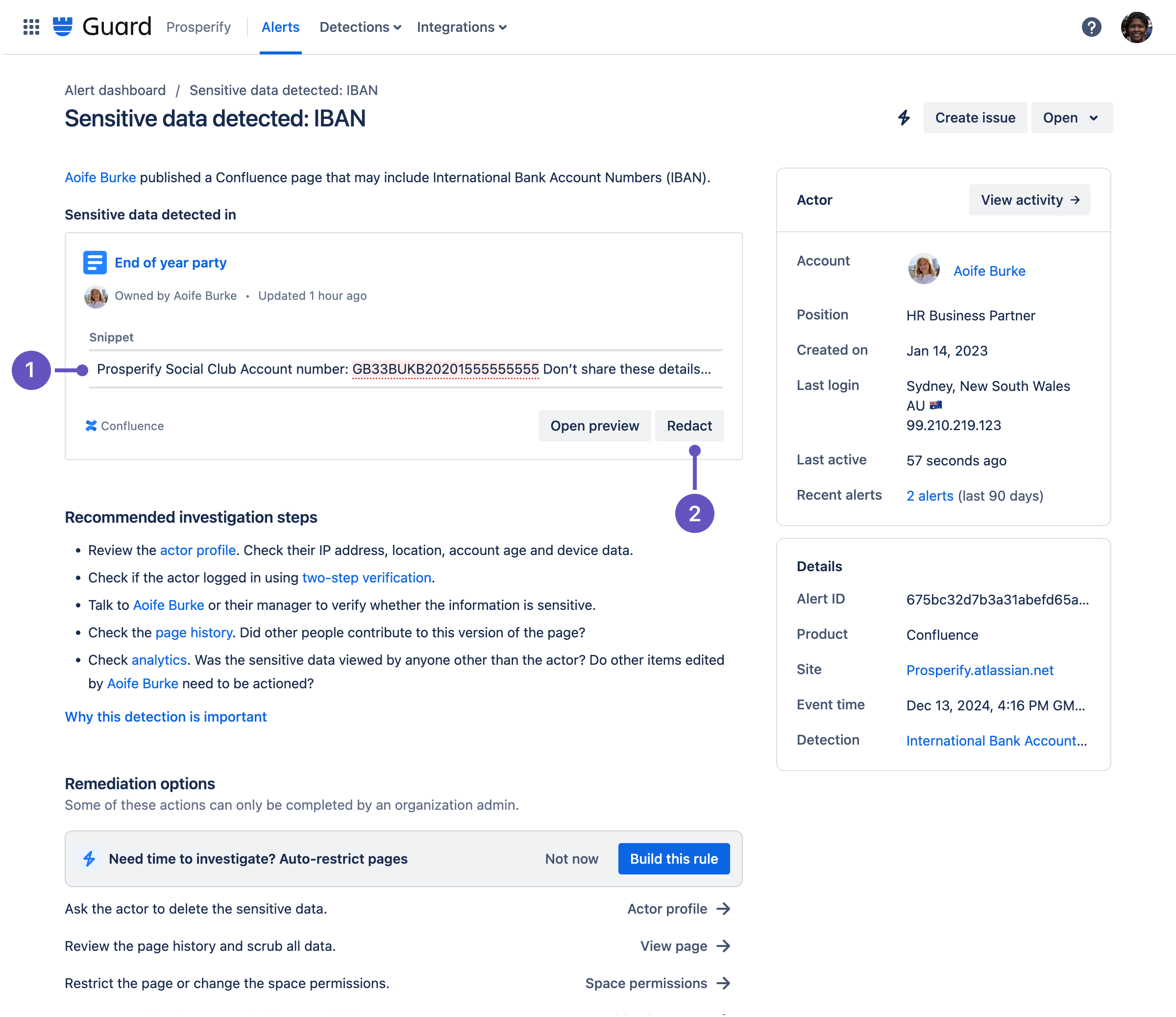
Each instance of the sensitive data is highlighted. This is the text that will be redacted. A few words of context help the analyst determine if the data is sensitive.
When you select Redact you’ll have the option to also delete historical page versions that contain the data.
Delete an attachment from an alert
Guard can’t redact sensitive data in an attachment because attachments are files, not editable page content. When Guard finds an attachment containing sensitive data, you have the option to delete the attachment. This option deletes the attachment and replaces it with a placeholder file in the current version of the page and any historical versions that contained the sensitive attachment.
To redact sensitive data from an alert:
In Guard Detect, select Alerts from the header.
Navigate to a content scanning alert with an attachment.
Review the highlighted sensitive data and investigation steps to determine if the data should be redacted.
Select Delete attachment.
Read through the warning message and confirm when you’re ready.
To restore a deleted attachment, use the Guard Detect API within 30 days of its deletion. After that time, it’s permanently deleted.
Considerations
There are a number of things to consider when deciding if redaction is the right remediation option for your organization. It’s just one of several ways you could choose to handle sensitive data.
The text highlighted in the alert snippet is the exact text that will be deleted from the current version of the Confluence page. It’s not simply masked or sent to the trash.
When you delete an attachment, it can only be restored through the Guard Detect API for a limited time of 30 days. After 30 days, the file is permanently deleted and cannot be recovered.
If you choose to remove page history, any page versions that contain the sensitive data are deleted. This works the same as manually deleting a version from the page history. It can’t be restored, and any information about the deleted versions, including who edited, will be lost. A new version will be added for the redaction with a comment, and the Changed by column will show the administrator who performed the redaction. About Confluence page versions and history
Guard Detect admins and organization admins are able to redact, regardless of any space permissions or page restrictions that prevent them from viewing or editing the content. A small amount of context is included in the alert to help them investigate, but they’re not able to view the full content if they do not have permission to do so.
The user who published or updated the Confluence page will be notified that sensitive data has been redacted. The notification includes the name of the person who performed the redaction.
Permissions required to redact content
A Guard Detect admin can redact sensitive data regardless of their app access, space permissions, or page restrictions.
A small amount of context is included in the alert to help the Guard Detect admin investigate, but they will not be able to view the full content of the item if they don’t have permission to do so.
Troubleshooting
If the redaction request fails for some reason you can remove the sensitive data manually. Some of the reasons redaction may fail include:
Too many instances of sensitive data in the item.
Inconsistent formatting.
The sensitive data was manually removed after the alert was sent.
Was this helpful?