Set the default data residency location
You can set the default data residency location for either your organization or your site, depending on the user management experience you have.
When you set a location, all eligible Atlassian apps in your organization or site move to that location. You can’t set a different location for an individual app. When you set an organization location, you also can’t set a different location for an individual site.
利用しているユーザー管理エクスペリエンスを確認する
移動 Atlassian Administration. Select your organization if you have more than one. You can identify which user management experience you have by checking the Users page.
集中型 | オリジナル |
|---|---|
The Users page doesn’t contain the Site filter. 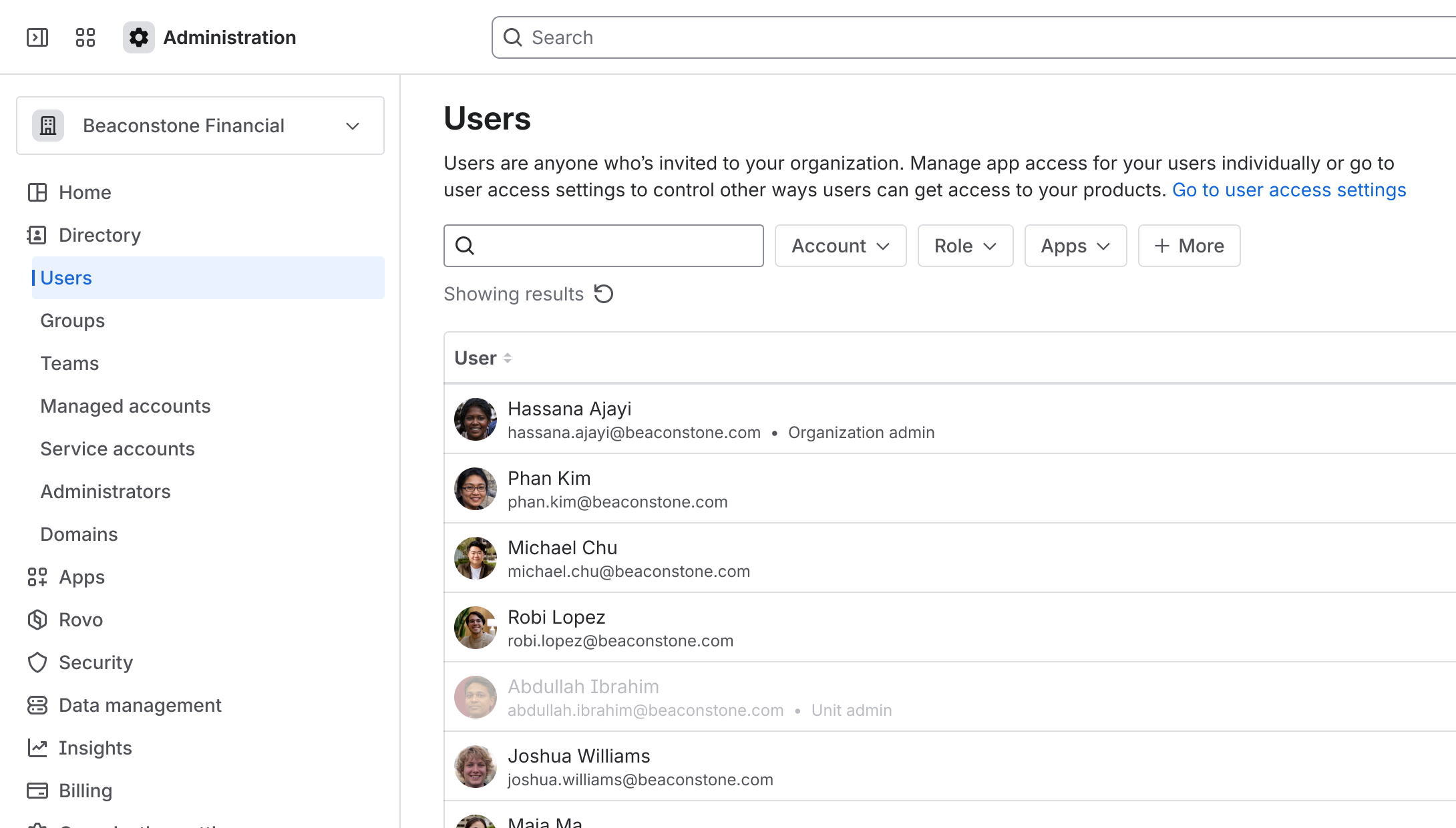 | The Users page contains the Site filter. 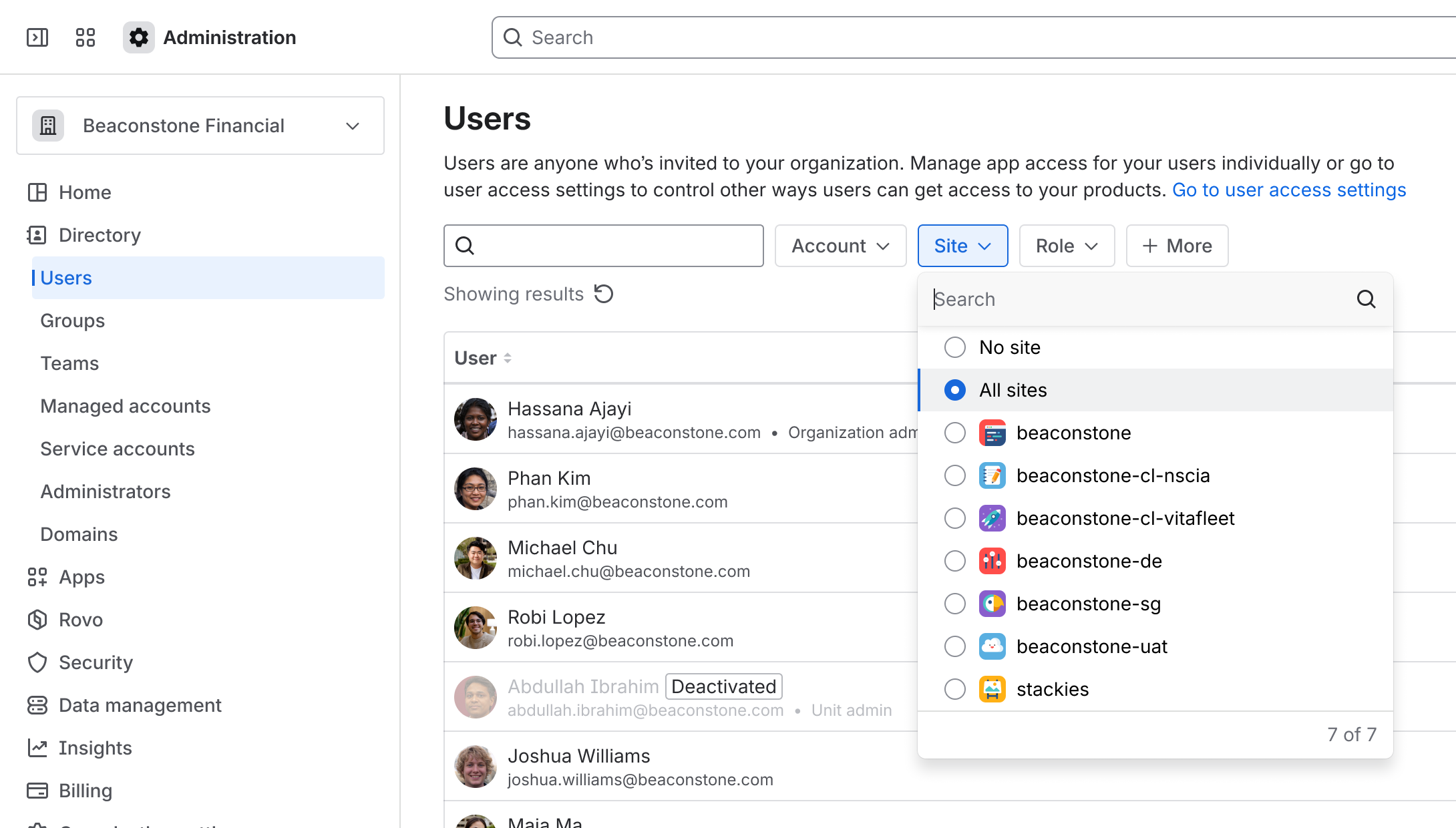 |
参考情報
Why an app may not use the default location
An app may not use the default organization or site location when:
The app doesn’t support the selected region.
You can set the app’s location only when you activate it and can’t change it later.
A customer-managed key configuration restricts the app to a different location.
一元化されたユーザー管理コンテンツ
You can set the default data residency location for your organization. We recommend you do this when you need all apps and their data to be pinned to the same region for data residency purposes. This can help with compliance as well.
When you set or change the organization location, all eligible Atlassian apps in your organization move to that location. You can’t set a different location for an individual app or site. Apps activated after you set the organization location automatically inherit it.
After you set the organization location, you may need to move some apps separately. When you move an app, its location is selected automatically.
Set the location
To set the default location for your organization:
アトラシアンの管理に移動します。複数の組織がある場合は、対象の組織を選択します。
Select Data management, then Data residency.
Via Organization settings:
Select Organization settings on the page
Select Set location from the Organization settings panel.
Via a specific app:
If available, select Set location for an app in the table.
You’ll be prompted to set an organization location. Select Set location again.
Via a specific app’s actions:
Select More actions (•••) for an app in the table. You'll see the current location if it’s set.
If the org location is Not set, select Org location.
Select the location from the available options, then select Next.
Review the apps that will move to the organization location.
Select a move window, then select Next.
Review and select Submit request.
Move apps that aren’t pinned to location
Some Atlassian apps may not be pinned to your organization’s default location. This means that they aren’t automatically moved when the rest of the apps are moved, and will need to be moved.
Once you complete setting the location, you can see the App summary. We mark the apps that aren’t in the organization location with a warning icon. You can filter the table by status Out of location to view all these apps.
元のユーザー管理コンテンツ
You can set the default data residency location for your sites. We recommend you do this when you need all sites and their data to be pinned to the same region for data residency purposes. This can help with compliance as well.
When you set or change the site location, all eligible Atlassian apps on your site move to that location. You can’t set a different location for an individual app. Apps activated after you set the site location automatically inherit it.
After you set the site location, you may need to move some apps separately. When you move an app, its location is selected automatically.
Set the location
To set the default location for your site:
アトラシアンの管理に移動します。複数の組織がある場合は、対象の組織を選択します。
Select Data management, then Data residency.
Via a specific app’s actions:
Select More actions (•••) for an app in the table.
If the site location is Not set, select Site location.
In the next step, select Change location from More actions (•••) next to Not set.
Via link:
Select Set location for an app in the table.
Select Set location to confirm you want to proceed.
You’ll be prompted to set a site location. Select Set location again.
Select the location from the available options, then select Next.
Review the apps that will move to the site location.
Select a move window, then select Next.
Review and select Submit request.
Move apps that aren’t pinned to location
Some Atlassian apps may not use your organization’s default location. These apps don’t move automatically when you set or change the organization location.
Once you complete setting the location, you can see the App summary. We mark apps that don’t use the site location with a data egress warning icon. You can filter the table by status Out of location to view all these apps.
この内容はお役に立ちましたか?