Jira automation triggers
Every rule starts with a trigger. They kick off the execution of your rules. Triggers will listen for events in Jira, such as when a work item is created or when a field value is changed.
Apply conditions directly to the trigger to add criteria to the entire rule. This will filter which triggers continue your automation.
Triggers can be set to run on a schedule, and can be customized before being applied to a rule.
See how to use all of these triggers in our Jira automation template library.
General triggers
These triggers can be used across all Jira Cloud products.
Field value changed
Related smart values:
{{fieldChange}}
The rule will run when a field value is changed. All system and custom fields are supported by this trigger.
You can use this trigger together with conditions to check the value of fields before performing actions. For example, send an SMS when a work item’s priority changes to greater than high.
When configuring this rule, you can select the fields to monitor for change, or use a regex to match the field names. You can narrow down the fields to monitor by specifying a change type: Value added, value deleted or any changes to the field value. You can also narrow down the work item operations that will trigger this rule – create, edit, transition or assign – or leave it blank to listen to all operations.
Form attached
Form triggers are only space-specific and can’t be configured in globally.
The rule will run whenever a form is manually attached to an existing work item, but also when a form is attached using the Add form API or a form is copied to another work item using the Copy form API.
Form opened for edits
Form triggers are only space-specific and can’t be configured in globally.
The rule will run whenever a form is opened for customer edits on existing work items. For example, there may be times when an agent selects Open for edits on an already submitted form on a work item. This could be the trigger that sends a notification to a customer that they need to resubmit a form. This trigger will run whenever a form is manually opened for edits, but also when a form is opened using the Reopen form API.
Form submitted
Form triggers are only space-specific and can’t be configured in globally.
The rule will run when forms attached to a work item are submitted. When configuring the trigger, you can select any number of forms, which will change how the trigger will act:
If no forms are selected: the rule will run when any form is submitted.
If one form is selected: the rule will run when that form is submitted.
If multiple forms are selected: the rule will only run when all of the selected forms on a work item are submitted.
Incoming webhook
Related smart values:
{{webhookData}}
The rule will run when a HTTP POST is sent to a specified webhook URL.
A webhook is a way for a third-party to trigger an automation rule. The webhook can specify work items to act on, or even provide real-time data you can use to update a work item.
When configuring this trigger, you’ll receive a unique URL and secret that you can either add to the third-party application’s outgoing webhook configuration, or make a HTTP POST request from your custom scripts. The trigger also provides details on how to provide work item keys and other data.
You can use the {{webhookData}} smart value to reference the custom XML data provided by the webhook in your rule.
Work item assigned
Related smart values:
{{assignee}}
The rule will run when the Assignee of a work item is changed. For example, when a work item is assigned to a specific user, change the work item’s status to In progress and send an email to the reporter to let them know it’s being investigated.
Work item commented
Related smart values:
{{comment}}
The rule will run when a new comment is added. For example, change the status to In progress when a new comment is added on a work item.
Choosing a comment type allows you to distinguish if a comment was added stand-alone, or as part of a transition. For example, you may want to set an automation rule where a comment added to a closed work item re-opens, or a comment added transitions the status of the work item. The available comment types are:
All Comments (default): All comments that are added to a work item.
Comment is the main action: New comment is added as a message in the comments section.
Comment added during status transition: Comment is added when you change the status of a work item.
Comment added while editing work item fields: Comment added while editing one or more work item fields.
Editing a comment will not trigger this rule.
Work item comment edited
Related smart values:
{{comment}}
This rule will run when a comment is edited. Can be used with the Edit comment action.
Work item created
Related smart values:
{{issue}}
The rule will run when an work item is created.
You can use this trigger with actions to customize the new work item, including populating fields, assigning to users, and adding sub-tasks.
Work item deleted
Related smart values:
{{issue}}
The rule will run when a work item is deleted. For example, send an email notification that a work item has been deleted.
You can use conditions to refine exactly the work item you are monitoring.
Work item linked
Related smart values:
{{destinationIssue}},{{linkType}}
The rule will run when a work item is linked to another work item.
You can configure this trigger based on any link type.
Work item link deleted
Related smart values:
{{destinationIssue}},{{linkType}}
The rule will run when a work item is unlinked from another work item.
You can configure the trigger to only execute for specified link types, or for all work item links.
Work item moved
Related smart values:
{{issue}}
The rule will run when a work item is moved from one space to another.
You can use this trigger together with conditions and actions to ensure all values, fields and settings are copied across to the new space.
Work item transitioned
Related smart values:
{{issue}},{{changelog}}
The rule will run when a work item transitions from one status to another.
You can configure this trigger so it listens to the status of your choice, or simply any transition in your workflow.
Learn more about transitioning a work item with automation
Work item updated
Related smart values:
{{issue}}
The rule will run when the details on a work item are updated.
Exceptions on this trigger include changes made by the Link work item, Assign work item and Log work actions.
To trigger a rule when a work item’s status is updated, please use the Work item transitioned trigger instead.
Manual trigger from work item
Related smart values:
{{issue}}
The rule will run when it is manually triggered by a user. This trigger is useful for automating common tasks, or testing or debugging a rule. Learn more about using the Manual trigger to test rules
You can refine which users can manually trigger a rule by selecting a permissions group in the Groups that can run trigger dropdown. Learn more about permission groups
You can also request input before a rule is run by selecting Get input from users. This allows you to set up some fields that will display to users when they trigger the rule. You can choose to make each field mandatory by selecting Required field. If a user chooses not to enter any information and selects Cancel, this won’t count as an execution towards your monthly limits.
Once a rule is created with a Manual trigger, anyone with access will be able to trigger it by going to a work item and selecting Actions.
Multiple work item events
Related smart values:
{{issue}}
The rule will run when one or more selected work item events occur. For example, send a Slack message when a work item is updated, transitioned or assigned.
Using this trigger may be easier and more efficient than creating several different rules.
Space created
Related smart values: Automation smart values – spaces
Rule will run when a space is created. For example, this could be useful if you want to create a set of default work items that should be included in all Jira spaces.
Scheduled
Related smart values:
{{issue}}
This rule runs on a specified schedule. You can run the rule at a fixed rate (for example, every 7 days), or use a Cron expression for more complex schedules.
You can also choose to enter a JQL query. If you do, actions in this rule will execute on the work items included in the query.
Scheduled rules that reach a Failure status for 10 consecutive executions will disable automatically.
Work logged
Related smart values:
{{worklog}}
This rule will run when a work log is created, updated and/or deleted.
Software triggers
The following triggers are only available for Jira.
Sprint created, started, or completed
Related smart values:
{{sprint}}
The rule will run when a sprint is created, started or completed on the selected scrum board.
This trigger will either run for every sprint on that board, or you can narrow this down using a regular expression.
You can use this trigger together with the related work items branch Work item fixed in version to loop through all work items fixed in this version.
Version created, updated, released
Related smart values:
{{version}}
The rule will run when a version is created, updated or released.
You can restrict which versions will trigger this rule using a regular expression.
The Version updated trigger listens for versions being created and released, as well as being amended. Use this trigger if you need to listen for all events around a version.
You can use the Version released trigger together with the related work items branch Work item fixed in version to loop through all work items fixed in this version.
DevOps triggers
These triggers are only available for Jira Cloud when integrated with a source code management tool. Check out the list of compatible tools
Self-hosted or On-Premise tools (e.g. Bitbucket Server, Gitlab On-Premise, Github Enterprise) aren't supported. Though they can still be integrated with Jira Cloud and you'll still get the benefits of integrating in other parts of your software space.
Branch created
Related smart values:
{{branch}}Connect your source code management tool to use this trigger. Learn how to integrate your development tools with Jira Cloud.
You can use conditions to refine the branches you are monitoring with this trigger. The rule will run when a branch is created. For example, when a branch is created that includes a work item key, transition that work item to In progress.
Build failed
Related smart values: Smart values - development
Connect your source code management tool to use this trigger. Visit the marketplace to integrate your build tool with Jira Cloud.
Rule executes when a build fails. You can configure this rule to only trigger on certain build names, or builds associated with certain branches or tags.
Build status changed
Related smart values: Smart values - development
Connect your source code management tool to use this trigger. Visit the marketplace to integrate your build tool with Jira Cloud.
Rule executes when the status of a build changes. You can configure this rule to only trigger on certain build names or builds associated with certain branches or tags.
Build successful
Related smart values: Smart values - development
Connect your source code management tool to use this trigger. Visit the marketplace to integrate your build tool with Jira Cloud.
Rule executes when a build succeeds. You can configure this rule to only trigger on certain build names or builds associated with certain branches or tags.
Commit created
Related smart values:
{{commit}}Connect your source code management tool to use this trigger. Learn how to integrate your development tools with Jira Cloud.
The rule executes when a commit is created. You can use conditions to refine the commits you are monitoring with this trigger.
Component created in Compass
Related smart values:
{{component}}
The Component created in Compass trigger will cause your rule to run when a component is created in Compass.
You must already have access to a Compass site in order to use this trigger. Discover Compass
You’ll be prompted to set up a connection to Compass the first time you use this component. Read more about connections
Scorecard status change in Compass
Related smart values:
{{scorecard}}{{component}}
The Scorecard status change in Compass trigger will cause your rule to run when a scorecard changes status in Compass.
You must already have access to a Compass site in order to use this trigger. Discover Compass
You’ll be prompted to set up a connection to Compass the first time you use this component. Read more about connections
Deployment failed
Related smart values: Smart values - development
Connect your source code management tool to use this trigger. Visit the marketplace to integrate your deployment tool with Jira Cloud.
Rule executes when a deployment fails.
Deployment status changed
Related smart values: Smart values - development
Connect your source code management tool to use this trigger. Visit the marketplace to integrate your deployment tool with Jira Cloud.
Rule executes when the status of a deployment changes.
Deployment successful
Related smart values: Smart values - development
Connect your source code management tool to use this trigger. Visit the marketplace to integrate your deployment tool with Jira Cloud.
Rule executes when a deployment succeeds.
Pull request created
Related smart values:
{{pullRequest}}Connect your source code management tool to use this trigger. Learn how to integrate your development tools with Jira Cloud.
The rule executes when a pull request is created. You can use conditions to refine the pull requests you are monitoring with this trigger. For example, when a pull request is created that includes a work item key, transition that work item to In review.
Pull request declined
Related smart values:
{{pullRequest}}Connect your source code management tool to use this trigger. Learn how to integrate your development tools with Jira Cloud.
The rule executes when a pull request is declined. You can use conditions to refine the pull requests you are monitoring with this trigger.
Pull request merged
Related smart values:
{{pullRequest}}Connect your source code management tool to use this trigger. Learn how to integrate your development tools with Jira Cloud.
The rule executes when a pull request is merged. You can use conditions to refine the pull requests you are monitoring with this trigger.
Security triggers
Vulnerability found
Related smart values:
{{vulnerability}}Connect a security tool to your space to use this trigger. Learn more about integrating security tools
Rule is run when a vulnerability in one of your connected security containers is found by your security tool and sent to Jira.
Only vulnerabilities that match a severity you choose will activate the rule, you can choose one one or more severities in the trigger.
Jira Service Management triggers
Alert created
Related smart values:
{{alert}}
The rule will run when an alert is created. You can use this trigger to perform actions on Jira Service Management when an alert is created.
For example, create an incident in Jira Service Management when an alert is created or associate the alert with an ongoing incident.
Manual trigger from alert
Related smart values:
{{alert}}
The rule is run when it is manually triggered by the user from Actions on an alert. For example, run an SSM document if the alert description contains certain keywords when the user manually triggers the rule.
Users that can rule this rule: By default, your rule can be run by all logged-in users, but you can allow only specific users and members of a team to run your rule.
Filter alerts to show this rule: You can make your rule available to be run only for certain alerts by choosing alert fields to filter by.
Optionally, you can select Prompt for input when the rule is triggered if you want the user, who triggers the rule from an alert, to input any information before the rule is run.
Alert updated
Related smart values:
{{alert}}
The rule is run when an alert’s priority, summary, or description is updated. For example, create an incident of P3 priority in a service space when an alert’s priority changes to P1.
Alert status changed
Related smart values:
{{alert.status}}
The rule will run when an alert’s status changes. For example, send a message to a Slack channel when an alert’s status changes to OPEN.
Alert note added
Related smart values:
{{alert.note}}
The rule will run when a new note is added to an alert. For example, send an email when a note is added to an alert.
Object trigger
For Jira Service Management only. Rule is run when an object from a specific Assets schema is created, updated, or deleted. This can only be used for global automation rules.
Learn more about Assets in Jira Service Management
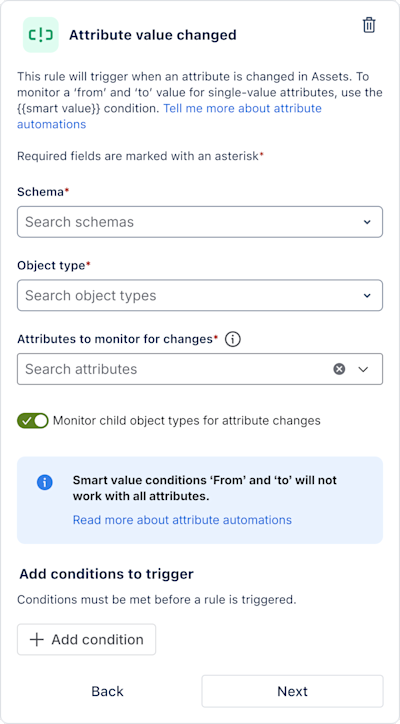
Attribute value changed
Related smart values:
{{attributeChangelog.(attribute name).from}}{{attributeChangelog.(attribute name).to}}{{attributeChangelog.(attribute name).changeType}}{{containerObject.(attribute name)}}
For Jira Service Management only. Rule is run when the selected attribute changes on any object of this type. This can only be used for global automation rules.
Learn more about Assets in Jira Service Management
Service limit breached
Related smart values:
{{breachedSummary}}, {{breachedRules}}
The rule will run when the daily or hourly processing time service limit is about to be breached (note that it doesn’t monitor other types of services limits, such as the “Items queued globally” limit). Read more about automation service limits
SLA threshold breached
Related smart values:
{{issue}}
The rule will run when a Jira Service Management SLA has breached or is about to breach.
This trigger allows you to provide timely feedback to customers, alert agents, and automatically prioritize requests accordingly. You can select the SLA to monitor, and the time before or after it has breached to trigger.
Approval required
For Jira Service Management only. Rule is run when a work item that requires approval is created or updated, or when new approvers are added to a work item. Learn more about approvals in Jira Service Management.
Approval completed
For Jira Service Management only. Rule is run when an approval step on a work item is accepted or declined. Learn more about approvals in Jira Service Management.
Emoji reaction to Slack message
Rule is run when a user reacts with an emoji to the work item created by Assist in Slack.
Currently, the trigger works only with work item messages created by the Atlassian Assist app in Slack channels. Learn more about chat
Since this trigger uses the Slack workspace and channels you set up in chat settings, it won’t work unless you connect this service space to a Slack workspace and channel. Learn how to set up chat in Slack
Design triggers
Design linked to work item
The rule will run when a new Figma design is linked to a work item. Learn how to integrate Figma with Jira
You can use this trigger to add a DESIGN-LINKED label to the work item, and notify the assignee that a design has been added.
Linked design updated
The rule will run when a design already linked to a work item is updated.
You can use this trigger to notify the assignee that a design has been updated.
Status of a linked design changes
The rule will run when the status of a design that’s already linked to a work item changes.
You can use this trigger to notify the assignee when a design status has changed, automatically add a status label, or transition the work item to the next status.
A design needs to already be linked
This rule will not run if you’re trying to link a new design to a work item, even if the from or to statuses are blank.
Atlassian Guard triggers
Content scanning alert for Jira
This trigger runs your rule whenever a content scanning alert is generated. Guard Detect generates an alert when someone updates a Jira work item containing certain types of sensitive data, such as credentials, financial, or identity data.
To configure this trigger you need to be an Organization admin or Guard Detect admin and your organization must have an Atlassian Guard Premium subscription.
Loom triggers
Loom moved to folder
Related smart values:
{{loomVideo}}
This trigger runs your rule when a Loom video is moved to a Loom folder.
Loom moved to space
Related smart values:
{{loomVideo}}
This trigger runs your rule when a Loom video is moved to a Loom space.
Loom records meeting
Related smart values:
{{loomVideo}}
This trigger runs your rule when a meeting(s) is recorded by Loom.
Was this helpful?