Fix "self-signup disabled" error in Jira Service Management emails
Platform Notice: Cloud Only - This article only applies to Atlassian apps on the cloud platform.
Summary
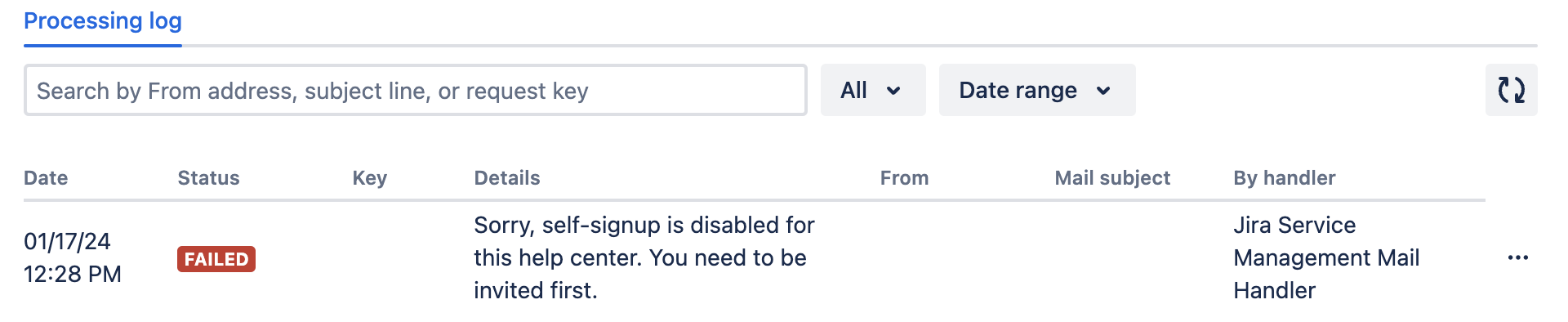
Requests fail with a 'Sorry, self-signup is disabled for this help center. You need to be invited first' error message in the logs, as follows:
Solution
How to troubleshoot it
There are a few factors (and sometimes a combination of them) that could cause this, including potential duplicate accounts or missing membership in the required Jira Service Management customer group ('jira-servicemanagement-customers-XXX'). They should be checked in the following order:
1 - Go to the respective project's customer permissions (accessible through Project settings > Access > Customer permissions options from your service project left menu). Ensure that the ''Create Issue'' permission is correctly configured for the 'Service Project Customer - Portal Access' role.
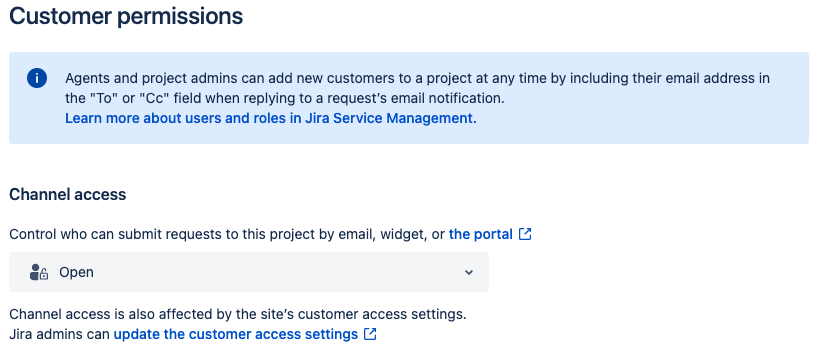
Check the project channel access configuration (screenshot below).
If the option "Open" is selected, skip to the next step below.
If the option "Restricted" is selected, go to your project's customers page (accessible from the initial service project page by selecting the Customers option from the left menu) and filter for the user's email address. If the account isn't listed, that's the cause of the problem, and you should add the user to the project.
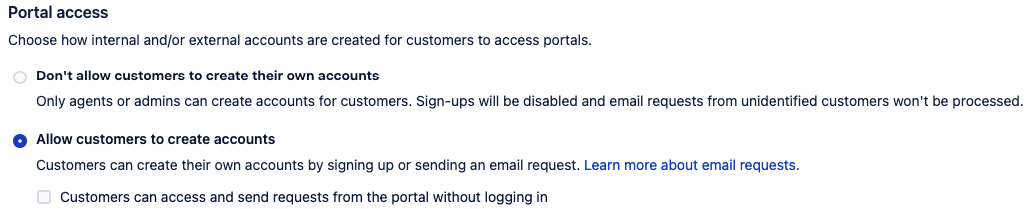
2 - Go to the Jira Service Management customer access configuration page and validate the Portal access settings (screenshot below).
If both the Allow customers to create accounts and Allow portal-only accounts to be created options are selected, skip to the next step
Otherwise, if the Don't allow customers to create their own accounts option is selected, it will prevent the customer accounts from being created.
In this case, update these settings to enable Allow customers to create accounts and Allow portal-only accounts to be created so the customers can create their own accounts by signing up or emailing the mail handler.
Or add the customer's email address manually to the service project.
3 - Depending on how the approved domain is configured, it affects and restricts the sender's domain from creating an account, depending on the account types you've enabled on your site (refer to this documentation for more information on that matter):
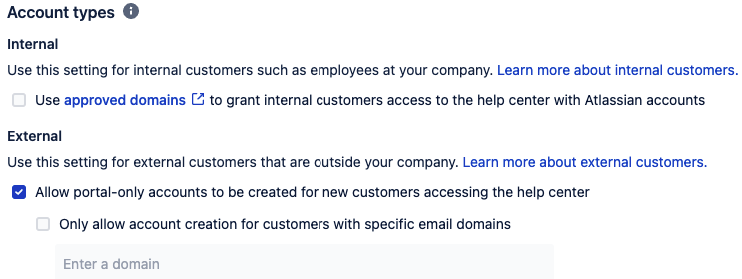
If the Internal checkbox is selected, click the Approved domain's link and see if the sender's domain is listed as an approved domain.
In case it's not, add it to the approved domains list.
Ensure that the Customer product role is granted for Jira Service Management.
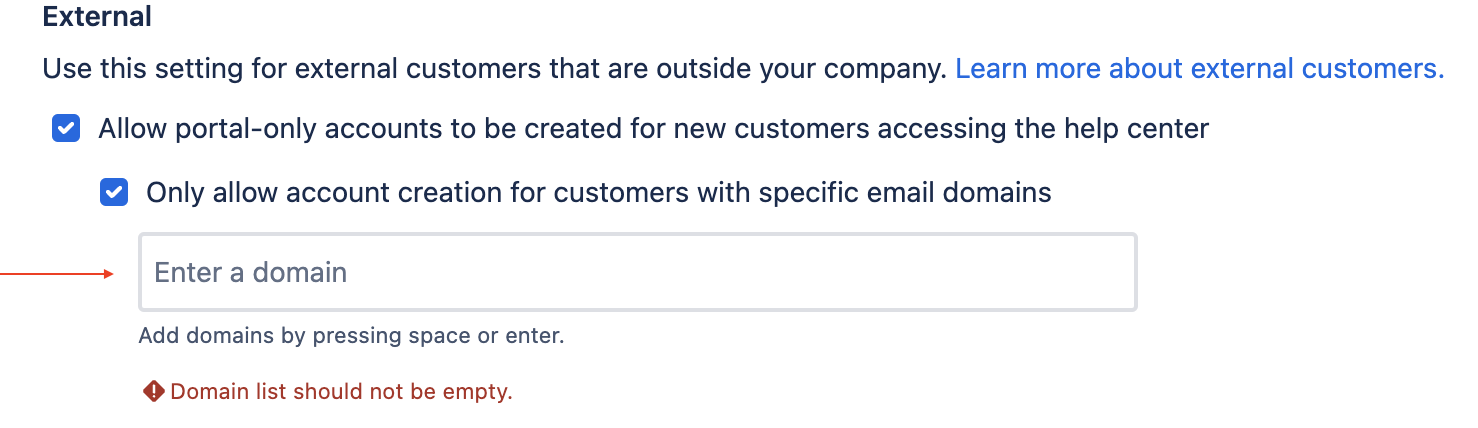
If the External checkbox is selected, check if the Only allow account creation for customers with specific email domains checkbox is also checked.
Verify if the user's domain is listed there. If it's not, you should add it to the domains list.
After taking one or all of the above corrective actions, the users should be able to create the tickets via email. If these settings were previously working and unexpectedly changed, review the audit logs for any recorded changes. Note that changes might not always appear due to log retention limitations. If issues persist, collect an example of the failed email request in .eml format and provide it for further investigation.
Related articles
Was this helpful?