How to Prevent duplication of accounts in Jira Service Management.
Platform Notice: Cloud Only - This article only applies to Atlassian apps on the cloud platform.
Pick the right prevention control
If you want to… | Do this |
|---|---|
Stop portal-only accounts from being auto-created at all | Review Customer Access settings and disable the creation paths you don't need (agents adding customers, request via email, portal sign-up). |
Allow customers, but avoid same-email duplicates | Invite users as Atlassian accounts before they self-register as portal-only, and standardize on one email per user. |
Fix duplicates that already exist | Follow the linked "Permission and Access Issues Due to Duplicate Accounts" article — this KB is only for prevention. |
Understanding duplication of accounts
Duplication of accounts occurs when a single user has both an Atlassian account and a portal-only customer account using the same email address on your site. This typically happens if a user is initially invited as a portal-only customer and later an Atlassian account is created for them using the same email. This results in two separate accounts for one user.
This article will help you understand why account duplication happens and provide guidance on preventing it in the future. For detailed information on how duplicate accounts affect permissions and on steps to resolve issues with existing accounts, please visit our Permission and Access Issues Due to Duplicate Accounts.
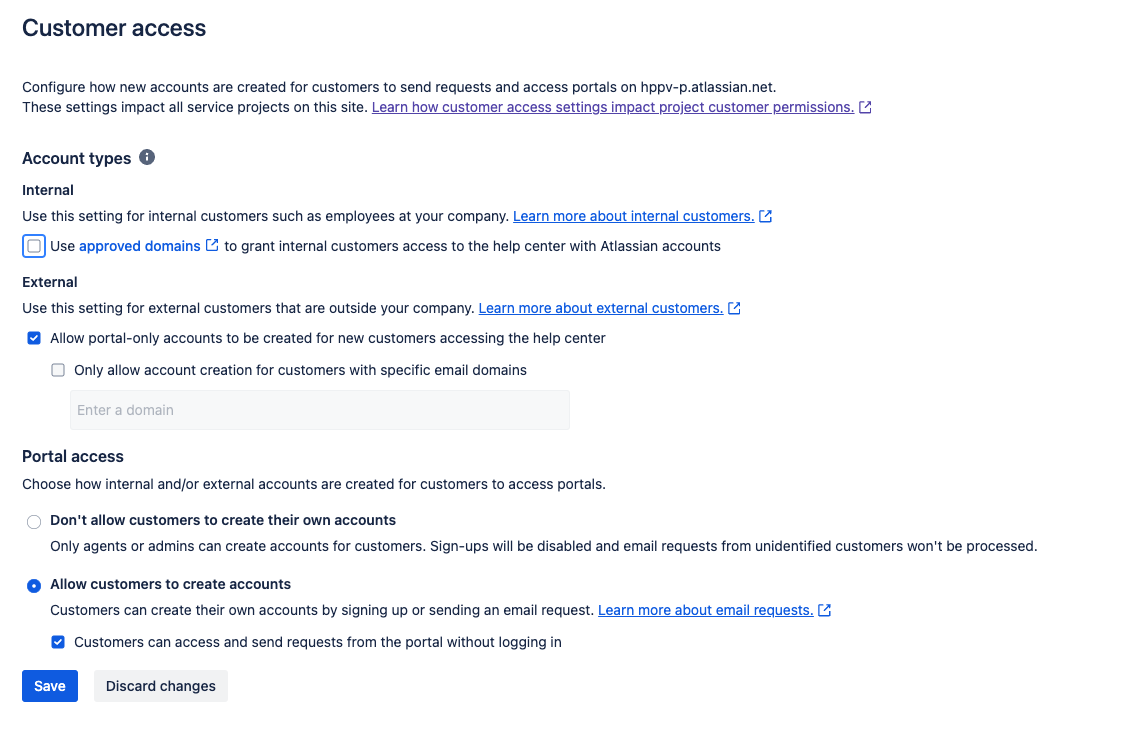
What controls the creation of portal-only accounts?
Portal-only account creation is governed by Customer Access settings. When external portal-only customers are permitted, three paths can create accounts:
Agents adding customers — when an agent adds a user under the Customers section of a project.
Request via email — when a user raises a request by sending an email.
Portal sign-up — when customers self-register from the Help Center.
See Customer Access settings to review which of these are enabled.
How do accounts get duplicated?
Account duplication occurs when an Atlassian account is created after a portal-only account already exists. This can happen in several ways:
Manual Addition by Admin: An Atlassian Organization admin adds the user manually, leading to duplication due to human error. We have a feature request to avoid this:
Provisioning from an Identity Provider (IDP): A delay in provisioning can result in duplication if a user is added from an IDP after a portal-only account has already been created.
Sign-Up via Approved Domains: Users signing up for an Atlassian account through approved domains can cause duplication. This is a common scenario where approved domain access takes precedence.
Portal-only accounts are often created when agents add users via Project > Customers or when customers raise requests by emailing the project's configured address.
However, when accessing the portal, an Atlassian account is automatically created during signup if the user's email domain is approved.
Even if customer access settings have approved domains turned off, the approved domains configured in the Admin Hub take precedence when users access the Help Center. For more details, see our guide on Control how Users get Access to Products.
Customers on approved domains (Jira Service Management only):
Must create an Atlassian account before accessing your help center.
Can join your selected help center with or without an invitation.
Must verify their account every 6 months.
These processes can inadvertently lead to the creation of duplicate accounts
Resolve and prevent duplicate account issues
To effectively manage and prevent duplicate accounts, follow these best practices:
Awareness and Training for Admins: Ensure that admins responsible for user management are well-informed about the processes. They should avoid inviting users who already have a portal-only account to prevent duplication.
Migrating Accounts: When an external customer needs access to internal products like Jira or Confluence, Migrate their Portal-only account to an Atlassian account. This migration helps avoid permission issues and streamlines access management.
Regular Provisioning and Approved Domain access to specific domains: Ensure regular user provisioning and include specific domains as approved domains. This practice ensures users start with an Atlassian account, reducing the chance of duplication.
Configure Approved domains: Configuring the Approved domains section such that only internal customers are provided with access. You need to be an ORG Admin to perform these changes.
Go to admin.atlassian.com. Select your organization if you have more than one.
Select Products > User access settings > Approved domains.
For a Specific Domain: Select the domain you want to configure. Adjust the settings as needed to prevent duplication.
For Any Domain: If duplicate account issues occur across multiple domains, select Any Domain. A pop-up will appear showing all product roles associated with any domain.
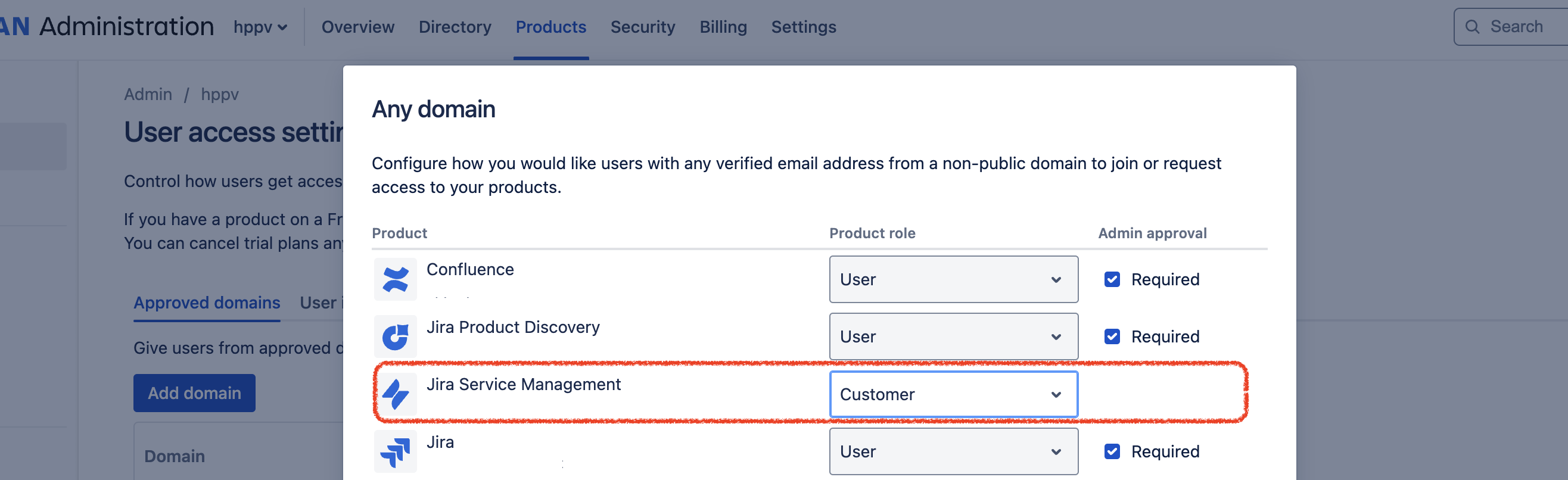
Allowing the customer role for "Any Domain" enables portal-only customers to sign up using an Atlassian account. For Jira Service Management, remove the Product role provided and change it to No role:
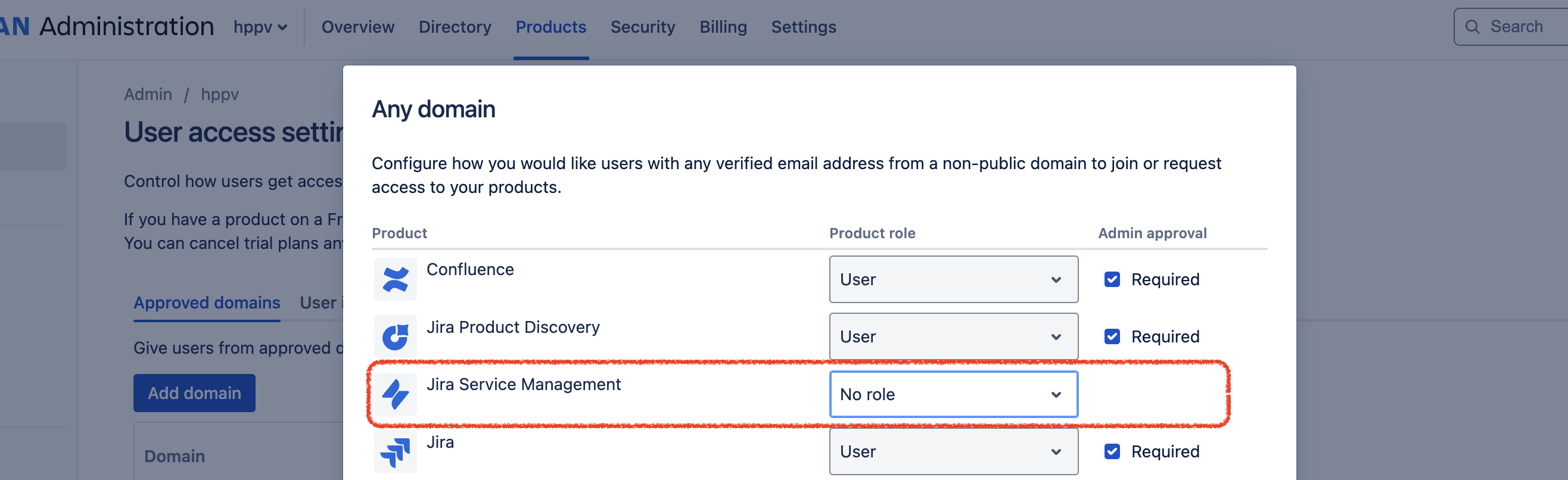
Once the role is removed, customer accounts will be managed according to the Customer Access Setting configuration. Customers will be prompted to either configure their existing portal-only account or create a new portal-only account as needed.
If the above configuration changes don't resolve the duplication problem or if you continue to encounter customers with duplicate accounts, please don't hesitate to contact our support team.
Verify if it worked
After adjusting Customer Access settings, add a test customer via each remaining path and confirm no duplicate is created for an email that already has an Atlassian account.
Check the project's Customers page for any two entries sharing the same email address.
Related articles
Was this helpful?