Transfer Apps option is grayed out on the Organization
Platform Notice: Cloud Only - This article only applies to Atlassian apps on the cloud platform.
Overview
The Transfer all apps to another organization you administer option can appear grayed out in Atlassian Administration. This happens when there are unresolved pre-transfer blockers on the source organization.
This article walks you through how to check whether you're eligible for a transfer, identify what's blocking it, and resolve the most common blockers.
Before you start
Confirm your User Management Experience
If the Transfer option is completely absent (not merely grayed out), confirm your User Management Experience using the table below. On Centralized user management, this option does not appear at all — individual site transfers are not supported. Atlassian Support for assistance with your consolidation options.
Here's how to check:
Go to admin.atlassian.com and select your organization.
Look at where the Users page appears:
Experience | Where to find Users |
|---|---|
Original user management | Users are under the App site. No Users page under the Directory tab. |
Centralized user management | Users are under the Directory tab in the admin hub. |
Learn more: Identify your organization’s user management UI experience
Step 1: Find the Transfer option
Go to admin.atlassian.com.
From the organization picker, select the source organization (the one you want to transfer products from).
Select Organization settings → Profile.
Look for Transfer apps.
Continue to Step 2 to check for blockers before completing the transfer.
Step 2: Identify the blockers
You can find the exact blockers using your browser's developer tools. Keep developer tools open while you go through the transfer steps so the preflight packet is captured.
Click Transfer Apps. The transfer flow opens on the Before you begin screen.
Open developer tools:
Press F12, or
Press Ctrl + Shift + I (Windows/Linux) / Cmd + Option + I (Mac), or
Right-click the page → Inspect
Select the Network tab.
Make sure the recording is active (look for a red dot). If not, click it to start.
Click the Next button on the Before you begin screen.
On the Select destination screen, select the destination organization and click Next.
If there are blockers, the preflight packet will be captured, and you’ll be prevented from continuing further. You will be prompted to clear the blockers.
In the Network logs, search for and select the preflight request captured during this flow. Select Preview or Response to view the blockers.
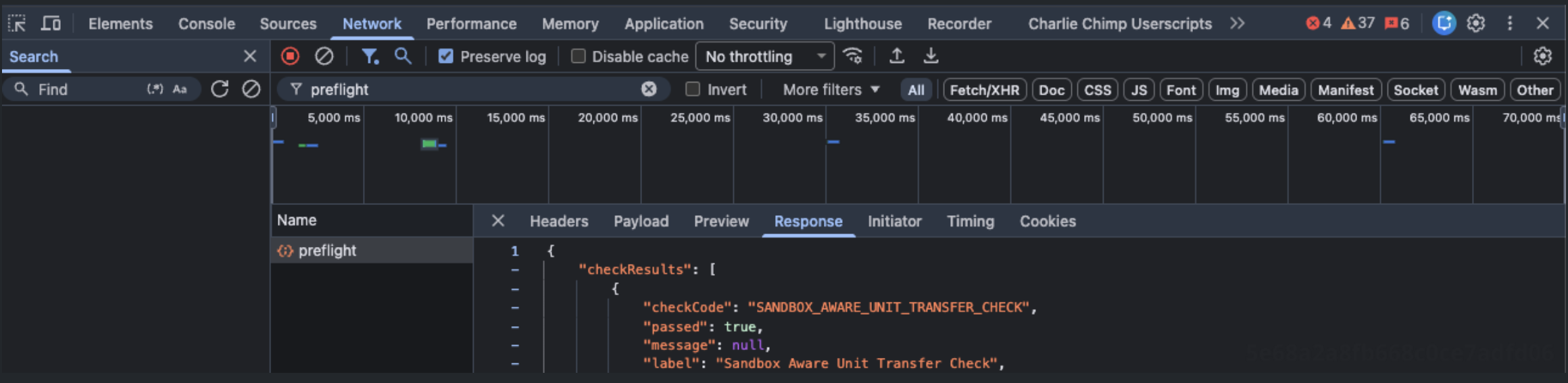
Tip: If nothing appears, turn on Preserve log and reload again.
Note: Refer to our public documentation, “Generating HAR files and analyzing web requests,” for detailed steps.
If you share the list of these blockers in your support ticket, Atlassian Support can provide the exact steps to clear them.
Step 3: Resolve Common Blockers
Below is a list of common blockers you may encounter in Step 2.
App Access Settings (Or User Access Settings)
What it means: Custom App Access Settings on the source org need to be reset.
What to do:
Go to admin.atlassian.com and select the source organization.
Navigate to Products/Apps → App access settings.
Click Reset your user access settings.
See: How to Reset App Access Settings Before a Product Transfer
Will this affect my users? No.
Does not remove access from existing users or groups
Does not cause any downtime
Is an admin-side change only
Think of it as the rules for how new users get invited in the future. Resetting returns those rules to default; it doesn't take access away from anyone who already has it. You can reconfigure these settings in the destination org after the transfer.
Domain claims
What it means: A domain is claimed in the source organization. Claimed domains must be moved to the destination organization before the transfer.
What to do:
Go to admin.atlassian.com and select the source organization.
Go to Directory → Domains.
Remove the claimed domain from the source organization.
After the transfer, claim and verify the domain in the destination organization.
See Verify a domain to manage accounts.
Container tokens
What it means: The source organization has one or more Admin API keys. These keys must be removed before the transfer.
What to do:
Go to admin.atlassian.com and select the source organization.
Go to Organization settings → API keys.
Revoke all API keys listed for the organization.
Create new API keys in the destination organization after the transfer, if needed.
Atlassian Guard
What it means: An active Atlassian Guard subscription or its identity provider settings are still associated with the source organization.
What to do:
If you use an identity provider, move or disconnect it from the source organization and set it up in the destination organization.
Contact Atlassian Support to deactivate the Atlassian Guard subscription in the source organization. You’ll need to provide your written approval before it can be deactivated.
After these changes are complete, rerun the preflight check to confirm that the blocker is cleared.
Related Articles
Was this helpful?