How to Filter issues in Advanced Roadmaps
Platform Notice: Cloud Only - This article only applies to Atlassian apps on the cloud platform.
Summary
You can search for specific issues on your timeline or narrow the scope of what’s displayed in your plan by filtering issues using the Filters menu located next to the hierarchy drop-down. You can also tell Advanced Roadmaps to show full hierarchy and auto-expand issues while filtering.
Solution
Search for a specific issue
You can search for issues in two ways. The first is to use the magnifying glass icon under the "Timeline" header and enter a phrase, word, or issue key to see all matching issues. Alternatively, a search function can be found in the Filters menu labeled Issue details.
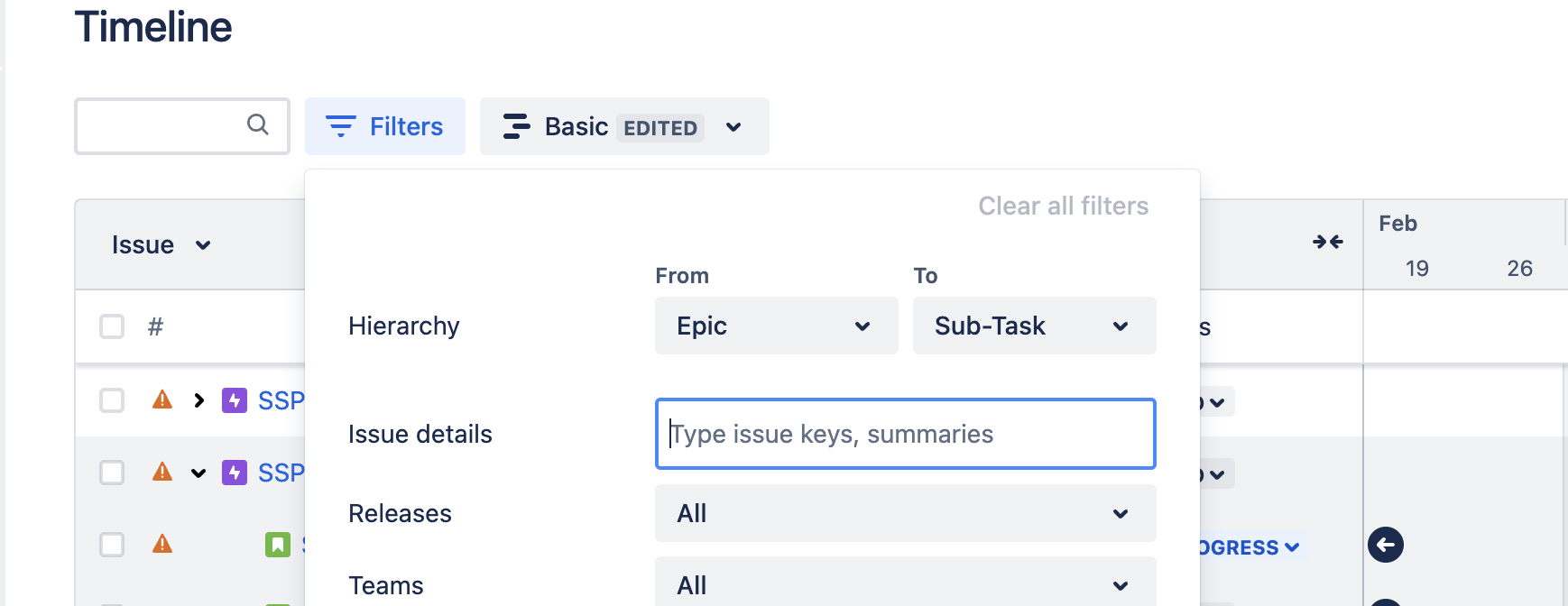
Regardless of which way you choose to search, you can enter multiple terms separated by a comma with no spaces (for example: EARTH-4, EARTH-21, ORBIT, COMET, SSP).
Custom filters
You can filter by custom fields if they're configured for your plan. Learn how to configure custom fields in your plan.
The plan supports five custom field types as filters:
Single-choice select
Multiple-choice select
Checkbox
Radio button
Label
Filter settings
You can adjust the filter settings at the bottom of the Filters menu to show or hide specific aspects of your plan. Check out the Filter issues section in your plan documentation for the various options you can use to filter.
Show full hierarchy
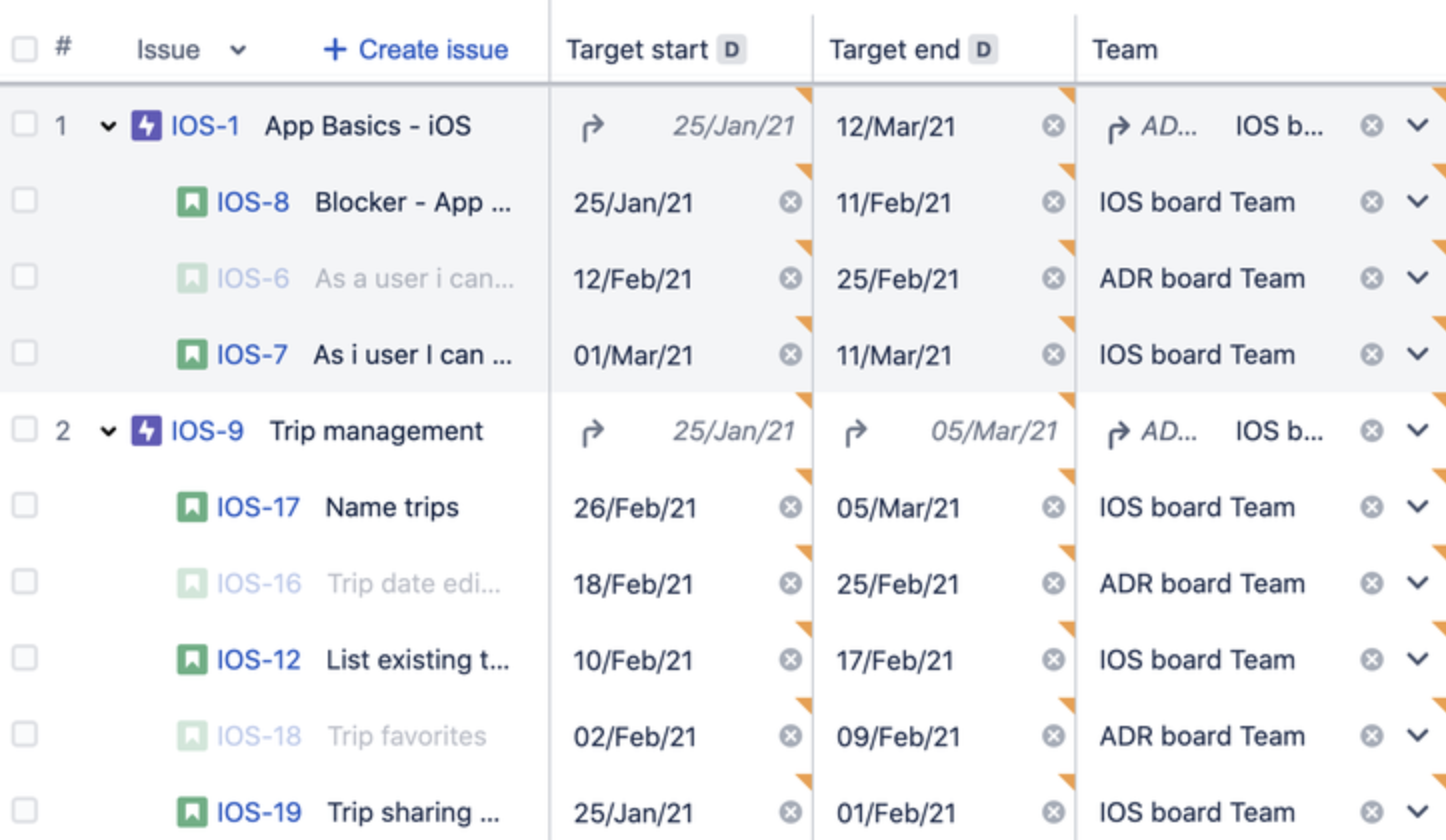
When filtering by issue, search results will only show issues that match your query. The Show full hierarchy toggle will show your results in the context of their related issues. Ensure that all relevant custom issue types are included in your plan's hierarchy settings. If a custom issue type (e.g., 'Feature') is missing, add it under the hierarchy levels in Plan settings.
NOTE: Subtasks that don't match the filter will appear slightly grayed out.
Show the full hierarchy off
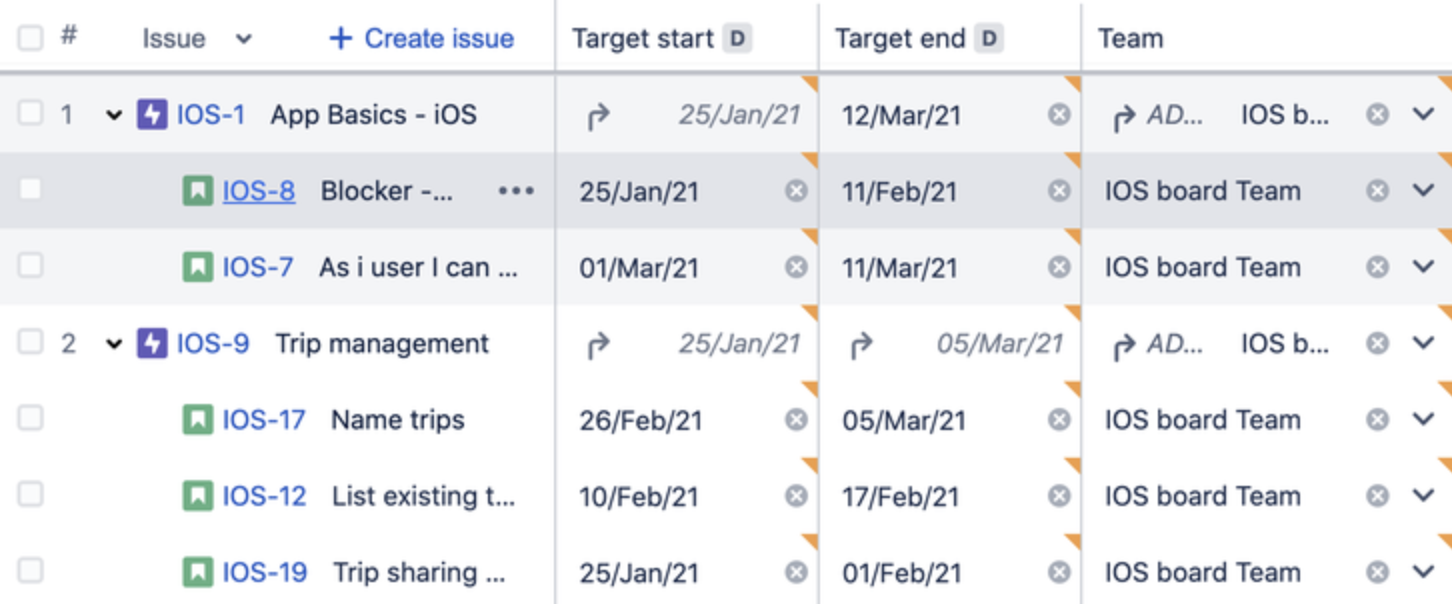
Show the full hierarchy on
Expand All Or Collapse All
Under the search bar in Advanced Roadmaps Plan, you will find a "Issues" drop-down with two options. Expand All and Collapse All. Expand All expands the Top Hierarchy issues and their child issues with a single click, and Collapse All collapses the view, showing you only the issues from the Top Hierarchy.
When filtering doesn't show what you expect
Custom field not selectable as a filter: Confirm the field is one of the 5 supported custom field types and that it has been enabled for the plan. Other field types will not appear in the filter menu.
Results look incomplete: Check the Show full hierarchy toggle. When enabled, parent and child issues are shown for context, even if they don't match the filter; when disabled, only issues that directly match the filter criteria appear. This can make it seem like issues are missing.
Was this helpful?