Enable automatic accounts creation through email requests
Platform Notice: Cloud Only - This article only applies to Atlassian apps on the cloud platform.
Summary
Learn how to automatically create portal-only customer accounts when users send email requests to your Jira Service Management space — no manual sign-up required.
Prerequisites
An incoming email address must be configured for the service space first (the default @yourinstance.atlassian.net or a custom address) before automatic account creation via email can work.
Customer Access Settings
These customer-access settings affect all JSM projects on the site — any open project will allow email-based account creation.
If internal account creation is enabled, new Atlassian accounts are created for approved domains—review your product access settings, as new licenses may be consumed.
For a site-admin to access these settings:
From the top right of your screen, select Settings (Cog Icon) > Products.
Under Jira Service Management, select Customer access.
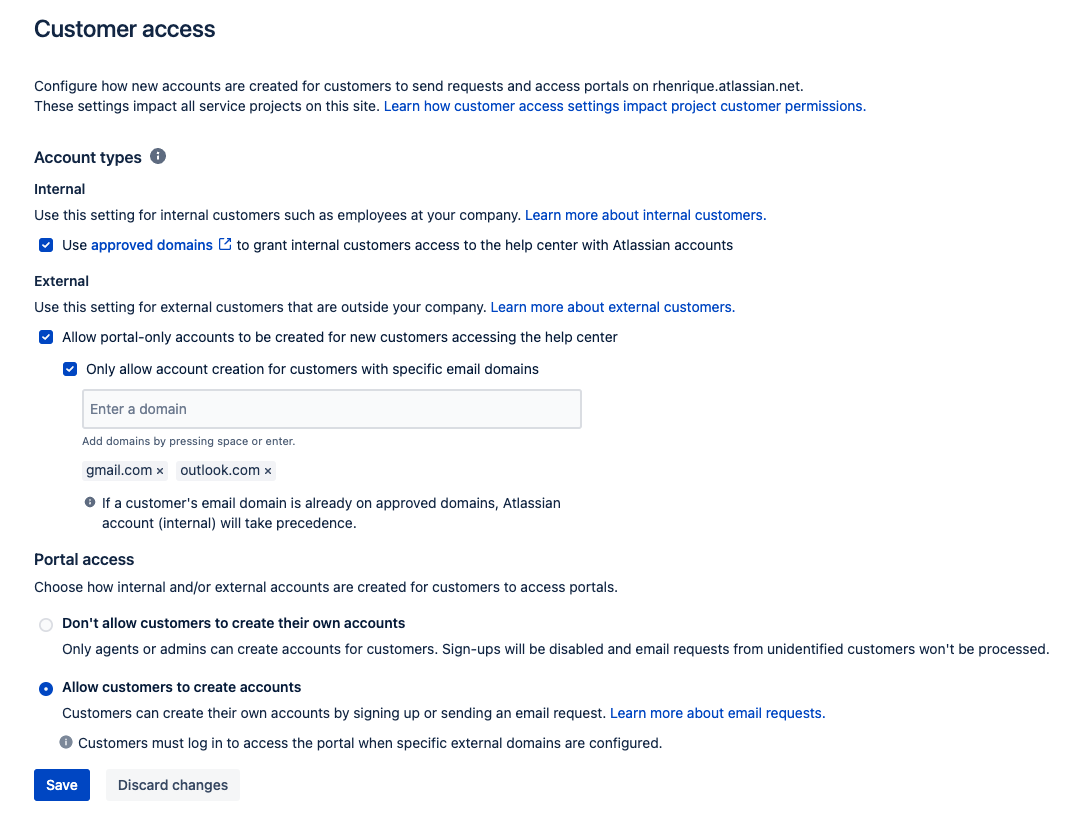
At the Internal account type settings, check the "Use approved domains to grant internal customers access to the help center with Atlassian accounts" checkbox. This allows users with email domains listed as 'approved domains' to automatically gain access as internal customers.
At the External account type settings, you may check the "Allow portal-only accounts to be created for new customers accessing the help center" checkbox. This will enable new users to submit tickets via email without joining the Atlassian site or receiving an invitation email.
For Portal Access, you should enable the "Allow customers to create accounts" option.
To prevent unwanted customer accounts from being created, you can also allow only specific email domains to create new accounts. For external customers, you can restrict signups to specific domains by checking the 'Only allow account creation for customers with specific email domains' checkbox and entering the domains. This ensures that accounts are created only for users from these domains. Note: Up to 10 domains can be grouped under an organization to simplify management.
To enable this option, in the External account type section, check the "Only allow account creation for customers with specific email domains" checkbox and enter your desired domains. This works similarly to Internal accounts approved domains.
If a customer's email domain is already listed under 'approved domains' from the Internal account type section, Atlassian accounts (Internal) creation will take precedence over External account type settings. This means that such users will be treated as internal customers.
There's no need to enable both Internal and External account type creation; you may choose only one for the scenario that best suits your needs.
Space Customer Permissions
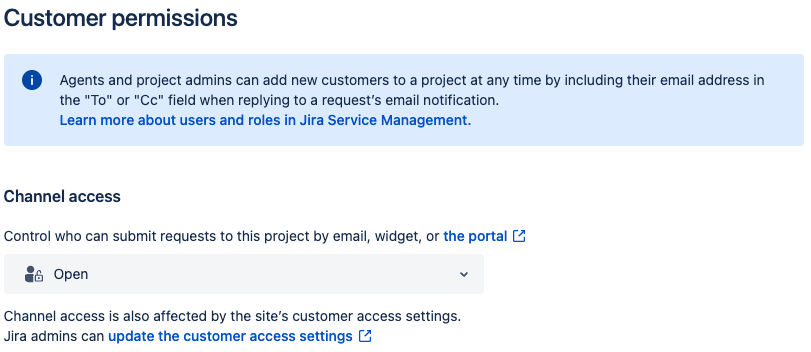
Now, at the space level, we will need to make the space available so that any customer can submit new requests. This can be configured in your space's Customer permissions.
For company-managed service spaces:
From your service space, go to Space settings > Customer permissions.
For team-managed service spaces:
From your service spaces, go to Service space settings > Channels > Customer permissions.
Once there:
In the Channel Access section, select the "Open - Anyone can submit requests to this space" option.
Conclusion
Once the above steps are completed, your customers will send emails to your space's mail handler, and for non-existent accounts, a new account will be created (Internal or external, depending on your configuration). To allow new users to create tickets via email without receiving verification or invitation emails, ensure that 'Portal-only accounts' are enabled in your Customer Access settings and that the 'Internal Customers' option is disabled.
At your space's mail handler logs, the recent request will appear for that account. While there won't be a direct indication that a new account was created, the logs will show the source of the request, such as the email address that submitted it or was included as a 'Cc' recipient.

To confirm it's working, send a test email from a new external address to the project's email address and confirm a portal-only account is created automatically; if not, re-check the customer-access setting and the incoming-email configuration.
Was this helpful?