移行ユーザー評価における無効なメール・アドレスのチェック
プラットフォームについて: Data Center のみ。 - This article only applies to Atlassian apps on the Data Center プラットフォーム。
この KB は Data Center バージョンの製品用に作成されています。Data Center 固有ではない機能の Data Center KB は、製品のサーバー バージョンでも動作する可能性はありますが、テストは行われていません。 Server* 製品のサポートは 2024 年 2 月 15 日に終了しました。Server 製品を実行している場合は、 アトラシアン Server サポート終了 のお知らせにアクセスして、移行オプションを確認してください。
*Fisheye および Crucible は除く
要約
How to identify and correct invalid email addresses using either the migration assistant or making direct changes through the database.
概要
When migrating from server or Data Center to the cloud, the Migration Assistant apps perform a series of pre-checks to make sure that the source instance doesn't contain users with invalid email addresses. As the email address serves as the primary identifier in the cloud, it is essential for it to be valid. Content migrated from Jira and Confluence will be associated with users in cloud based on their email addresses.
移行アシスタントでは、必要な基準を満たしていないメール アドレスを持つ個人を特定します。この評価は、移行プロセスの前であればどの段階でも実施できます。
ソリューション
無効なメール アドレスを検出する
次のセクションでは、サーバーまたは Data Center 上の無効なメール アドレスを特定する手順の概要を説明します。
Jira Cloud Migration Assistant を使用する
To identify users with invalid addresses using JCMA, follow the steps below:
In Jira Data Center, go to Jira Administration > System
In the left panel, locate the Import and Export category, and select Migrate to cloud. The Migration Assistant home screen appears.
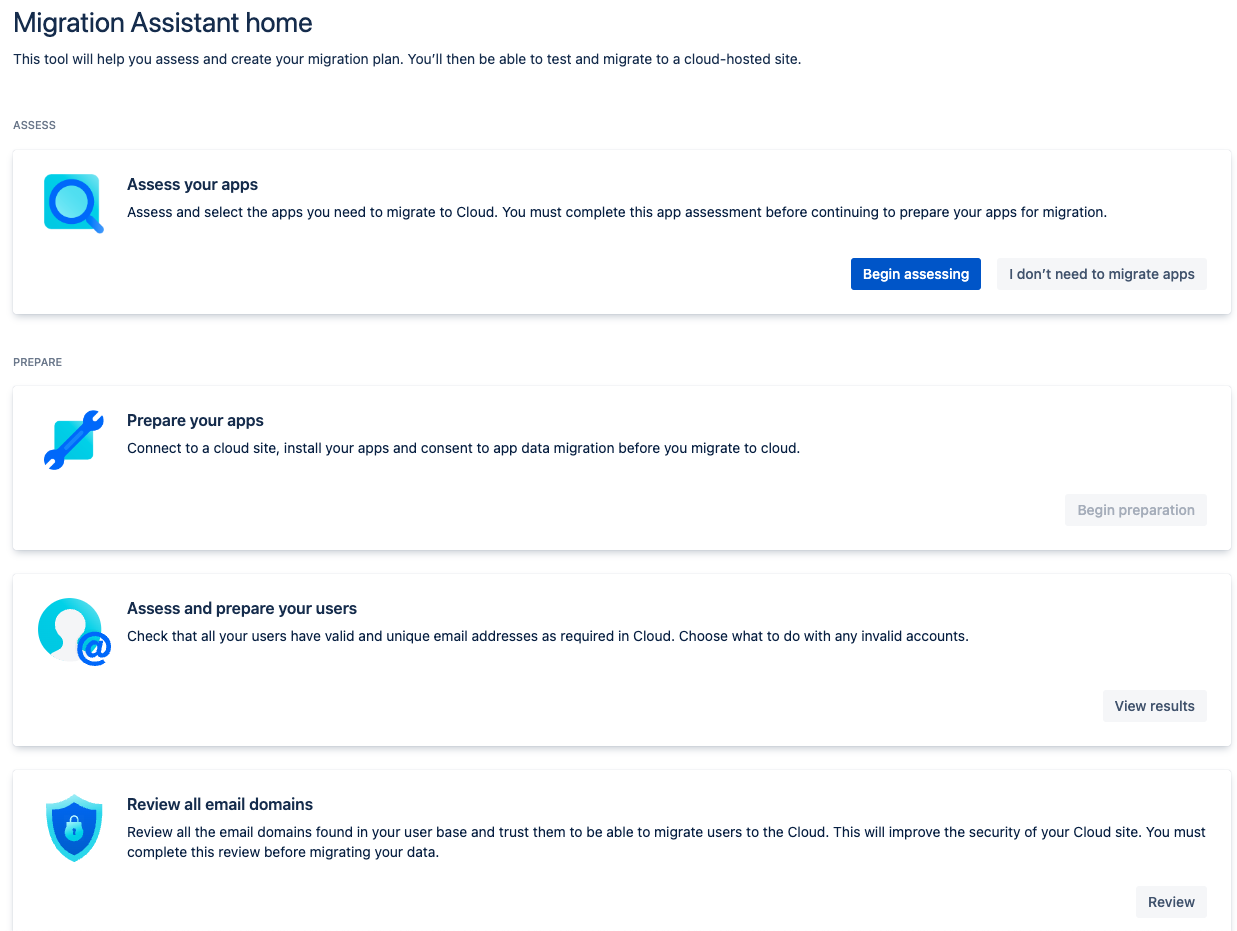
Find the Assess and prepare your users card and click on Begin assessing
移行先のクラウド サイトに接続します。
すでに Cloud サイトがある場合は、[クラウド サイトを選択] を選択するか、ドロップダウンから選択します。
If you don’t have a cloud site yet, select Get Jira cloud trial to try one for free. Learn more about Cloud migration trials
Click on Begin assessing. This will take you to a page with empty results
To initiate the assessment, select Begin assessing once again
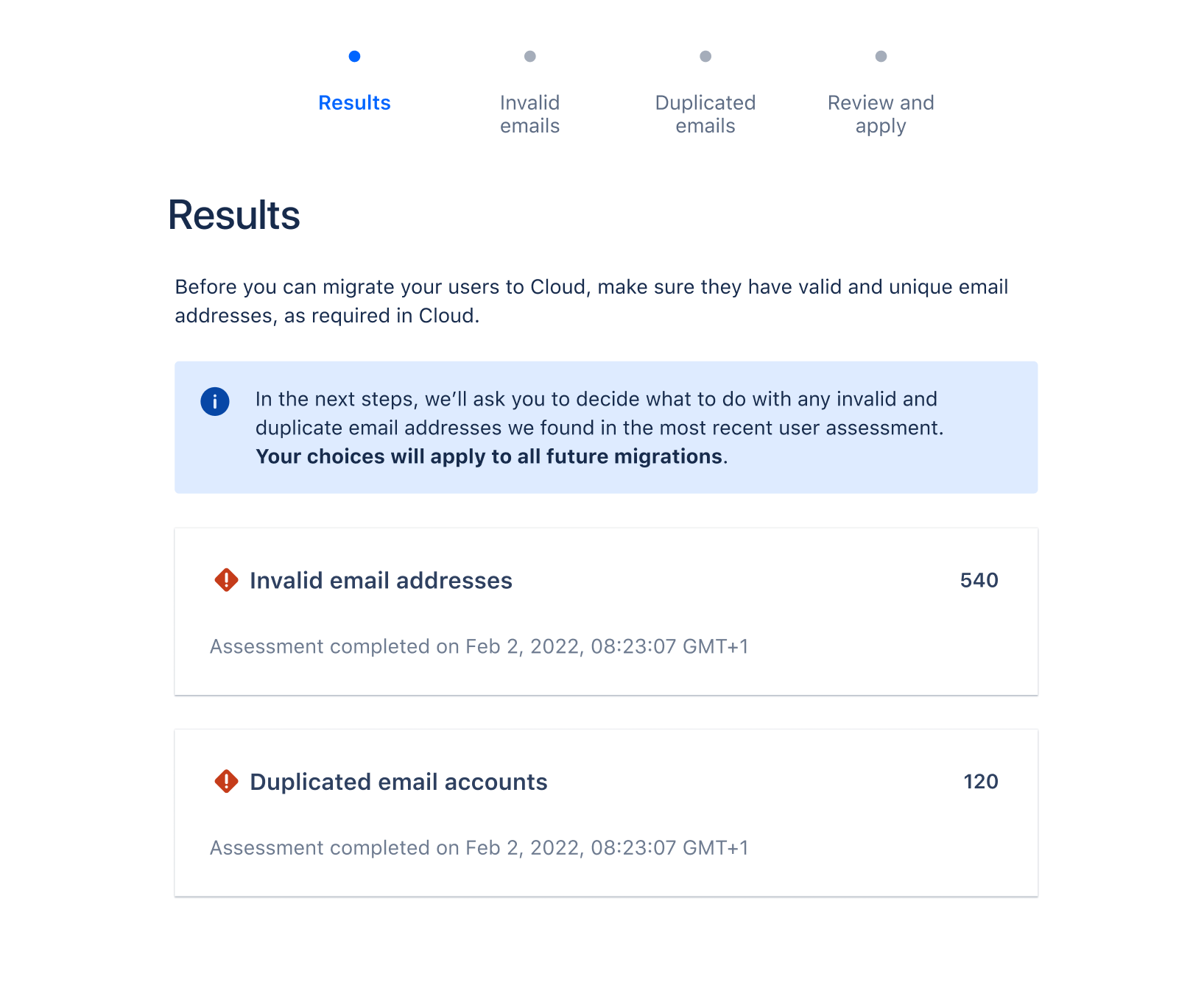
評価が完了すると、無効なメール アドレスを含む結果が表示されます。以下のスクリーンショットは、評価の結果をわかりやすく説明したものです。
With the help of Confluence Cloud Migration Assistant
To identify users with invalid addresses using CCMA, follow the steps below:
Go to Confluence Administration > look for the Atlassian Cloud category > select Migration Assistant. The Migration Assistant home screen appears
Find the Assess and prepare your users card and click on it.
移行先のクラウド サイトに接続します。
すでに Cloud サイトがある場合は、[クラウド サイトを選択] を選択するか、ドロップダウンから選択します。
If you don’t have a cloud site yet, select Get Confluence cloud trial to try one for free. Learn more about Cloud migration trials
[評価を開始] をクリックします。これにより、結果が空のページが表示されます。
評価を開始するには、[評価を開始] をもう一度選択します。
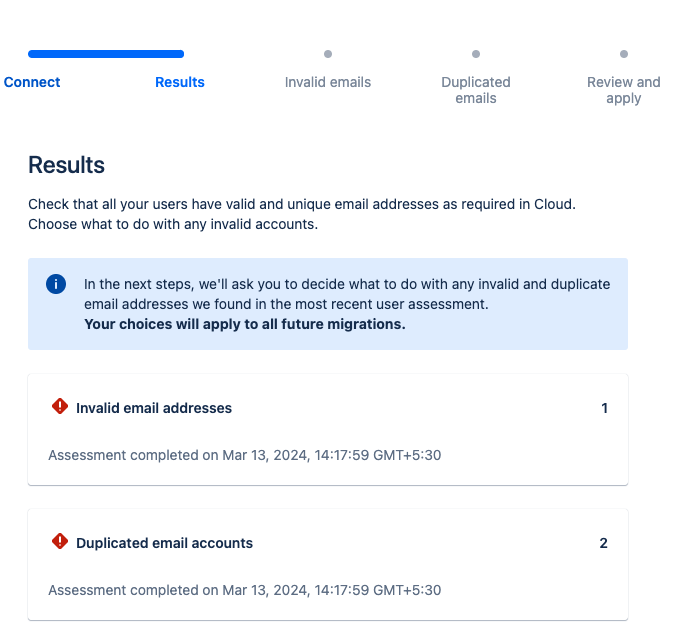
Once the assessment is complete, the results will be visible, including any invalid email addresses. The screenshot provided below clearly represents the assessment's findings.
From the DataCenter Database
情報
NOTE: The SQL query may require adjustments based on the specific database being used. Additionally, it assumes that the columns email_address and lower_email_address contain consistent data.
データベースで次のクエリを実行すると、無効なメール アドレスを特定できます。
PostgreSQL
SELECT email_address
     , user_name
  FROM cwd_user
 WHERE email_address !~ '^[A-Za-z0-9._%-]+@[A-Za-z0-9.-]+[.][A-Za-z]+$'
    OR length(substring(email_address from '(.*)@')) > 64
    OR email_address IS NULL;
ORACLE
SELECT email_address
     , user_name
  FROM cwd_user
 WHERE NOT REGEXP_LIKE (email_address, '^[A-Za-z0-9\.\!\#\$\%\&\''\*\+\-\/\=\?\^\_\|\~\(\)]+@([A-Za-z0-9_-]+\.?)+$', 'i')
    OR instr(email_address, '@') > 64
    OR email_address IS NULL;
MySQL
SELECT email_address
     , user_name
  FROM cwd_user
 WHERE email_address NOT REGEXP '^[A-Za-z0-9\.\!\#\$\%\&\'\*\+\-\/\=\?\^\_\|\~\(\)]+@([A-Za-z0-9_-]+\.?)+$'
    OR LENGTH(substring_index(email_address, '@', 1)) > 64
    OR email_address IS NULL;
MSSQL
SELECT email_address
     , user_name
  FROM cwd_user
 WHERE NOT email_address LIKE '%_@%__%.__%'
    OR NOT PATINDEX('%[^a-z,0-9,@,.,_,\-]%', email_address) = 0
    OR charindex('@', email_address) > 64
    OR email_address IS NULL;
無効なメール アドレスを修正する
無効なメール アドレスは次の方法で修正できます。
移行元のユーザー ディレクトリで手動で修正する
サーバーまたは Data Center インスタンスの UI で直接修正する
移行アシスタントの自動オプションを選択して、移行中にユーザーを更新する
サーバー/データセンターのデータベースでデータを手動で更新することも可能
移行元のユーザー ディレクトリで手動で修正する
Create valid email addresses (e.g. user@atlassian.com) and update them in the user directory, whether it is an LDAP server or server/Data Center instance.
サーバーまたは Data Center インスタンスの UI で直接修正する
Jira サーバーまたは Data Center インスタンスで以下を実行します。
[管理] > [ユーザー管理] を選択します。
ページの一番上にあるフィルターを使用して更新したいユーザーを探します。
ユーザー名の隣の[編集]を選択します。
メール アドレスを更新して、[更新] を選択します。
Confluence サーバーか Data Center インスタンスで以下を実行します。
[管理] > [ユーザー管理] を選択します。
ページの一番上にあるフィルターを使用して更新したいユーザーを探します。
Click on the User > Edit details
メール アドレスを更新して[送信] を選択します。
移行アシスタントを使用する
After performing the assessment outlined in the "Detect Invalid Email Address" section, the Migration Assistant will proceed to correct any invalid email addresses. It's crucial to understand that this method only impacts accounts created in the cloud during migration and does not modify the source directory. The automated adjustments are targeted at non-critical accounts, like old or testing ones, while updates for active users working in the cloud should come from your user directory.
無効なメール アドレスを自動で修正する方法
In the Migration Assistant, view the results in the Assess and prepare your users section.
When viewing the results, select Fix invalid emails.
いずれかのオプションを選択して無効なメール アドレスを修正します。各オプションの詳細については以下を参照してください。
データベースでユーザーを手動で更新する
Warning: Backup your database before proceeding.
Before running any SQL in this article, create a full backup of your Jira database. This is a database-level operation with no undo other than restoring from backup. Only proceed if you're comfortable running SQL directly against the Jira database, and test on a staging or cloned environment first, wherever possible.
The following query will update all those invalid users to the format: invaliduser-<id>@domain.com
Adjust the queries by adding a specific domain or changing the format. Once completed, restart the Data Center instance.
PostgreSQL
UPDATE cwd_user
SET email_address = 'invaliduser-' || id || '@domain.com',
    lower_email_address = 'invaliduser-' || id || '@domain.com'
WHERE lower_email_address IN (SELECT lower_email_address FROM cwd_user WHERE lower_email_address !~ '^[A-Za-z0-9._%-]+@[A-Za-z0-9.-]+[.][A-Za-z]+$');
ORACLE
UPDATE cwd_user
SET email_address = 'invalideuser-' || id || '@domain.com',
    lower_email_address = 'invalideuser-' || id || '@domain.com'
    WHERE  lower_email_address in (SELECT lower_email_address
FROM cwd_user
WHERE NOT REGEXP_LIKE (lower_email_address, '^[A-Za-z0-9\.\!\#\$\%\&\''\*\+\-\/\=\?\^\_\|\~\(\)]+@([A-Za-z0-9_-]+\.?)+$', 'i'));
MySQL
UPDATE cwd_user
SET email_address = 'invalideuser-' || id || '@domain.com',
    lower_email_address = 'invalideuser-' || id || '@domain.com'
WHERE email_address NOT REGEXP '^[A-Za-z0-9\.\!\#\$\%\&\'\*\+\-\/\=\?\^\_\|\~\(\)]+@([A-Za-z0-9_-]+\.?)+$';
MSSQL
UPDATE cwd_user
SET email_address = CONCAT('invaliduser-',id,'@domain.com'),
    lower_email_address = CONCAT('invaliduser-',id,'@domain.com')
    WHERE lower_email_address in (SELECT lower_email_address
FROM cwd_user WHERE not lower_email_address LIKE '%_@__%.__%'or not PATINDEX('%[^a-z,0-9,@,.,_,\-]%', lower_email_address) = 0);この内容はお役に立ちましたか?