Verify incoming webhook trigger in Automation Rule - Jira Cloud
プラットフォームの注記: Cloud のみ - This article only applies to Atlassian apps on the クラウド プラットフォーム上のアトラシアン製品にのみ適用されます。
要約
Use this article when an automation rule that uses the Incoming webhook trigger is not behaving as expected; for example, the rule does not run when called from an external system, the rule runs, but downstream actions receive empty data, or you are not sure whether your webhook URL is reachable at all.
The verification has three layers. Run them in order:
Smoke test: Is the webhook reachable?
Send a POST request without a body to confirm the URL, secret, and authentication header are correct.
Payload test: Is data flowing?
Send a POST request with a JSON body to confirm your
{{webhookData.…}}smart values resolve correctly.
Source-system test: Is the real caller correct?
If steps 1 and 2 pass but the rule still does not trigger from your third-party application, inspect what the source system is actually sending.
ソリューション
始める前に
かかる時間:
Edit access to the automation rule (project admin or higher).
A terminal with curl available, or Postman installed.
The webhook URL and Secret from the Incoming webhook trigger configuration. To get these:
Open the rule in the automation rule builder.
Select the Incoming webhook trigger.
Copy the Webhook URL and the Secret values shown.
Important: If you regenerate the secret, every system calling the webhook must be updated with the new secret immediately. The old secret stops working as soon as a new one is generated. See Configure the incoming webhook trigger for full secret-management guidance.
Layer 1 - Smoke test (without a body)
Use this test to confirm that the webhook URL is reachable and the secret is being accepted. This call does not send any payload, so it will not populate {{webhookData}} in your rule — that is covered in Layer 2.
Smoke test using cURL
Replace the placeholders, then run the command in your terminal:
Smoke test using cURL
curl -X POST \
  -H 'Content-Type: application/json' \
  -H 'X-Automation-Webhook-Token: <your-secret-here>' \
  '<your-webhook-url-here>'
Expected outcome: the command returns null in the terminal. This is normal — it does not mean the call failed. Verify success by checking the rule’s audit log (open the rule, select Audit log, and look for a recent entry).
Smoke test using Postman
Open Postman and create a new request.
Set the request type to POST.
Paste the webhook URL into the URL field.
On the Headers tab, add a header named
X-Automation-Webhook-Tokenwith your secret as the value.Leave the Body tab set to none.
Select Send.
Verify that the response status is 200.
Open the rule and check the Audit log to confirm the rule ran.
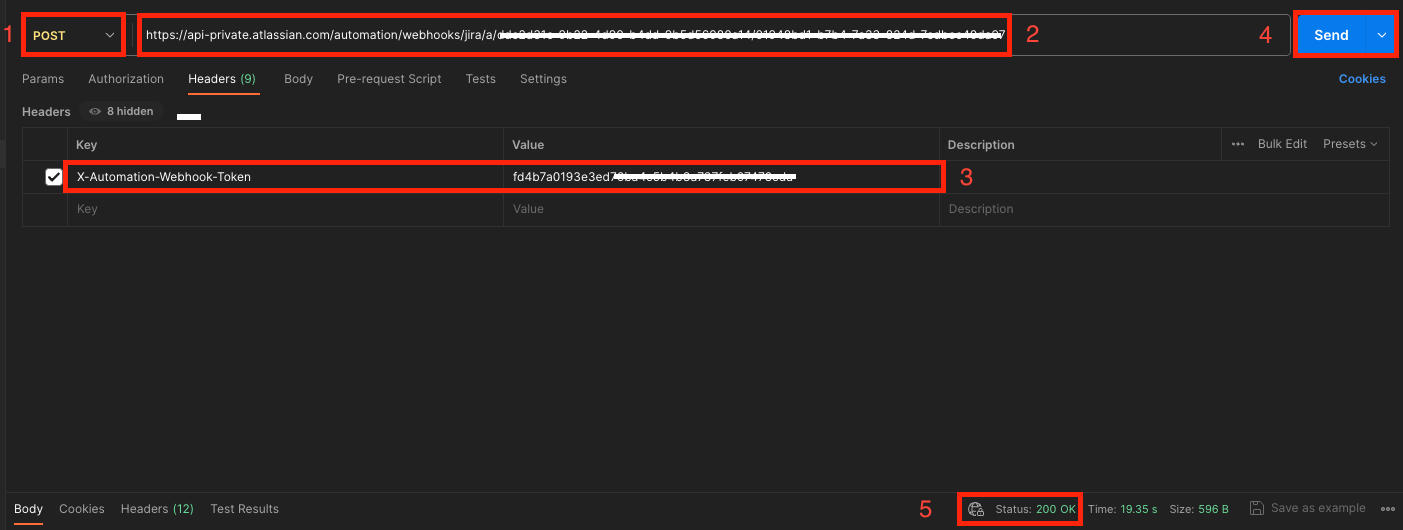
Known behavior: the new (post-May 2025) incoming webhook endpoint returns 200 for every well-formed request, even if the secret is wrong or the rule does not exist. The definitive test is whether an entry appears in the rule’s audit log, not the HTTP status code.
Layer 2 - Payload test (with a body)
A successful smoke test confirms the webhook fires, but most rules need real data to do useful work. The data you POST is exposed to the rest of the rule via the {{webhookData}} smart value (and its children, e.g. {{webhookData.issueKey}} ). For a complete reference on smart-value path syntax, see Use incoming webhooks with smart values in Automation for Jira.
The keys you send in the JSON body must exactly match the smart-value paths the rule references. For example, if your rule uses {{webhookData.issueKey}} , your body must contain a top-level key called issueKey.
Payload test using cURL
Run the command below, substituting your secret, URL, and the JSON fields your rule expects:
Payload test using cURL
curl -X POST \
  -H 'Content-Type: application/json' \
  -H 'X-Automation-Webhook-Token: <your-secret-here>' \
  -d '{"issueKey":"TEST-1","customField":"sample value","priority":"High"}' \
  '<your-webhook-url-here>'
Expected outcome:
Terminal response is still null (this is normal).
The rule’s audit log shows a new run.
Inside the audit-log entry, expanding the Trigger step shows the JSON payload you sent — this is the exact data available to
{{webhookData}}.Any downstream action that references
{{webhookData.issueKey}}(or your own key names) resolves to the value you sent.
Payload test using Postman
Set the request type to POST and paste the webhook URL.
On the Headers tab, add
X-Automation-Webhook-Tokenwith your secret.On the Body tab, select raw, then choose JSON from the format dropdown.
Paste your JSON payload; for example:
Example JSON payload
{
  "issueKey": "TEST-1",
  "customField": "sample value",
  "priority": "High"
}
Select Send.
Confirm a 200 response.
Open the rule’s audit log and expand the new run to verify the payload was received and parsed.
Inspect what your rule actually received
The fastest way to debug a webhook payload is to look at exactly what the rule saw:
Open the rule and select Audit log.
Expand the most recent run.
Select the Trigger step.
The Payload panel shows the raw JSON your rule received.
If a smart value such as {{webhookData.foo}} is empty or blank in your downstream actions, this panel is where you confirm whether the key foo was actually present in the body and spelled correctly.
Tip: if your incoming JSON contains a key with a period in its name (for example, "container.name"), wrap the path segment in double quotes: {{webhookData."container.name"}} . See the smart-values KB for the full path-syntax reference.
Layer 3 - Verify the source application
If Layers 1 and 2 both succeed but the rule still does not run when triggered by your real upstream system, the problem is on the sender side. Work through this checklist with the team that owns the source application:
Outbound request was actually sent. Check the source application’s outbound HTTP logs for a POST to your webhook URL at the time you expected the rule to fire.
Response code from Atlassian. Capture the HTTP response the source system received. A 200 means the request reached Atlassian; anything else (network error, 4xx, 5xx) indicates the request never made it.
HTTP method is POST. The incoming webhook trigger only accepts POST. GET, PUT, and other methods are rejected.
Header name is exact. The header must be named
X-Automation-Webhook-Token: case-sensitive in some clients. The header value must be the secret only, with no surrounding quotes or whitespace.Header alternative for restricted clients. If your sender cannot add custom HTTP headers, append the secret to the URL as a final path segment:
https://<your-webhook-url>/<your-secret>. This is documented in Configure the incoming webhook trigger.Content-Type is JSON. Set Content-Type: application/json on the request.
Body is valid JSON. Validate the payload with a JSON linter before debugging further. A malformed body causes the rule to receive empty
{{webhookData}}even though the request itself succeeds.URL has no trailing whitespace. Copy-paste from a rich-text source (e.g. Confluence, email) sometimes appends invisible characters that break the URL.
Common issues and how to fix them
症状 | 考えられる原因 | 修正 |
Rule does not run at all; nothing in audit log. | URL or secret is wrong, or the rule is disabled. | Re-copy URL and secret from the trigger. Confirm the rule is enabled (toggle at top of the rule builder). |
Smoke test returns 200 and audit log shows a run, but | Layer 1 (no body) was used. The request had no payload to parse. | Re-test using the Layer 2 instructions with a JSON body. |
Audit log shows a run, but | The key in your JSON body does not match the smart-value path, or the path includes a special character. | Check the key spelling and casing in the audit-log Payload panel. For keys containing periods, wrap them in double quotes (e.g. |
Rule worked yesterday, stopped working today. | Secret was regenerated; the source system is sending the old one. | Copy the current secret from the trigger and update every calling system. Old secrets are invalidated immediately when a new one is generated. |
Source application receives 200 but rule does not run. | This is a known behaviour of the new endpoint; it returns 200 even for invalid secret or malformed requests. The HTTP code is not a reliable success indicator. | Always confirm success via the rule’s audit log, not the HTTP response. |
Warning icon next to the rule name. | The rule was recently triggered through the legacy webhook endpoint (deprecated 30 May 2025). | Migrate the rule and the calling system to the new endpoint per Configure the incoming webhook trigger. The warning icon clears automatically 14 days after the last legacy call. |
Source app reports the call timed out. | Network egress from the source application is blocked or slow. | Whitelist the Atlassian incoming-webhook hostname (the host from your webhook URL) in your egress firewall and re-test. |
関連記事
Configure the incoming webhook trigger in Atlassian Automation: setup, secret management, and the May 2025 endpoint migration.
Use incoming webhooks with smart values in Automation for Jira: full reference for
{{webhookData}}path syntax, handling nested fields, and special characters.Jira automation triggers: reference for all available triggers, including the Incoming webhook trigger entry.
Understand the difference between Automation limits and usage in Jira Cloud: if the rule fires occasionally but not every time, you may be hitting an automation service or usage limit.
この内容はお役に立ちましたか?