Use incoming webhooks with smart values in Automation for Jira
プラットフォームについて: Cloud と Data Center - この記事は クラウド プラットフォームとデータセンター プラットフォームの両方に等しく当てはまります。
Server* 製品のサポートは 2024 年 2 月 15 日に終了しました。Server 製品を実行している場合は、 アトラシアン Server サポート終了 のお知らせにアクセスして、移行オプションを確認してください。
*Fisheye および Crucible は除く
要約
Automation for Jira has a trigger that reads incoming webhooks, both in on-premises and cloud instances.
When we use this trigger, we can use the {{webhookData}} smart value to represent the POST payload.
If the {{webhookData}} doesn't work, try using the {{webhookResponse.body}} smart value instead.
ソリューション
Retrieve a specific part of a webhook payload
The smart value {{webhookData}} gets the root of the JSON payload. To get a specific property from the larger payload, we can use {{webhookData.someValue.childValue}}.
Let's consider the payload below:
{
    "self": "http://localhost:48205/j8205/rest/api/2/issue/10137",
    "id": 10137,
    "key": "SD-38",
    "fields": {
        "issuetype": {
            "self": "http://localhost:48205/j8205/rest/api/2/issuetype/10103",
            "id": 10103,
            "description": "Created by Jira Service Desk.",
            "iconUrl": "http://localhost:48205/j8205/secure/viewavatar?size=xsmall&avatarId=10701&avatarType=issuetype",
            "name": "Service Request",
            "subtask": false,
            "fields": null,
            "statuses": [],
            "namedValue": "Service Request"
        },
        "summary": "Cannot turn on my laptop",
...
Some example data from this payload:
Key -
{{webhookData.key}}Summary -
{{webhookData.fields.summary}}Issue type ID -
{{webhookData.fields.issuetype.id}}Issue type name -
{{webhookData.fields.issuetype.name}}
ℹ️ If the incoming JSON has periods in the field, such as "container.name", we just need to add double quotes to the smart values, which will look like {{webhookData."container.name"}}
Confirm payload data from the JSON path
Here are some examples of ways to test the JSON path to get the right data in the smart values, so you can get it right on your first try!
First, you need a sample from the webhook payload data. This can be obtained by sending a webhook to a webhook test site (like https://requestbin.com) or by intercepting the message by enabling Jira's HTTP access logs and HTTP dump from the System > Logging and Profiling screen and then checking the request data.
ℹ️ After testing, disable both the HTTP dump and access logs to avoid performance issues.
With a sample JSON, either:
Use an online JSON path tool like https://jsonpathfinder.com/
Use an IDE like Visual Studio Code to find the path:
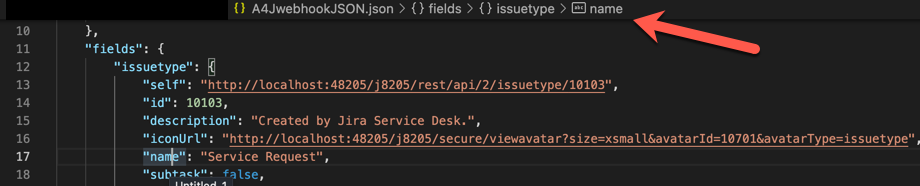
Test using a command line:
In Linux/Mac OS, use a jq command, such as:
jq '.fields.issuetype.name' webhook.jsonIn Windows, we can use Powershell's ConvertFrom-Json:
(get-content webhook.json | convertfrom-json).fields.issuetype.name
この内容はお役に立ちましたか?