Strategy Collection - Jira Align Self Provisioning, Renewal and Decommissioning Steps for Customers
Summary
This article applies to cloud customers who purchased the Strategy Collection license. It outlines the steps customers must follow to self-provision, renew, or decommission their Jira Align instance. This article describes the self-provisioning flow for new Jira Align instances purchased as part of Strategy Collection.
Solution
Provisioning Jira Align
For new Strategy Collection customers, the Jira Align Production environment can be provisioned directly from the Atlassian Administration, allowing eligible customers to self-serve and provision Jira Align through the Atlassian Administration. The Jira Align Staging instance will be provisioned manually by the Atlassian Support team.
If you are an existing Jira Align customer whose contract is migrating to Strategy Collection, Atlassian handles your instance. You do not need to self-provision a new site from the Atlassian Administration.
Supported Products, Platforms, and Environments
Products: Jira Align, Enterprise Insights (EI)
Platform: Cloud only
Environments: Production only
Staging: Provisioned manually by the Atlassian Support team
VPC: Provisioned manually by the Atlassian Support team
User and Admin Management
The billing admin who initiates provisioning is automatically added as a Super Admin in Jira Align.
Atlassian Guard authentication is enabled by default and cannot be disabled.
Atlassian Guard Standard is included free with an Atlassian Cloud Enterprise plan.
Prerequisites
You are a billing admin on the Strategy Collection subscription in https://admin.atlassian.com/billing
You are an organization admin for the organization where you plan to provision.
Your organization has at least one Jira Cloud Premium or Enterprise site available for provisioning.
You know which organization and site should host your production instance (for customers with multiple orgs/sites).
If your subscription is partner-managed, your partner has been added to your organization and can access the Strategy Collection subscription as billing admin.
No existing instance is already provisioned for the target organization (one instance per org).
You have the necessary internal approvals to add or change Strategy Collection apps for your account.
Self-Provisioning steps
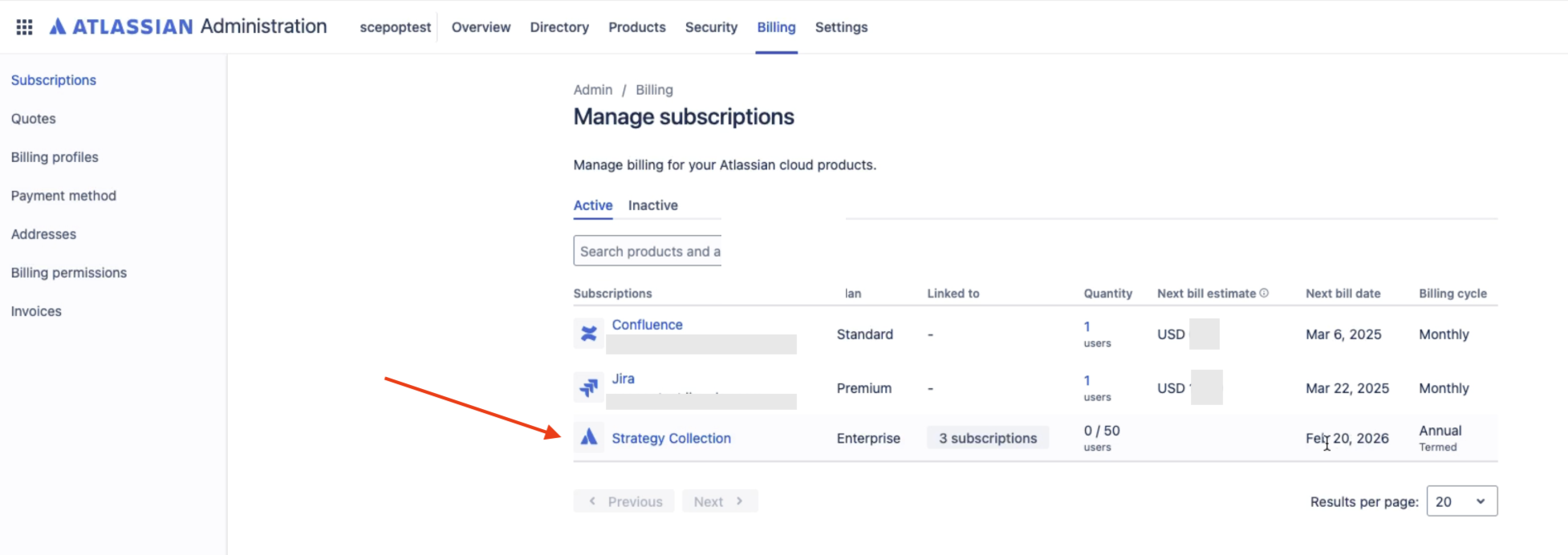
Go to admin.atlassian.com/billing. Select your billing account if you have multiple accounts.
Go to Subscriptions from the side navigation.
Select Strategy Collection
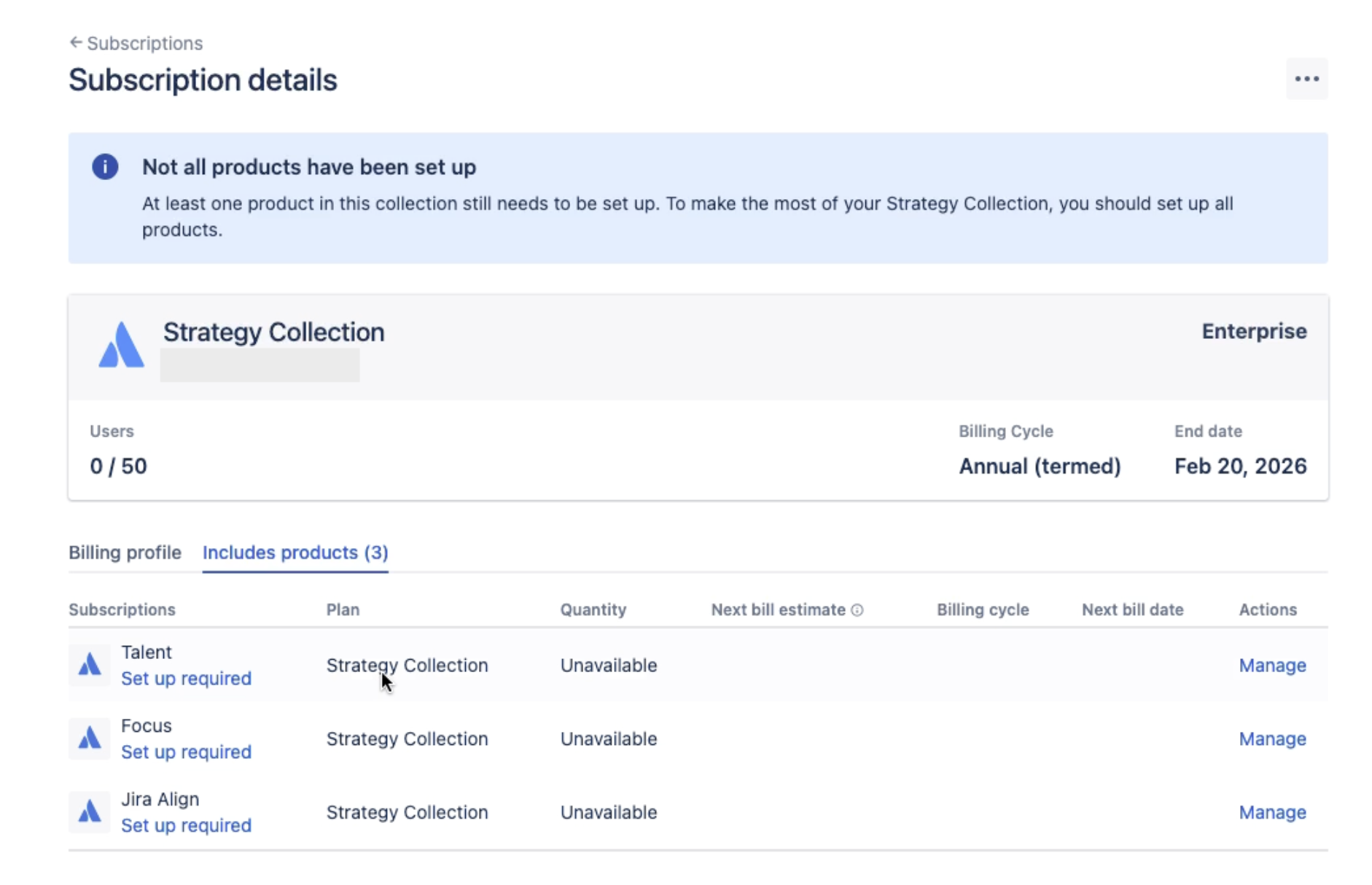
On the Subscription details page, select the Jira Align app you want to provision. You will see “Set up required” if the app is not provisioned.
Note : For partner-managed subscriptions, the partner acts as the Billing Admin and must complete this step. The customer must add the partner to the Organization to link it to the correct subscription.
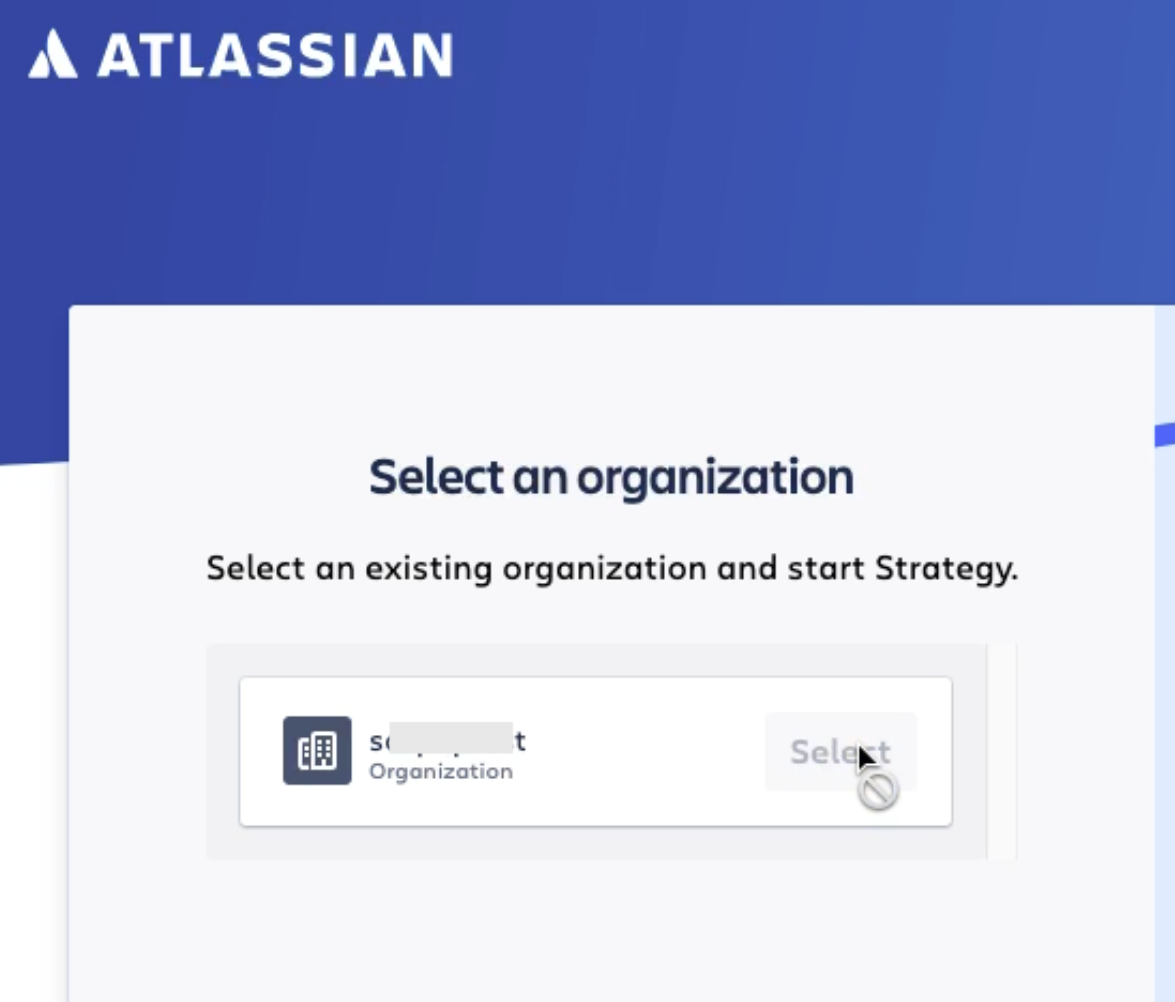
Select the Organization that you want your Jira Align provisioned.
Add the name of the Jira Align site you would like to create in the Name your site field.
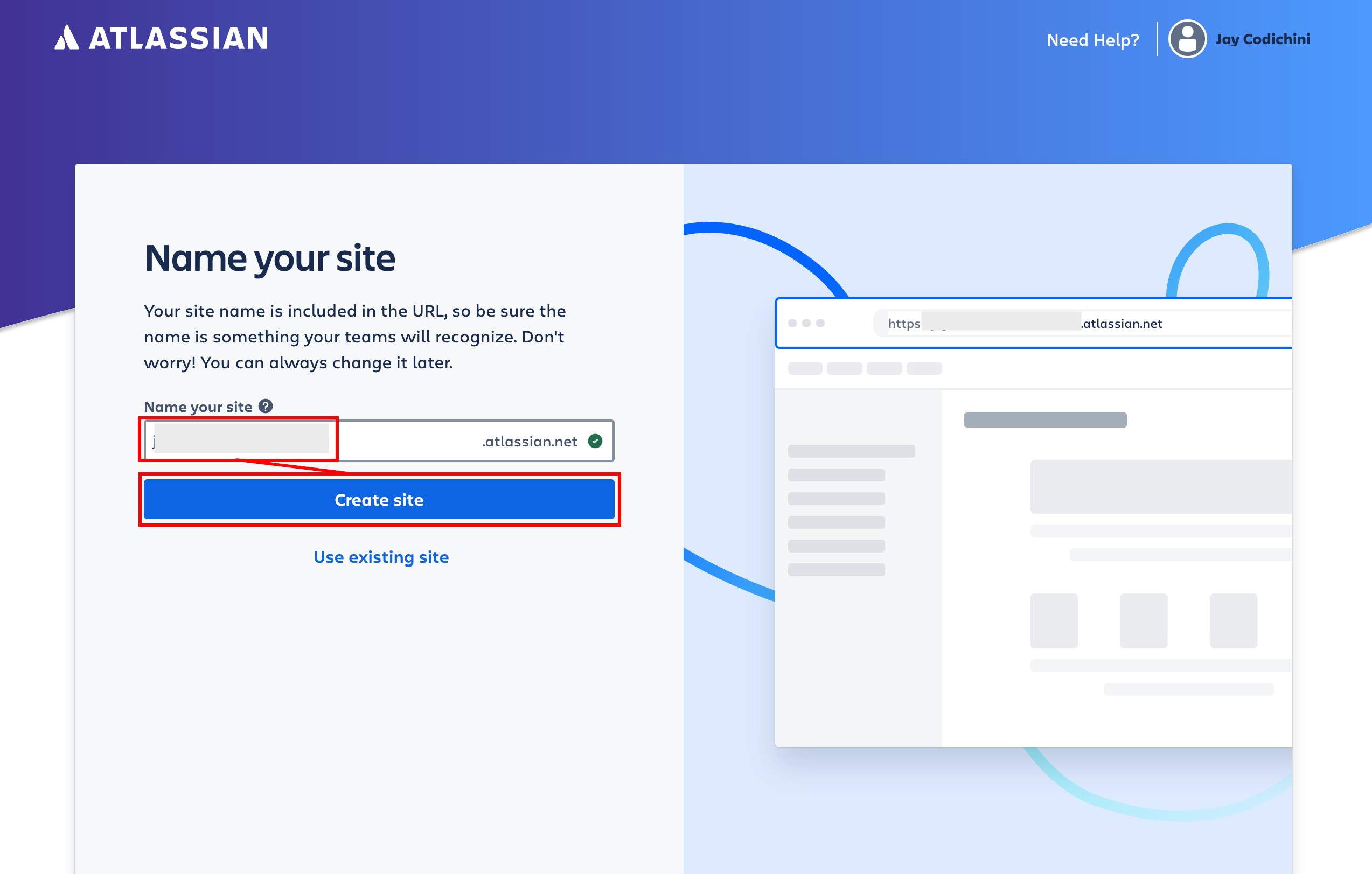
Customers can choose the name of their site, which must be globally unique across all Strategy Collection apps (Talent, Focus, Jira Align).
- If the chosen name exists, the system will attempt to deduplicate by appending a suffix such as "-app" or "-saas". If all attempts fail, then provisioning fails.
Note : Jira Align uses the domain
customer-name.jiraalign.com(notcustomer-name.atlassian.net).Jira Align site provisioning can take around 30 minutes to complete. Customers can see a progress screen and should check their email for notifications about provisioning completion.
Note : The billing admin/user who initiates provisioning is automatically added as a Super Admin in Jira Align.
Note : After the Jira Align instance is provisioned, an associated Enterprise Insights instance is created within ~45 minutes. The customers can manage their IP addresses/Users through the Jira Align Enterprise Insights Wizard.
For new Strategy Collection customers self-provisioning Jira Align, their Jira Align data will be shared with other Atlassian apps. This integration lets customers leverage their data across the Atlassian platform. Apps like Focus can connect to your Jira Align environment. New Strategy Collection customers can select Enterprise Insights as a data source in the Atlassian Analytics app without additional configuration.
Renewing Jira Align
The Billing Administration team is responsible for managing Strategy Collection(Jira Align, Focus, and Talent) renewals. Customers are not required to take any action. Upon renewal, the Billing section within the Atlassian Administration will automatically update with the new renewal dates. For questions about the Strategy Collection license, contact your Account Executives.
Decommissioning Jira Align
Jira Align is included in the Strategy Collection subscription with Focus and Talent. Canceling the Strategy Collection subscription deactivates all three products (Jira Align, Focus, and Talent) simultaneously. Focus and Talent began as separate apps, so some customers may have only Focus or Talent outside a collection subscription, allowing independent cancellation. Jira Align is only available within a collection, so it cannot be canceled separately.
In order to reactivate or cancel a subscription, please refer to the following articles - Reactivate a subscription | Atlassian Support Cancel a subscription | Atlassian Support
Note : After you cancel a product/app subscription in Atlassian Administration (admin.atlassian.com):
The subscription is deactivated 15 days after the end of your current subscription period.
Once it’s deactivated, your product data is retained for a period of time, during which you can reactivate and get everything back.
For questions regarding provisioning, renewal, or decommissioning, contact the Atlassian Support team.
Was this helpful?