Mapping States, Process Steps, and Statuses between Align and Jira via API
Summary
This article explains how to configure Jira Align so that work item status transitions in Jira are reflected in Align as changes to states or process steps, and vice versa, using the Align REST API.
Prerequisites
Before you begin, make sure you have:
Configured the Jira Connector to integrate with your Jira instance, with bidirectional sync enabled for work items and issues.
API access to Jira Align with the required permissions.
The
connectorIdfor your Jira connector.Pulled the latest Jira statuses into Align. If you’re unsure, run Settings > Jira Settings > Resync Configuration > Configuration data pull, or use the relevant API endpoint.
Synced projects from Jira and set up work item type IDs.
If you are mapping process steps, you will also need to have:
Created process flows in Align.
Added the process step field to the relevant Align work item details panels.
Solution
API base path
All endpoints in this guide are relative to:
rest/align/api/2/connectors
Project types in Jira
Jira supports two types of projects: company-managed (formerly “classic”) and team-managed (formerly “next-gen”). The API handles mappings differently for each type.
Company-managed projects
Mappings are configured at the connector level and shared across all company-managed projects.
Use connector-level endpoints:
/connectors/{connectorId}/mappings/statesor/connectors/{connectorId}/mappings/process-stepsDo not include
projectKeyin the request body when creating mappings, as it is only used for team-managed projects.Do not use
ProjectKeyquery parameter when retrieving mappings (omit it to get company-managed mappings only)
Team-managed projects
Mappings are configured per project; each team-managed project has its own mappings.
Use connector-level endpoints with the
ProjectKeyfilter:/connectors/{connectorId}/mappings/states?ProjectKey={projectKey}.Include
projectKeyin the request body when creating mappings.Use the
ProjectKeyquery parameter when retrieving mappings for team-managed projects.For Align → Jira mappings, use project-level endpoints:
/connectors/{connectorId}/projects/{projectKey}/mappings/states.
Key differences
Aspect | Company-managed | Team-managed |
Mapping Scope | Connector-wide (shared) | Per-project (unique) |
Jira → Align endpoints |
|
|
Align → Jira endpoints |
|
|
Request body | No | Include |
Query filter | Omit | Include |
Configuration methods
Jira Align offers two ways to manage the state of an issue, both of which can be mapped to Jira issue statuses:
States: Default, system-defined states (not customizable)
States:
0– Pending approval1– Ready to start2– In progress3– Dev complete4– Test complete5– Accepted
Use process steps if you need custom state names or more than 6 states.
If your Jira workflow has 6 or fewer statuses, you can use Align states.
Process steps: Configurable, user-defined steps
Process step names are customizable.
You can configure more than six process steps.
You can match process steps exactly to the statuses in your Jira project workflow.
Align states are still used in parallel with process steps.
Allowed work item Types and IDs
Mapping type | Direction | Stored/used Work item type IDs |
State | Jira → Jira Align |
|
State | Jira Align → Jira |
|
Process Step | Jira → Jira Align |
|
Process Step | Jira Align → Jira |
|
View detailed mapping instructions
Branch off from here to any of the mapping instructions below
Complete configuration examples
Example 1: Company-managed project configuration
Here's a complete example of configuring bidirectional state mapping for a feature work item type in a company-managed project using Jia Align states:
Step 1: Map Jira statuses to align states
# Map "To Do" Jira status to "Ready to Start" Align state
POST /align/api/2/Connectors/123/mappings/states
Content-Type: application/json

{
  "workItemTypeId": 2,  // Feature
  "jiraStatusId": 10001,
  "alignStateId": 1
}

# Map "In Progress" Jira status to "In Progress" Align state
POST /align/api/2/Connectors/123/mappings/states
Content-Type: application/json

{
  "workItemTypeId": 2,
  "jiraStatusId": 10002,
  "alignStateId": 2
}

# Map "Done" Jira status to "Test Complete" Align state (for Features, can use "Accepted")
POST /align/api/2/Connectors/123/mappings/states
Content-Type: application/json

{
  "workItemTypeId": 2,
  "jiraStatusId": 10003,
  "alignStateId": 5  // Accepted for Features
}
Step 2: Map Align states to Jira statuses
# Map "Ready to Start" Align state to "To Do" Jira status
POST /align/api/2/Connectors/123/projects/PROJ/mappings/states
Content-Type: application/json

{
  "workItemTypeId": 2,
  "jiraStatusId": 10001,
  "alignStateId": 1
}

# Map "In Progress" Align state to "In Progress" Jira status
POST /align/api/2/Connectors/123/projects/PROJ/mappings/states
Content-Type: application/json

{
  "workItemTypeId": 2,
  "jiraStatusId": 10002,
  "alignStateId": 2
}

# Map "Accepted" Align state to "Done" Jira status
POST /align/api/2/Connectors/123/projects/PROJ/mappings/states
Content-Type: application/json

{
  "workItemTypeId": 2,
  "jiraStatusId": 10003,
  "alignStateId": 5
}
Example 2: Team-managed project configuration
Here's a complete example of configuring bidirectional state mapping for a feature work item type in a team-managed project using only Align states:
Step 1: Map Jira statuses to align states
# Map "To Do" Jira status to "Ready to Start" Align state
POST /align/api/2/Connectors/123/mappings/states
Content-Type: application/json

{
  "workItemTypeId": 2,  // Feature
  "jiraStatusId": 10001,
  "alignStateId": 1,
  "projectKey": "PROJ"  // Required for team-managed projects
}

# Map "In Progress" Jira status to "In Progress" Align state
POST /align/api/2/Connectors/123/mappings/states
Content-Type: application/json

{
  "workItemTypeId": 2,
  "jiraStatusId": 10002,
  "alignStateId": 2,
  "projectKey": "PROJ"
}

# Map "Done" Jira status to "Accepted" Align state
POST /align/api/2/Connectors/123/mappings/states
Content-Type: application/json

{
  "workItemTypeId": 2,
  "jiraStatusId": 10003,
  "alignStateId": 5,  // Accepted for Features
  "projectKey": "PROJ"
}
Step 2: Map Align states to Jira statuses
# Map "Ready to Start" Align state to "To Do" Jira status
POST /align/api/2/Connectors/123/projects/PROJ/mappings/states
Content-Type: application/json

{
  "workItemTypeId": 2,
  "jiraStatusId": 10001,
  "alignStateId": 1
}

# Map "In Progress" Align state to "In Progress" Jira status
POST /align/api/2/Connectors/123/projects/PROJ/mappings/states
Content-Type: application/json

{
  "workItemTypeId": 2,
  "jiraStatusId": 10002,
  "alignStateId": 2
}

# Map "Accepted" Align state to "Done" Jira status
POST /align/api/2/Connectors/123/projects/PROJ/mappings/states
Content-Type: application/json

{
  "workItemTypeId": 2,
  "jiraStatusId": 10003,
  "alignStateId": 5
}
Step 3: Retrieve team-managed mappings
# Get all Jira → Align state mappings for team-managed project PROJ
GET /align/api/2/Connectors/123/mappings/states?ProjectKey=PROJ&WorkItemTypeId=2

# Get all Align → Jira state mappings for team-managed project PROJ
GET /align/api/2/Connectors/123/projects/PROJ/mappings/states?WorkItemTypeId=2
Example 3: Mixed environment with company-managed and team-managed projects
If you have both company-managed and team-managed projects in the same connector:
# Get all company-managed mappings (no ProjectKey filter)
GET /align/api/2/Connectors/123/mappings/states?WorkItemTypeId=1

# Get team-managed mappings for project PROJ1
GET /align/api/2/Connectors/123/mappings/states?ProjectKey=PROJ1&WorkItemTypeId=1

# Get team-managed mappings for project PROJ2
GET /align/api/2/Connectors/123/mappings/states?ProjectKey=PROJ2&WorkItemTypeId=1
OData query support:
All GET endpoints support OData query options (
$top,$skip,$filter,$orderby)Default page size is 100 items
Maximum page size is 100 items
Error handling
The Align API uses standard HTTP status codes to indicate the result of each request. Review the following codes to understand how the API responds to different situations:
200 OK: Successful GET request201 Created: Successful POST request (resource created)204 No Content: Successful PUT/DELETE request400 Bad Request: Invalid request data401 Unauthorized: Missing or invalid authentication token404 Not Found: Resource not found500 Internal Server Error: Server error
Audit logs
All mapping operations (POST, PUT, DELETE) are automatically recorded in the Jira Align audit log. The audit log helps you track configuration changes for compliance and troubleshooting.
The audit log displays in a table format with columns:
Type (
CONFIG {connectorId})User (
Jira Align System)Timestamp
Description
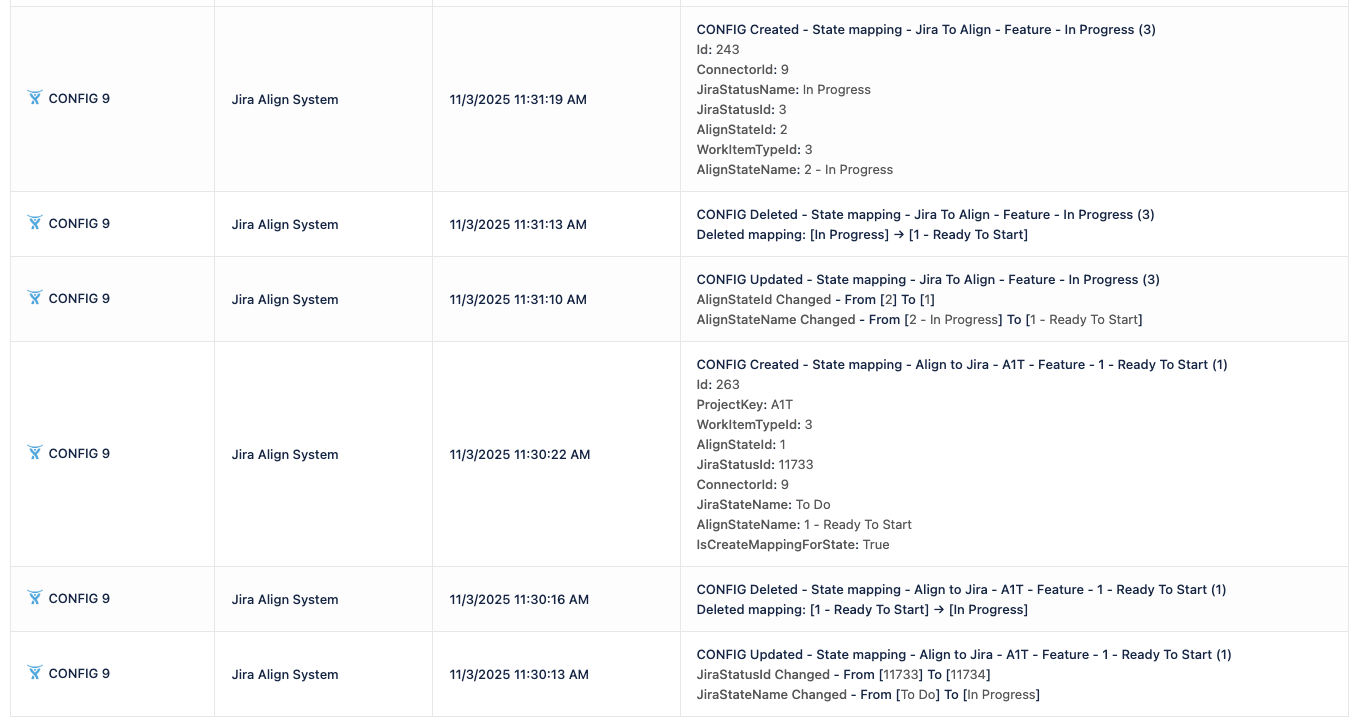
Event description format
Audit log entries follow these formats:
Jira to Align mappings
CONFIG {Action} - {MappingType} - {Direction} - {WorkItemType} - {Jira status name (Jira StatusId)} {Additional details}Align to Jira mappings
CONFIG {Action} - {MappingType} - {Direction} - {WorkItemType} - {Align state/process step name (Align state/process step Id)} {Additional details}
Where:
Action:
Created,Updated, orDeletedMappingType:
State mappingorProcess Step mappingDirection:
Jira To AlignorAlign to JiraWorkItemType: The work item type for which the mapping was changed
Additional Details: vary by direction/type
Created operations:
Includes fields such as:
Id,ConnectorId,WorkItemTypeId, and relevant mapping fields (e.g.,JiraStatusId,AlignStateId,ProcessStepId)For Align to Jira mappings,
ProjectKeyis also displayed in description and details
Updated operations:
Displays only changed fields in the following format:
{FieldName} Changed - From [{oldValue}] To [{newValue}]For Jira to Align mappings, displays changes to
AlignStateId/AlignStateNameorProcessStepId/ProcessStepNameFor Align to Jira mappings, displays changes to
JiraStatusId/JiraStateName
Deleted operations:
Displays the deleted mapping relationship:
Deleted mapping: [{source}] → [{target}]For Jira to Align mappings:
[JiraStatusName] → [AlignStateName]or[Jira Status Id {id}] → [Process Step ID {id}]For Align to Jira mappings:
[AlignStateName] → [JiraStateName]or[ProcessStepName] → [JiraStateName]
Was this helpful?