クラウド インスタンスで 2 つの Jira 製品だけを使用している場合のサイトのリセット
プラットフォームの注記: Cloud のみ - This article only applies to Atlassian apps on the クラウド プラットフォーム上のアトラシアン製品にのみ適用されます。
要約
複数の Jira Cloud 製品 (Jira Software、Jira Service Management、Jira Work Management、Jira Product Discovery など) を使用している場合、データを完全に削除するにはすべての Jira 製品を削除する必要があります。1 つの製品のみを削除しても、データは保持され、再有効化時に利用できるようになります。
Warning: This permanently deletes your Jira data. Resetting the site deletes all Jira products and reactivates each one as an empty copy. Deleting only one Jira product retains its data, which becomes available again upon reactivation, so you must delete every Jira product to remove the data completely.
ソリューション
前提条件
Verify the Billing Engine by following the article understand the improved Atlassian billing experience
Note: Check your billing experience first. If you have the improved billing experience, follow reset and delete sites if you have an improved billing experience instead of the steps on this page. If you have the original billing experience, continue with the steps below.
従来の請求エクスペリエンスを利用している場合は以下の手順に従い、そうでない場合は記事に従います。改善された請求エクスペリエンスを利用している場合はサイトをリセットして削除します。
クラウド移行トライアルを有効にしている場合は、次の手順に進む前に、「クラウド サイトがクラウド移行トライアル (CMT) で有効になっている場合の確認」の記事を参照して無効にしてください。
現在 Enterprise ライセンス層を利用している場合は、次の手順に進む前に、「Enterprise ライセンス層を利用している場合の確認」の記事を参照して Premium 層にダウングレードしてください。
リセットが必要なクラウド サイトのサイト管理者権限が不可欠です。
クラウド サイトをリセットする手順
Confluence または Opsgenie が有効化されていることを確認します。そうでない場合は、ConfluenceまたはOpsgenieのいずれかをアクティブ化する必要があります。
Select Settings > Administration (or go directly to admin.atlassian.com).
複数の組織またはサイトがある場合は、関連する組織またはサイトを選択してください。
ナビゲーション バーの [製品] に移動します。
Select Add Product.
サイトを選択します。
次のように選択します。 Try it now for the relevant product.
次のように選択します。 Get Started or Reactivate on the other product.
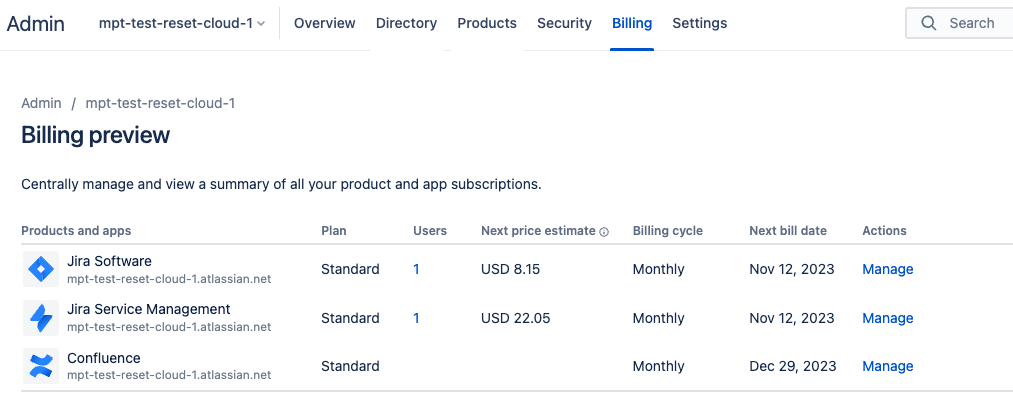
Confluence または Opsgenie のいずれかが有効になったら、リセットする製品の [請求] > [管理] にアクセスしてください。
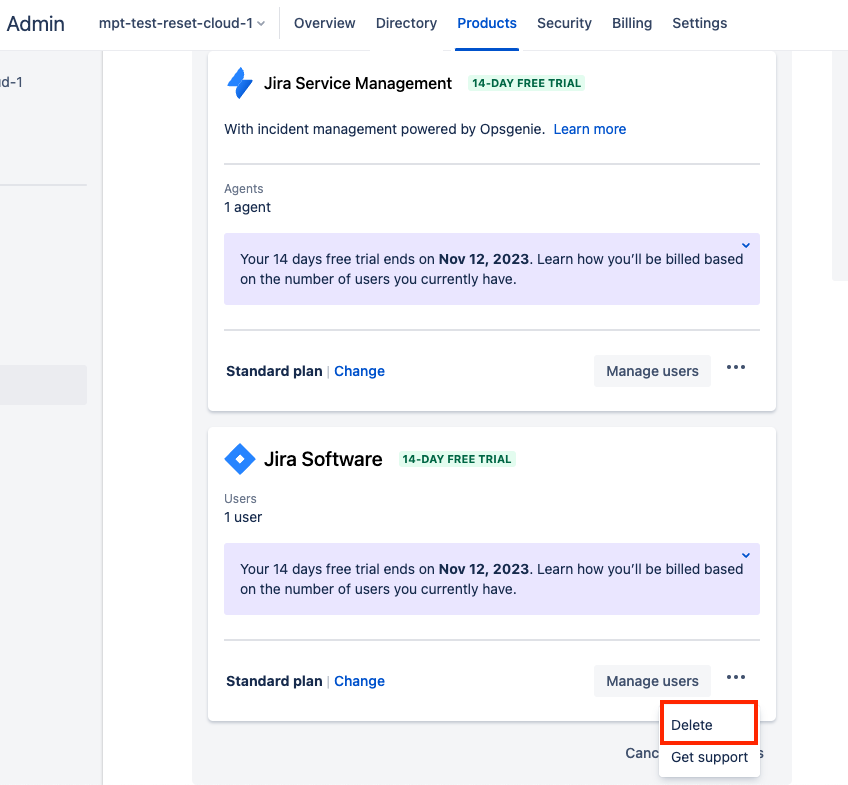
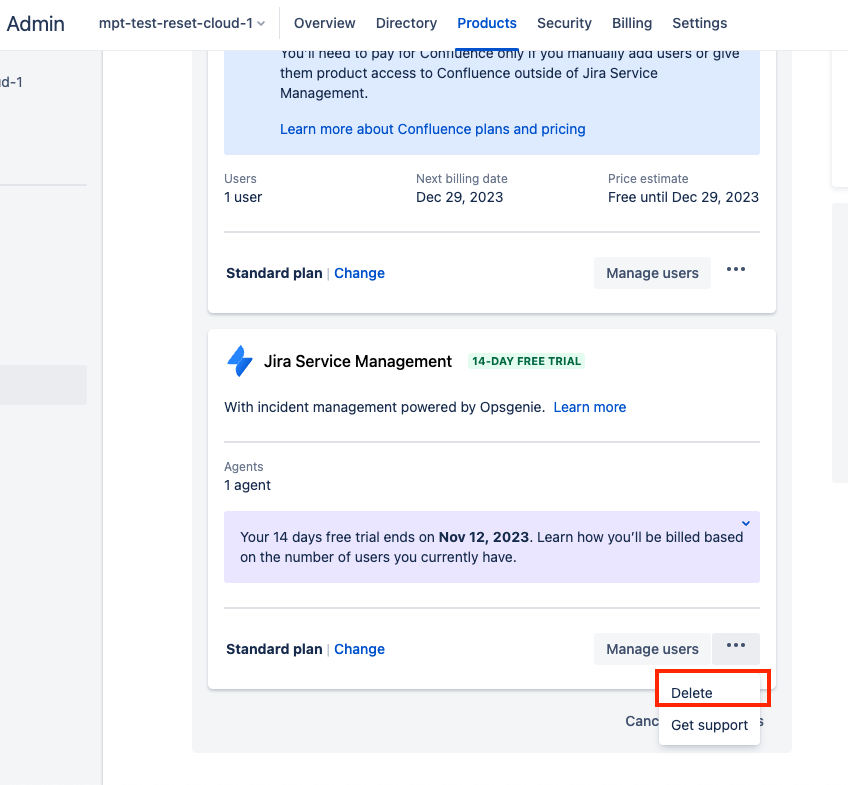
各 Jira 製品で 3 点アイコン [...] から [削除] を選択して製品を削除します。
フィールドに「DELETE」と入力し、削除の理由を選択します。
After an hour, please go to Billing > Actions > Manage on any product you have on the desired site. This way, any deleted products will appear under a new Inactive tab on the Manage Subscriptions screen.
Note: Wait one hour after deletion before returning to Billing > Actions > Manage. Deleted products appear under the Inactive tab only after this hour has elapsed. While in this suspended state, products cannot be accessed.
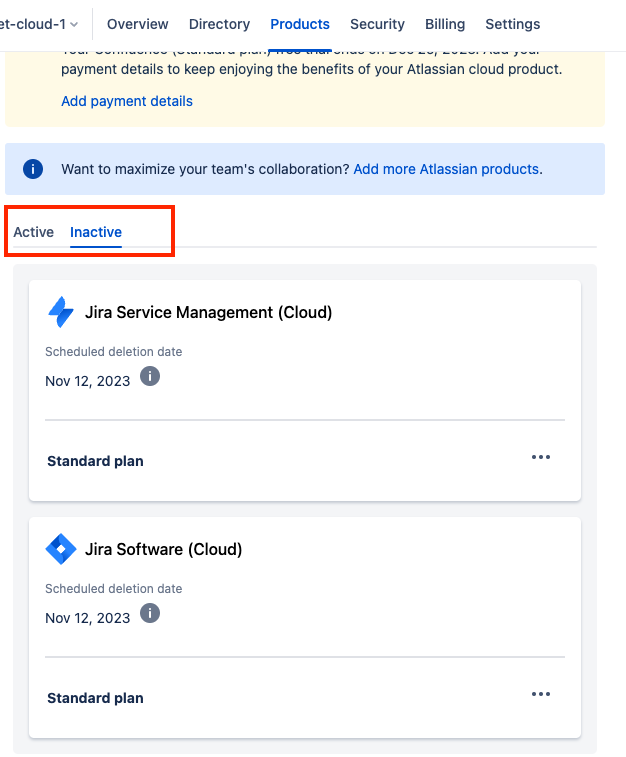
[非アクティブ] タブでリセットする製品を探して、製品カードの 3 点アイコン […] から [即座に削除] を選択します。
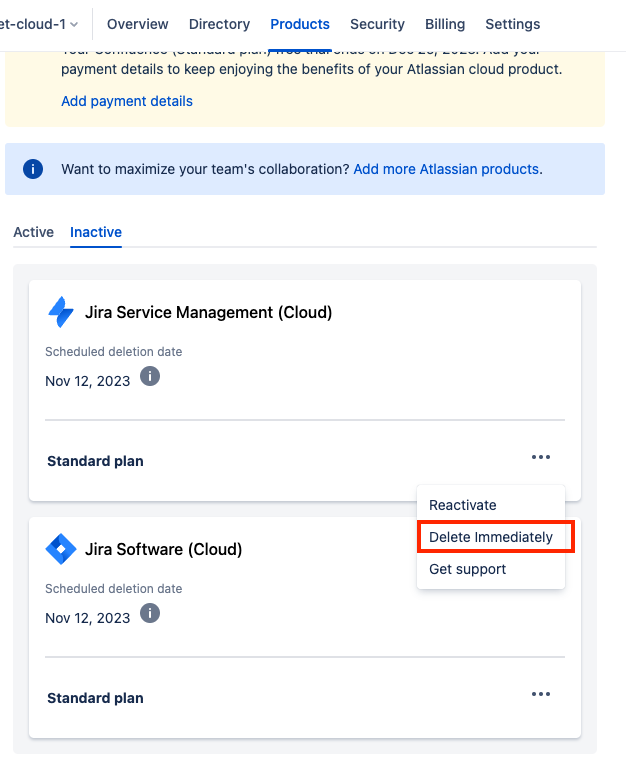
他の Jira 製品に対してもステップ 2 ~ 6 を繰り返します。
すべての Jira 製品を削除したら、クラウド サイトの管理ページから、コンテンツなしで各 Jira 製品を再有効化 (すべてのデータをリセット) できます。
ナビゲーション バーの [製品] に移動します。
[製品を追加] をクリックします。
ステップ 6 で削除した製品を選択します。
[既存のサイトに追加する] を選択します。
サイトを選択して [追加] をクリックします。
さきほどリセットした製品で [再アクティブ化] を選択します。これにより、製品の空のコピーが作成されます。
Billing after reset: For monthly cloud subscriptions, reactivating a previously canceled product begins a new trial period that ends at your next monthly renewal. For cloud subscriptions paid annually, contact Atlassian Support to have the reactivated product extended through the remainder of your annual term.
すべての Jira 製品に対してこれらの手順を繰り返します。
Confluence または Opsgenie が不要な場合、ステップ 2 の手順を使用してそれらを無効にします。
Once the reset is completed, if you were on an Enterprise license, follow step 5 under Verify if you are using an Enterprise License Tier to reactivate it. Or, if you had an active Cloud Migration Trial, follow Step 5 under Verify if your cloud is enabled with CMT to reactivate it.
リセット後、サブスクリプションの請求が変更され、アプリが削除されます。以下の点に注意してください。
請求
月間クラウド サブスクリプションについては、以前にキャンセルした製品を再有効化すると、月間製品の次回の更新時に終了する新しいトライアル期間が開始されます。
年払いのクラウド サブスクリプションについて、再有効化した製品を残りの契約期間に合わせて延長することを希望する場合は、アトラシアンに依頼してください。
アプリケーション
以前にインストールしていたすべてのアプリを製品に再インストールします。
インストールが完了すると、サイトのリセット前に所持していたのと同じライセンスが使用されます。
この内容はお役に立ちましたか?