Resolve missing tabs and fields on the Jira Cloud Create Issue screen by adjusting the Configure Fields setting
Platform Notice: Cloud Only - This article only applies to Atlassian apps on the cloud platform.
Summary
This article shows you how to resolve how some users are unable to view tabs and fields on the Jira Cloud Create Work Item screen, while other users can see them.
Diagnosis
Log in as a user experiencing the issue.
Open the Create Work Item dialog in Jira Cloud.
Observe that certain tabs or fields are missing from the screen.
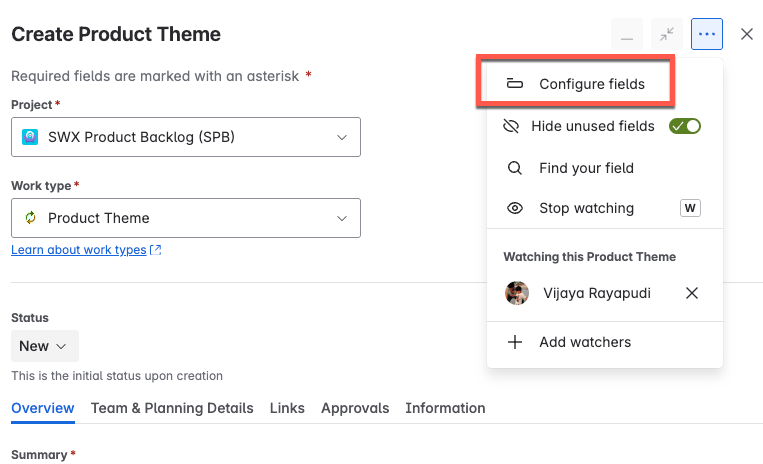
Click the Configure Fields option in the Create Work Item dialog.
Check if All Fields is selected or if a limited/custom selection is active.
Compare with a user not facing the issue (ensure they have “All Fields” enabled).
Cause
This is typically caused by the user's Configure Fields option not being set to display All Fields.
Solution
Option 1: Steps for users
Open the Create Work Item dialog in Jira Cloud.
Look for the Configure Fields button (or a “Show fields” option, often via a 3-dot menu near the top right).
Click this button and ensure that All Fields is selected (not “Custom fields” or a limited selection).
After selecting All Fields, reopen the Create Work Item dialog and confirm the previously missing tabs and fields now appear. Compare against a user who is not affected to confirm the same tabs and fields are visible.
Option 2: Steps for admin
Note: The Configure Fields selection in Option 1 is set per user, so the same Create Work Item screen can show different tabs and fields for different users. Confirm each affected user has completed the Option 1 steps before investigating the space-level configuration below.
If user steps don’t resolve the issue, admins should:
Navigate to the Space Settings > Screens and confirm all required fields are on the Create Work Item screen.
Check Field Configuration schemes and ensure fields are not hidden.
Verify that affected users have permissions like Edit Issues.
Turn off any “Hide unused fields” setting that could be limiting visibility.
For Server/DC, see Cannot see the tabs in the Jira create screen.
Was this helpful?