Resetting your site if you use two Jira products only on your cloud instance
Platform Notice: Cloud Only - This article only applies to Atlassian apps on the cloud platform.
Summary
If you have multiple Jira Cloud products (such as Jira Software, Jira Service Management, Jira Work Management, or Jira Product Discovery), it is necessary to delete all Jira products to remove the data completely. Deleting only one product will result in the retention of the data, which will be available upon reactivation.
Warning: This permanently deletes your Jira data. Resetting the site deletes all Jira products and reactivates each one as an empty copy. Deleting only one Jira product retains its data, which becomes available again upon reactivation, so you must delete every Jira product to remove the data completely.
Solution
Pre-requisite
Verify the Billing Engine by following the article understand the improved Atlassian billing experience
Note: Check your billing experience first. If you have the improved billing experience, follow reset and delete sites if you have an improved billing experience instead of the steps on this page. If you have the original billing experience, continue with the steps below.
If you have an original billing experience, follow the steps below; otherwise, follow the article. Reset and delete sites if you have an improved billing experience.
If you have activated the Cloud Migration Trial, please ensure to deactivate it by referring to the article Verify if your cloud site is enabled with Cloud Migration Trial (CMT) before proceeding with the steps below.
If you are currently using an Enterprise license tier, please ensure that you downgrade it to the Premium tier by referring to the article Verify if you are using an Enterprise license tier before proceeding with the steps below.
It is essential to have site admin permissions for the cloud site that requires resetting.
Steps to Reset Cloud Site
Make sure you have either Confluence or Opsgenie activated. If not, you’ll need to activate either Confluence or Opsgenie.
Select Settings > Administration (or go directly to admin.atlassian.com).
Select the relevant organization or site, if you have more than one.
Go to Products in the navigation bar
Select Add Product.
Select your site.
Select Try it now for the relevant product.
Select Get Started or Reactivate on the other product.
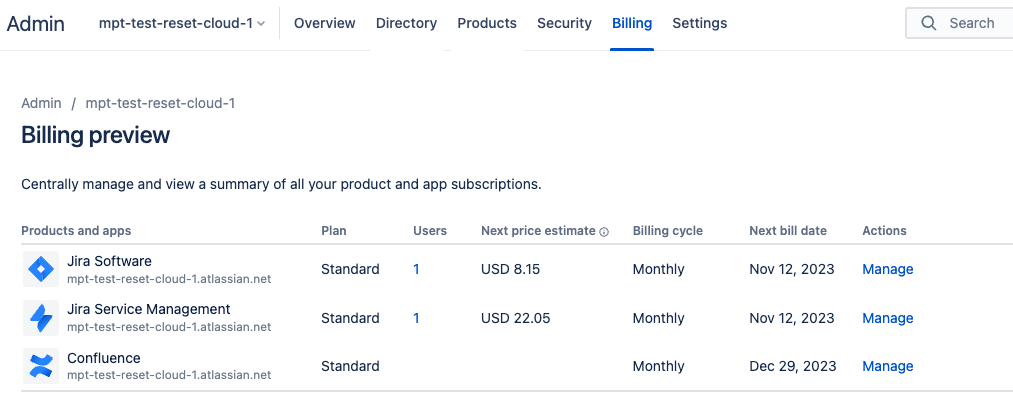
Once either Confluence or Opsgenie is activated, go to Billing > Manage on the product you want to reset.
Delete each Jira product by selecting the 3 dots and then Delete
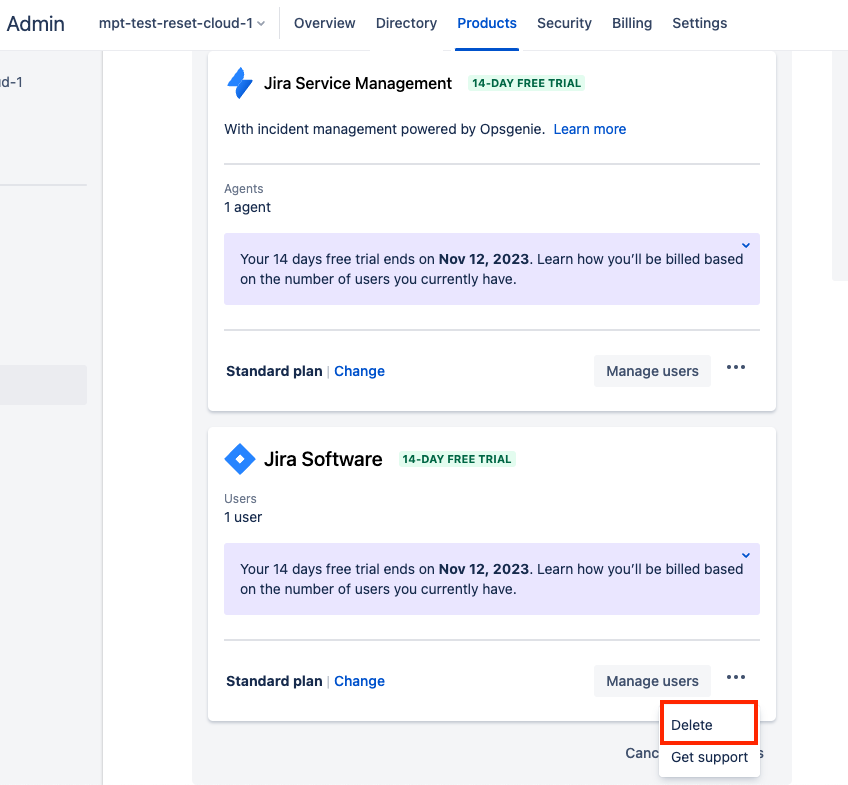
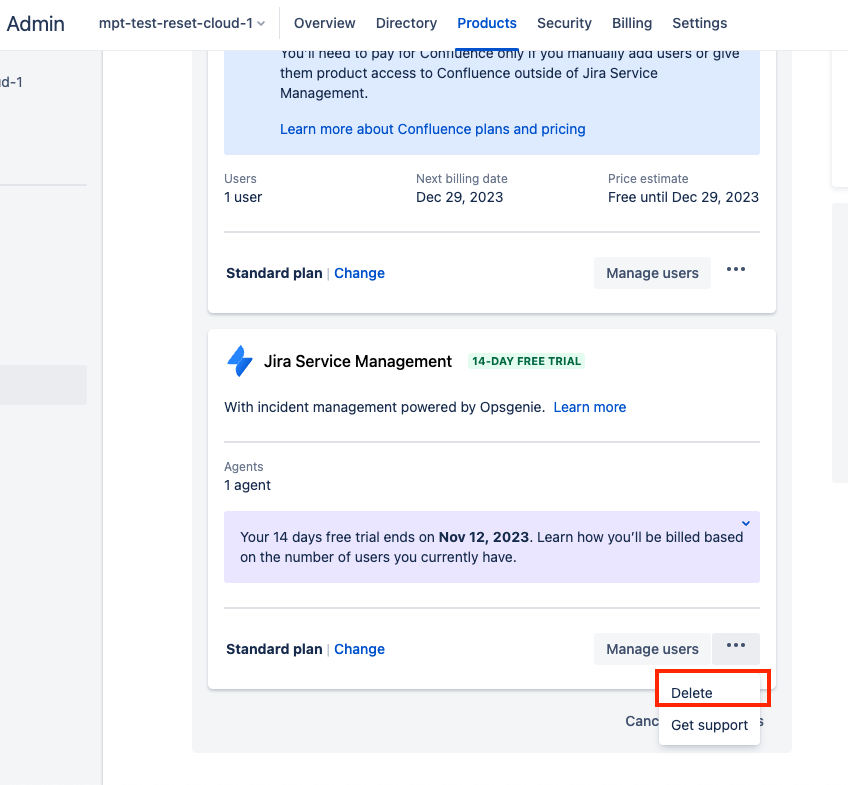
Enter the word DELETE into the field and select a reason for deletion.
After an hour, please go to Billing > Actions > Manage on any product you have on the desired site. This way, any deleted products will appear under a new Inactive tab on the Manage Subscriptions screen.
Note: Wait one hour after deletion before returning to Billing > Actions > Manage. Deleted products appear under the Inactive tab only after this hour has elapsed. While in this suspended state, products cannot be accessed.
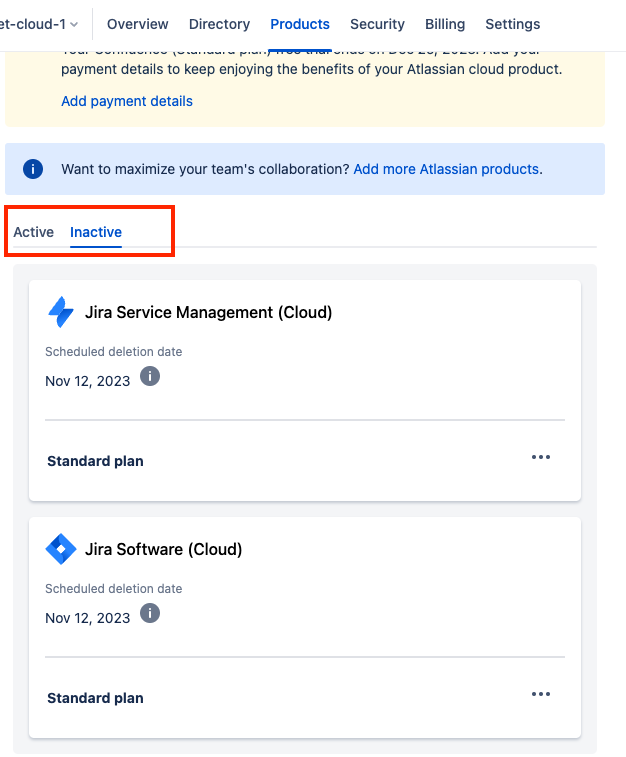
Look for the product you want to reset in the Inactive tab, select the 3 dot icon … in the product card, and then select Delete Immediately.
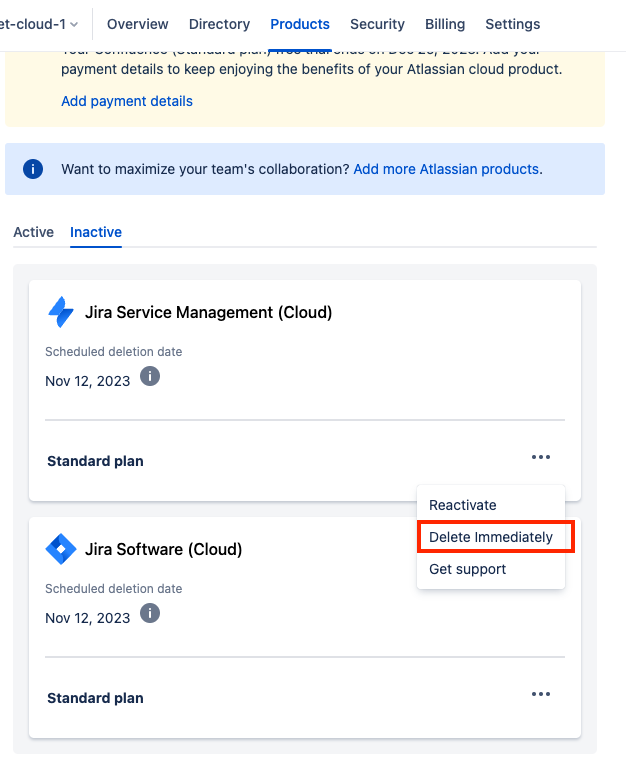
Repeat steps 2 through 6 for the other Jira products.
Once you’ve deleted all Jira products, you can now reactivate each Jira product with no content (resetting all data) from your cloud site Administration page.
Go to Products in the navigation bar
Click Add Product.
Select the Product which is deleted in Step 6
Choose Add to an existing site
Select your site and click Add
Select Reactivate on the product you just reset. This creates an empty copy of your product.
Billing after reset: For monthly cloud subscriptions, reactivating a previously canceled product begins a new trial period that ends at your next monthly renewal. For cloud subscriptions paid annually, contact Atlassian Support to have the reactivated product extended through the remainder of your annual term.
Repeat these steps for all Jira products.
If you no longer need Confluence or Opsgenie, deactivate them using the instructions from Step 2.
Once the reset is completed, if you were on an Enterprise license, follow step 5 under Verify if you are using an Enterprise License Tier to reactivate it. Or, if you had an active Cloud Migration Trial, follow Step 5 under Verify if your cloud is enabled with CMT to reactivate it.
There will be changes in the billing of subscriptions post-reset and application will get removed. Ie,
Billing
For monthly cloud subscriptions, reactivating a product that was previously canceled will begin a new trial period, ending at your next monthly renewal.
For cloud subscriptions paid annually, please contact us to have the reactivated product extended through the remainder of your annual term
Application
Reinstall all the previously installed apps on the product
Once the installation get complete it will use same license that they have before the site reset
Was this helpful?