Reset your Cloud site if you have two or more products on the same URL
Platform Notice: Cloud Only - This article only applies to Atlassian apps on the cloud platform.
Summary
Use these steps if you have at least two different products on your cloud site (for example Confluence and Jira, Jira and Opsgenie, or Confluence and Opsgenie).
If you have any more than one of Jira Software, Jira Service Management, Jira Work Management or Jira Product Discovery, they count as a single product for the purposes of resetting your site. If that's your case, please take a look below at "Resetting your site if you use two Jira products".
Solution
Pre-requisite
Verify the Billing Engine:
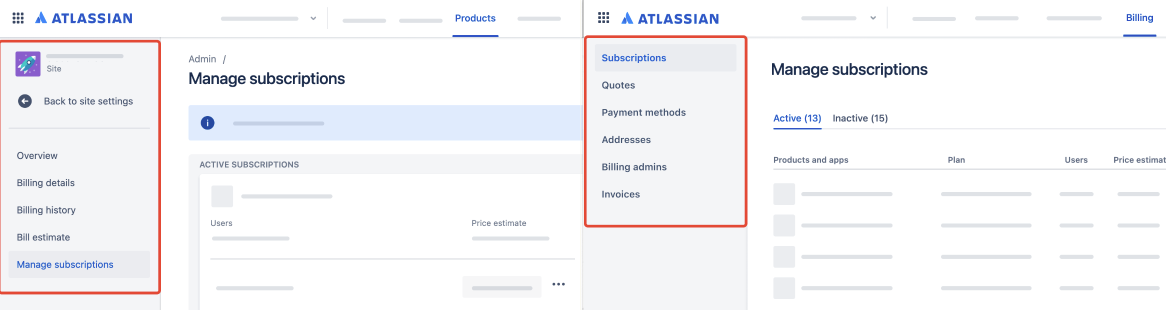
For more information, please see Understand the improved Atlassian billing experience.
If you have the improved billing experience, please see Reset and delete sites if you have an improved billing experience instead.
If you have the original billing experience, follow the steps below.
If you have activated the cloud migration trial, please ensure to deactivate it by referring to the article Verify if your cloud site is enabled with cloud migration trial (CMT) before proceeding with the steps below.
If you are currently using an enterprise license tier, please ensure that you downgrade it to the Premium tier by referring to the article Verify if you are using an enterprise license tier before proceeding with the steps below.
It is essential to have site admin permissions for the cloud site, which requires resetting.
Steps to reset the cloud site
You can choose to reset only one product or both. If you want to reset both, you must reset one product at a time.
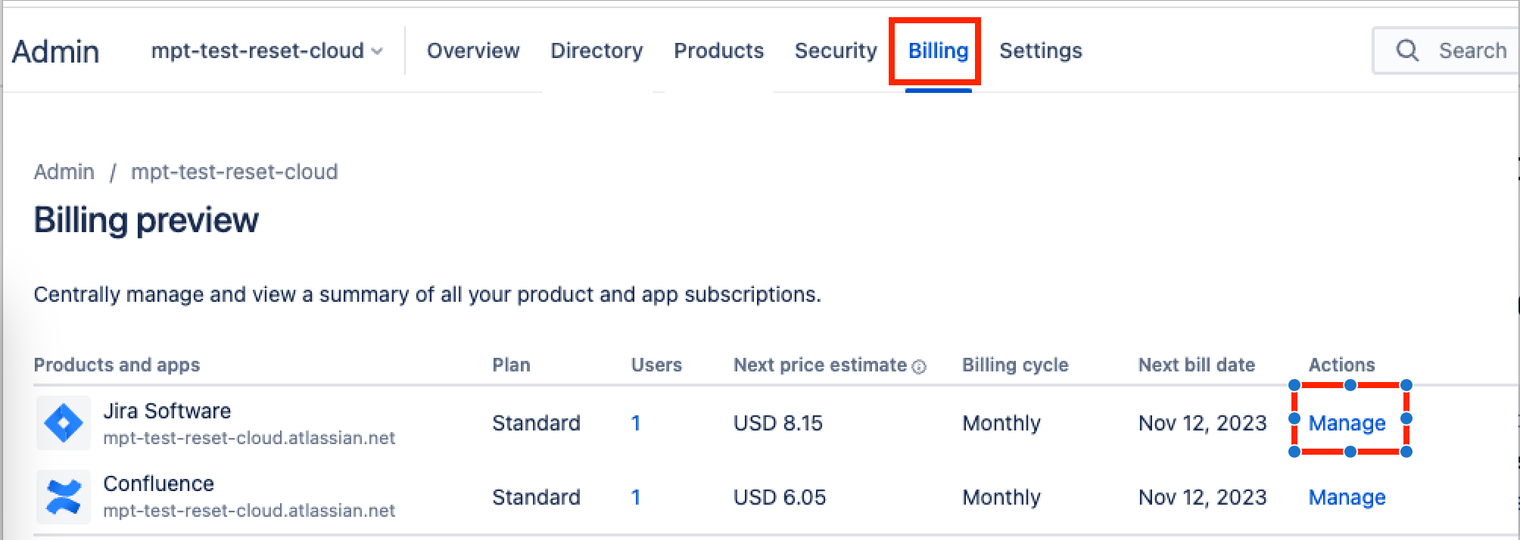
Select > Administration (or go directly to admin.atlassian.com).
Select the relevant organization or site, if you have more than one.
Select Billing in the navigation bar.
Select Manage on the product you want to reset.
Screenshot
Enter the word DELETE into the field and select a reason for deletion.
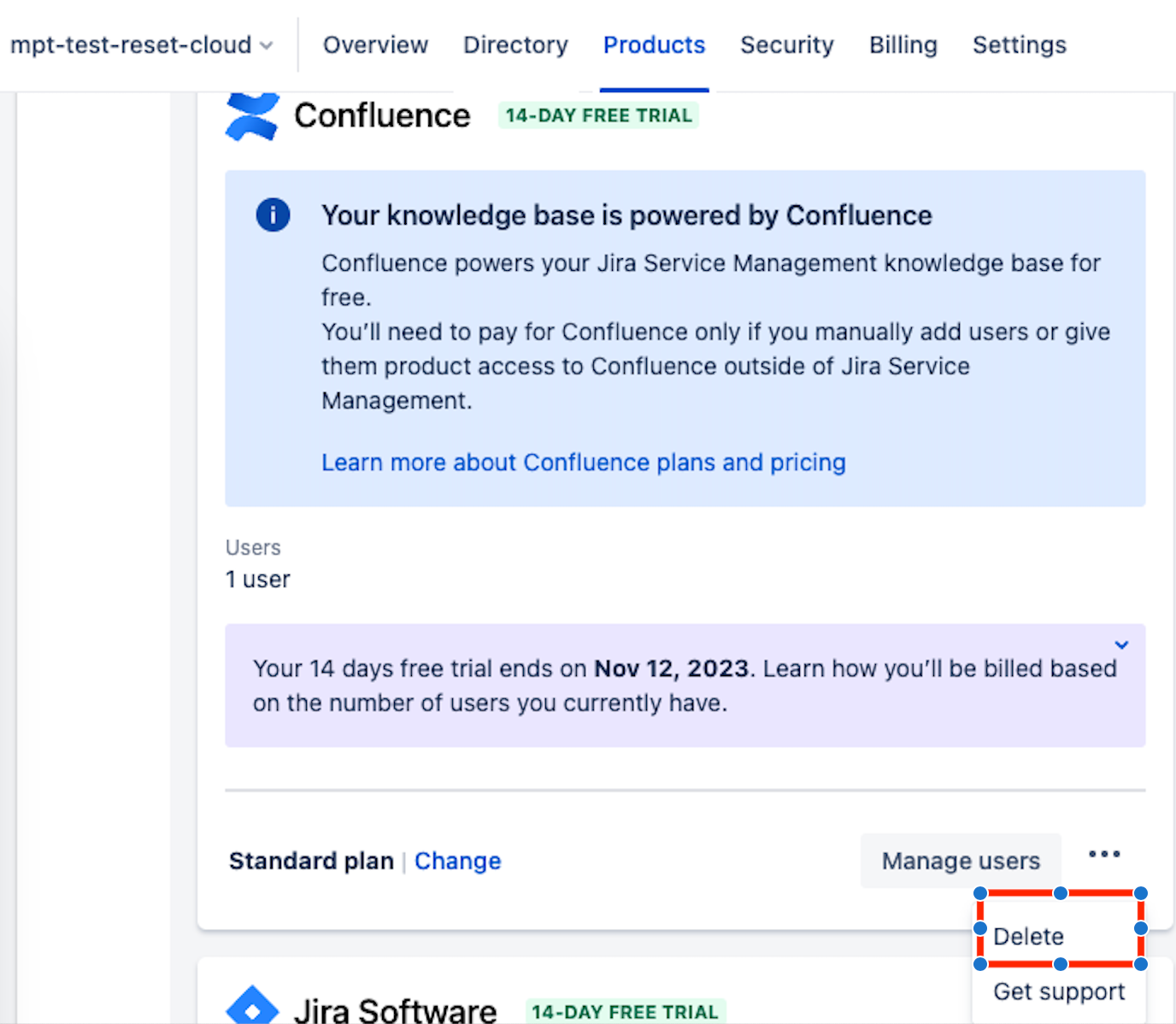
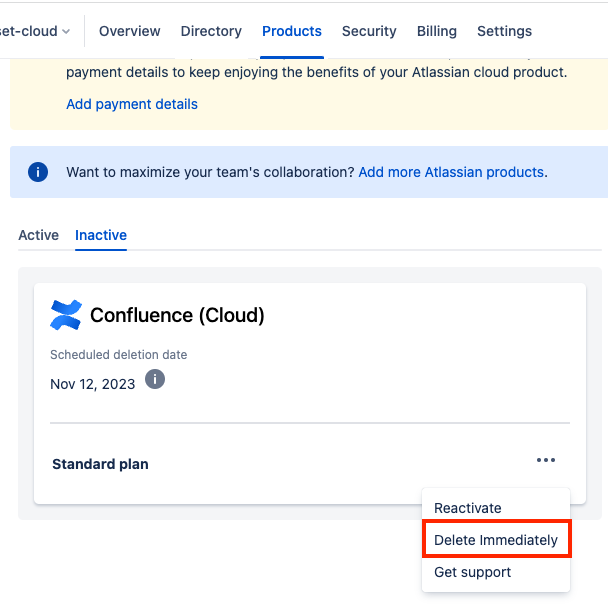
After an hour, go to Billing > Actions > Manage on any product you have on the desired site. This way, any deleted products will appear under a new Inactive tab on the Manage Subscriptions screen. Note that you must wait an hour for the Inactive tab to appear. Also, these products are suspended, and you can't access them in this state.
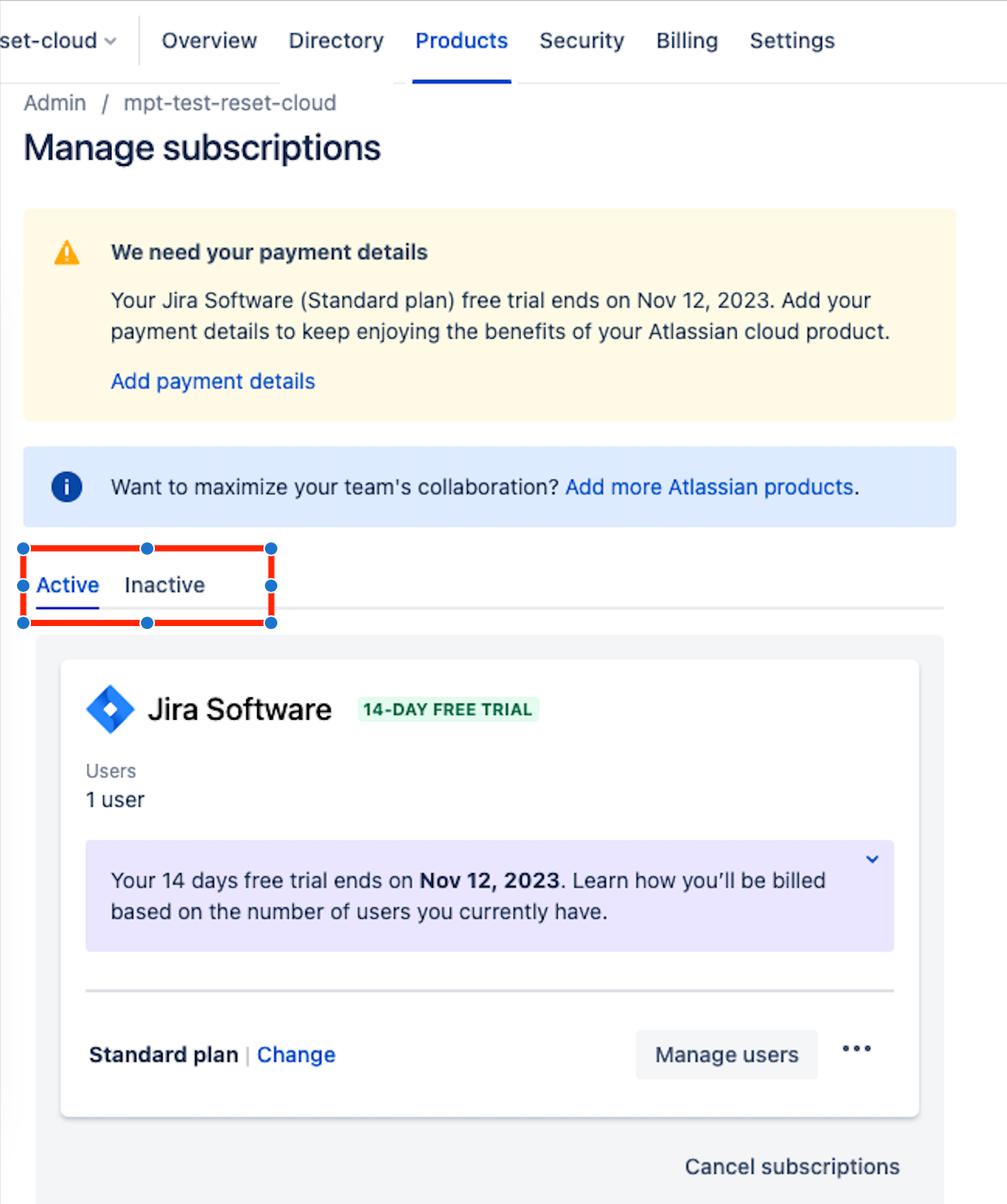
Look for the product you want to reset (Jira or Confluence), select the 3-dot icon "…" in the product card, then choose Delete Immediately.
Enter the word DELETE into the confirmation screen.
Click Delete immediately.
You can now reactivate the product without content (resetting all data) from your cloud site Administration page.
Go to Products in the navigation bar.
Click Add Product.
Select the product you deleted in Step 8.
Select Add to an existing site.
Choose your site and select Add.
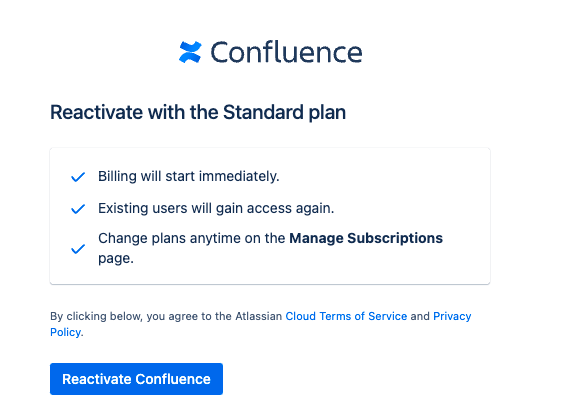
Select Reactivate on the product you just reset. This creates an empty copy of your product.
After you have reactivated your product, you can then reset another product.
Once the reset is completed, if you were on an enterprise license, follow Step 5 under Verify if you are using an enterprise license tier to reactivate it. If you had an active cloud migration trial, follow Step 5 under Verify if your cloud is enabled with CMT to reactivate it.
There will be changes in the billing of subscriptions post-reset and application will get removed.
Billing
For monthly cloud subscriptions, reactivating a product that was previously canceled will begin a new trial period, ending at your next monthly renewal.
For cloud subscriptions paid annually, please contact us to have the reactivated product extended through the remainder of your annual term.
Application
Reinstall all the previously installed apps on the product.
Once the installation get complete it will use same license that they have before the site reset.
Was this helpful?