Workaround for using smart value functions with Assets data in Automations
Platform Notice: Cloud Only - This article only applies to Atlassian apps on the cloud platform.
Summary
Jira Automation text, list, and math smart-value functions don't reliably process Assets data returned via AQL branches, the Lookup Objects action, or Assets custom fields due to known bugs. This article lists the bugs and gives per-function workarounds. If a function silently returns an empty value, check the matching bug below before assuming a syntax error.
Associated bugs
The following bugs have been identified to be impacting how Automation functions handle Assets data returned through branches using AQL, the Lookup Objects action, or accessing Objects within Assets custom fields on an issue:
Solution
In all scenarios, the workaround to allow the functions listed above to use the attributes is to create a variable and set its value to the data returned from Assets. An example of this would be using the Lookup Objects action to query Assets and then using the split text function on the data returned in a JSON payload. This is because the .split(",") method converts text data into a list, allowing various functions to operate on it.
In this example, we are accessing an Object with a Select attribute type called Components holding the values ABC and XYZ:
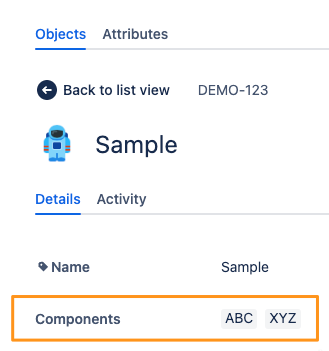
For testing purposes, the following trigger and AQL configuration will be used with the Lookup Objects action:
Trigger: Manual trigger from issue
Schema: DEMO AQL:
Key = DEMO-123
Using the Create variable action, the result of the Lookup Objects action can be set as the. The following data is used with the variable:
Variable name: componentObject
Smart value:
{{lookupObjects.Components}}
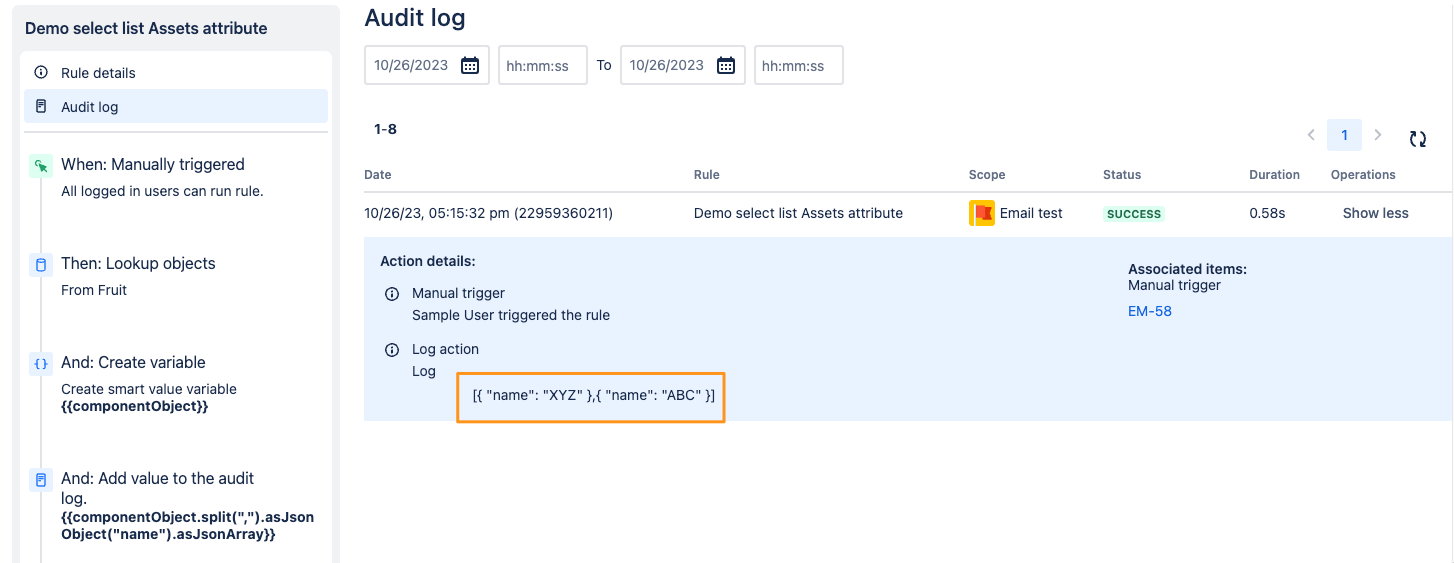
As this example is for demonstration purposes, the result is captured in a log action; the payload below can be used to edit an issue field via the advanced field editor in the Edit issue action. In this case, the split function can be used to create a list of values that can be converted into a valid JSON payload using JSON functions:
{{componentObject.split(",").asJsonObject("name").asJsonArray}}
The result of the above log action is shown in the screenshot below:
List functions
Note: When using list functions, the variable will need to have the split function applied to it similar to the example above in order to convert the variable's text format to a list. Using the same data from the above example, the following smart value will return the size of the list after the split, in this case 2:
{{componentObject.split(",").size}}
To confirm the rule works, run it against a test issue and check the automation audit log to confirm the smart value resolves to the expected Assets value (not blank).
Related articles
Was this helpful?