Remove abandoned or offline nodes in Jira Data Center
Platform Notice: Data Center Only - This article only applies to Atlassian apps on the Data Center platform.
Note that this KB was created for the Data Center version of the product. Data Center KBs for non-Data-Center-specific features may also work for Server versions of the product, however they have not been tested. Support for Server* products ended on February 15th 2024. If you are running a Server product, you can visit the Atlassian Server end of support announcement to review your migration options.
*Except Fisheye and Crucible
Summary
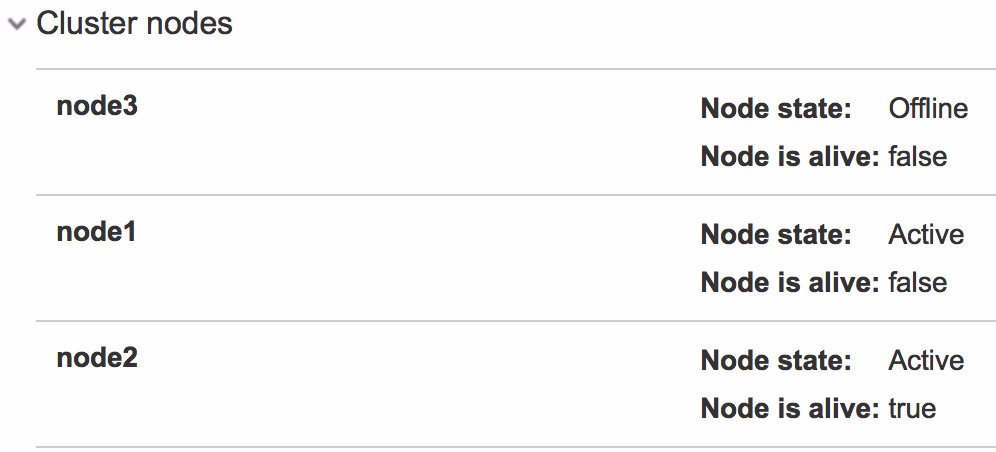
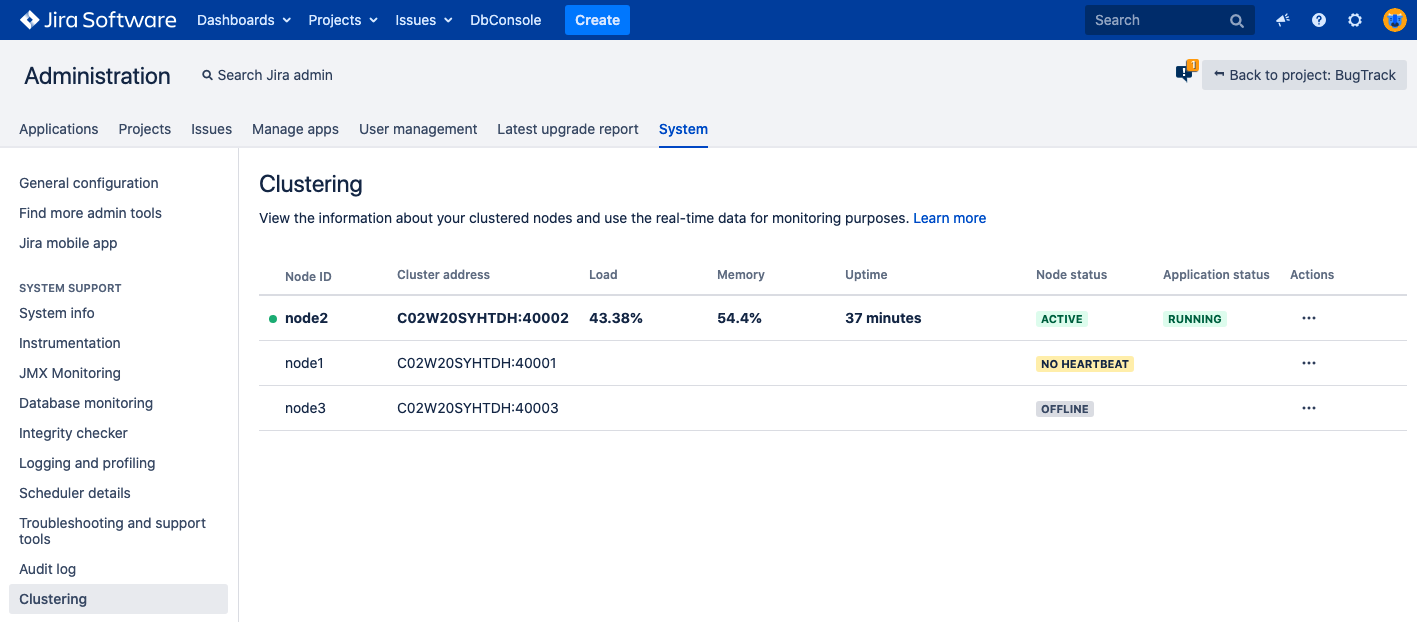
The nodes that show as active but not alive (that is with no heartbeat) or offline can clutter up your cluster information. In Jira 8.9 we improved the way cluster information is displayed however, you still needed to manually remove stale or offline nodes from the cluster.
That behavior changed in Jira 8.10 and later where stale nodes are automatically removed.
Pre-Jira 8.9
Jira 8.9 and later
Solution
Removing an offline node
Take a database backup. The DB-direct method modifies the
clusternodetable. Always backup first.Stop Jira gracefully. Use
stop-jira.shin<JIRA_INSTALL>/bin(or the equivalent service control) before terminating the VM / AWS instance. This prevents stale nodes from being created in the first place.Confirm the node is genuinely gone. A node briefly missing a heartbeat (network blip, GC pause) is not the same as an abandoned node. Wait 1–2 minutes and re-check via
GET /rest/api/2/cluster/nodesbefore deleting.Verify cluster quorum. Removing a node from a cluster that is already running below the recommended capacity can affect index replication; ensure remaining nodes can absorb the load.
If you run Jira 7.13 and later, you don't need to stop or restart all running nodes to remove an offline one. It takes a few seconds for the running nodes to respond to changes introduced via the REST API (if you are not familiar with the REST API, here are some examples) or via SQL directly on the database.
Remove offline nodes using REST (for Jira 8.1 and later)
Make the following request for Jira to return a list of all nodes:
GET /rest/api/2/cluster/nodesExample response...
[
 {
  "nodeId": "node3",
  "state": "ACTIVE",
  "lastStateChangeTimestamp": 1551080754927,
  "ip": "localhost",
  "cacheListenerPort": 40001,
  "nodeBuildNumber": 801000,
  "nodeVersion": "8.1.0-SNAPSHOT",
  "alive": true
 },{
  "nodeId": "node1",
  "state": "OFFLINE",
  "lastStateChangeTimestamp": 1551080840469,
  "ip": "localhost",
  "cacheListenerPort": 40001,
  "nodeBuildNumber": 801000,
  "nodeVersion": "8.1.0-SNAPSHOT",
  "alive": false
 }
]
2. If you have nodes showing as OFFLINE, delete each offline node from the cluster
DELETE /rest/api/2/cluster/node/{your_offline_node_Id}3. Double-check that the offline node is now deleted and does not show up
GET /rest/api/2/cluster/nodesFor more on these REST API calls, see Jira REST API.
Remove offline nodes with database queries
(optional) Double-check the number of offline nodes by running the command:
select NODE_ID from clusternode where NODE_STATE ='OFFLINE'; 2. Copy the node_id of the offline node and run the following command to delete it:
delete from clusternode where node_id=<id from first query>;Removing a stale node with no heartbeat
Nodes might show up active, but in fact, have no heartbeat if they have been killed abruptly. We advise stopping Jira gracefully to avoid that situation.
Before you remove a VM or AWS instance from the Data Center cluster:
Shut down Jira by using the
stop-jira.shscript in<JIRA_INSTALL>/binor stopping its service.Then kill the AWS instance or power off the VM.
If you want to remove a stale node you need to stop Jira on all cluster nodes first.
You can either remove a stale node using the REST API (available for Jira 8.1 and later) or do it manually.
Remove stale nodes using REST (for Jira 8.1 and later)
Make the following request for Jira to return a list of all nodes:
GET /rest/api/2/cluster/nodesExample response...
{ "nodeId": "node3", "state": "ACTIVE", "lastStateChangeTimestamp": 1551080754927, "ip": "localhost", "cacheListenerPort": 40001, "nodeBuildNumber": 801000, "nodeVersion": "8.1.0-SNAPSHOT", "alive": true },{ "nodeId": "node1", "state": "ACTIVE", "lastStateChangeTimestamp": 1551080840469, "ip": "localhost", "cacheListenerPort": 40001, "nodeBuildNumber": 801000, "nodeVersion": "8.1.0-SNAPSHOT", "alive": false }2. Copy the node IDs of the nodes that are "ACTIVE" and "alive"=false.
3. Ping the nodes to make sure they are not running in your environment and will not back to the cluster in the future.
4. Make the following request to move the stale node to the offline state
PUT /rest/api/2/cluster/node/{your_stale_node_Id}/offline5. Run GET /rest/api/2/cluster/nodes to make sure the node is offline.
6. Delete the stale node from the cluster:
DELETE /rest/api/2/cluster/node/{your_stale_node_Id}7. Double-check that the stale node is now deleted and does not show up:
GET /rest/api/2/cluster/nodesFor more on these REST API calls, see Jira REST API.
Remove old nodes with database queries
Warning: Backup your database before proceeding.
Before running any SQL in this article, create a full backup of your database. This is a database-level operation with no undo other than a backup restore. Only proceed if you're comfortable running SQL directly against the database, and test on a staging or cloned environment first, wherever possible.
Check the database tables and find all rows related to old nodes:
select * from clusternode;
select * from clusternodeheartbeat;
Copy the node_id of the stale node and run the command:
delete from clusternode where node_id = '<node_id>';
delete from clusternodeheartbeat where node_id = '<node_id>';
Clean old replication records:
// validate if this is necessary
select count(id) from replicatedindexoperation where node_id = '<node_id>';
// delete
delete from replicatedindexoperation where node_id = '<node_id>';
Related tickets
Jira 8.10 improvement - JRASERVER-42916 - Stale node ids should automatically be removed in Jira Data Center
Was this helpful?