Manually mapping discovery data: Data source column shows error "The data locator is required"
Platform Notice: Cloud Only - This article only applies to Atlassian apps on the cloud platform.
Summary
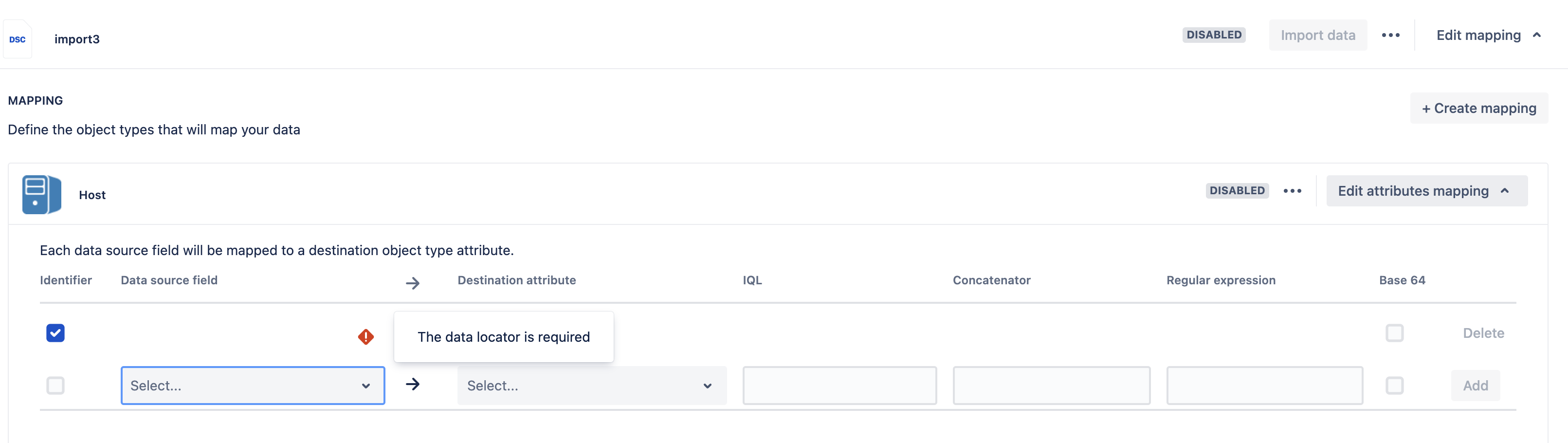
When creating an Insight discovery import with manual mapping, the Data Locator column shows a "The data locator is required" error, and the dropdown appears empty, preventing any selection.
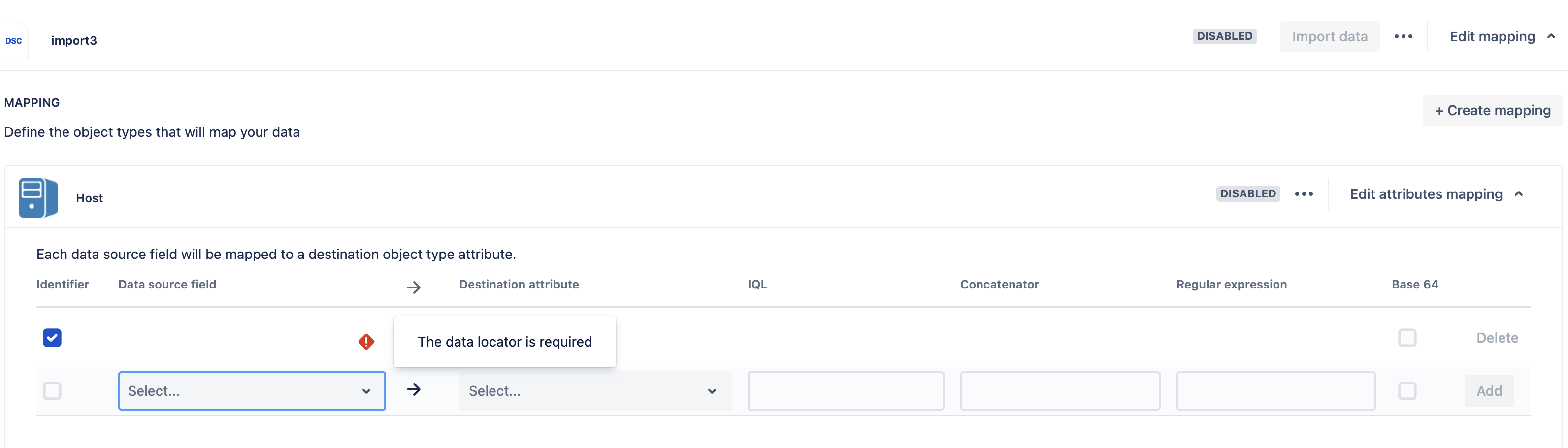

Cause
This happens because the Selector field in the object type mapping configuration is empty. Having a selector will help filter the data from the source and limit the scope to the data locators under it.
Solution
We need to choose the appropriate selector to access the data locators beneath it.
Open the import configuration page and expand the import configuration you are working on by clicking on "Edit mapping".

Expand the Object Type that shows the error by clicking on "Edit attribute mapping" .
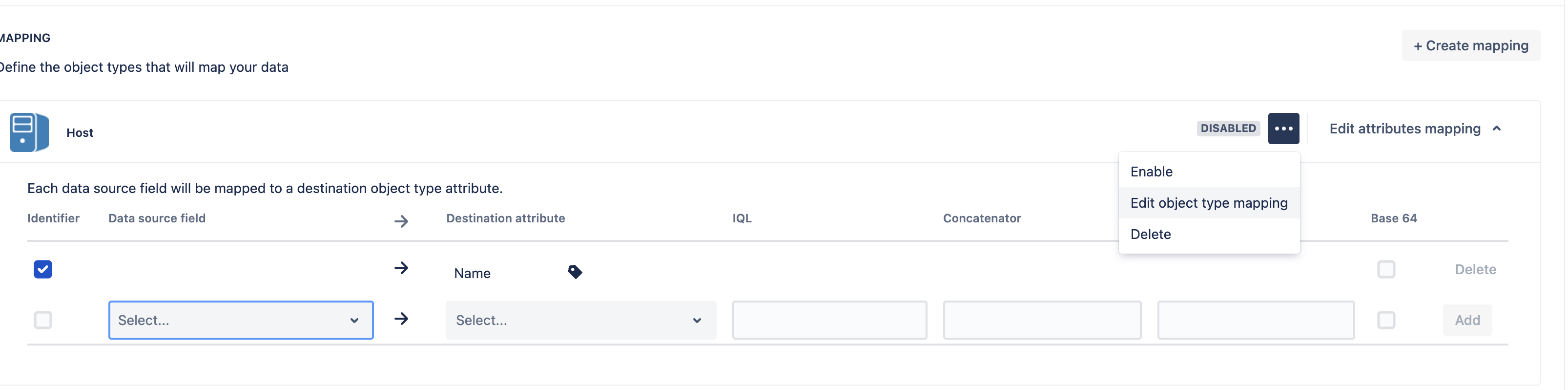
Click on the 3 dots for the object mapping available just before the "Edit attribute mapping" option and choose > "Edit object type mapping".
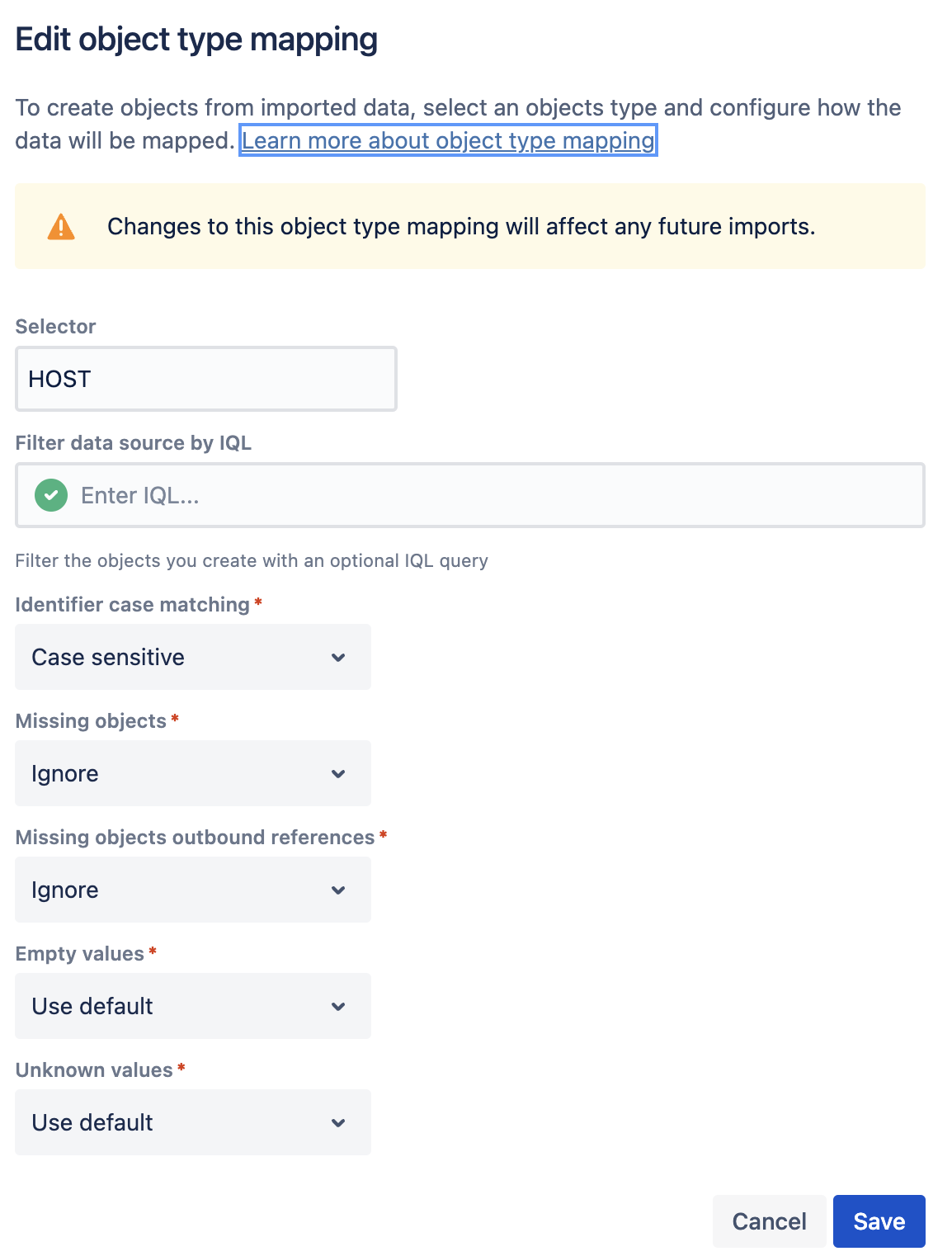
In the Edit object type mapping window, choose an appropriate selector and click save. In this case, HOST.
You should now be able to choose the data locators available under the Selector specified in the object type mapping config for the object type.
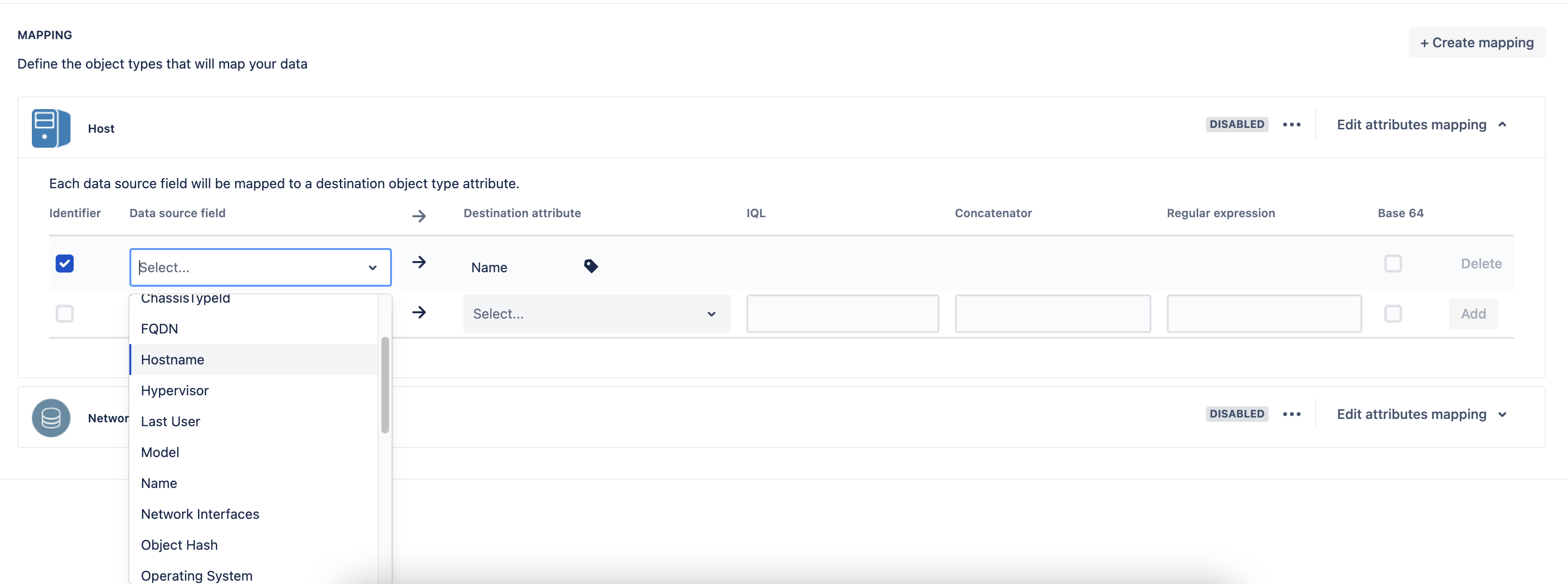
⚠️ If this still doesn't work, make sure you refresh the import page and attempt the action to choose the data locator again.
Find the tab Create Object type mapping for
The Selector is not a drop-down list. Here is the list of available values for discovery imports that are accepted in the Selector field:
"HOST"
"CONNECTED_DEVICE"
"DEVICE"
"COLLECTOR"
"DISCOVERY"
"SCAN_SETTING"
"FILESYSTEM"
"STORAGE_DEVICE"
"OS"
"CPU"
"APPLICATION"
"APPLICATION_SERVICE"
"PATCH"
"LICENSE"
"NETWORK_INTERFACE"
"SCANNING_INFORMATION"
"DATABASE"
"VIRTUAL_GUEST"
"USER"
"GROUP"
If your import configuration maps more than one object type, apply the selector fix to each mapping that shows the error individually, and confirm the data locator dropdown populates for all of them — fixing the first affected object type mapping doesn't automatically fix others in the same import configuration.
Refer to Importing Insight Discovery files for details about importing Insight Discovery data
Was this helpful?