Keep work parent-child relationships during CSV import to Jira Cloud
Platform Notice: Cloud Only - This article only applies to Atlassian apps on the cloud platform.
Summary
When a CSV import is performed in Jira, we usually lose Parent-child relationships between imported work items, but the links can be maintained.
Previous versions of this article made reference to the "Epic Link" field. This KB has been updated as of April 2024 to reflect the changes in regards to the Deprecation of the Epic Link and Epic Name fields. Going forward, the Parent field should be used in place of Epic Link in Jira Cloud.
Solution
Before you begin
This procedure applies to company-managed projects. Keep the following in mind:
Sub-task relationships are also preserved via the Parent field during import. For cross-project parent links, the parent issue must be imported (or already exist) before you import the child.
If your CSV export still contains an Epic Link column instead of Parent, your instance may not yet reflect the Epic Link → Parent migration. Review Introducing the new Parent field in company-managed projects before mapping your columns.
Confirm proper format in the CSV file
Work item relationships are often lost due to the work item order in the CSV file and/or improper mapping of parent and child relationships during the import process.
First, make sure the exported CSV file contains at least the following columns for the parent-child mapping:
Issue type, Issue key, Issue ID, Summary, ParentNext, confirm the file has all work items listed in order of their hierarchy.
That is, the topmost rows of the CSV must list all the Highest hierarchy work, with subsequent rows including the Standard work, and finally the Sub-task types.
Here's an example of what a properly ordered CSV file will look like:
<TOP OF FILE>
Initiatives and other higher levels
...
Epics
...
Standard work item types (Story, Bug, task, etc.)
...
Sub-tasks
...
</BOTTOM OF FILE>
Map issue IDs using the Parent field in the CSV file
For the parent→child relationship to work, copy the Issue ID of the parent work item and paste it in the Parent column of the Child work item.
After making the above changes, the relationships should look as per the sample table below.
NOTE: The IDs used are placeholder numbers. They can be any number, but each issue must have a unique ID.
work type | work item key | status | summary | issue id | parent |
Theme | test-123 | To Do | Example theme summary | 1 | |
Initiative | test-124 | To Do | Example initiative summary | 2 | 1 |
Epic | test-125 | To Do | Epic with parent and no child story but 1 sub-task and parent Initiative | 3 | 2 |
Epic | test-126 | To Do | This is an epic with 1 story and 1 bug as child issues mapped | 4 | |
Story | test-127 | To Do | Example story 1 Summary, no child issue mapped | 5 | |
Story | test-128 | To Do | Example story with 1 child sub-task mapped, and a parent epic is mapped | 6 | 4 |
Bug | test-129 | To Do | bug with 1 child sub-task | 106589 | 4 |
sub-task | test-130 | To Do | subtask 1 | 7 | 6 |
sub-task | test-131 | To Do | subtask 2 | 8 | 106589 |
sub-task | test-132 | To Do | Subtask 3 | 9 | 3 |
As Raw text in CSV formatting:
issue type,issue key,status,summary,issue id,parent
Theme,test-123,To Do,Example theme summary,1,
initiative,test-124,To Do,Example initiative summary,2,1
Epic,test-125,To Do,Epic with parent and no child story but 1 sub-task and parent Inititive,3,2
Epic,test-126,To Do,This is an epic with 1 story and 1 bug as child issues mapped,4,
Story,test-127,To Do,Example story 1 Summary no child issue mapped,5,
Story,test-128,To Do,"Example story with 1 child sub-task mapped, and a parent epic is mapped",6,4
Bug,test-129,To Do,bug with 1 child sub-task ,106589,4
sub-task,test-130,To Do,subtask 1,7,6
sub-task,test-131,To Do,subtask 2,8,106589
sub-task,test-132,To Do,Subtask 3,9,3
In the above table, we have used the "Work item Key" column only for a better visual understanding of the table. When the work is imported into the destination project, each item will be assigned a new number (based on the work counter on the destination project) and the destination project key. For example, if we import the above work to a destination project which has the project key "CSV", and no pre-existing work items, then these newly imported work items will have the keys CSV-1, CSV-2, etc.
The CSV file is now ready for import.
Import the CSV file to Jira
Select Settings (cog icon) > System.
Navigate to External system import under the "Import and export" heading.
Select Switch to the old experience.
Select CSV.
Select "Choose File" and navigate to the file via your machine's file explorer.
Once uploaded, select Next.
Select the destination project where you want the work to be imported from the CSV file.
Unless you made custom changes to any additional date and time fields or email address fields, leave formatting as the default.
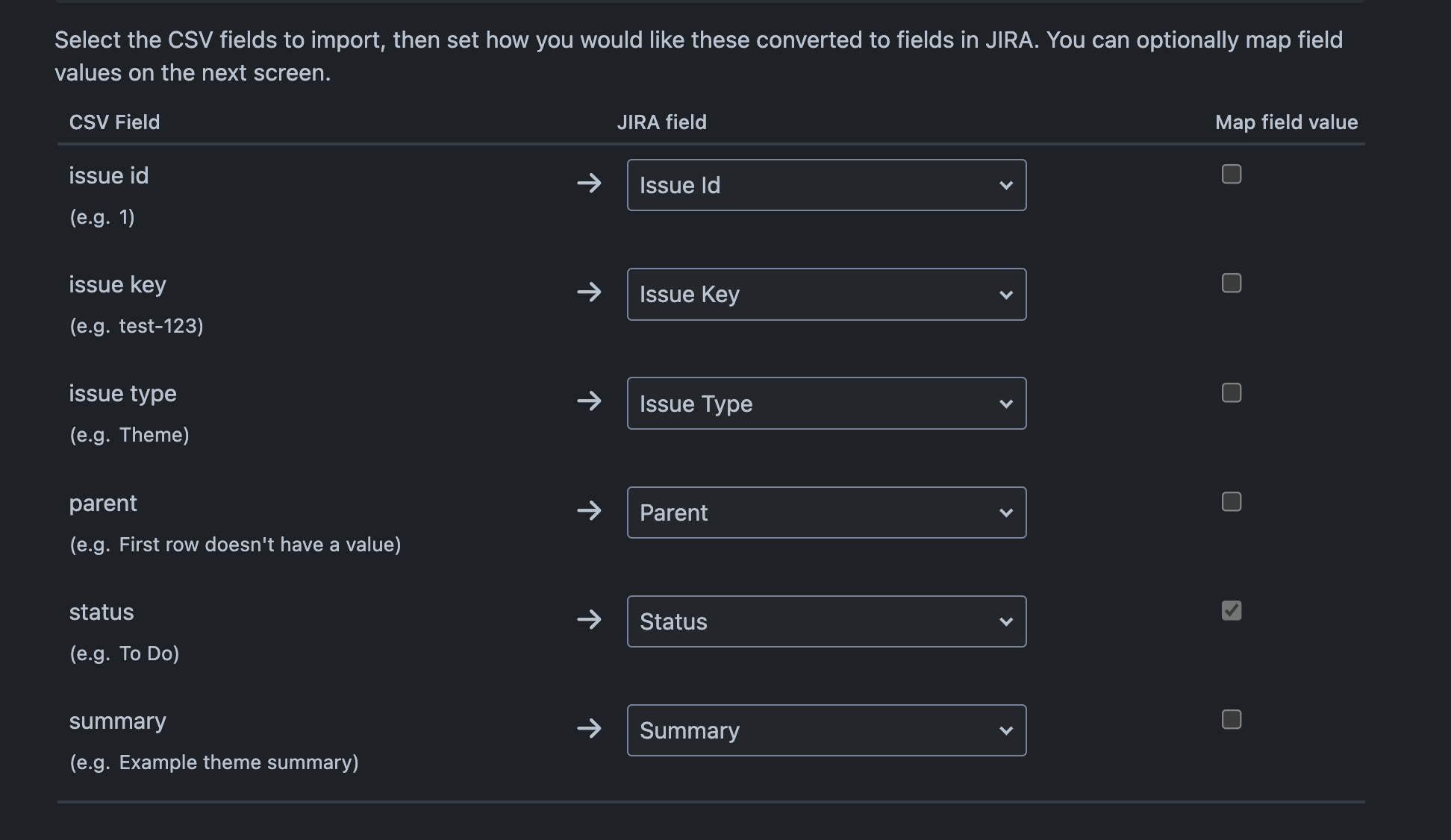
Map the CSV fields with the corresponding Jira fields as below:
Issue id → Issue id
Issue key → Issue Key
issue type → Issue Type
parent → Parent
status → Status
summary → Summary
You can also reference the sample screenshot below:
Select Next
Verify status values map to your desired statuses in Jira
For example, the "To Do" status maps to the relevant status in your desired project
Select Begin import
During CSV import, you can also include any other custom fields you wish in the CSV file and import them along with the correct parent-child mapping.
Demonstration of post-import results
If we imported our example issues as listed above, the end result would look like the screenshot below.
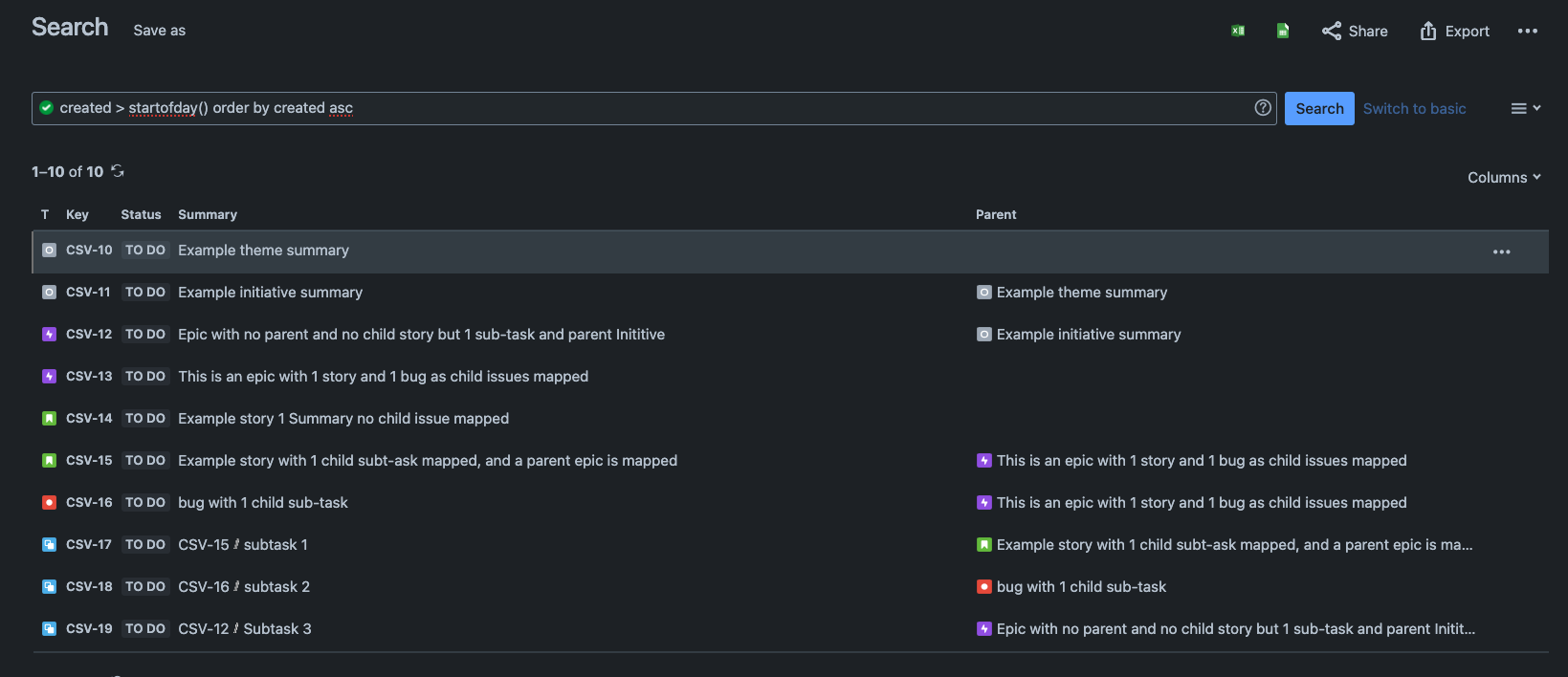
Confirm the relationships imported correctly
Verify the import
After the import completes, confirm the parent-child relationships were created:
Open one of the imported child issues.
Check that the Parent field displays the expected parent issue.
Open the parent issue and confirm the child appears under Child issues.
If a relationship is missing:
Make sure the parent row appears above the child row in your CSV file. The importer processes rows top-to-bottom, so the parent must already exist when the child is created.
Confirm you used the parent's Issue ID (the numeric ID) in the child's Parent column — not the Issue key (e.g.,
PROJ-1). The Issue key and Issue ID are different values; the importer requires the ID.
Parent field not available during import
In some cases, the "Parent" field won't be available for mapping during a CSV import. This is caused by one of two common factors:
Sub-tasks aren't enabled
Enable the sub-tasks option by navigating to the System> Settings > Work items > Sub-Tasks, or visit https://[yoursite].atlassian.net/secure/admin/subtasks/ManageSubTasks.jspa directly.
You should be able to map the Parent field successfully after sub-tasks are enabled.
The linked work items field is missing from the screens in the project
If the Issue ID or Parent fields are unavailable during mapping, ensure the Linked Issues field is included on all screens to resolve this issue.
Was this helpful?