How to modify Jira Forgot Password Reset email template used for the external user directory users?
Platform Notice: Data Center Only - This article only applies to Atlassian apps on the Data Center platform.
Note that this KB was created for the Data Center version of the product. Data Center KBs for non-Data-Center-specific features may also work for Server versions of the product, however they have not been tested. Support for Server* products ended on February 15th 2024. If you are running a Server product, you can visit the Atlassian Server end of support announcement to review your migration options.
*Except Fisheye and Crucible
Summary
This page is for Jira Data Center
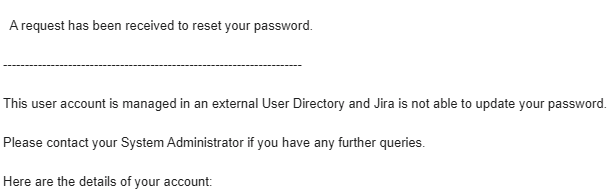
Customising email template is explained in detail in the documentation Customizing email content. In this article, we will discuss - how to modify the Jira Forgot Password Reset email template used for the external user directory users.
Solution
Modifying your Email Template
To modify the content of the existing email template, the following steps can be performed:
Backup the file <Jira_INSTALL>/atlassian-jira/WEB-INF/classes/com/atlassian/jira/web/action/JiraWebActionSupport.properties
Search and update the text field, which is defined after the variables in the file '<Jira_INSTALL>/atlassian-jira/WEB-INF/classes/com/atlassian/jira/web/action/JiraWebActionSupport.properties'. Eg:
template.user.cannotchangepassword.cannot = This user account is managed in an external User Directory and Jira is not able to update your password.
template.user.cannotchangepassword.contact = Please contact your System Administrator if you have any further queries.
changepassword.cannot.change = This user account is managed in an external User Directory and Jira is not able to update your password.
Restart Jira
⚠️ Since these configuration changes are performed in the Jira installation directory, any changes you make can be lost on the upgrade.
Was this helpful?