How to import multiple values on a new line in an Assets object attribute of type TextArea using JSON
Platform Notice: Cloud Only - This article only applies to Atlassian apps on the cloud platform.
Summary
This article explains the JSON format to use to import multiple values on a new line into an Asset Object attribute of type TextArea.
Solution
Scenario
The admin would like to import multiple values for a single attribute and display these values on a new line. However, the admin would like to perform this import using a JSON file rather than a conventional .csv file.
For example, if you have an Asset object attribute named 'StreetAddress' and you would like to import multiple addresses for the same object, and display them on separate lines.
Part 1: Prepare your JSON file
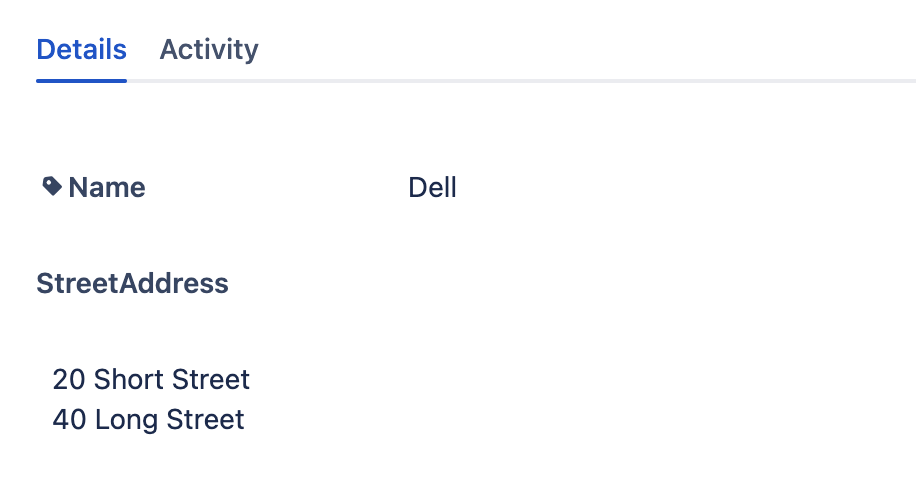
For example, if you have an object type = Manufacturer and object name = Dell. The object type has an attribute named 'StreetAddress' of type TextArea. Now, you would like to import the following addresses into this attribute and display them on a new line:
20 Short Street
40 Long Street
The JSON file format will be as follows(Add a \n character for every new line):
{
  "Manufacturer": [
    {
      "Name": "Dell",
      "StreetAddress": "20 Short Street\n40 Long Street"
    }
  ]
}
The file extension will be in the format filename.json
Part 2: Create & Run import
Create an attribute of type value 'TextArea' in the required object type.
On the left menu, click on the 'Cog' icon next to Schema configuration
Click on the Import tab
Click on Create import
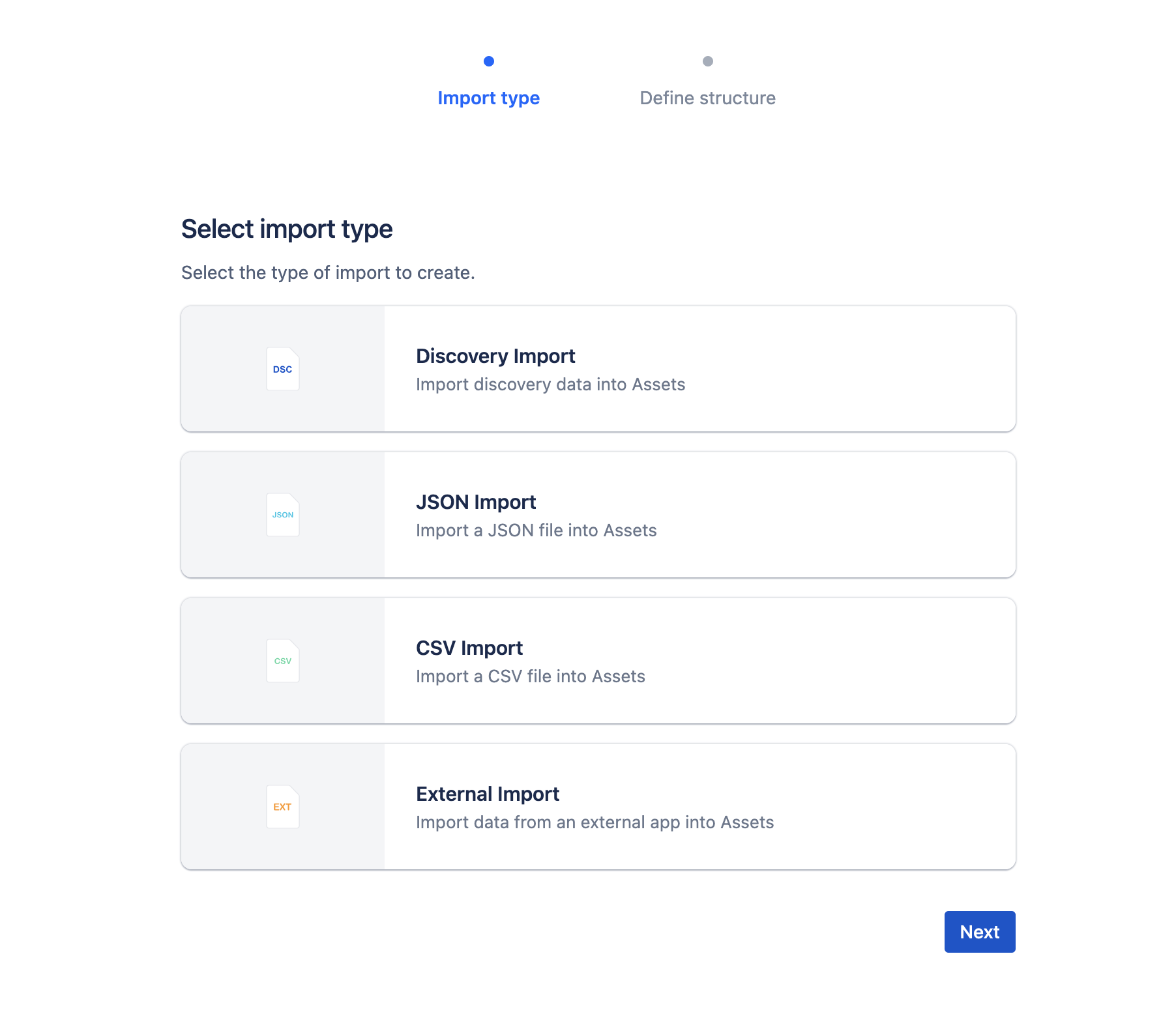
Select the import type as JSON Import as shown in the screenshot below, and then click Next:
Enter the required name and select the json file file to be imported.
Edit the attributes mapping as required.
Click on Run import
After the import runs, open the imported object and confirm each address actually renders on its own line in the TextArea attribute — if the values instead appear concatenated on a single line, the \n character was likely not preserved correctly (a common cause is an extra layer of escaping when the JSON is generated by another script, turning \n into a literal backslash-n).
For more details on importing assets into JSM, please refer to the following support documentation:
Was this helpful?