How to import issue links from a CSV file in Jira
Platform Notice: Data Center Only - This article only applies to Atlassian apps on the Data Center platform.
Note that this KB was created for the Data Center version of the product. Data Center KBs for non-Data-Center-specific features may also work for Server versions of the product, however they have not been tested. Support for Server* products ended on February 15th 2024. If you are running a Server product, you can visit the Atlassian Server end of support announcement to review your migration options.
*Except Fisheye and Crucible
Summary
Purpose of this article
This article contains instructions to help in importing issue links to Jira from a CSV file.
Environment
Jira Data Center
Solution
Before you start
Issues referenced in the link columns must either already exist in Jira or be defined as new issues within the same CSV file using consistent Issue ID values across rows. If referencing pre-existing issues, use their exact issue key (e.g.
PROJECT-123).The link types you want to import must already be configured in Admin → Issues → Issue Linking. You will select the link type during the Map Fields step of the CSV import wizard — the CSV column header name does not need to match the link type name.
Back up your Jira instance before running a bulk import. There is no native bulk-delete for issue links — removing accidentally imported links requires manual effort or a ScriptRunner script.
Test with a small subset (10–20 rows) before running the full import to verify your column mapping is correct.
Importing issue links via CSV
The process for importing Issue Link through CSV is similar to importing Sub-tasks, as described in Importing Data from CSV. One column must be mapped to a respective issue, which may or may not exist already in Jira, and the other as the desired link type (e.g. 'X blocks Y').
When importing the issue link via CSV, Jira will consider the link you provide as the Outward link description. You can't choose between Inward or Outward links. This is currently being tracked in: JRASERVER-61571 - CSV Importer should allow user to choose to import Issue links as Outward or Inward Description.
In the CSV file, the column with the Outward Link Description you want to create a link, needs to have a value for the corresponding issue that the link should be created against. See the example below:
Summary,Issue Key,Blocks,Clones
Issue1,TEST-1,TEST-2,
Issue2,TEST-2,,TEST-3
Issue3,TEST-3,,
Once the CSV file is prepared like in the example above you can follow the steps from Importing data from CSV to import it. If the import is successful, you should end up with the following relationship between the issues:
Issue1 (TEST-1): blocks Issue2 (TEST-2)
Issue2 (TEST-2): clones Issue3 (TEST-3)
We will also have the Inward links created automatically.
It's important to note that you need to select the proper Issue Link Type you want the import to create during the import. The column name isn't responsible for doing this, but you should use a name that helps you identify them in the import tool because you will need to associate the column with the link type in the Map Fields step of the CSV import, as in the example below:
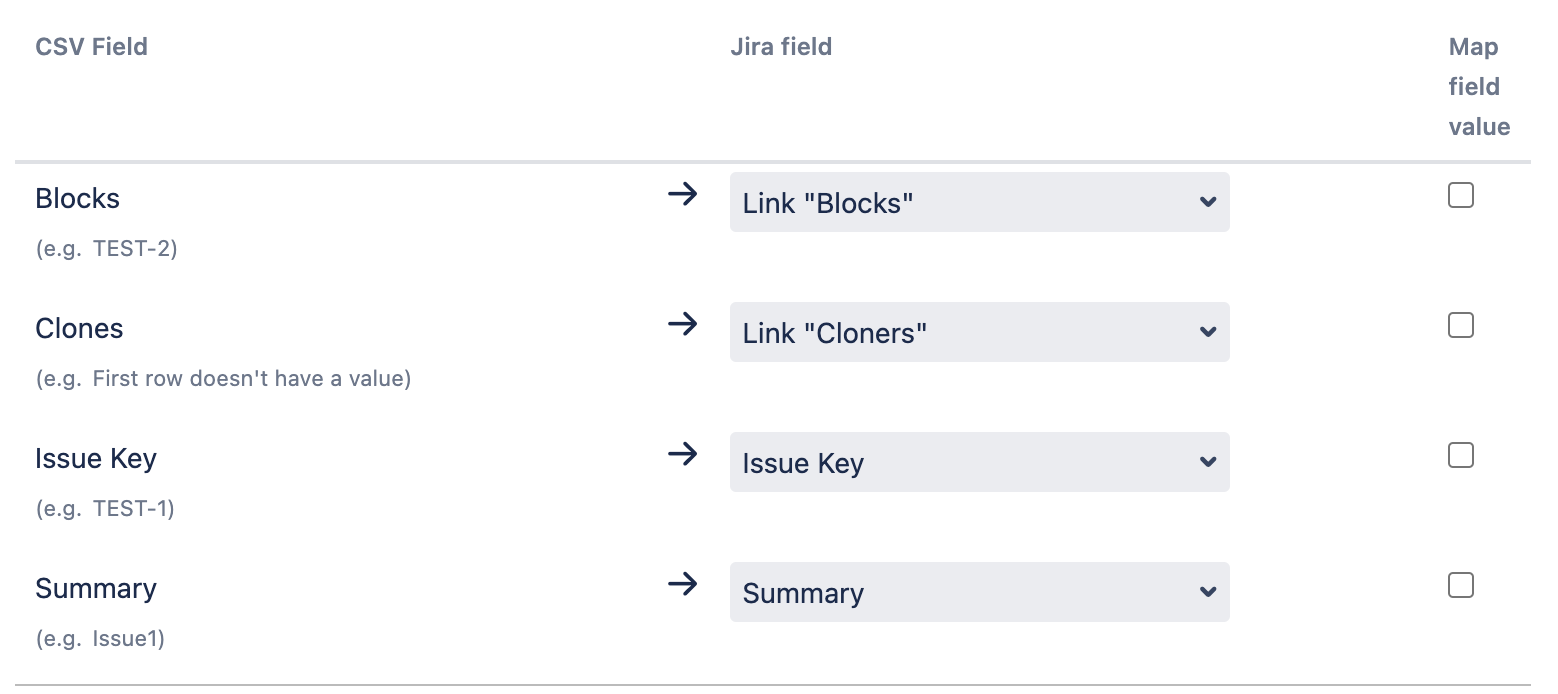
If you have multiple links from the same issue to different issues, you can add these in two ways
1: Add a new line for each link
Summary,Issue Key,Blocks,Clones
Issue1,TEST-1,TEST-2,
Issue1,TEST-1,TEST-3,
...
2: Add an extra column
Summary,Issue Key,Blocks,Blocks,Clones
Issue1,TEST-1,TEST-2,TEST-3,
...
Both the above options will create 2 links:
Issue1 (TEST-1): blocks Issue2 (TEST-2)
Issue1 (TEST-1): blocks Issue3 (TEST-3)
Optionally, you can also create new Jira issues with their respective issue links. However, for this you need to correctly specify the issue keys that Jira will create once those issues are imported, otherwise, the issue linking will happen to the wrong issue keys.
The easiest way to identify the next issue keys that will be used for the projects you are importing data against is by creating a new issue on them and checking the number in the issue key. For example, if you create a new issue in the project called TEST and the issue key is TEST-299; The next issue key should be TEST-300.
During this time, you need to ensure that users are not actively creating issues on those projects. We usually see that it's easier to follow a two-step approach in such scenarios:
First, create the issues using one CSV file;
Import the issue links using a separate CSV file, using the issue keys you obtained after the step above.
Common import errors
Symptom | Cause | Resolution |
Link not created, no error logged | Issue key in CSV doesn't match any issue in Jira | Verify issue keys exist in Jira before import; re-import after creating any missing issues |
Link column not available to map in the Map Fields step | Link type does not exist in Jira | Create the required link type in Admin → Issues → Issue Linking before running the import |
Duplicate links created on re-import | Importer does not de-duplicate — re-running creates additional links | Identify duplicates via JQL; remove manually or via ScriptRunner |
Cross-project links missing after import | User running import lacks "Link Issues" permission on the target project | Verify the "Link Issues" permission in the permission scheme of both source and target projects |
When CSV import isn't the right tool:
CSV link import is the right tool when:
You're migrating from another system and have a structured link mapping.
You're setting up a one-time bulk link.
It is NOT the right tool when:
You want links created based on future events — use an Automation for Jira rule instead.
You want bi-directional sync with an external system — use an integration app (e.g., Exalate, Unito).
The link relationship needs to enforce a workflow constraint — use validators/conditions, not links.
Related articles:
Importing data from CSV — canonical Jira DC importer documentation
Configuring issue linking — how to create and manage link types
In case any assistance is required from Atlassian please get in touch through https://support.atlassian.com/contact/.
Was this helpful?