How to identify user attributes with Unknown value in Insight
Platform Notice: Data Center Only - This article only applies to Atlassian apps on the Data Center platform.
Note that this KB was created for the Data Center version of the product. Data Center KBs for non-Data-Center-specific features may also work for Server versions of the product, however they have not been tested. Support for Server* products ended on February 15th 2024. If you are running a Server product, you can visit the Atlassian Server end of support announcement to review your migration options.
*Except Fisheye and Crucible
Summary
Problem
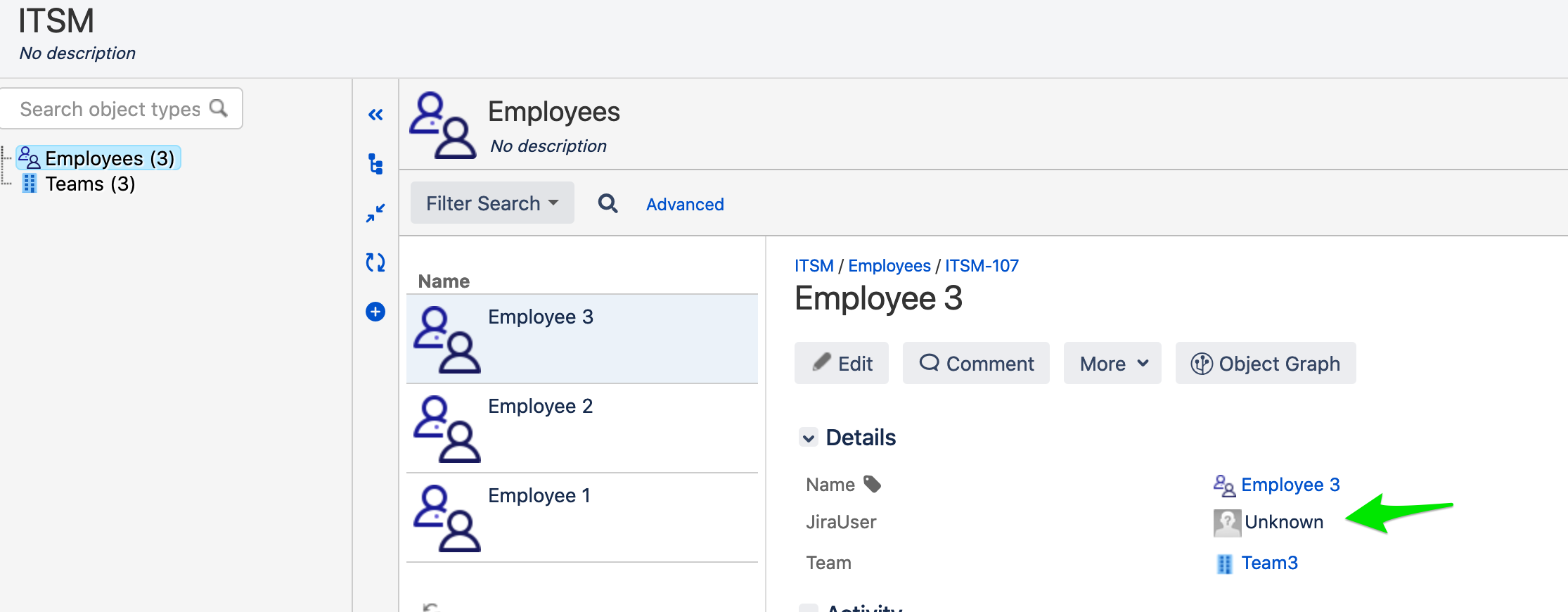
You have some Object Type attributes (User and Group Type), and some objects have Unknown values.
This article will show you how to identify all those objects.
Diagnosis
Environment
Insight - All versions
Diagnostic Steps
An unknown value means that user or group is no longer in the Jira User Directory. It could be in case a user or a group was deleted.
If you attempt to update the object manually without removing the value or changing it to another, you will get "User JIRAUSERXXX not found in Jira."
Cause
The UserKey for the user or the group attribute is saved as the Attribute Value. Still, Insightreturns the displayName=Unknown as user or group was deleted and no longer exists in the Jira User Directory.
Solution
Resolution
You can find "Unknown" users with this IQL query (where "User" is the attribute name) :
"User" IS NOT empty AND "User" NOT LIKE ""
But, in case the query returns empty, then you can do a manual validation:
Click on Export Objects

Select format: User friendly
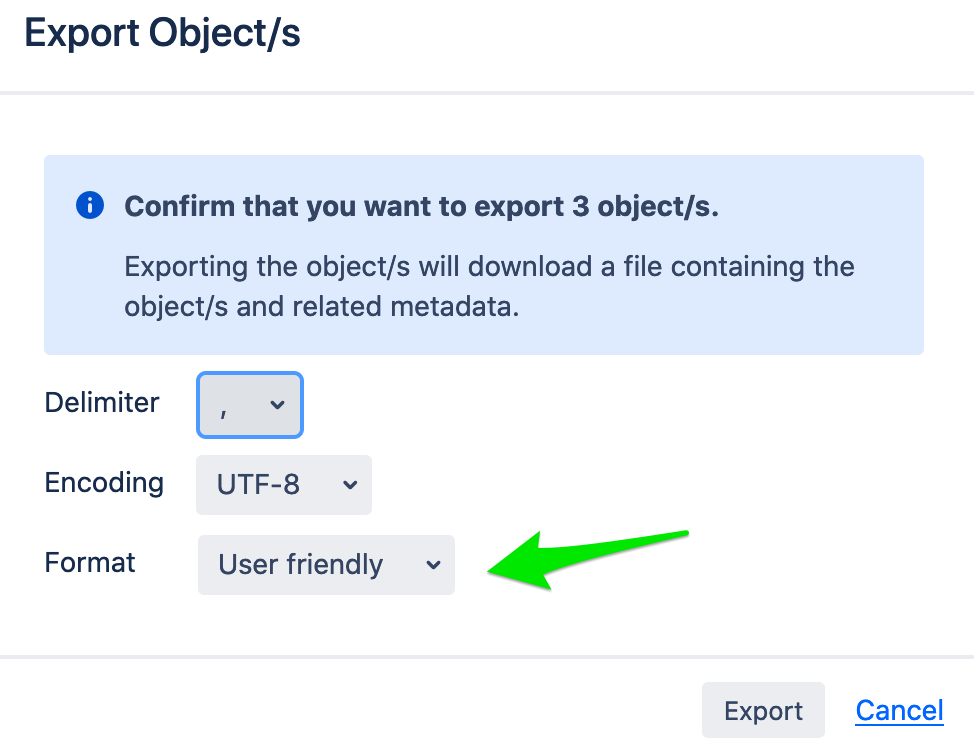
You can perform a filter on the CSV file generated to narrow your Unknown values.
Was this helpful?