How to get issue id from the Jira User Interface
Platform Notice: Data Center Only - This article only applies to Atlassian apps on the Data Center platform.
Note that this KB was created for the Data Center version of the product. Data Center KBs for non-Data-Center-specific features may also work for Server versions of the product, however they have not been tested. Support for Server* products ended on February 15th 2024. If you are running a Server product, you can visit the Atlassian Server end of support announcement to review your migration options.
*Except Fisheye and Crucible
Problem
User needs to get the issue id in an easier way from the User Interface (without executing query in the database) in order to search in the JQL query
What's the difference between an issue key and the numeric issue ID?
Issue Key (e.g.
PROJ-123) — Human-readable identifier; visible in the URL bar, emails, and most Jira UI surfaces. Can change if a Jira administrator renames the project key or if the issue is moved to a different project.Numeric Issue ID (e.g.
10042) — Internal database identifier; never shown in the standard UI; truly immutable — it never changes even if the project key is renamed or the issue is moved between projects.
For most purposes, the issue key works fine. Use the numeric ID when an integration, automation rule, or external system explicitly requires it — particularly if issues may be moved between projects or the project key may be renamed in the future.
Cause
Get the issue id from the database is time-consuming. The fast and alternate way to view the issue id is from the User Interface itself.
Resolution
Go to Issues>Search for issues
Click and open the Issue that you wanted to view the issue id
Mouse-over the Edit button and you can view the issue id at the bottom of browser as shown below:
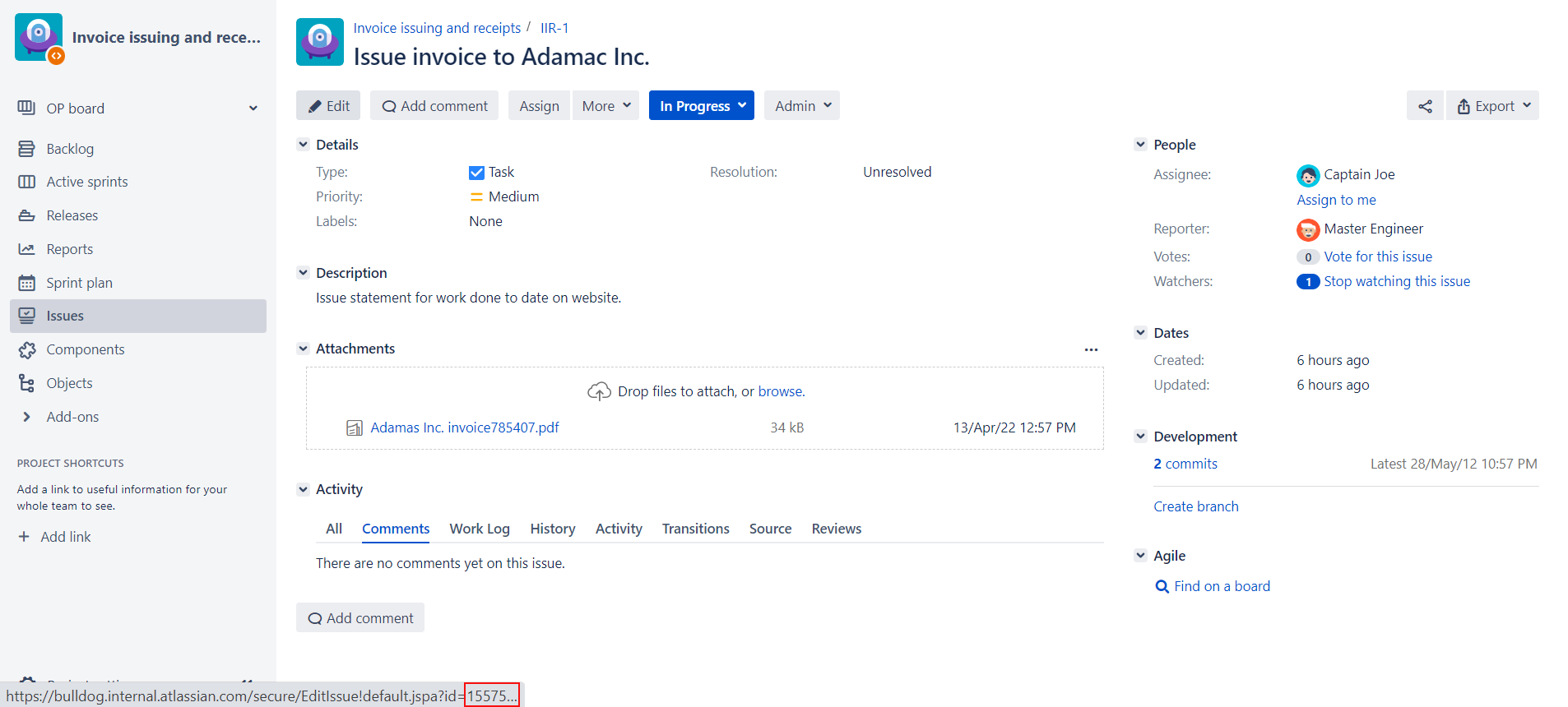
For this example the issue id is 15575
The same can also be achieved when hovering over the following buttons: Add Comment, Assign or over the menu entries under the More button.
NOTE: If your browser (e.g. Safari) doesn't have Link Preview enabled, you can make use the following steps:
Right click on the Edit, Add Comment, Assign Button or on any of the menu entries under the More button
Select Copy Link
Use a new tab or any text editor (i.e. TextEdit, Sublime...) and copy the link there.
You will see the same link as in the Link Preview with the id listed.
When you need the numeric ID
Integrations that store issue references by ID — External systems, app configuration files, or automation scripts that cache issue references using the numeric ID (rather than the key) will remain stable even when a project key is renamed or an issue is moved to a different project.
Database query troubleshooting (DC only) — When querying the Jira database directly, the numeric issue ID corresponds to the
idcolumn in thejiraissuetable. Note: theissuenumcolumn is a different value — it is the sequential counter within a project and is not the same as the numeric issue ID.Webhook and automation payloads — Jira webhook payloads include both
issue.keyandissue.id. Use the numeric ID (issue.id) when cross-referencing webhook events against an external system that tracks issues by numeric ID.
Related Articles
Finding the ID for Issue Types in Jira Server or Data Center
How to find the Request Type associated to a Jira issue using SQL query (JSM)
Jira Data Center REST API reference —
GET /rest/api/2/issue/{issueIdOrKey}
Was this helpful?