API Customer Requests with Forms and Assets in JSM Cloud
Platform Notice: Cloud Only - This article only applies to Atlassian apps on the cloud platform.
Summary
Use custom fields from Assets objects in JSM Cloud Forms to enhance your request submissions.
Solution
To create a customer request with Forms, first retrieve the Form ID, then retrieve the form template to get the field ID. Then, use the Form ID and field ID in the request body together with the Forms and Assets values described below.
Getting Forms information
On our API documentation, there is an example of how to create a request with Forms linked to a Request type.
In order to get the Forms options and Asset types to add Forms on the API, you need to use the following endpoints, alternatively, via Automation's Send Web Request Action:
Form ID
cURL (terminal) example:
curl --request GET \
  --url 'https://api.atlassian.com/jira/forms/cloud/<cloudid>/project/<pkey>/form' \
  --user '<email>:<token>' \
  --header 'X-ExperimentalApi: opt-in' \
  --header 'Accept: application/json'
Automation Example:
Web request URL* (required):
  https://api.atlassian.com/jira/forms/cloud/<cloudid>/project/{{project.key}}/form
HTTP method* (required):
  GET
Web request body* (required):
  Empty
Delay execution of subsequent rule actions until we've received a response for this web request:
  Checked
Continue running the rule even if the request response is not successful (i.e. non-200 response):
  Unchecked
Headers (optional):
  content-type: application/json
  X-ExperimentalApi: opt-in
  Authorization: Basic {{base64Encode('<email>:<token>')}}
Form’s field ID
cURL (terminal) example:
curl --request GET \
  --url 'https://api.atlassian.com/jira/forms/cloud/<cloudid>/project/<pkey>/form/<form id>' \
  --user '<email>:<token>' \
  --header 'X-ExperimentalApi: opt-in' \
  --header 'Accept: application/json'
Automation Example:
Web request URL* (required):
  https://api.atlassian.com/jira/forms/cloud/<cloudid>/project/{{project.key}}/form/<form id>
HTTP method* (required):
  GET
Web request body* (required):
  Empty
Delay execution of subsequent rule actions until we've received a response for this web request:
  Checked
Continue running the rule even if the request response is not successful (i.e. non-200 response):
  Unchecked
Headers (optional):
  content-type: application/json
  X-ExperimentalApi: opt-in
  Authorization: Basic {{base64Encode('<email>:<token>')}}
The Assets objects field displays only the custom field ID and name. Unlike other fields, Assets require a combination of the Workspace ID and Object ID instead of just adding "choices" and a number, as shown in the API documentation.
Getting Assets information
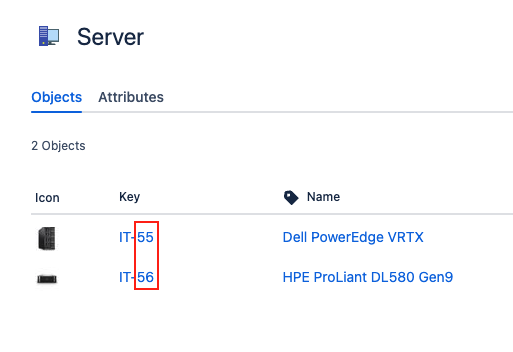
For an Assets object field inside a Form, the choices value is not a plain number. It must be the Workspace ID and the Object ID joined by a colon: workspaceid:objectid (for example, 123ed45a-6f7d-8c9c-bc10-c123b4567891:55). You need both IDs before you can build the request payload.
Workspace ID
The Workspace ID can be retrieved via API or by exporting an issue that already has an Assets field. Via API, you just need to change the <site-name> to your instance domain and paste it to your browser:
https://<site-name>.atlassian.net/rest/servicedeskapi/assets/workspaceObject ID
This value is easier to get as it’s the number on the Object Key. In the example payload below, the Object ID 55 corresponds to the IT-55 object shown on its Object Key, and "123ed45a-6f7d-8c9c-bc10-c123b4567891" is the Workspace ID retrieved above combined as "123ed45a-6f7d-8c9c-bc10-c123b4567891:55" in the choices array
Once you have these two details, you can raise the request using the Forms + Assets fields.
cURL (terminal) example:
curl --request POST \
  --url 'https://<site>.atlassian.net/rest/servicedeskapi/request' \
  --user '<email>:<token>' \
  --header 'Accept: application/json' \
  --header 'Content-Type: application/json' \
  --data '{
  "form": {
    "answers": {
      "1": {
        "text": "Answer to a text form field"
      },
      "4": {
        "choices": [
          "123ed45a-6f7d-8c9c-bc10-c123b4567891:55"
        ]
      }
  },
  "requestFieldValues": {
    "description": "I need a new *mouse* for my Mac",
    "summary": "Request JSD help via REST"
  },
  "requestTypeId": "25",
  "serviceDeskId": "10"
}'
Automation Example:
Web request URL* (required):
  https://<site>.atlassian.net/rest/servicedeskapi/request
HTTP method* (required):
  POST
Web request body* (required):
  Custom Data:
    {
    	"form": {
			"answers": {
				"1": {
					"text": "Answer to a text form field"
				},
				"4": {
					"choices": [
						"123ed45a-6f7d-8c9c-bc10-c123b4567891:55"
					]
				}
		},
		"requestFieldValues": {
			"description": "I need a new *mouse* for my Mac",
			"summary": "Request JSD help via REST"
		},
		"requestTypeId": "25",
		"serviceDeskId": "10"
	}
Delay execution of subsequent rule actions until we've received a response for this web request:
  Checked
Continue running the rule even if the request response is not successful (i.e. non-200 response):
  Unchecked
Headers (optional):
  content-type: application/json
  X-ExperimentalApi: opt-in
  Authorization: Basic {{base64Encode('<email>:<token>')}}
When raising requests via API with Forms that contain Assets fields, the format will be “workspaceid:objectid” - "123ed45a-6f7d-8c9c-bc10-c123b4567891:55".
Further Reading
Was this helpful?