How to add an attachment to a JIRA issue using REST API
Platform Notice: Data Center Only - This article only applies to Atlassian apps on the Data Center platform.
Note that this KB was created for the Data Center version of the product. Data Center KBs for non-Data-Center-specific features may also work for Server versions of the product, however they have not been tested. Support for Server* products ended on February 15th 2024. If you are running a Server product, you can visit the Atlassian Server end of support announcement to review your migration options.
*Except Fisheye and Crucible
Summary
This article walks through the process of uploading an attachment to an issue via the REST API.
Solution
Before you start
Authentication: Jira DC supports Personal Access Tokens (PAT, available from DC 7.9+) as the recommended modern auth method, or Basic Auth (username:password). To use a PAT, replace
-u {username}:{password}with-H "Authorization: Bearer {PAT_token}"in the cURL example below.Attachment size limit: Check the configured limit at Jira Admin → System → Attachments. Files exceeding this limit will return a 413 error.
Permission required: The authenticating user must have the Create Attachments project permission for the target project.
Archived issues: Attachments cannot be added to archived issues. Ensure the target issue is active before making the request.
Option 1: Using Command Line:
curl -D- -u {username}:{password} -X POST -H "X-Atlassian-Token: nocheck" -F "file=@{path/to/file}" http://{base-url}/rest/api/2/issue/{issue-key}/attachmentsFor more information including error responses, please review our JIRA REST API code: https://docs.atlassian.com/software/jira/docs/api/REST/latest and the specific endpoint add attachment
Option 2: Using GUI-based Tools (Postman)
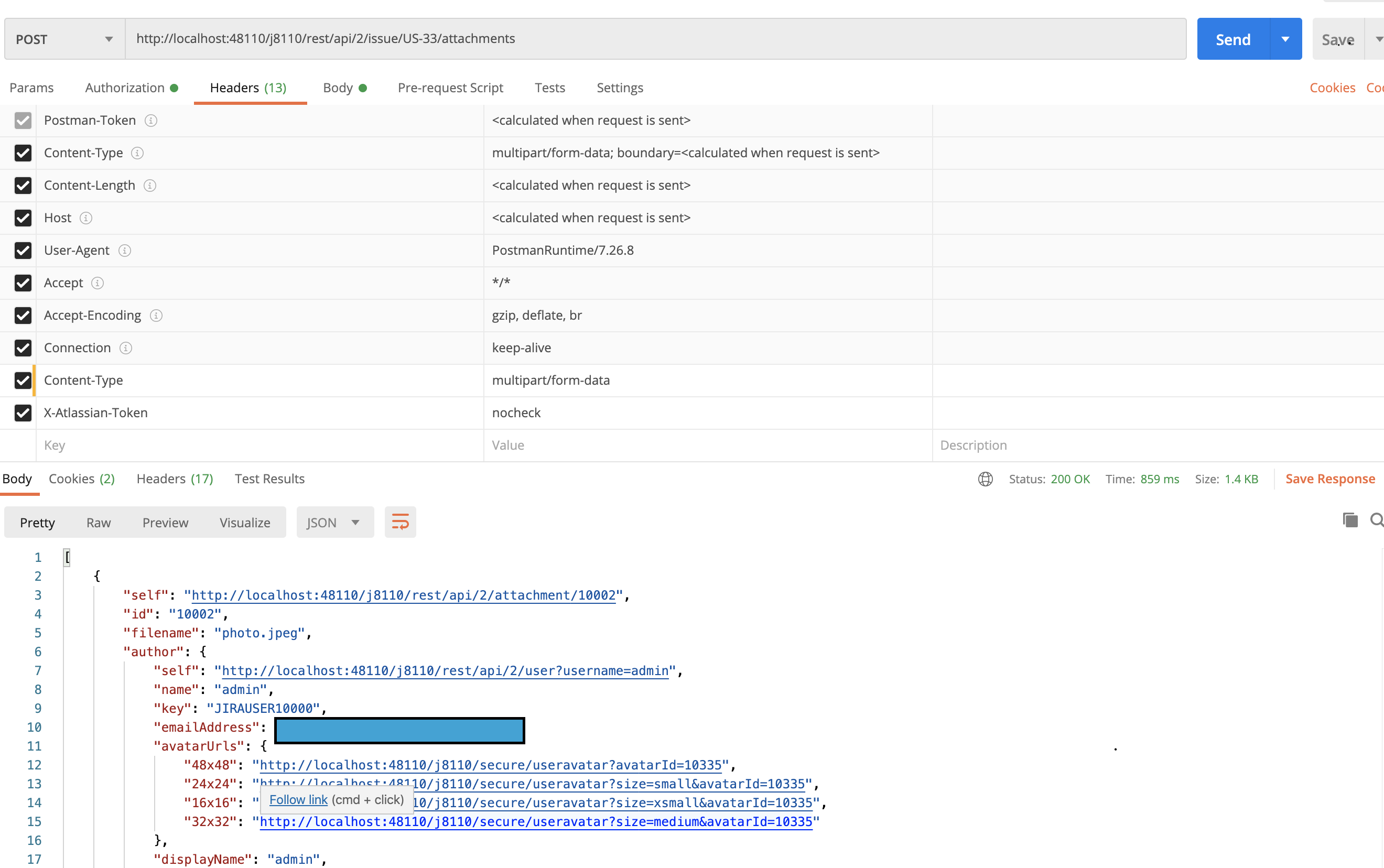
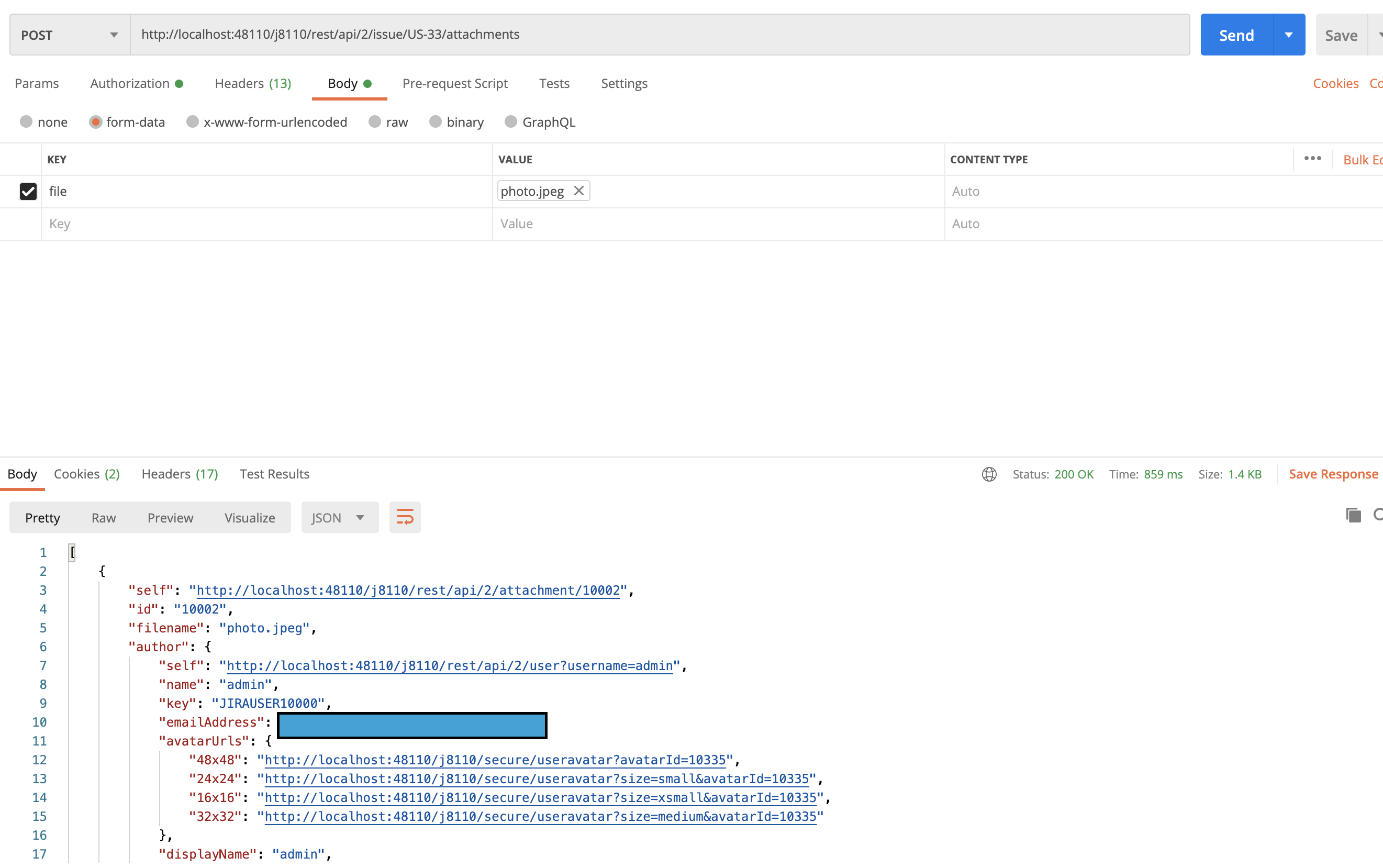
This can also be achieved using any GUI tools of your preference. Here an example on how to perform the same operation using POSTMAN tool.
Make sure to include "Content-Type", "X-Atlassian-Token" under "Headers" section with values shared.
Make sure to include key named "file" and of type "File" to select the one from system, or "Text" to access files using absolute path/reference under "Body" section.
Attaching the screenshots for reference:
Common Errors:
Error | Cause | Resolution |
403 XSRF check failed | Missing | Add |
413 Payload Too Large | File exceeds the configured attachment size limit | Check Jira Admin → System → Attachments; increase the limit or split the file |
415 Unsupported Media Type | Wrong Content-Type — must be | Use multipart upload (curl |
401 Unauthorized | Auth missing or expired | Use PAT (DC 7.9+) or Basic Auth (username:password) |
404 Issue not found | Issue key wrong, issue archived, or no Browse Projects permission | Verify the key, check archive status, check permission scheme |
NOTES:
there is is currently no option to change the filename or add any description to the attachment
only files that are accessible for the user running the command can be added
only files with local access path can be added using this endpoint
Need more help?
Raise a support ticket to Atlassian Support
Was this helpful?