Grouping Asset Objects for Selection in the Multi-Select Asset Custom Field
Platform Notice: Cloud Only - This article only applies to Atlassian apps on the cloud platform.
Summary
When using a multi-select Assets custom field, you can use the approach in this article to bulk-select all matching objects at once — for example, selecting all hosts in a production environment during an upgrade or downtime — instead of searching for each one individually.
Scenario
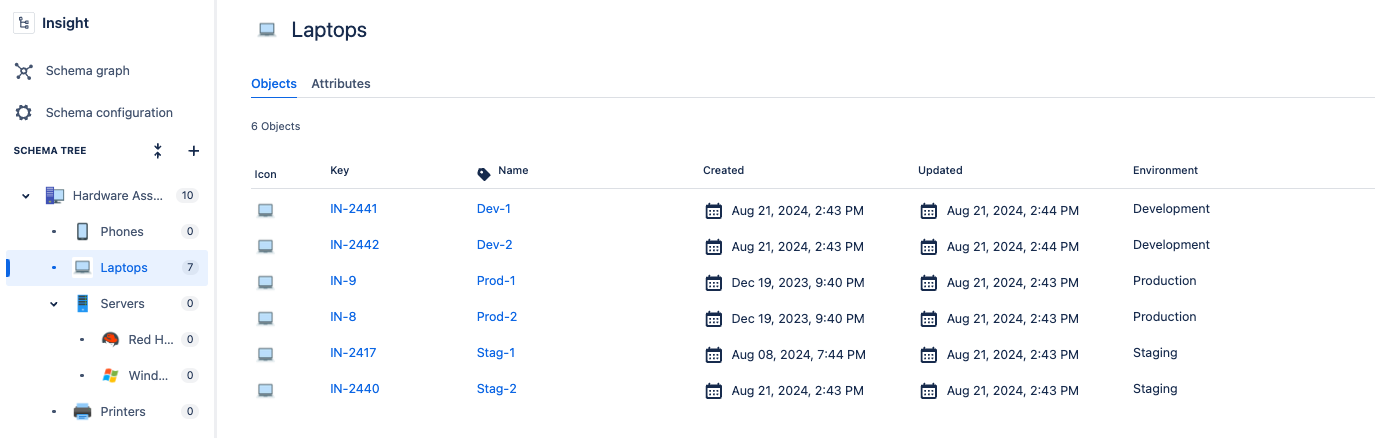
In this use case, we have an Assets Schema named "Insight" with the "Laptops" Object Type. This Object Type encompasses laptops from different environments, such as Production, Staging, and Development.
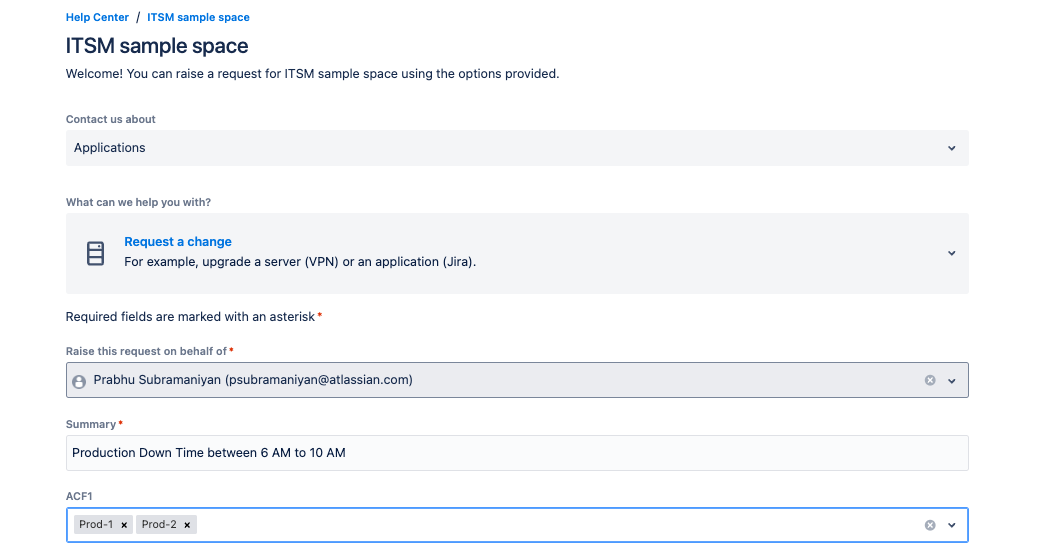
When submitting a request through the customer portal, users must manually search for and select each object, as there is no functionality to choose objects based on specific criteria. In the following illustration, the objects "Prod-1" and "Prod-2" are chosen one by one.
Solution
The grouping objects ("All Production Laptops", etc.) only stay accurate if newly-added hosts are also tagged with the matching criteria (for example, Environment = Production) used in the automation's filter — add a reminder to your asset-provisioning process to set this attribute, otherwise new hosts silently won't be included in the group.
To select multiple objects simultaneously, we will utilize Automation as outlined below:
Create objects based on the specified criteria. For this particular scenario, three objects were created: All Production Laptops, All Staging Laptops, and All Development Laptops.
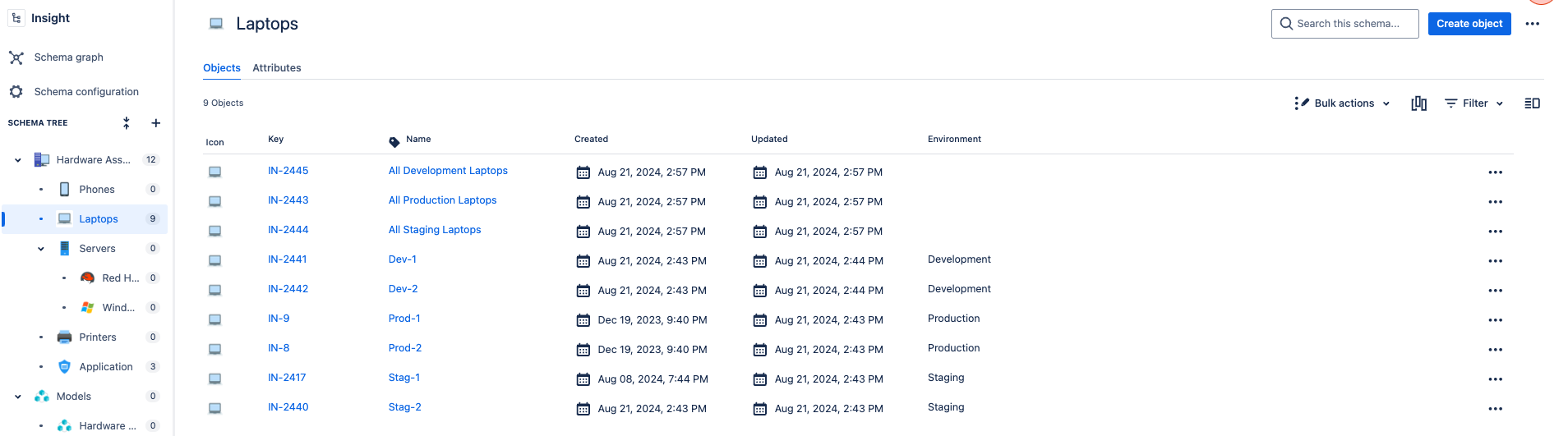
Subsequently, create an Automation rule to verify the values and include multiple Assets Objects in the Multi-Select Assets Custom field based on the criteria.
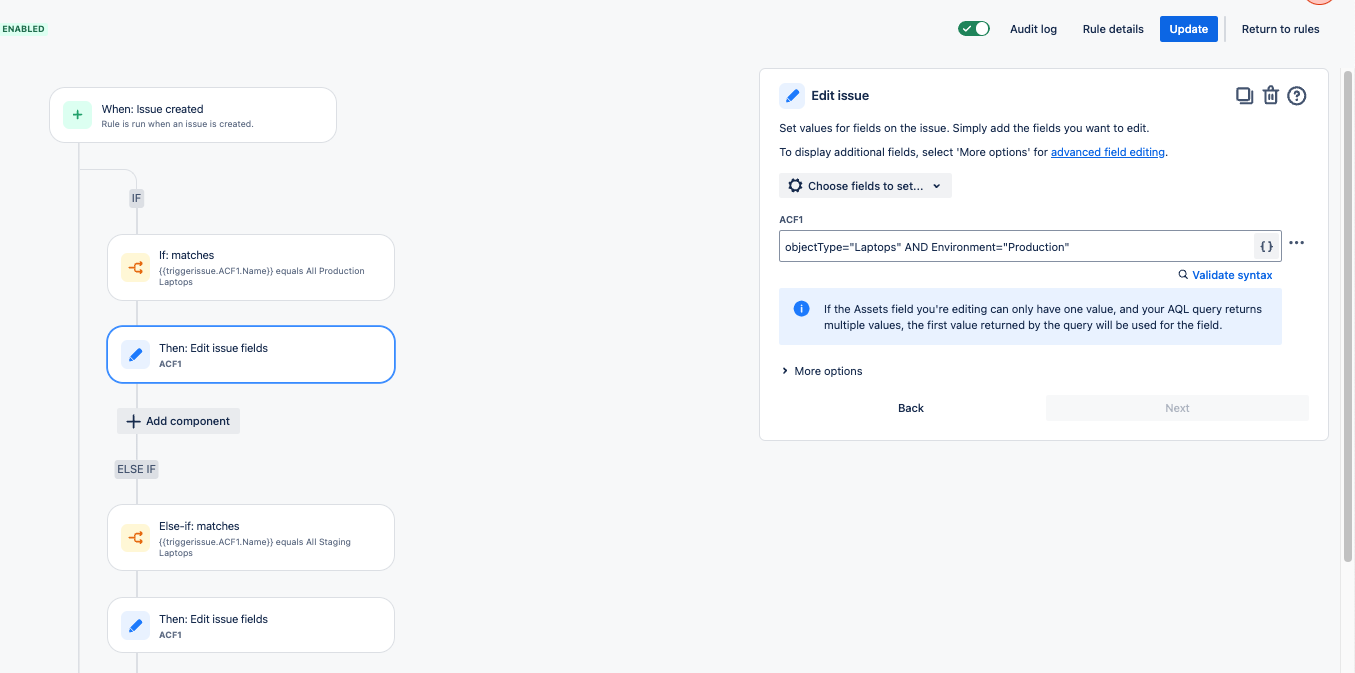
In this scenario, we verify if the custom field contains the value "All Production Laptops". Upon successful validation, we update the Custom field for all objects with the "Production" value in the Environment attribute.
Likewise, additional components can be created for Staging and Development.
Upon rule creation, selecting "All Production Laptops" when submitting requests will prompt the Automation Rule to automatically update the request with all associated Assets objects.
After selecting a grouping object like "All Production Laptops" on a request, confirm the multi-select field actually populates with the individual member objects (Prod-1, Prod-2, etc.), not the grouping object itself — that distinction is the entire point of this approach and is easy to get backward when first setting up the automation.
Was this helpful?