Export JQL filters to Google Sheets using Jira Cloud for Sheets for data analysis in JSM
Platform Notice: Cloud Only - This article only applies to Atlassian apps on the cloud platform.
Summary
JQL effectively filters Jira data, but combining it with internal business data can unlock deeper insights.
Solution
Steps to save a filter and import it to Google Sheets
An approach to correlate these data sets would be using Jira JQL Filters to load the filtered data into Google Sheets using Jira Cloud for Sheets. Note that it could be a specific JQL on Jira Cloud for Sheets instead of the filter or using the =Jira() function as well, in this case, we'll use filters.
For example, let's say we have a service management project with a required user picker field, and we'd like to find the corresponding HR Business Partner in an internal business Google spreadsheet for each user picked on the tickets.
Step 1 - Filter the data required using JQL and save it as a filter.
Step 2 - Integrate Jira with Google Sheets using Jira Cloud for Sheets.
A detailed description of how to integrate Jira and Google Sheets can be found in the use Jira cloud for sheets doc.
Step 3 - Associate the data using the available Google Sheets functions.
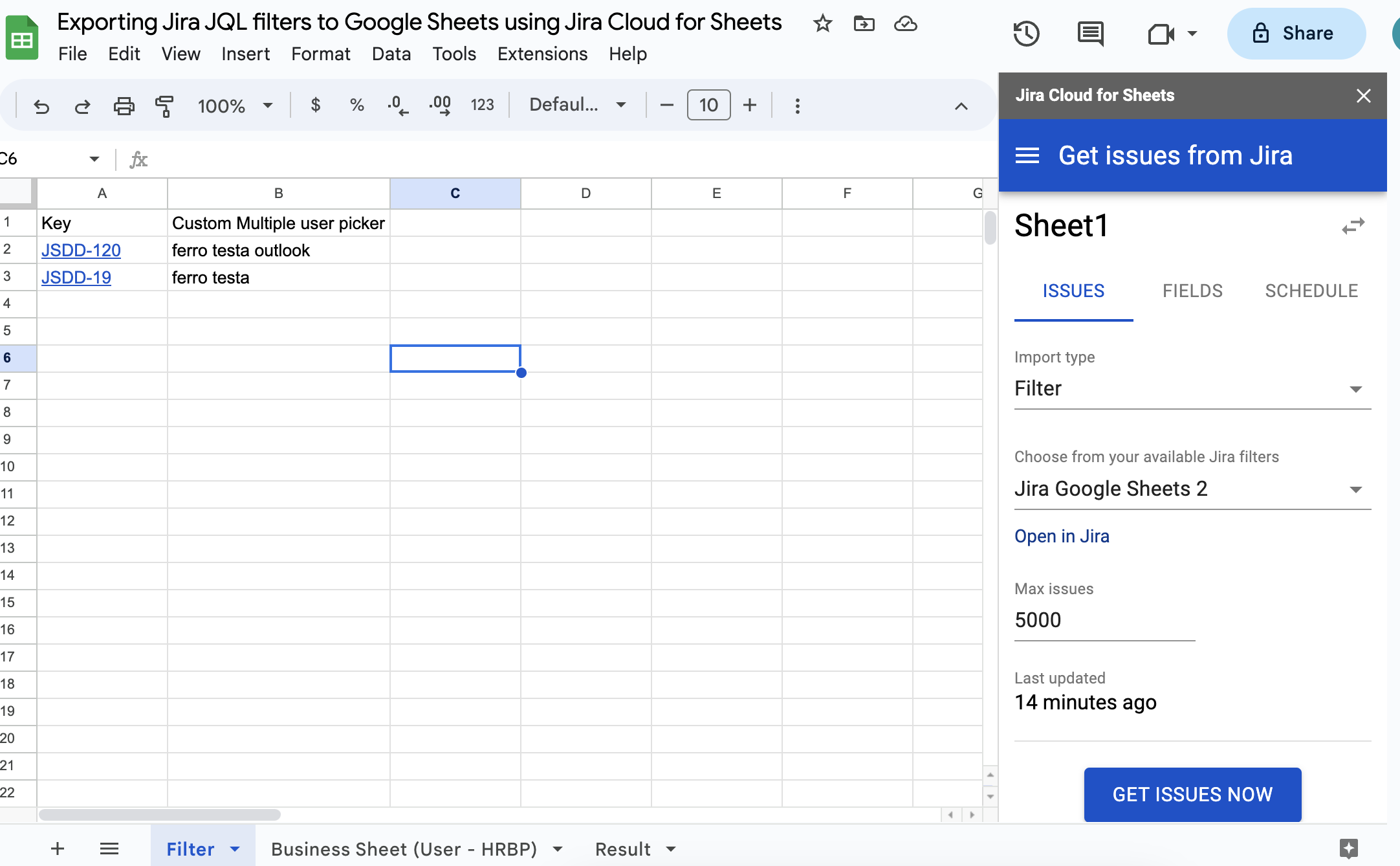
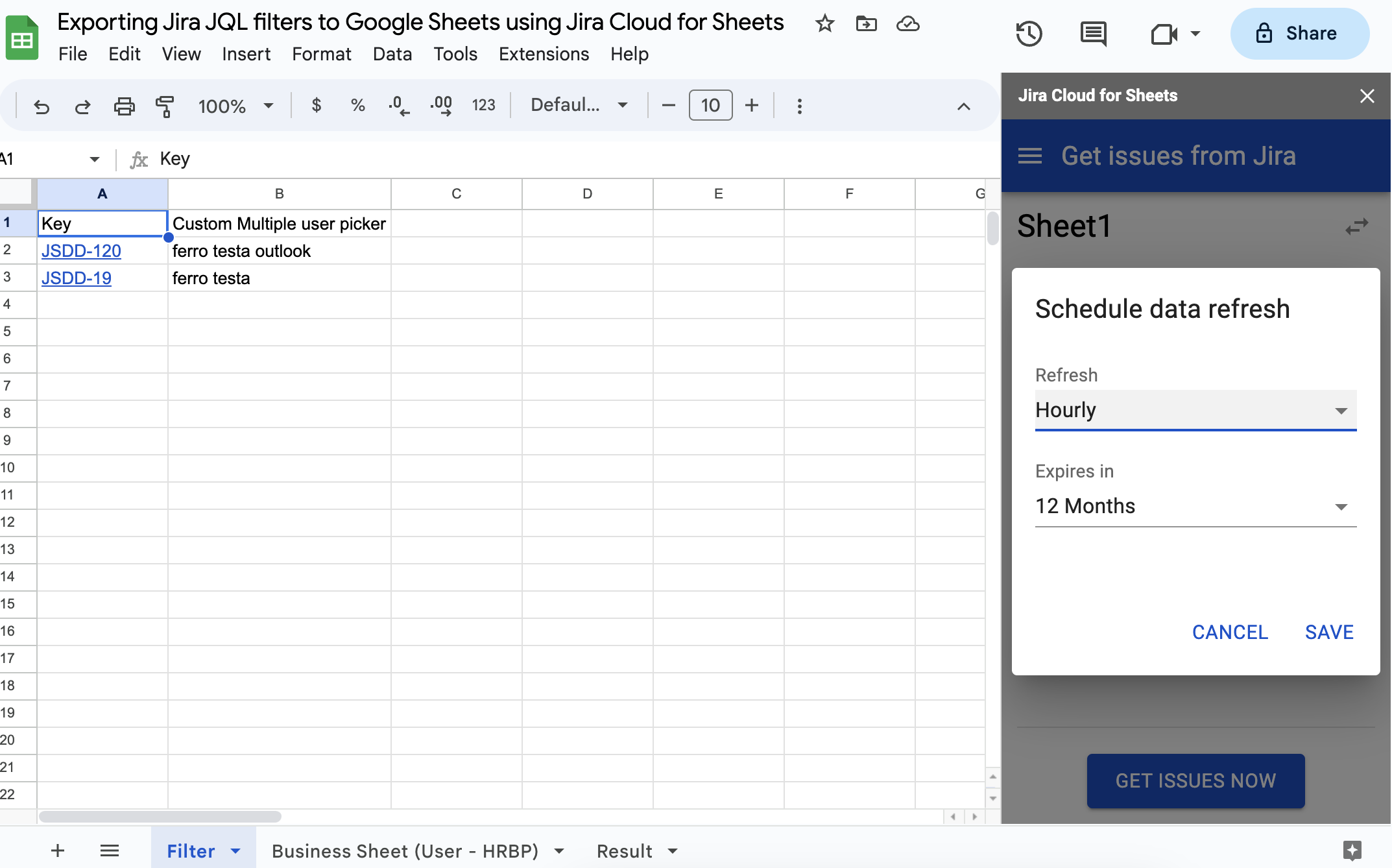
After the Filter data is imported, it will look like the image below:
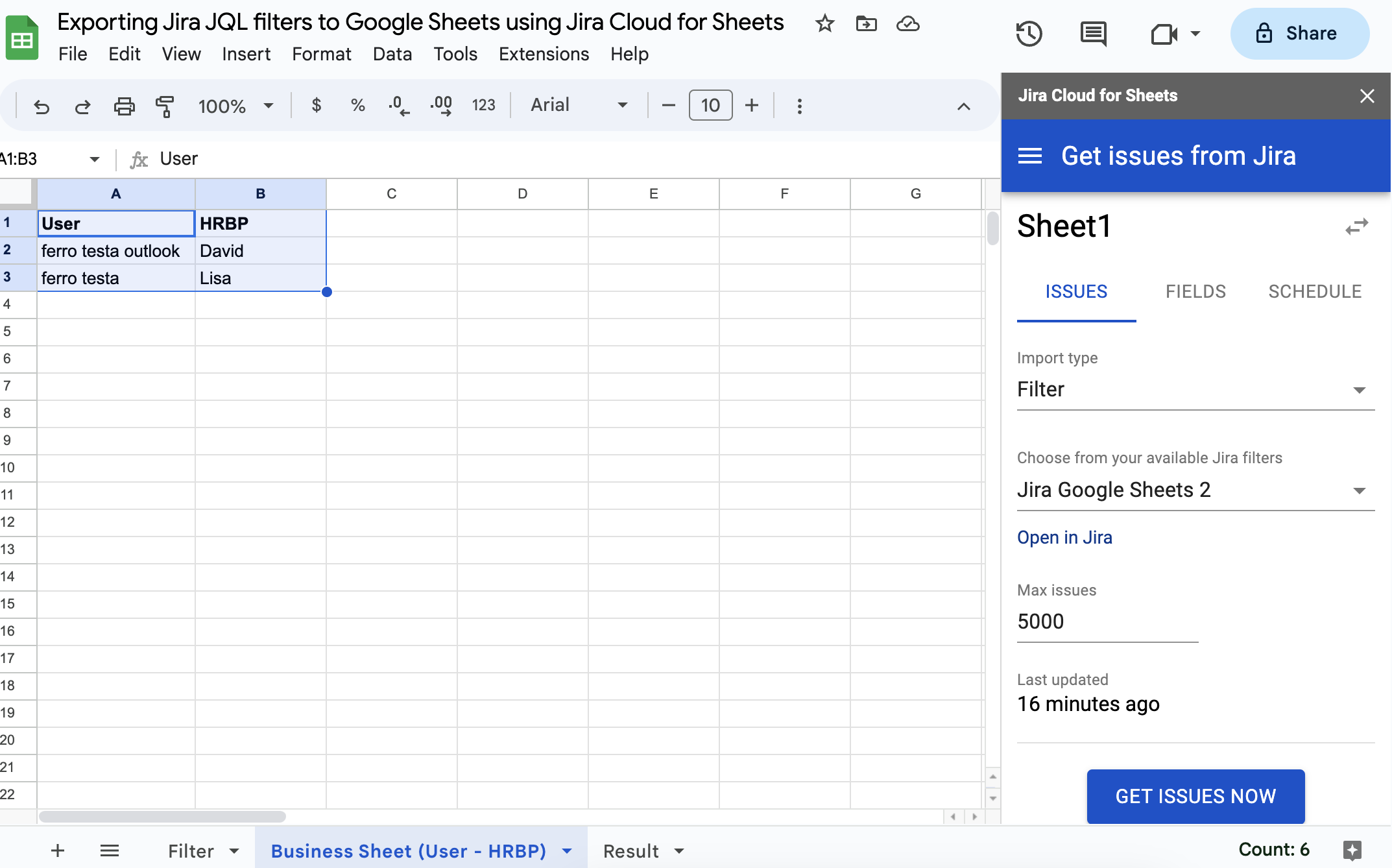
Our simple business data set example would look like this:
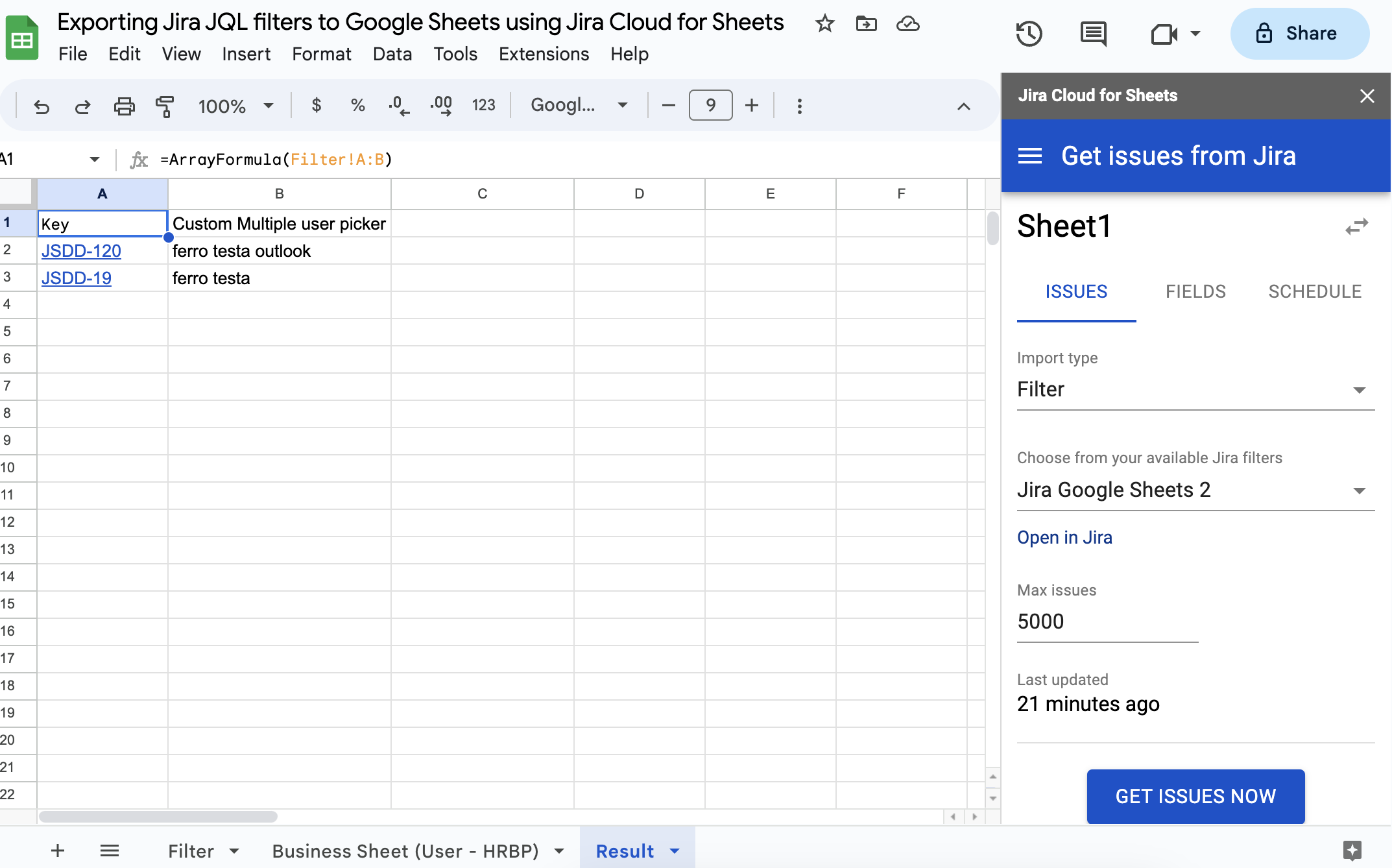
For example, in our case, we'll use the ARRAYFORMULA function to return the values originally imported from the filter to another sheet:
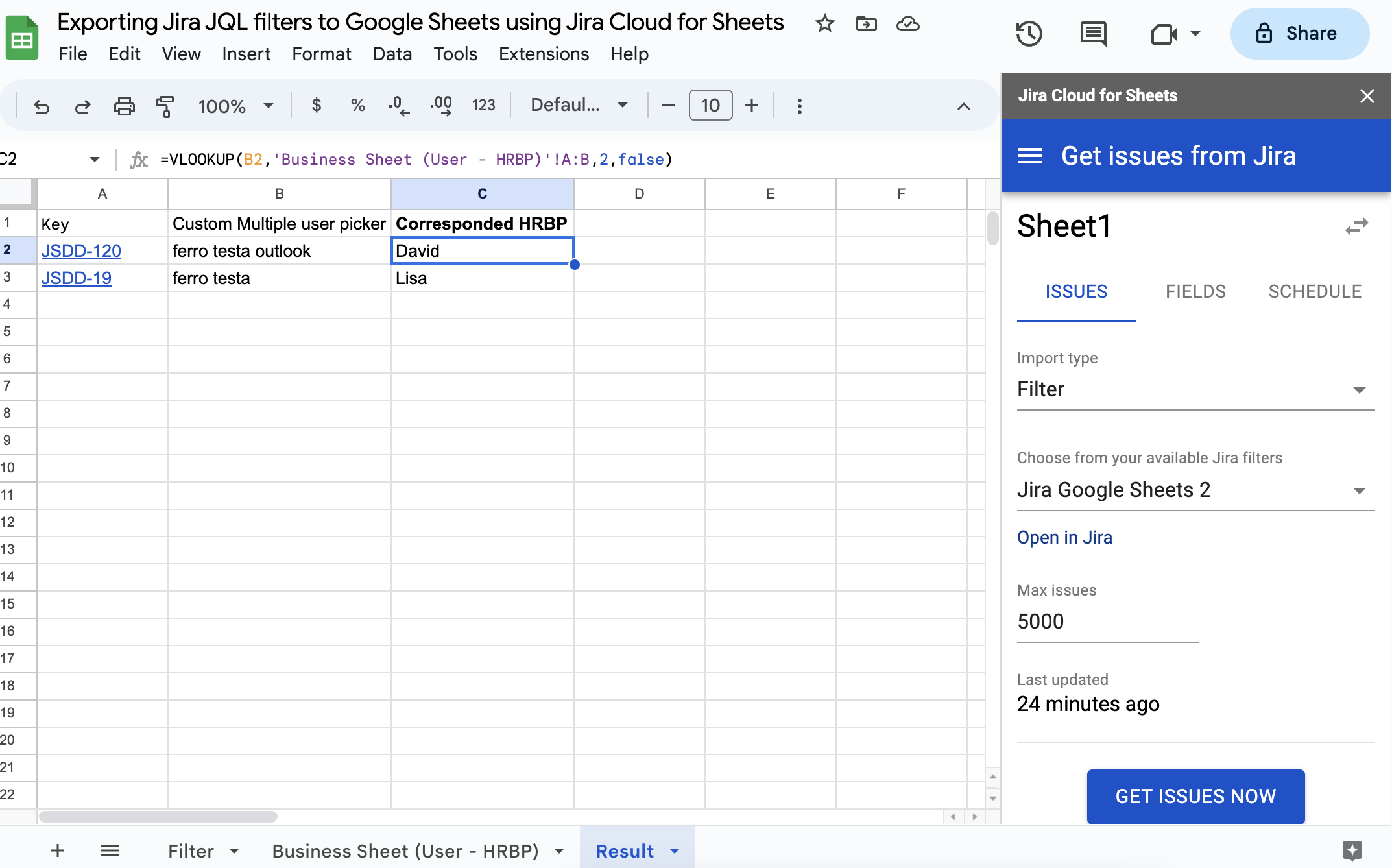
Then we can compare the Jira data with the internal Business Sheet (User - HRBP) data using the VLOOKUP function to find the correspondent HR Business Partner of the user:
Step 4 - Schedule data load from Jira to keep data updated;
Additionally, it is possible to schedule the data load from Jira in the Jira Cloud for Sheets extension to have data updated periodically:
Was this helpful?