Done or resolved work items are shown as incomplete when closing sprints
Platform Notice: Cloud Only - This article only applies to Atlassian apps on the cloud platform.
Summary
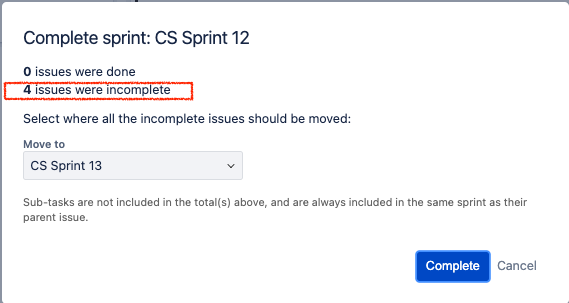
Completed work items are shown as incomplete when you close a sprint in Jira Cloud Scrum spaces.

Solution
What is considered Complete in a Jira sprint?
When you complete a sprint in Jira, the only work items that Jira considers completed are work items set to a status that is mapped to the rightmost column of your Jira board.
Other factors like the category of the work item status, and whether or not the Resolution field is set are not factored in when it comes to completing work items inside a sprint.
Remap all "complete" statuses to the rightmost column of your Jira board
In some cases, the rightmost column is set to contain work items that will not be completed. Common examples include work items that have been Rejected, De-prioritized, or Abandoned. These are work items that aren't intended to be completed as part of any sprint.
Still, Jira will only consider work items in the rightmost column as completed. So, board columns and statuses inside those columns have to be adjusted to accommodate this requirement.
In a company-managed Scrum space
You must be a space admin or a board admin to change column settings.
Go to your board.
Next to your board's name in the sidebar, select More actions (•••), then Board settings.
Select Layout, then Columns.
Under Map statuses to columns, drag every status that represents completed work to the rightmost column. You can move individual statuses, or you can reorder the columns themselves.
If your board uses the new board view, select More actions (•••) on the board, then Configure columns.
In a team-managed Scrum space
You must have the administrator role in your space to change columns and statuses.
Go to your space and open your board.
In the top-right corner of the board, select More actions (•••), then Configure board.
In Columns and statuses, drag every status that represents completed work to the rightmost column.
Select Save changes.
You can also open these settings from your space's sidebar: select Space settings, then Board.
Once all of your completed statuses belong to the rightmost column on your Jira board, you can return to completing the sprint. Completed work items will now be marked as such by the sprint completion tool.
Verify the fix
Go to your board and check that work items in your completed statuses now appear in the rightmost column.
Select Complete sprint.
Before you confirm, check the work items listed as incomplete. Jira asks you to move incomplete work items to the Backlog, a future sprint, or a New sprint.
If a work item you expect to be complete is still listed as incomplete, open it and note its status. Then check which column that status is mapped to in your board's column settings. Work items in an unmapped status aren't counted as complete either.
See Complete a sprint for more details.
Was this helpful?