Display the actual or elapsed time of SLA's using Automation in JSM Cloud
Platform Notice: Cloud Only - This article only applies to Atlassian apps on the cloud platform.
Summary
Learn how to calculate and export the elapsed time for SLAs in Jira Service Management when only the remaining time is displayed.
Solution
Configure an automation rule in Jira Service Management to set the Request type
1. Create separate Text Field (single line) custom fields to store SLA elapsed time values for each metric, such as 'Time to First Response' and 'Time to Resolution.'
2. Go to your Service project Project Settings > Automation > Create a rule.
3. The Automation rule structure should be as shown below.
Trigger - Scheduled.
Condition: Advanced compare condition to check the Time to first response SLA is not empty.
{{issue.Time to first response.completedCycles.elapsedTime.friendly}}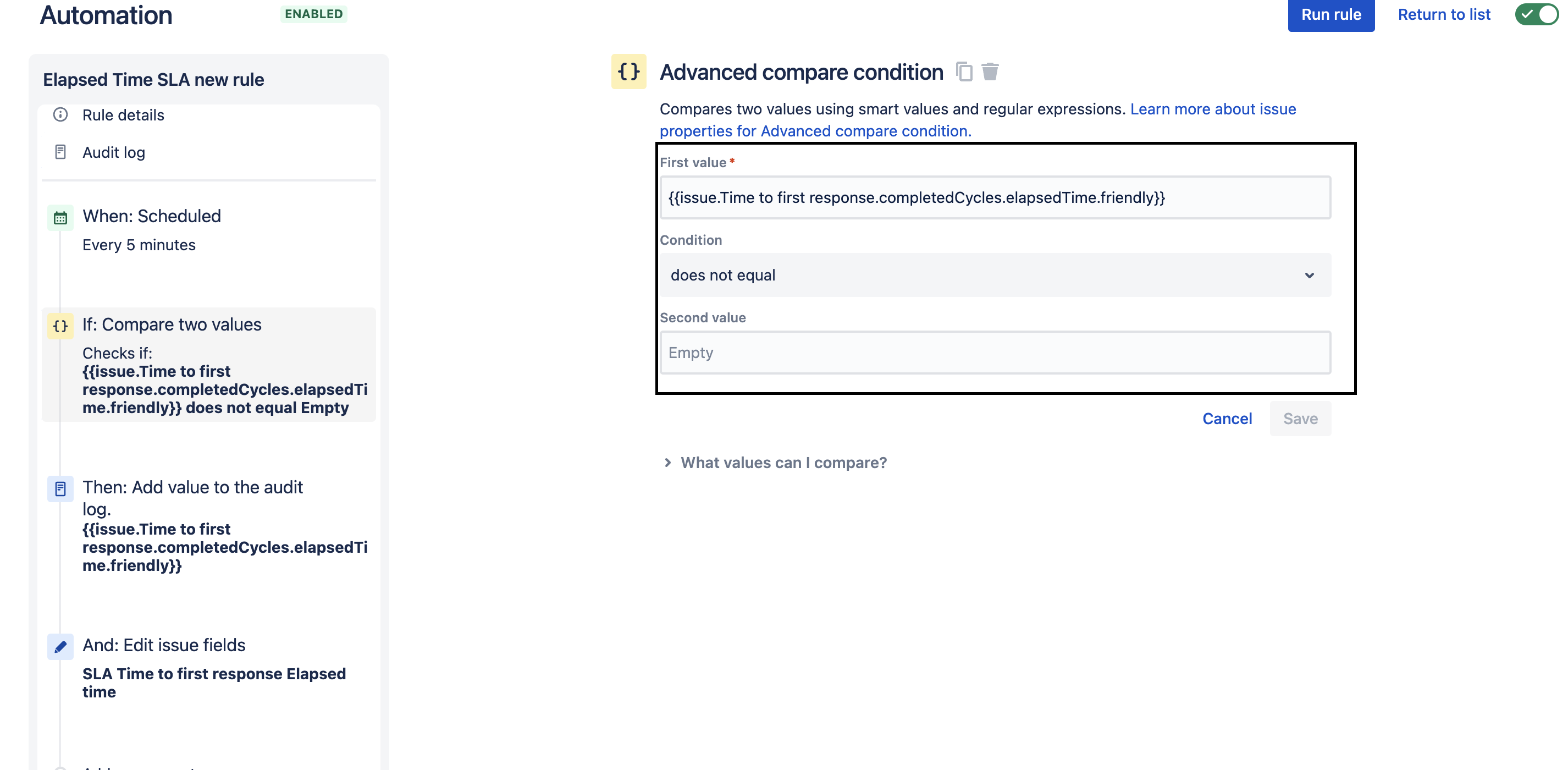
Action - Edit work item > Select the custom field created from the drop-down to store this value.
{{issue.Time to first response.completedCycles.elapsedTime.friendly}}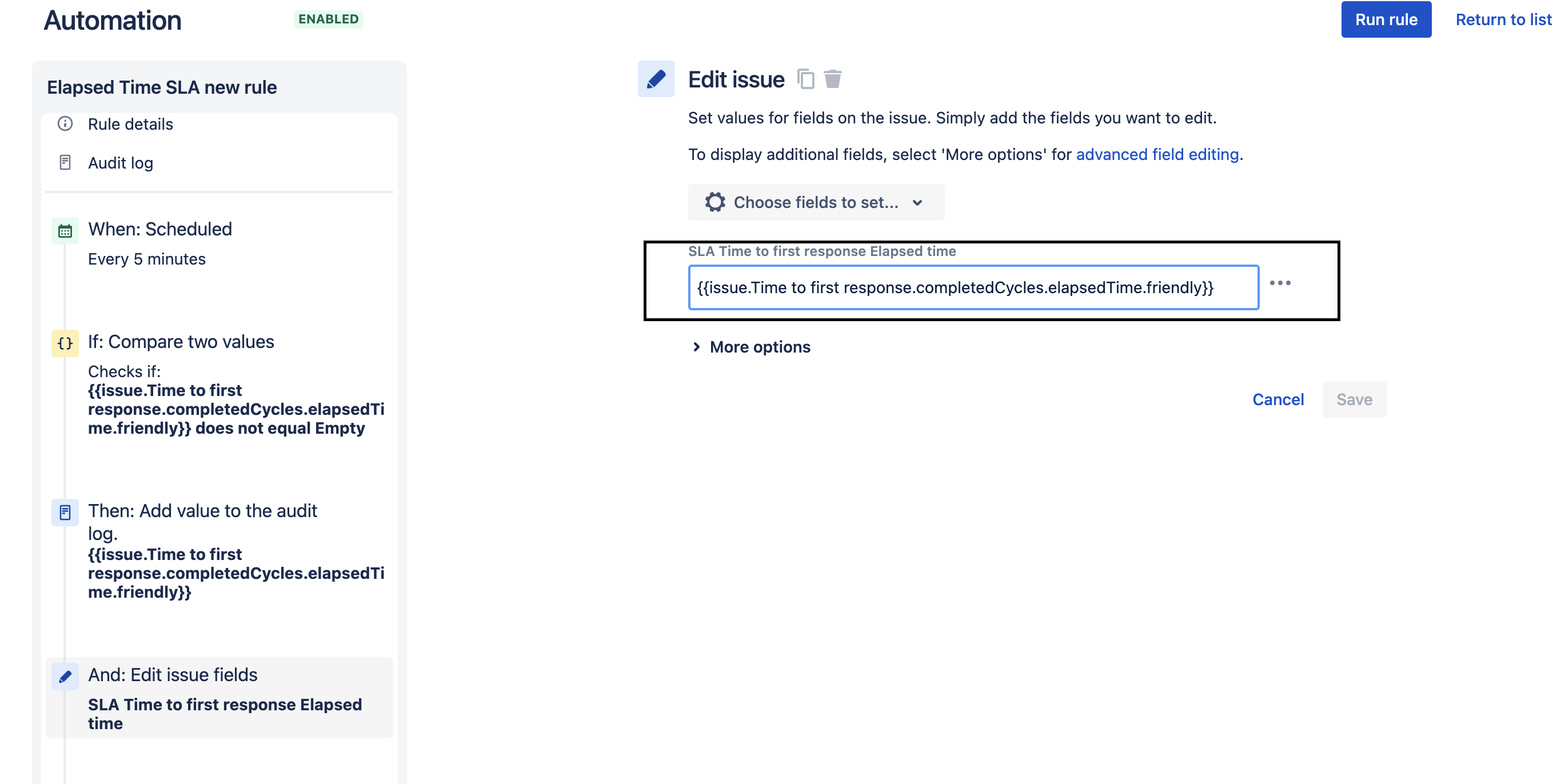
4. Save and publish the rule.
Was this helpful?