Bulk delete users and customers using Postman and CSV file in Jira Cloud
Platform Notice: Cloud Only - This article only applies to Atlassian apps on the cloud platform.
Summary
On Jira Cloud, at the moment, we can't bulk delete users or portal customers via user management. The intent of this article is to provide admins with a workaround to remove accounts in bulk.
Solution
Before you start
You'll need: org/site admin rights to manage users; the Postman app; an API token for Basic auth; and a CSV of the account IDs (or usernames) to delete, exported from User management (users) or the Jira Service Management Customers section (portal customers).
Configure Postman to bulk delete accounts
1. Download and install the Postman app. 2. Create an API token that will be needed for Authentication. 3. Create the CSV file that contains the users or portal customers you want to delete.
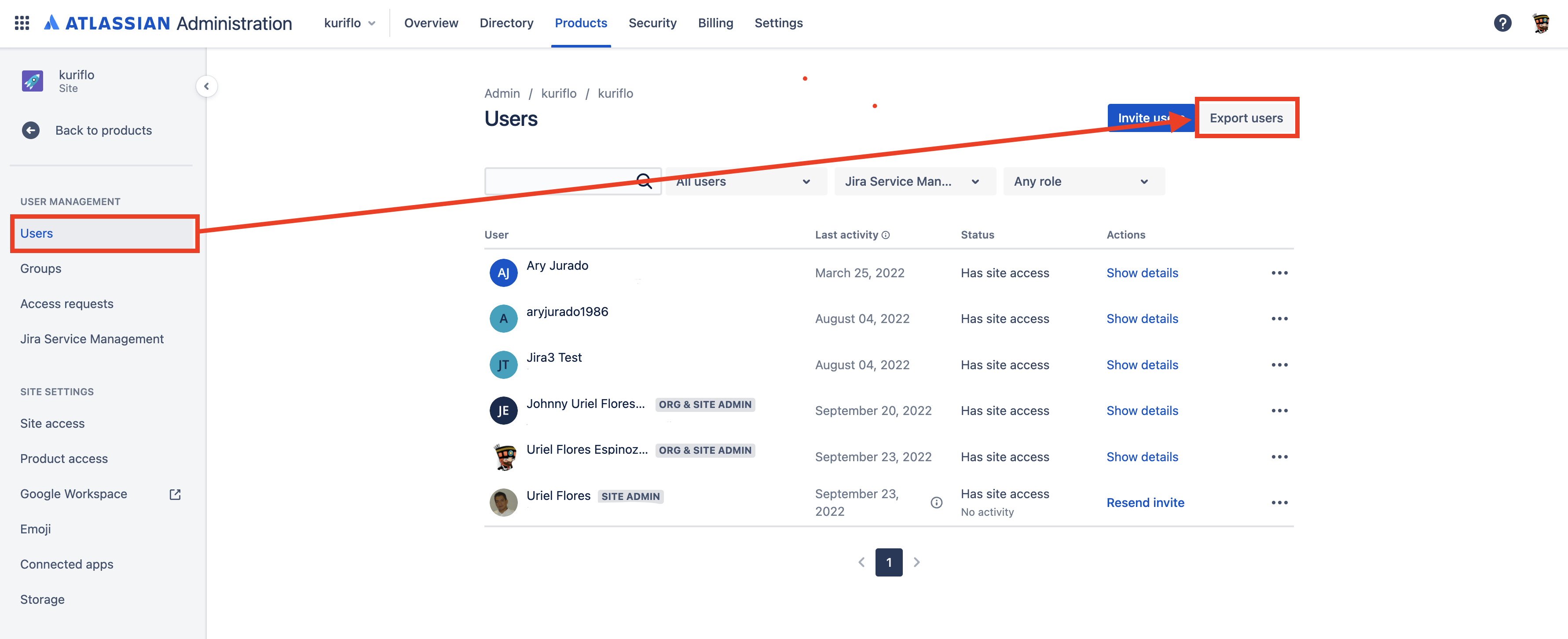
a) Export users from the user management section.
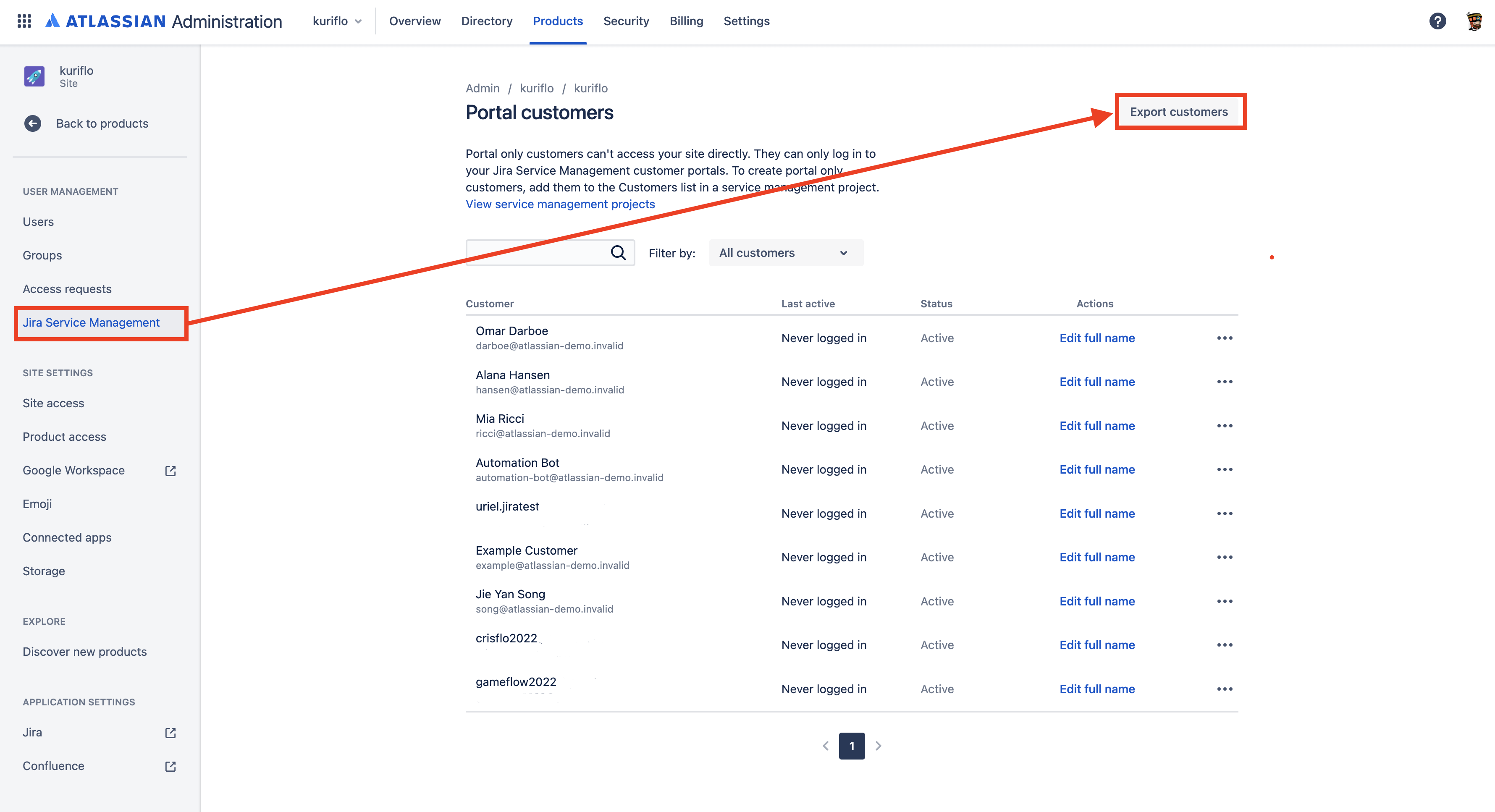
b) Export portal customers from the Jira Service Management section.
4. Create a CSV file and add the user IDs or usernames of the accounts that need to be removed. A header also needs to be added to the column; this will be used as the variable in Postman.
5. In Postman, create a New collection.
6. Once the collection is created, click on Add a request.
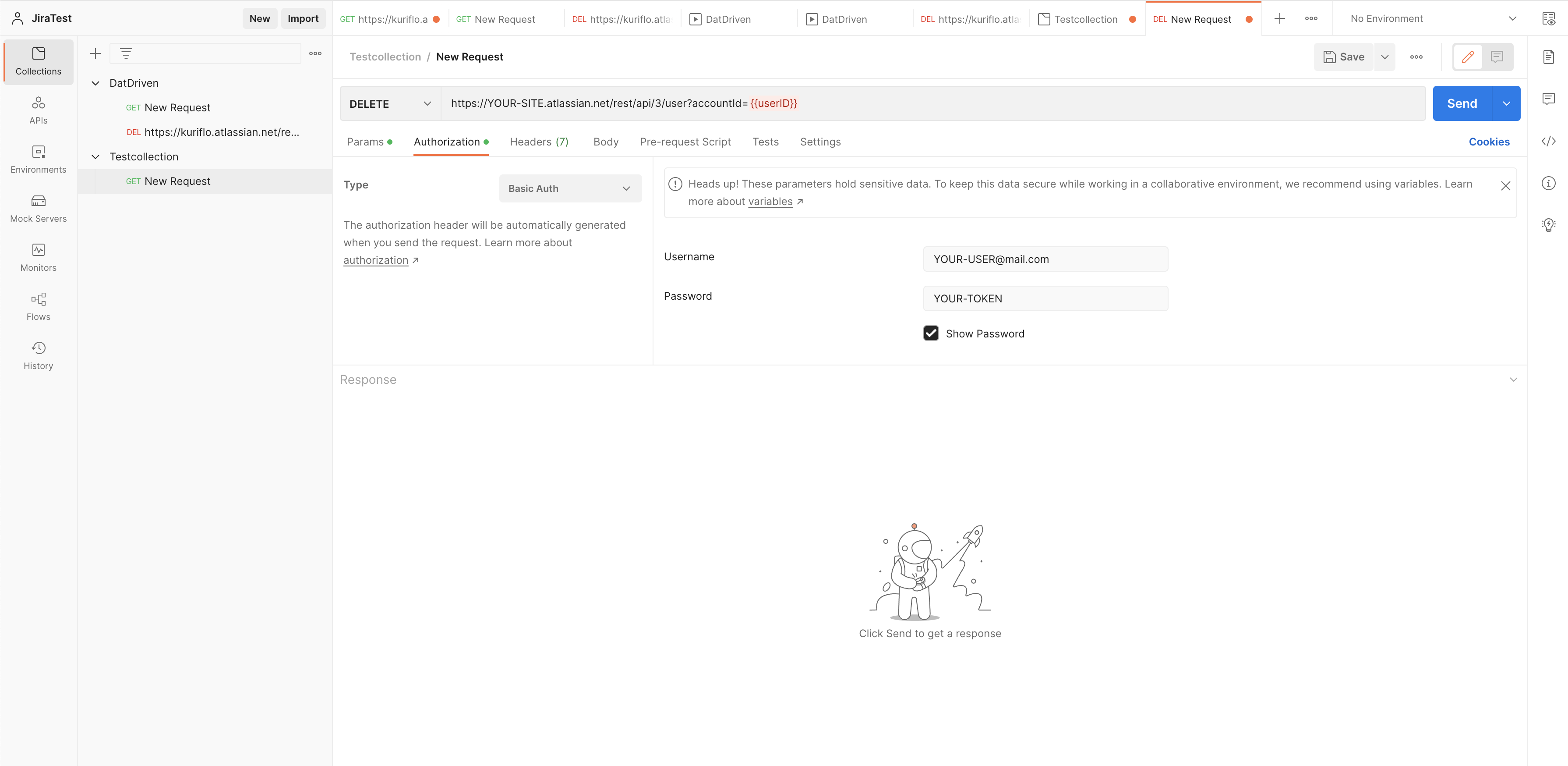
7. To create a delete request, you will need to add the following API, changing the URL to your instance URL. The variable in between the curly brackets needs to be the one set in your CSV file. https://YOUR-SITE.atlassian.net/rest/api/3/user?accountId={{userID}} You will also need to set Authorization to Basic Auth, add your user and token, and finally save the request.
Deleting accounts via the REST API is permanent. Verify that your CSV contains only the intended account IDs before running the collection — an incorrect ID deletes the wrong account. Test on a single row first.
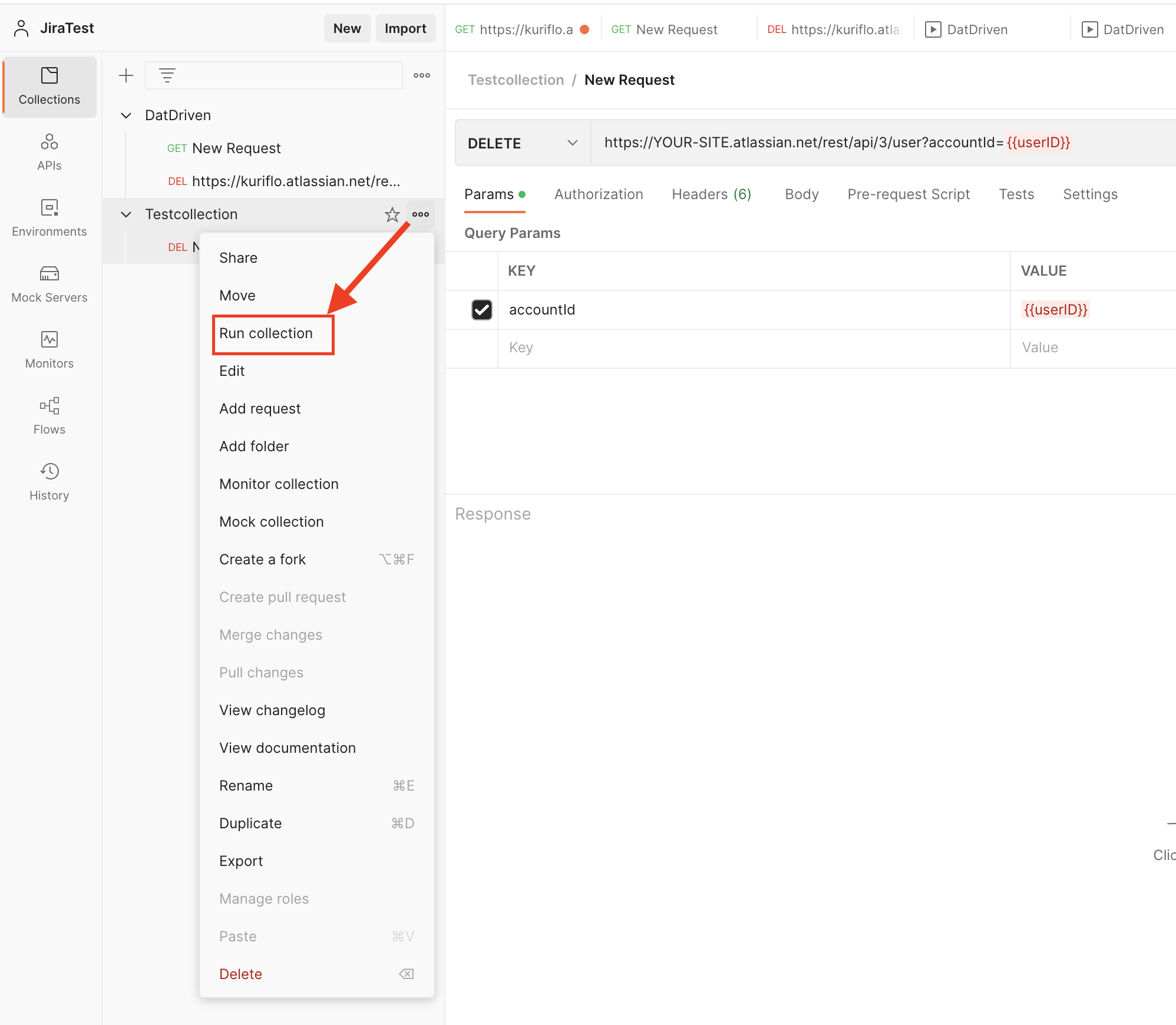
8. Click on the 3 dots next to the collection name that was created and select Run collection.
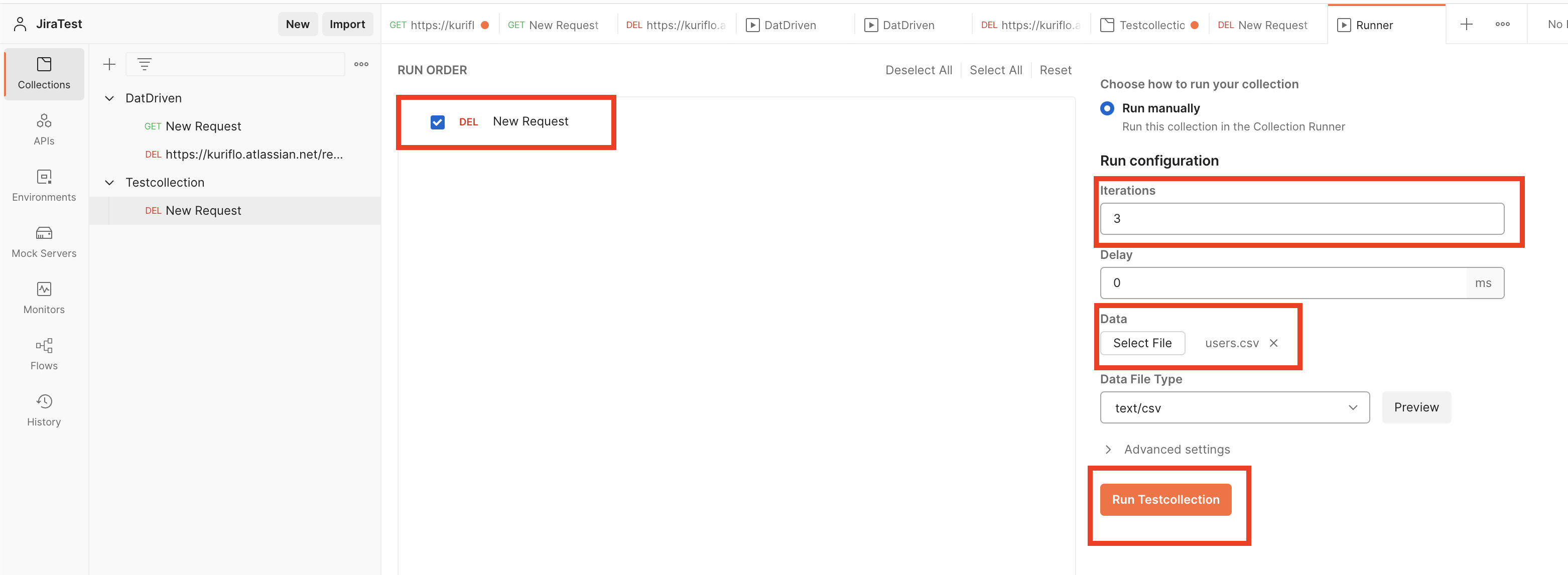
9. In the Run Order section, we will select the Delete request that was created, and in the Run configuration → Data, we will select the CSV file we have created with the users/customers to be deleted. We will see how many times the request runs in the Iterations section. Click on Run collection.
10. In the Summary window, you will see all the iterations that have run, and in the Console, you will see the API calls with the IDs that were sent. Once this has finished, log in to the instance and verify that the users and customers have been deleted.

Verification steps
In Postman's Run Summary, confirm that each iteration returned a success status (the Console shows the account IDs sent).
Log in to the instance and confirm that the users/customers no longer appear under User management / the Customers page.
Was this helpful?