Automatically Labeling Linked Issues Across Projects
Platform Notice: Cloud Only - This article only applies to Atlassian apps on the cloud platform.
Summary
The objective is to automatically add a specific label to the "Labels" field in an issue within one project whenever an issue from another project is linked to it. This ensures that relevant labels are added to the destination project, maintaining consistency and improving project management.
The objective is to automatically add a specific label to the "Labels" field in an issue within the IT project whenever an issue from the TSM1 project is linked to it. Specifically, when an issue from the TSM1 project is linked to an issue in the IT project, the label "TSM1" should be added to the IT issue. This automation helps in maintaining consistency across projects by ensuring that the IT project issues are correctly labeled whenever they are associated with issues from the TSM1 project.
Diagnosis
The need for this automation arose to ensure consistent labeling of issues across projects when they are linked. Without automation, manually adding labels can lead to errors or inconsistencies, especially in large projects with frequent cross-project issue linking.
The main requirements for the automation were:
Trigger: The rule should trigger whenever an issue from the TSM1 project is linked to an issue in the IT project.
Condition: The automation should only proceed if the linked issue belongs to the IT project.
Action: The label "TSM1" should be automatically added to the IT issue.
Solution
To address this need, a Jira automation rule was configured with the following components:
Rule component | Configuration in this example |
|---|---|
Trigger | Issue Linked |
Branch | For Linked Issues |
Condition |
|
Action | Edit Issue: Labels = |
1. Trigger: Issue Linked
The automation rule is triggered whenever an issue is linked to another issue. This ensures that the automation activates precisely when the desired action (linking of issues) occurs.
2. Branch: For Linked Issues
The rule then branches to handle the linked issue separately. This is critical to apply the conditions and actions specifically to the linked IT issue.
3. Condition: Project Key Equals IT
A condition is set to verify that the linked issue belongs to the IT project. The rule checks whether the destination issue's project key equals "IT".
First Value:
{{destinationIssue.fields.project.key}}Operator: Equals
Second Value:
IT
4. Action: Edit Issue (Add Label)
If the condition is met, the automation adds the label "TSM1" to the IT issue.
Field to Edit: Labels
Value:
TSM1
The branch evaluates the linked destination issue. The condition checks whether {{destinationIssue.fields.project.key}} equals IT.
When that condition is met, the Edit Issue action adds TSM1 to the Labels field on the IT issue.
Exact Steps to Automate Labeling Linked Issues Across Projects in Jira
1. Access Jira Automation
Navigate to your Jira project.
In the project sidebar, go to Project Settings.
Under Automation, click on Create Rule.
2. Set the Trigger: Issue Linked
Click on New Trigger.
From the list of triggers, select Issue Linked.
This trigger activates the rule whenever an issue is linked to another issue.
Click Save.
3. Add a Branch for Linked Issues
After setting the trigger, click on New Component and select Branch rule / related issues.
Choose For Linked Issues from the branch options.
This step creates a branch to handle the linked issue separately.
Click Save.
4. Set a Condition: Check Project Key
Inside the branch, click on New Condition.
Select Advanced compare condition.
Set up the condition as follows:
First Value:
{{destinationIssue.fields.project.key}}Condition: Equals
Second Value:
IT
This condition ensures that the rule only proceeds if the linked issue belongs to the IT project.
Click Save.
5. Add an Action: Edit the Linked Issue
After setting the condition, click on New Action inside the branch.
Select Edit Issue.
In the Field to Edit dropdown, choose Labels.
In the Value field, type
TSM1.This action will automatically add the label "TSM1" to the linked issue if it belongs to the IT project.
Click Save.
Screenshot showing the steps narrated above:
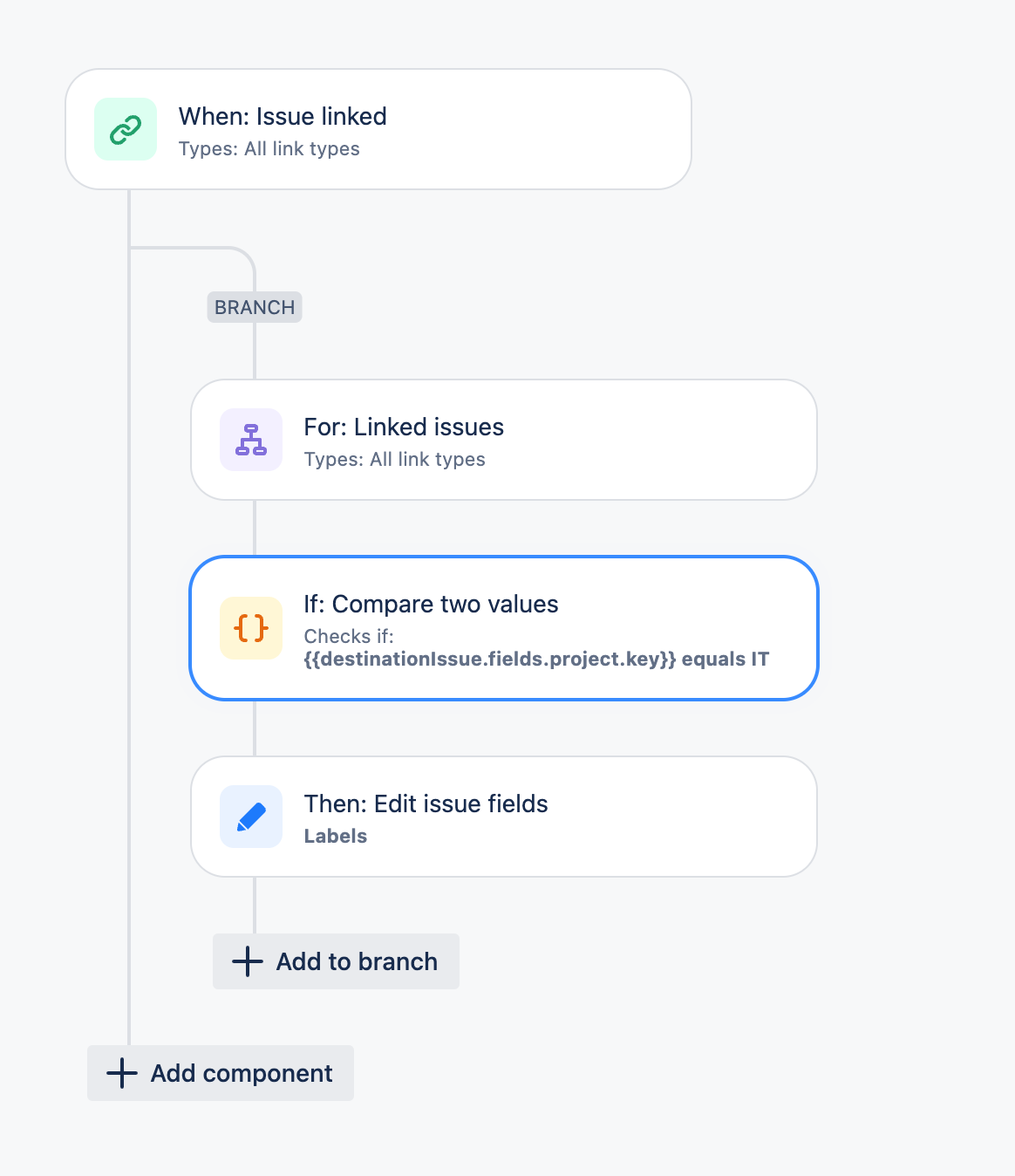
When an issue from TSM1 is linked to an issue in IT, the rule adds the TSM1 label to the IT issue.
Was this helpful?