Automatically Create Incidents from Alerts in Jira Service Management for a Specific Team
Platform Notice: Cloud Only - This article only applies to Atlassian apps on the cloud platform.
Summary
Context: By default, alerts in JSM Operations / Opsgenie are not auto-escalated to incidents. You create that behavior with an automation rule scoped to a specific Operations team. This article walks you through setting up that rule.
This article provides steps to automatically create incidents from alerts in Jira Service Management using Operation Teams automation rules. This setup helps streamline incident management by ensuring that any critical alert is escalated to an incident, allowing the support team to respond promptly.
Environment
Jira Service Management Cloud
Diagnosis
Users may encounter scenarios where they want incidents to be automatically created from alerts for specific teams or services without manual intervention. The need for automation typically arises to enhance response times and reduce manual effort in creating incidents from alerts.
Cause
This issue occurs because, by default, alerts generated in Opsgenie or Jira Service Management Operations are not automatically escalated to incidents. Users need to configure specific automation rules within Opsgenie to ensure that alerts are converted to incidents based on predefined conditions.
Solution
Quick overview - what you're building:
Open your Operations team's automation rules
Add a rule triggered on the alert condition (e.g., priority or tag)
Add a Create incident action that links the alert
Detailed steps follow below:
To automate the creation of incidents from alerts, follow the steps below:
Go to Teams from the main menu.
Select Operations.
Click on Automation.
In the Automation section, look for the template that suits your requirement.
Select the template named "When an alert is created → Create an incident".
Specify further conditions under which the rule should trigger
After configuring the necessary conditions and actions, click Save to activate the automation rule.
Basic setup screenshot for reference:
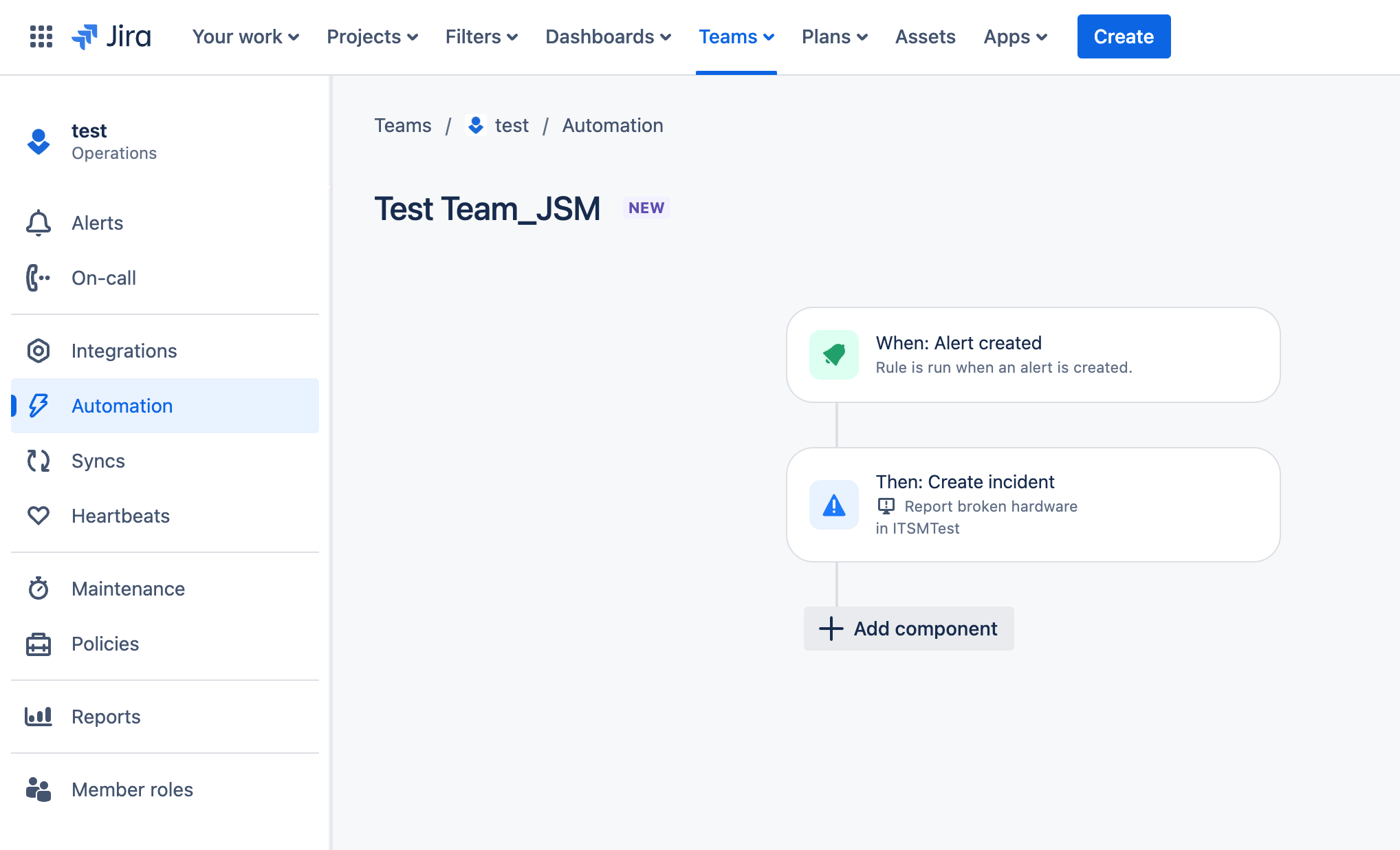
This setup will automatically generate an incident for each alert matching the specified conditions.
How do I know it worked?
Fire a test alert matching your configured condition (e.g., set the correct priority or tag). Confirm that:
An incident is automatically created
The incident is linked to the originating alert
The incident appears under the correct Operations team
See your JSM Operations team's automation settings to further configure the alert → incident rule.
Related Articles
Was this helpful?