How to Add Organizations Field to Dashboard with Automation in JSM Cloud
プラットフォームの注記: Cloud のみ - This article only applies to Atlassian apps on the クラウド プラットフォーム上のアトラシアン製品にのみ適用されます。
要約
Currently, in Jira Service Management, it is not possible to use the Organizations field in dashboard gadgets.
This article provides a step-by-step guide on using Automation to save the value of the Organization field to a custom field and then use the field on Dashboard gadgets.
関連する機能リクエスト
ソリューション
カスタム フィールドを設定する
Select Settings > Work items.
Under the Fields section, select Custom fields.
[選択リスト (単一選択)] タイプで [カスタム フィールドを作成] をクリックします。
Add a name to the field and populate it with the names of the existing Organizations on your site.
フィールドを画面と関連付けます。
Create the automation rule
Go to Project settings > Automation > Create rule.
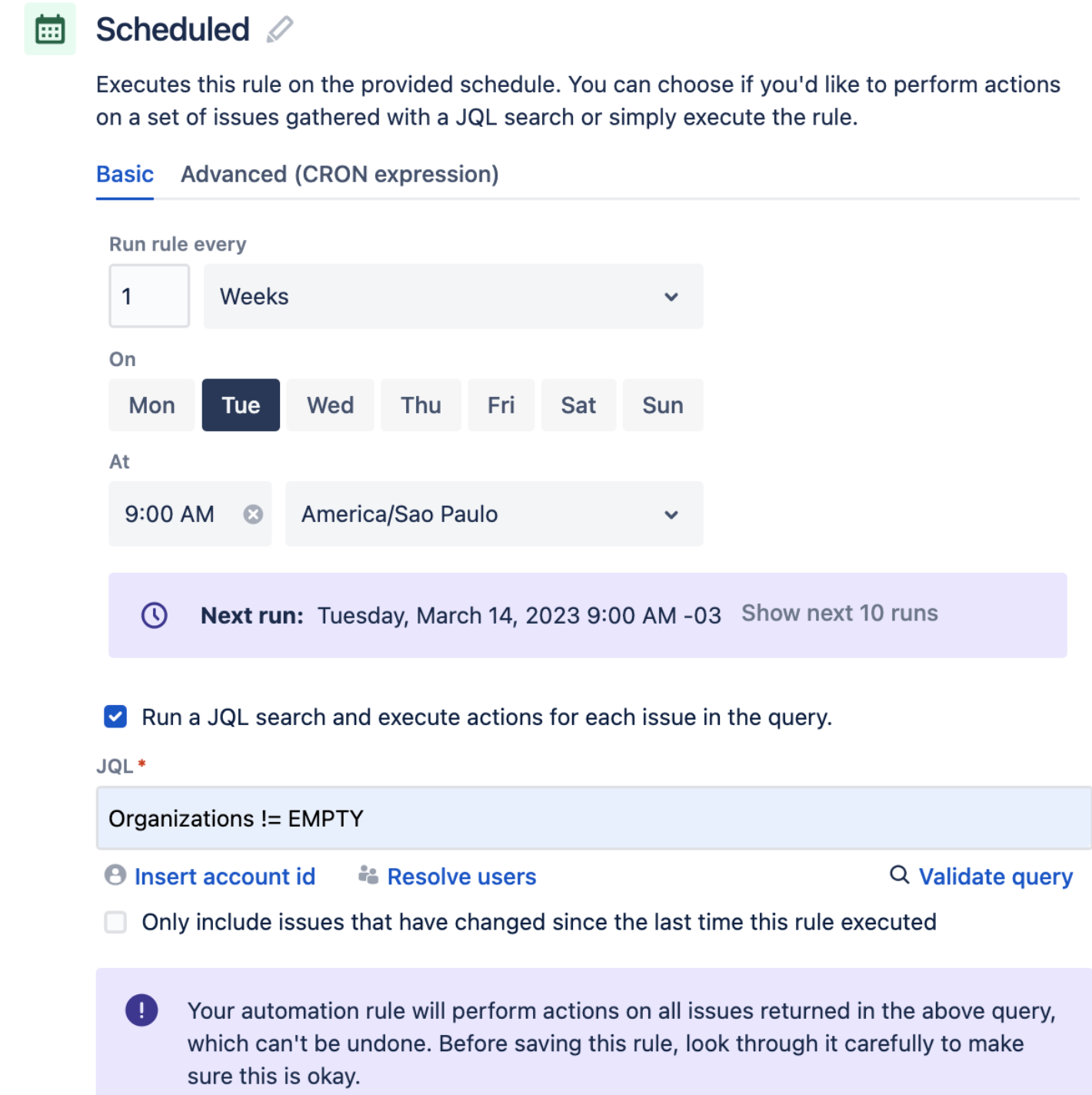
Create a new Trigger When: Scheduled.
Check the Run JQL search and execute actions for each issue in the query option.
Fill out the JQL search with this value: Organizations != EMPTY.
This JQL query will retrieve all the tickets that have a non-empty value in the ‘Organizations' field.
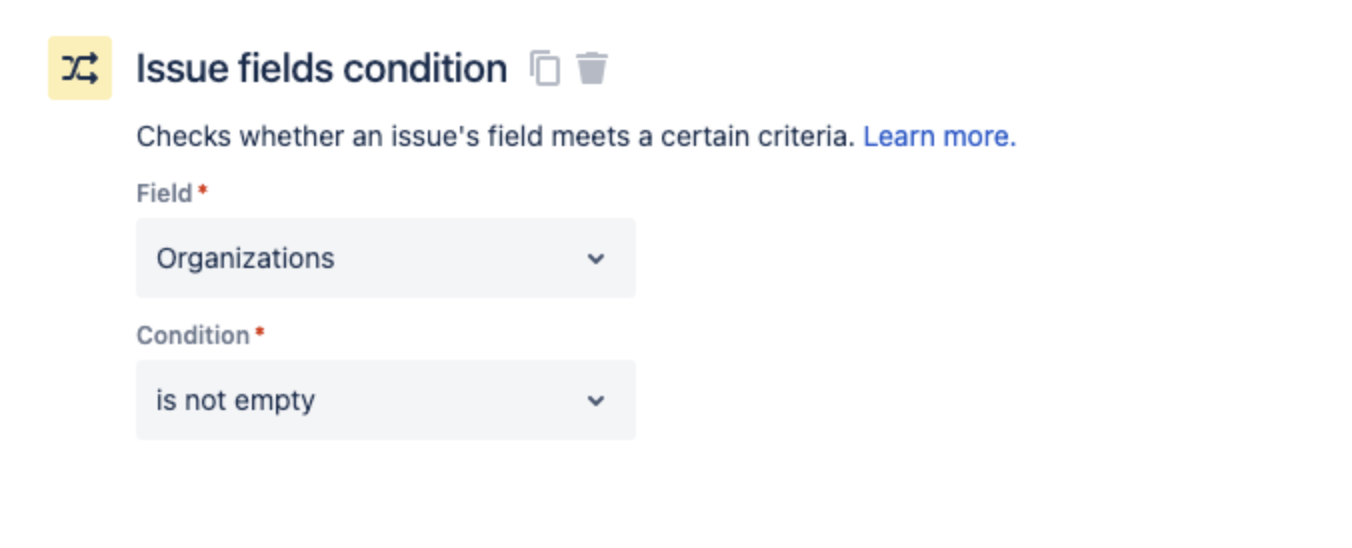
Add a new condition > Work Item fields condition > Fill out this condition with the following details:
Field: Select the Organizations field in the drop-down.
Condition: Select is not empty from the drop-down.
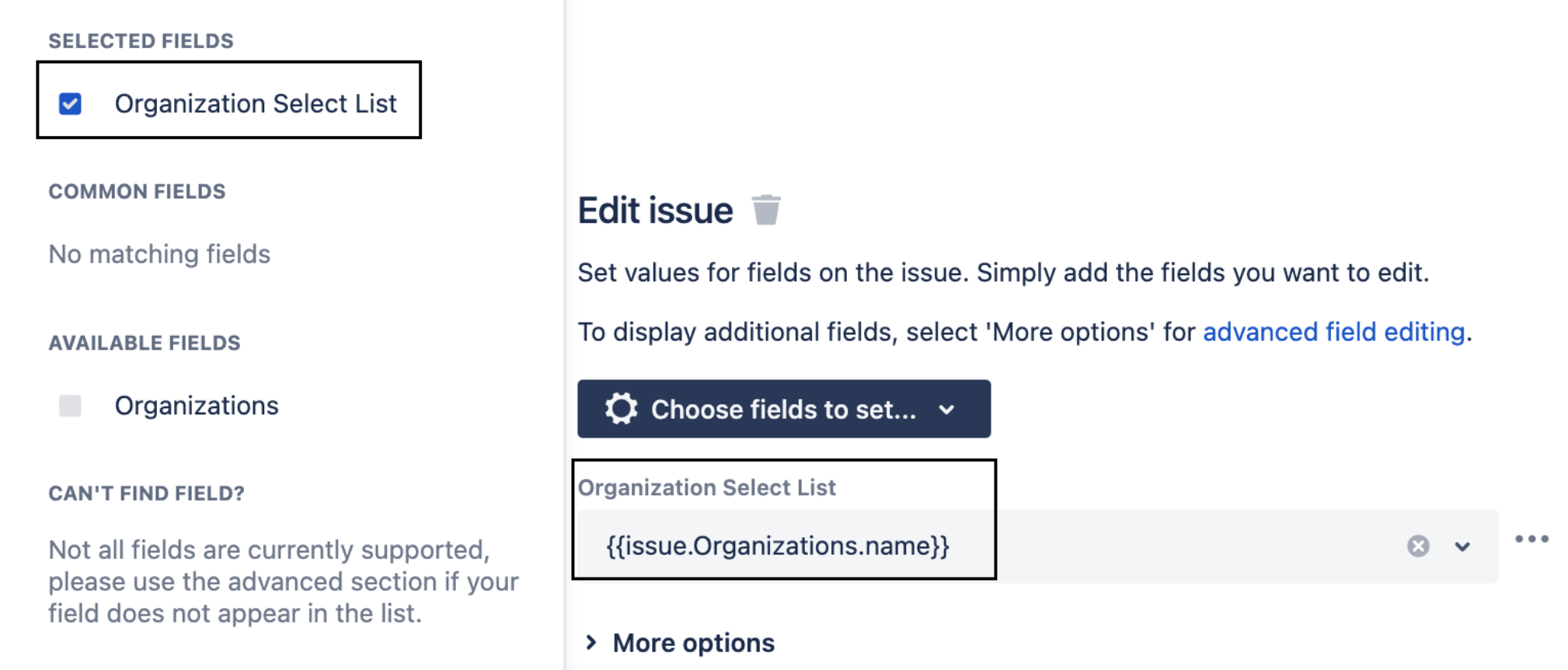
Select a new action > Edit Work Item Fields.
Select the custom field created and include the smart value: {{issue.Organizations.name}}.
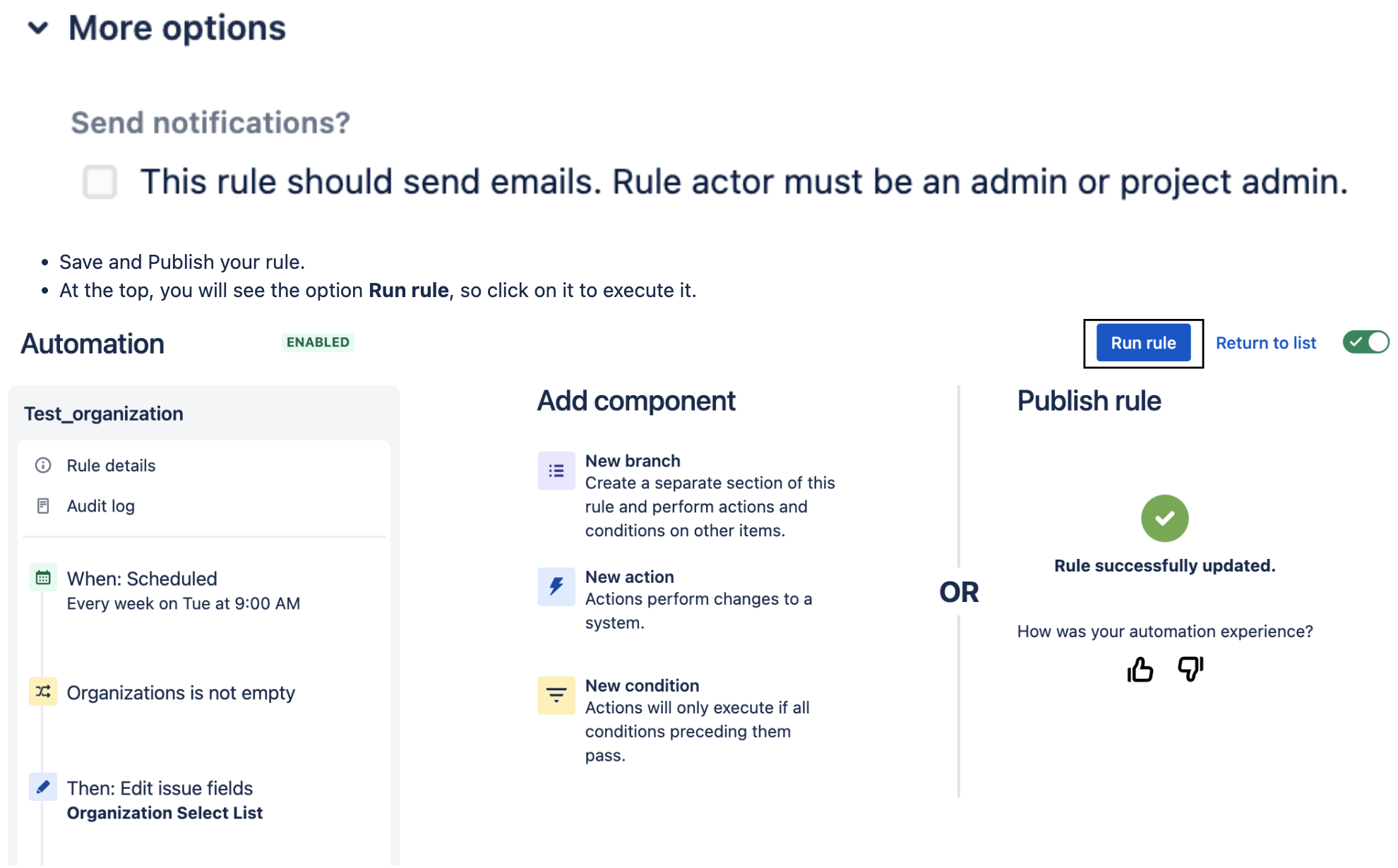
[その他のオプション] で、カスタム フィールド値の変更がユーザーに通知されないようにするため、[このルールはメールを送信する必要があります。ルール実行者は管理者かプロジェクト管理者でなければなりません。] オプションのチェックを外します。
警告
スケジュールされたルールは、一度に最大 100 項目まで更新できます。詳細については、「自動化サービスの制限」をご確認ください。
注 1: カスタム フィールド変数は大文字と小文字が区別されます。
注 2: 既存のチケットが更新された後は、トリガーを [課題の作成時] に変更すると、新しいチケットが作成されたらすぐにカスタム フィールドに入力できます。
Build a dashboard and use gadgets to report the number of tickets created by the Organization
[ダッシュボード] に移動し、新しいダッシュボードを作成します。
Add a new gadget (We choose Pie Chart for this example).
ガジェット設定で、フィルターまたはプロジェクトを選択し、[統計タイプ] でカスタム フィールドを選択します。
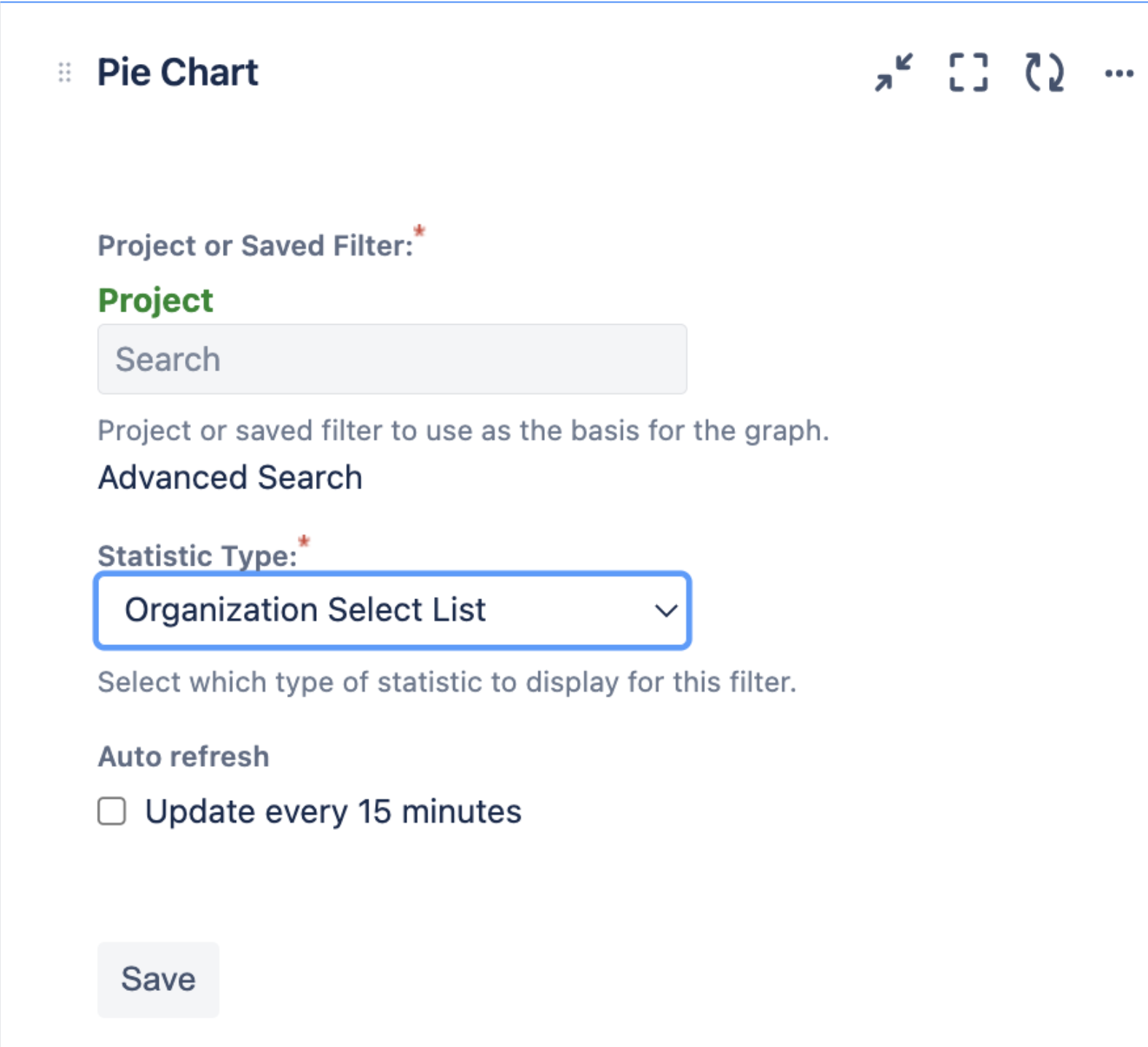
新しいガジェットを保存します。
関連ドキュメント
この内容はお役に立ちましたか?