Page tree is missing in Space navigation sidebar and Space is missing homepage
Platform Notice: Data Center Only - This article only applies to Atlassian apps on the Data Center platform.
Note that this KB was created for the Data Center version of the product. Data Center KBs for non-Data-Center-specific features may also work for Server versions of the product, however they have not been tested. Support for Server* products ended on February 15th 2024. If you are running a Server product, you can visit the Atlassian Server end of support announcement to review your migration options.
*Except Fisheye and Crucible
Summary
When accessing a Space, the page tree is missing from the navigation sidebar
The page tree is also missing from the Space Details section of the Space Overview
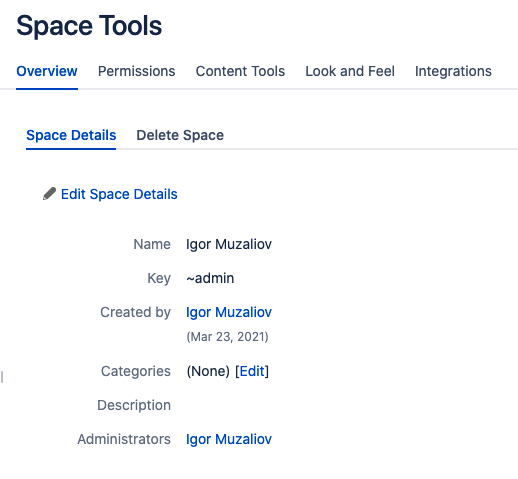
Diagnosis
Verify that the home page and page tree still exist from Space Tools > Content Tools > Reorder Pages.
From here, you should see a page tree with the root page typically called <Space Name> home.
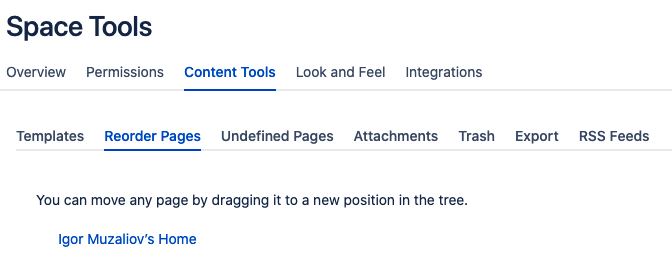
If the Page tree is missing, check whether it wasn't accidentally deleted from Space Tools > Content Tools > Trash. If it was, restore it.
Tip: If pages appear to be missing from the page tree but are actually present and simply restricted, the issue may be permissions-related rather than a missing home page. See How to List Pages with Restrictions | Confluence | Atlassian Support to rule out a permissions-visibility issue before following the steps above.
Cause
Either home page was accidentally deleted or the value for home page was deleted from Space Tools > Overview section.
Solution
If the original page tree with the home page at the root is still present in space, then try the following steps:
Go to Space Tools > Overview, click Edit Space Details
Start typing the original home page name inside the Home page section until the dropdown with the suggested page comes up
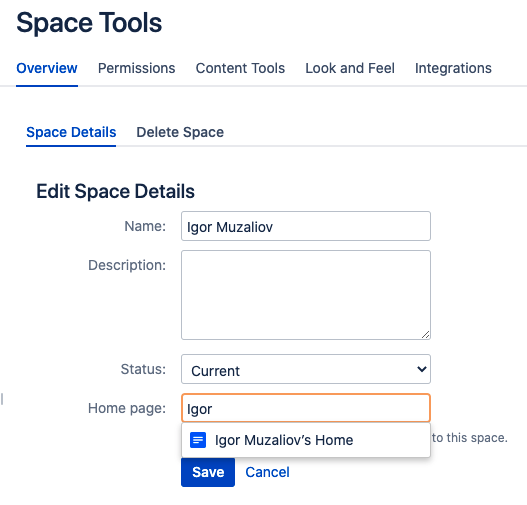
Select the page you wish to be Home Page and click Save
After saving, the Home Page field will be visible in the Overview tab and Space will have its page tree returned to the navigation pane

After setting the Home Page and saving, navigate away from Space Tools and reload the Space Overview page to confirm the page tree now appears in the navigation sidebar
If the original home page was permanently deleted (purged from Trash) rather than just unlinked, restoring it via Trash won't be possible. In that case, designate a different existing page as the new Home Page using the same Space Tools > Overview steps, then manually rebuild the page hierarchy underneath it.
Was this helpful?