How to put an iframe into Confluence
Platform Notice: Data Center Only - This article only applies to Atlassian apps on the Data Center platform.
Note that this KB was created for the Data Center version of the product. Data Center KBs for non-Data-Center-specific features may also work for Server versions of the product, however they have not been tested. Support for Server* products ended on February 15th 2024. If you are running a Server product, you can visit the Atlassian Server end of support announcement to review your migration options.
*Except Fisheye and Crucible
Summary
Before you start — check whether the site you want to embed allows iframing:
Many websites set HTTP response headers (such as X-Frame-Options: SAMEORIGIN, X-Frame-Options: DENY, or Content-Security-Policy: frame-ancestors) that prevent the page from being displayed in an iframe at all. If the target site sends any of these headers, no Confluence configuration will make the iframe render — the browser will block it.
Examples of sites that block iframing include Google, Facebook, and many SaaS apps. Confluence itself also blocks being iframed (see Confluence page does not display in an iframe in Confluence Data Center).
To check headers before adding an iframe: open your browser's developer tools (F12 or Cmd+Opt+I), Network tab, load the target URL, and look at the response headers for the top-level document.
An iframe (inline frame) is a way to show one webpage inside another webpage. You use the iframe element to add content from another source.
Although an iframe behaves like an inline image, it can be configured with its own scrollbar independent of the scrollbar on the surrounding page.
Please note that some sites don't work in an iframe. These have cross-site scripting protection in their headers. For example, Google has
x-frame-options: SAMEORIGIN
x-xss-protection: 1; mode=block
If these (or similar) are present in the response from the website, then you will not be able to display them in an iframe. Both Google and Facebook are examples of this. Confluence also has protection to stop itself from being displayed. Please see Confluence page does not display in an iframe in Confluence Data Center for more information.
Solution
Log in as Confluence Administrator
Go to Administration (cog) > Manage Apps
Search for "Confluence HTML Macros" with "All apps" selected in the dropdown
Under "System apps", select Confluence HTML Macros to expand the app details
Expand the modules in the right column
Enable the module called "html (html-xhtml)"

The HTML macro is now available. When creating or editing a page, insert the "HTML" macro:
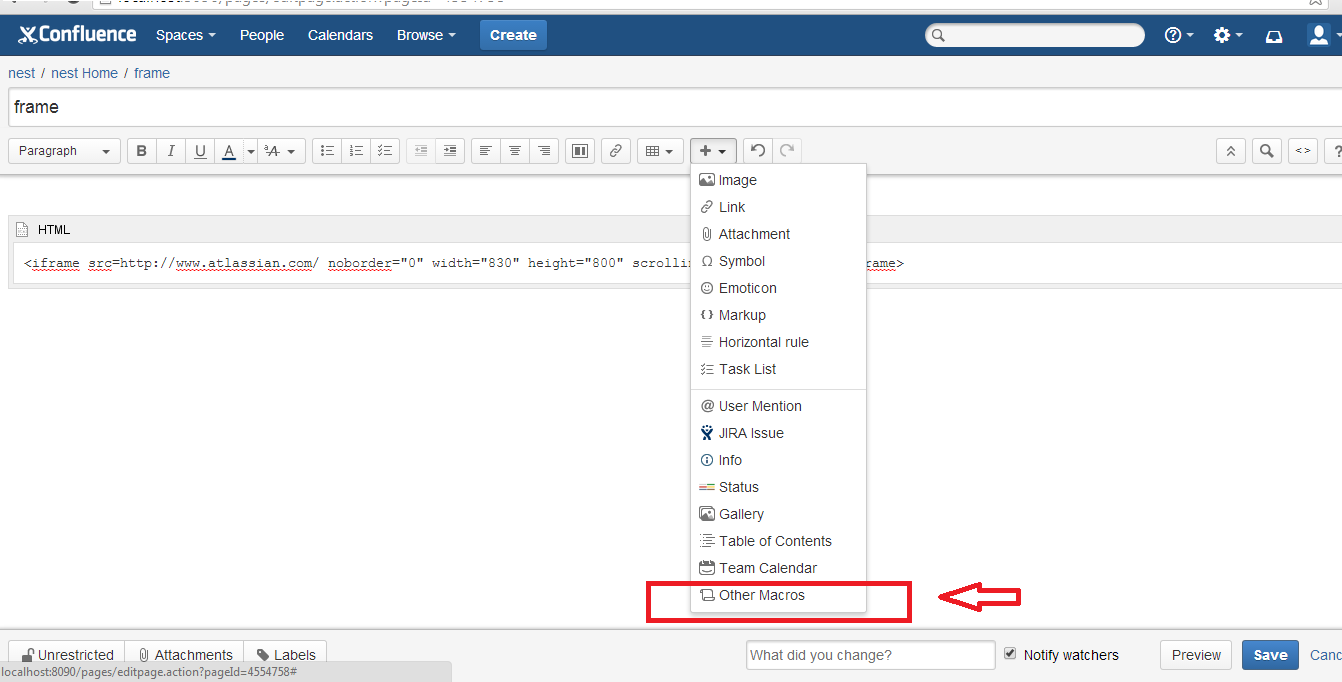
Go to + (Insert more content) > Other macros
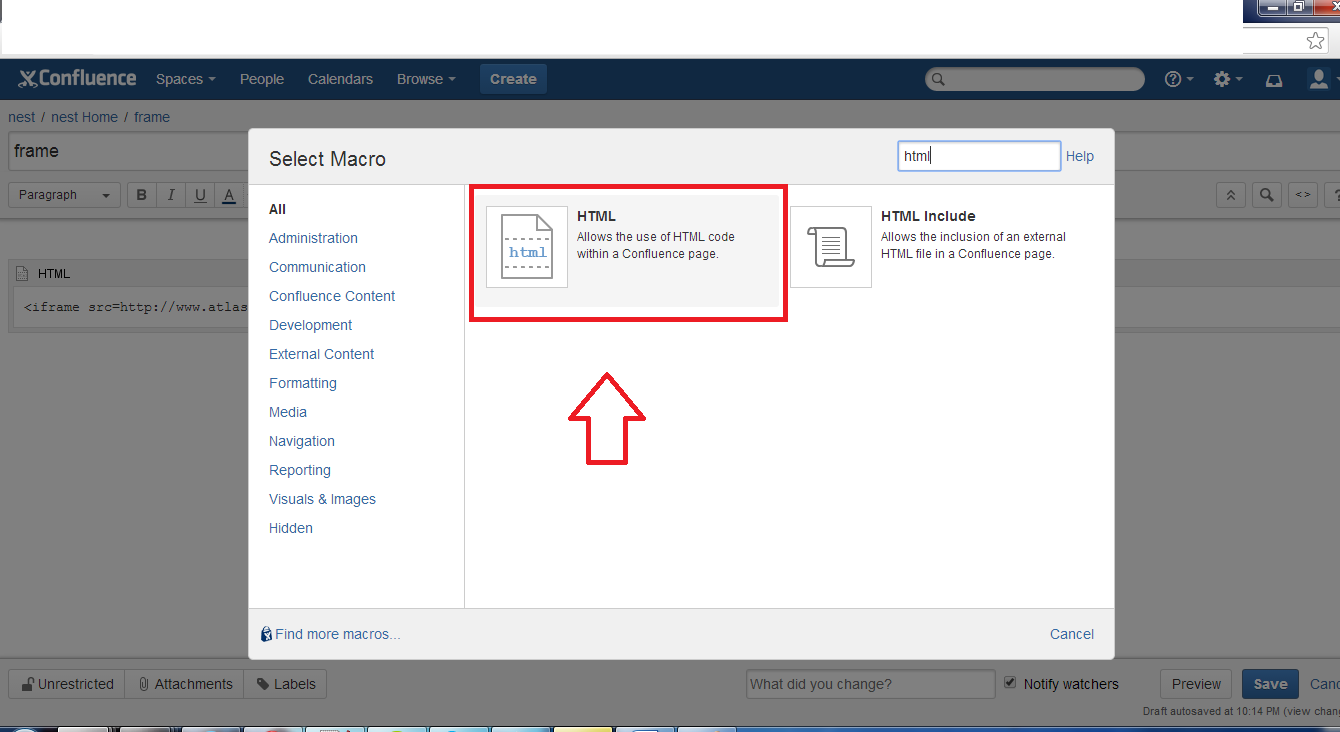
Search for the HTML macro
Paste the following code inside the macro, replacing URL with the website you want to include. Modify the other parameters as you see fit.
Iframe
<iframe src="URL" noborder="0" width="830" height="800" scrolling="yes" seamless></iframe>
Save the page
Verify the iframe works:
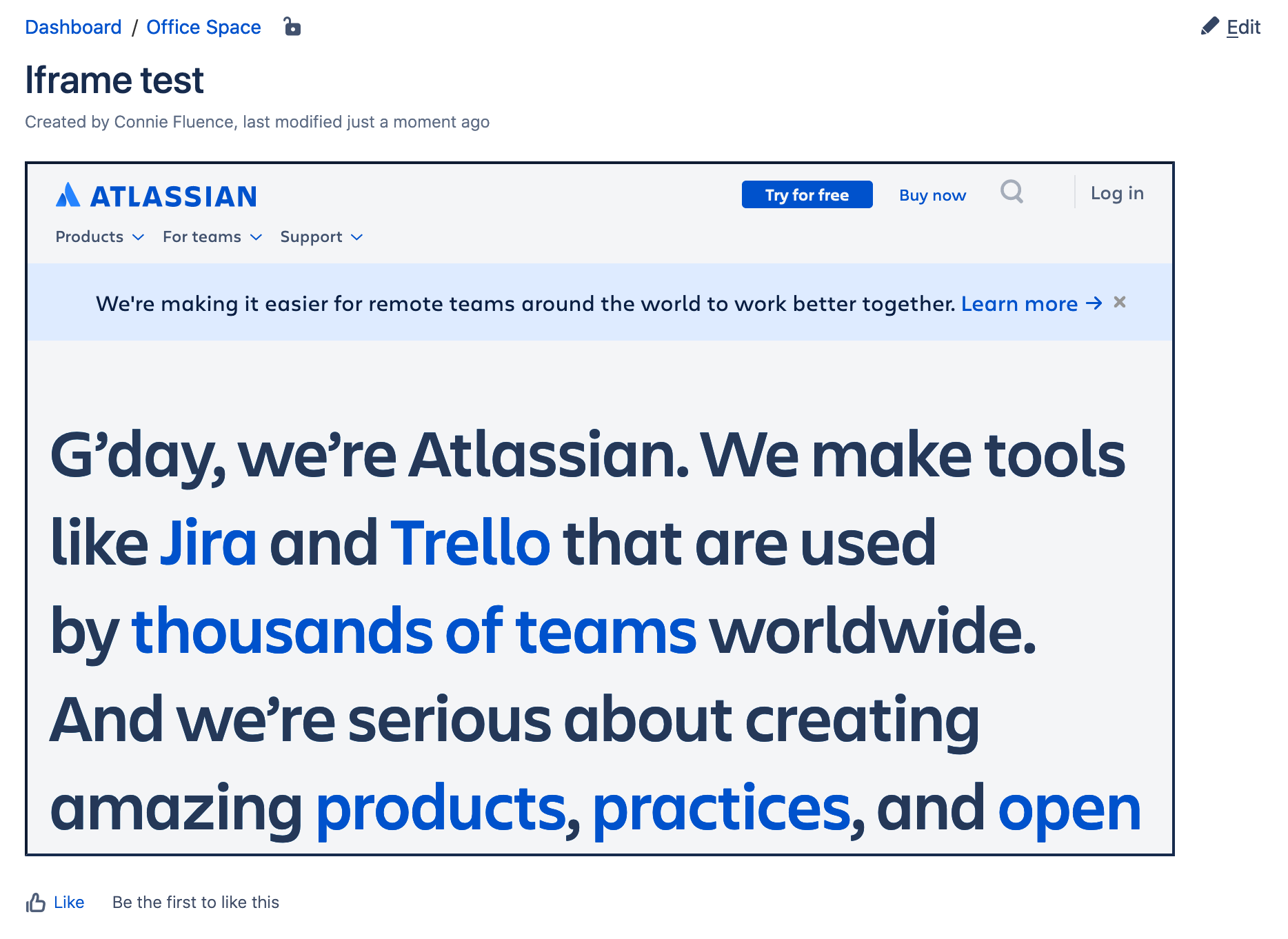
After saving the page, the iframe should render with the target site's content.
If the iframe is empty or shows a "refused to connect" error, the target site is blocking iframing via response headers (see the "Before you start" section at the top).
If the iframe loads but is the wrong size, adjust the
widthandheightparameters in the macro.
Security considerations before enabling the HTML macro:
Enabling the HTML macro allows any user with edit access to insert arbitrary HTML and JavaScript into Confluence pages. This expands the attack surface for cross-site scripting (XSS) and is not recommended for instances with untrusted contributors.
Before enabling, consider:
Limit page edit permissions to trusted users only.
Review existing HTML macro use periodically.
If the iframe use case is limited and well-defined, evaluate whether a vetted Marketplace iframe macro (with restricted parameters) is a lower-risk alternative.
Alternatively, there are apps available that provide similar functionality that do not require the HTML macro, can provide a smaller attack surface, and can provide increased security. Please note that Atlassian does not provide support for these apps but they can be used as an alternative if there are security concerns with the HTML macro.
Related articles
Was this helpful?